


Google Sheets macros let you record a routine task once, such as formatting a table or tidying up a report, and replay it with a click or a keyboard shortcut. You don’t need to write code to record one, and every macro is saved as Google Apps Script, so you can edit it later.
This guide explains what macros are, why Google Sheets has no setting to enable them, and how to record, run, edit, and import your own. It ends with two examples you can copy.
What are Google Sheets macros?
Macros are small programs that you can create within Google Sheets. Since you don’t need to use code, it’s become a highly valuable feature to automate repetitive tasks, regardless of the user level. For example, if a regular task in your day-to-day is to format tables following a specific process, you can record this process with the macro recorder (see the last section in this article for more detailed examples).
There’s an obvious advantage – apart from saving you tons of manual work – and it’s that Google Sheets macros can help you focus on higher-value tasks for your business. For example, you can use macros to automate advanced analysis or develop complex formulas. By recording tasks such as filtering or formatting data input, you’ll also be able to deliver more accurate and consistent information.
The macro recorder is a Google Sheets feature. Google Docs and Google Slides don’t have one, so automating them means writing Apps Script yourself.
How to enable macros in Google Sheets
Google Sheets has no setting to enable macros. In Excel, security settings can block macros until you allow them, but in Google Sheets they work by default. The only thing you approve is a one-time authorization: the first time you run a macro, Google asks for permission to let its Apps Script code work with your spreadsheet. Steps 6 to 8 in the next section show those prompts.
Say a colleague has shared a spreadsheet with a recorded macro that speeds up table formatting. This is how to find and run it.
1. Open the Google Sheets containing the recorded macro and head over to Extensions > Macros.
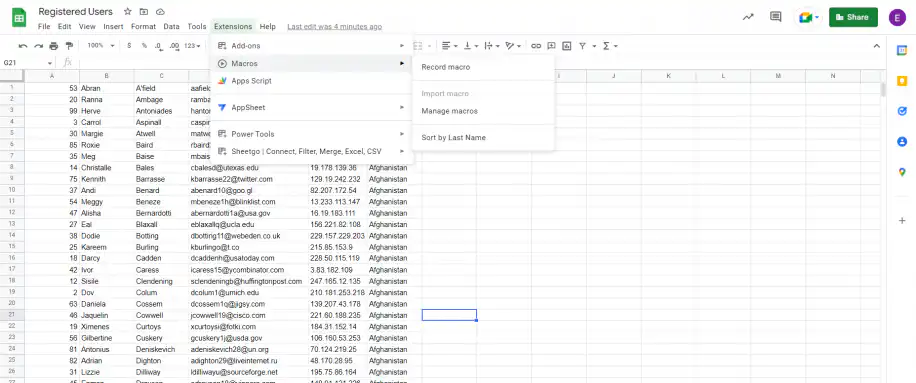
2. You should see a list of macros. To run one, click on it.
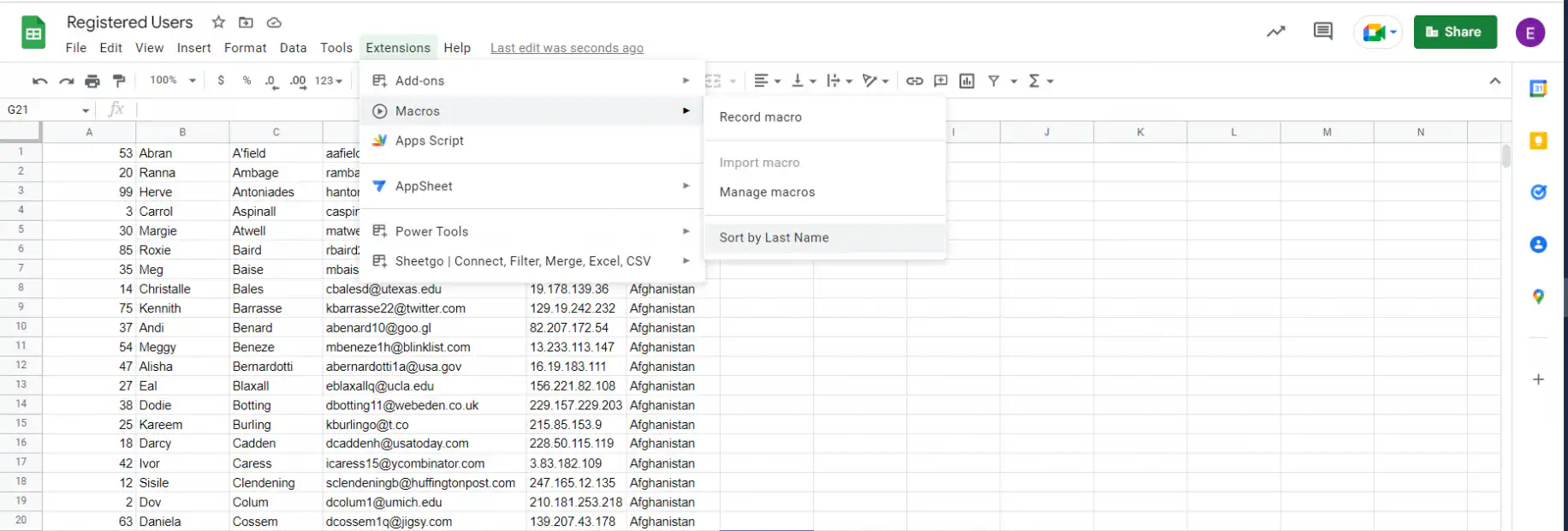
Tip: If the macro has a shortcut number, you can also run it by pressing Ctrl + Alt + Shift and that number, for example Ctrl + Alt + Shift + 1. Our Google Sheets keyboard shortcuts guide lists many more.
If you don’t see a list of macros, the spreadsheet has no recorded macros yet. Let’s see how you can record your own macro in a few simple steps.
How to create macros in Google Sheets
1. Open a new Google Sheet and head over to Extensions > Macros > Record macro.
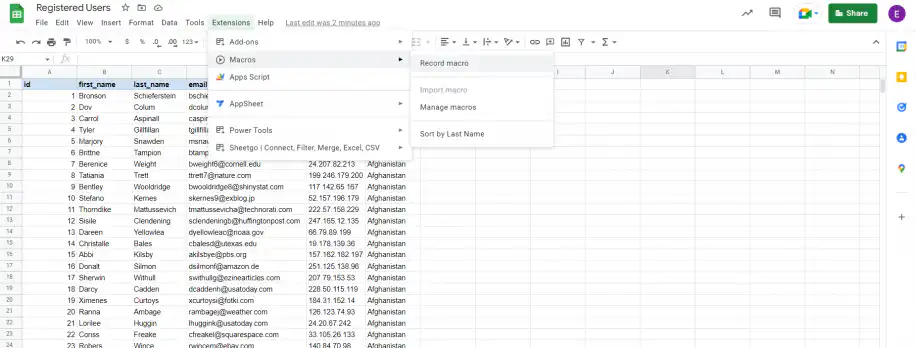
Tip: To create a Google Sheet without going into your Drive, type “sheets.new” into your browser. If you are in your Drive, you can press Shift + s.
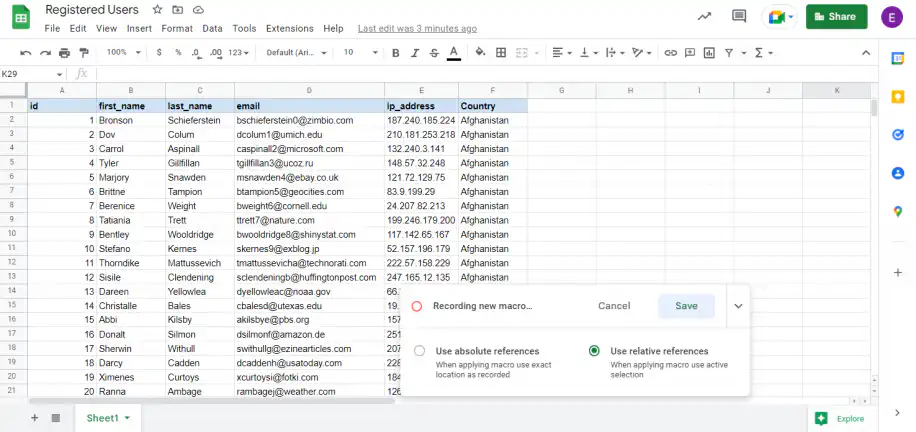
2. In the box below, you’ll see two options: “Use absolute references” or “Use relative references”. If you intend to repeat the same calculation across multiple rows or columns, select the “Use relative references” option.
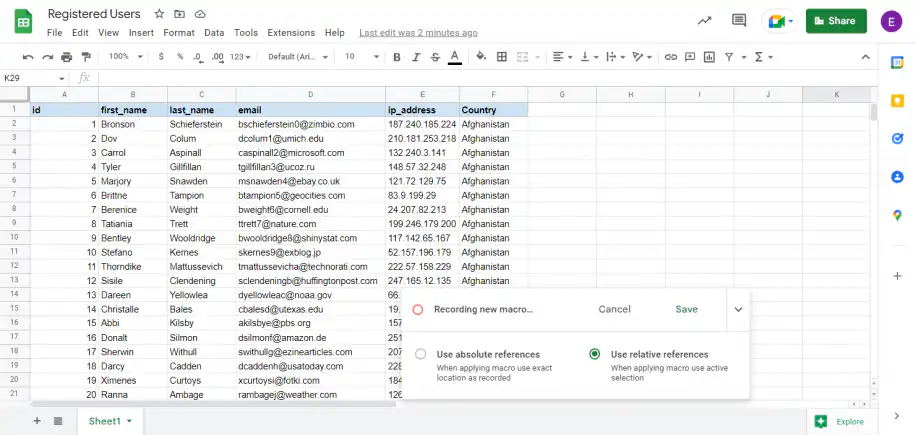
Tip: Use absolute references if you want to apply the macro to new sets of data that have the same range location every time you run it. Relative references are more commonly used when you need to apply formulas to cells. Take into account that the macro will apply to the cell where your cursor is at that moment.
3. The macro recorder will show every action you take. Once you’ve finished your task, click “Save”.
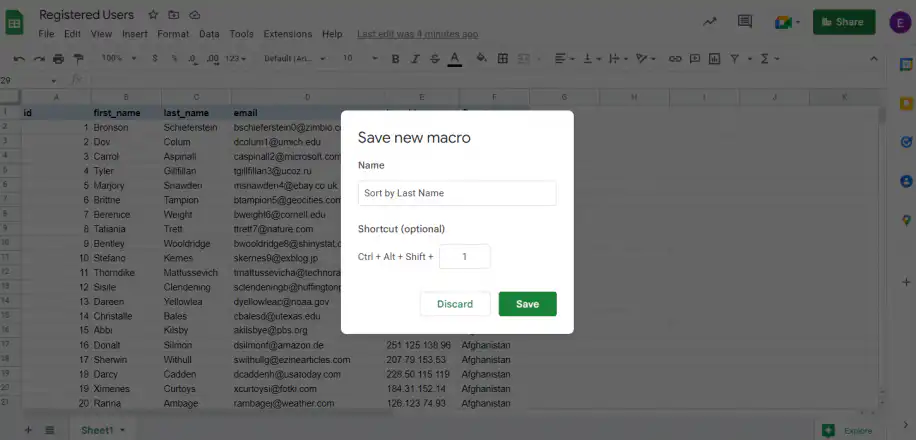
4. In the “Save new macro” dialog box, provide a name. Optionally, you can enter a number from 0-9 to create your own shortcut to run that macro. Click “Save” to finish.
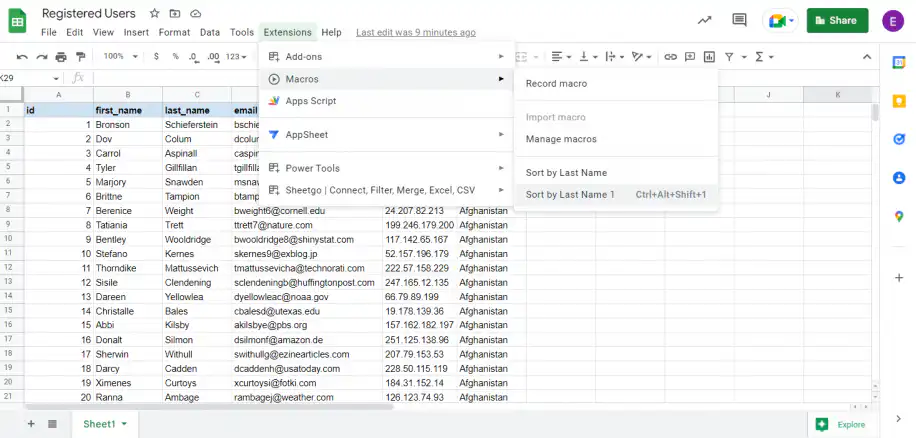
5. Head over to Extensions > Macros. To run the macro, click on it.
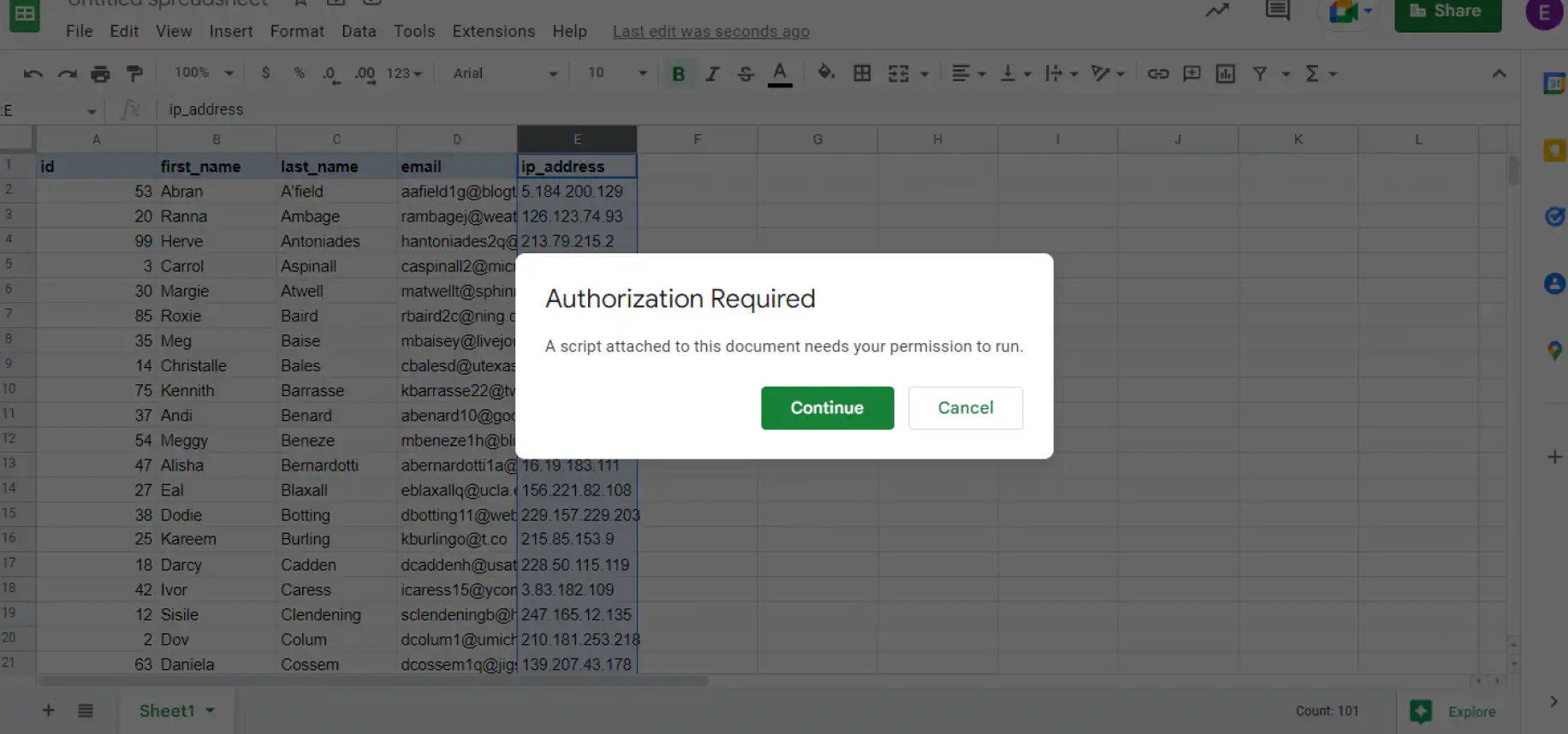
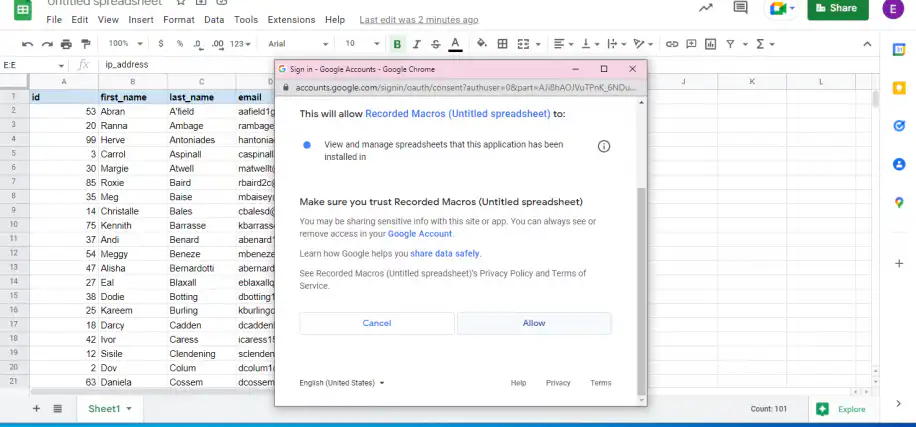
6. The first time you run a macro, Google Sheets asks for permission. Click “Continue”.
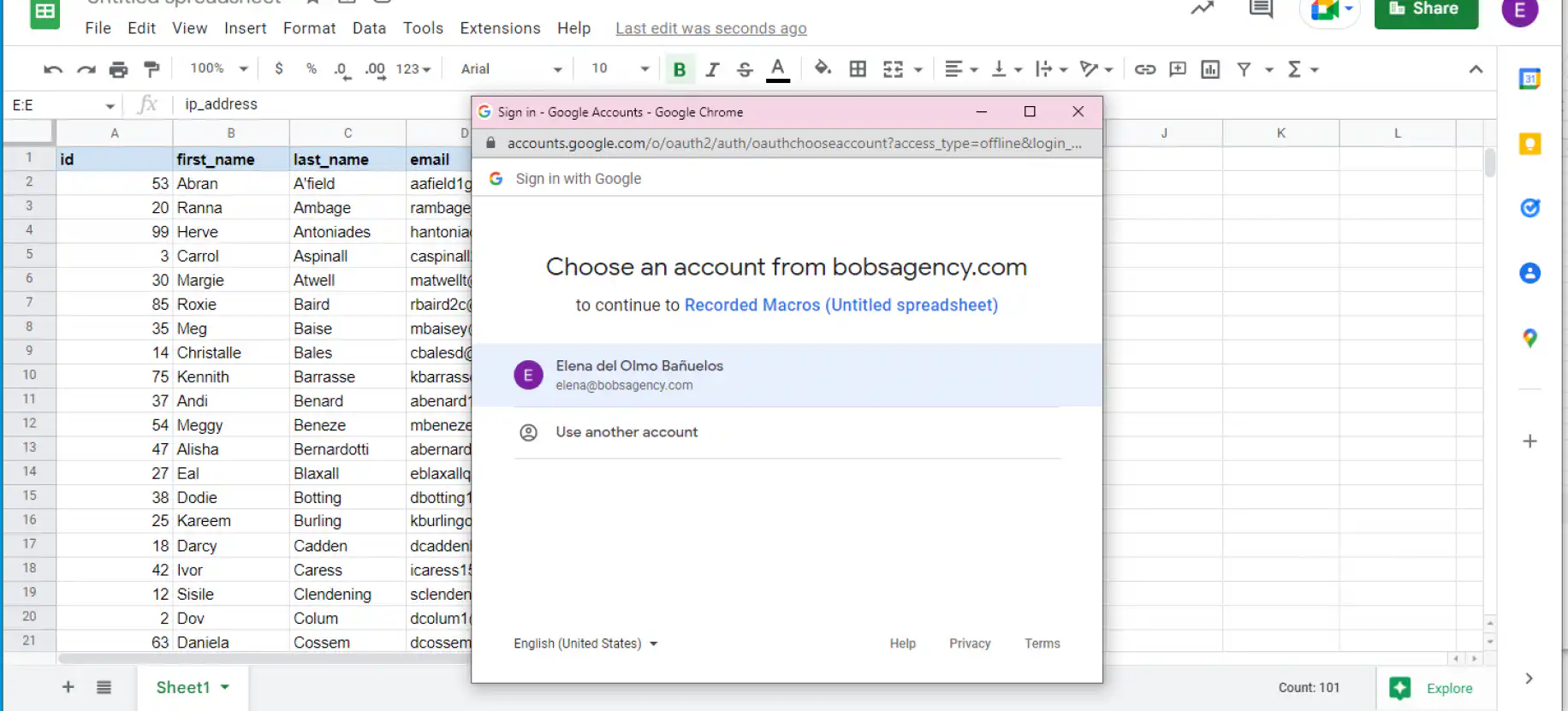
7. Select the Google account you’d like to run this macro on.
8. Click on “Allow” to confirm that you trust the recorded macro.
How to edit, rename, or delete a macro
Every macro you record is saved as a function in the spreadsheet’s Apps Script project. To manage your macros, go to Extensions > Macros > Manage macros. There you can rename a macro or change its shortcut number. Click the three-dot menu next to a macro and choose Edit script to open its code in Apps Script, or Remove to delete it from the Macros menu.
Removing a macro doesn’t delete its code. The function stays in the Apps Script project until you delete it there too.
How to use macros in Google Sheets: examples
So far, we’ve shown basic examples to illustrate how to enable and create Google Sheets macros. You can also build macros from code with Google Apps Script, the Google Sheets equivalent of Visual Basic for Applications (VBA) in Excel. Don’t worry! There are ready-made codes for repeatable tasks, so you still don’t need to learn a single line of code.
Example 1: sort all your sheets alphabetically
If your spreadsheet has many named tabs, this code puts them in alphabetical order. For more ways to handle tabs, see how to work with multiple sheets.
1. Open Google Sheets and go to Extensions > Apps Script.
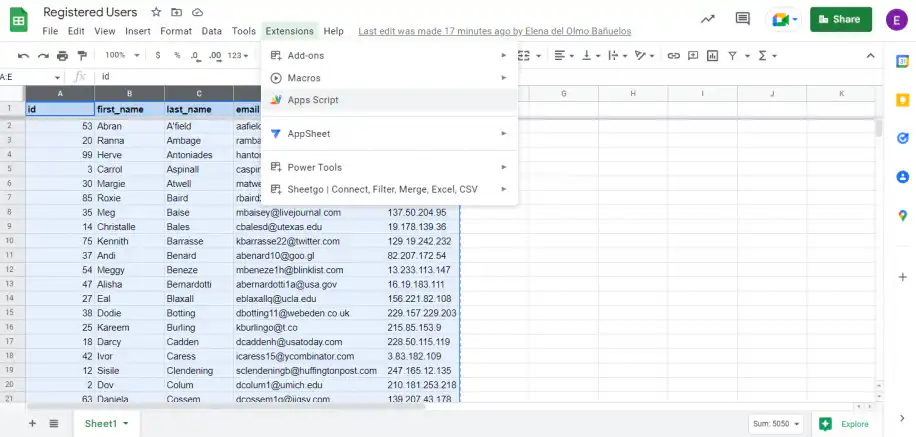
2. A new tab will open in your browser. Copy and paste the following code onto a new line:
// sort sheets alphabetically
function sortSheets() {
  var spreadsheet = SpreadsheetApp.getActiveSpreadsheet();
  var sheets = spreadsheet.getSheets();
  var sheetNames = [];
  sheets.forEach(function(sheet, i) {
    sheetNames.push(sheet.getName());
  });
  sheetNames.sort().forEach(function(sheet, i) {
    spreadsheet.getSheetByName(sheet).activate();
    spreadsheet.moveActiveSheet(i + 1);
  });
}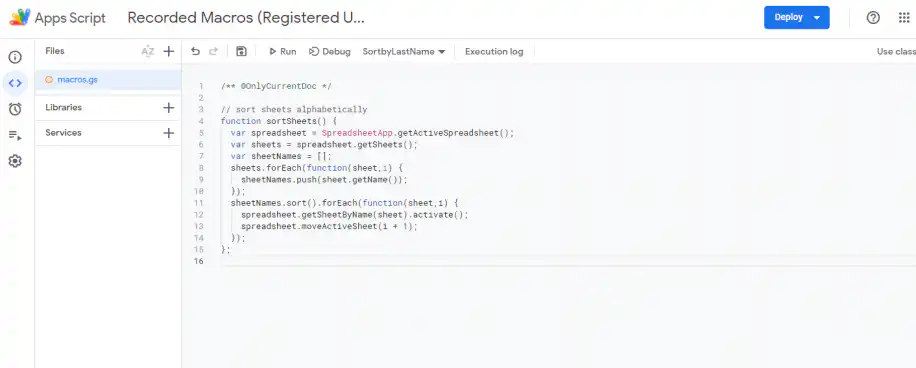
3. Don’t forget to save the script by clicking on the disk icon, as shown below.
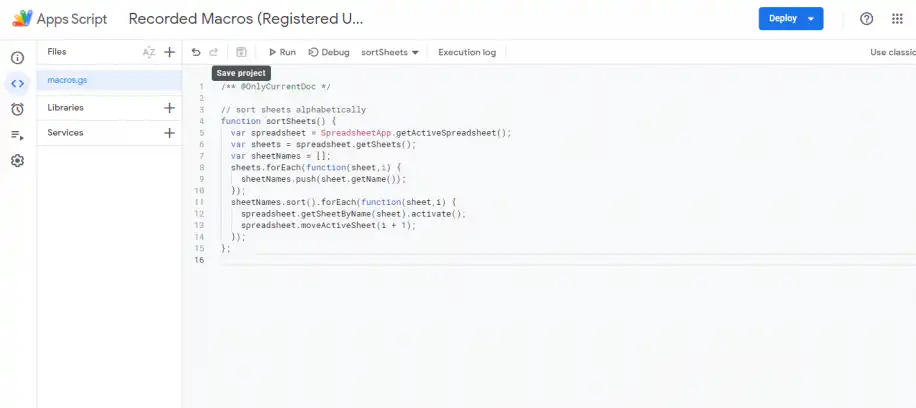
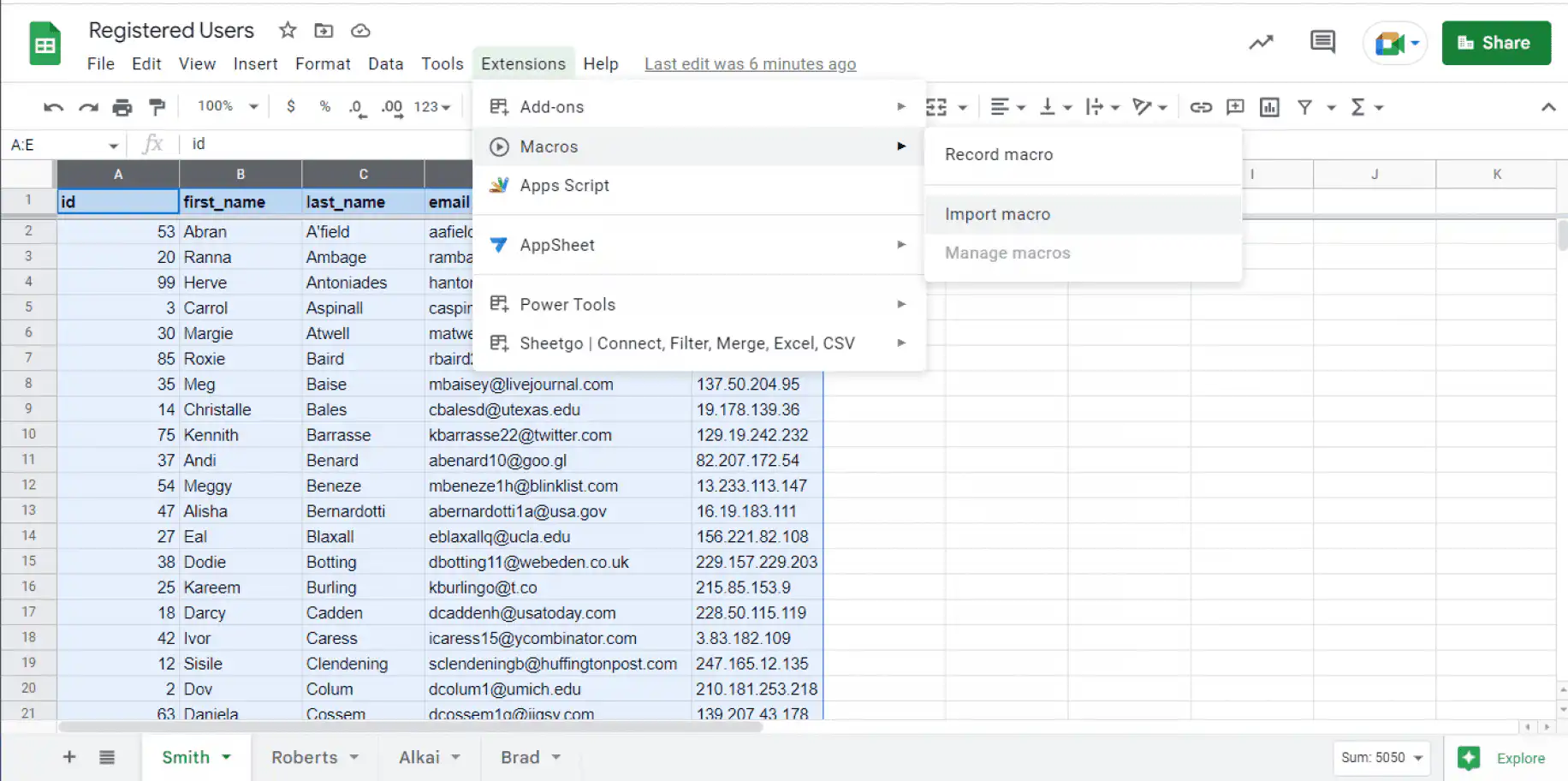
4. Back in your spreadsheet, go to Extensions > Macros > Import macro to import this function as a macro.
Tip: If Import macro is greyed out, Google Sheets hasn’t found a function it can import. Functions already in the Macros menu don’t count. Save the script, reload the spreadsheet, and try again.
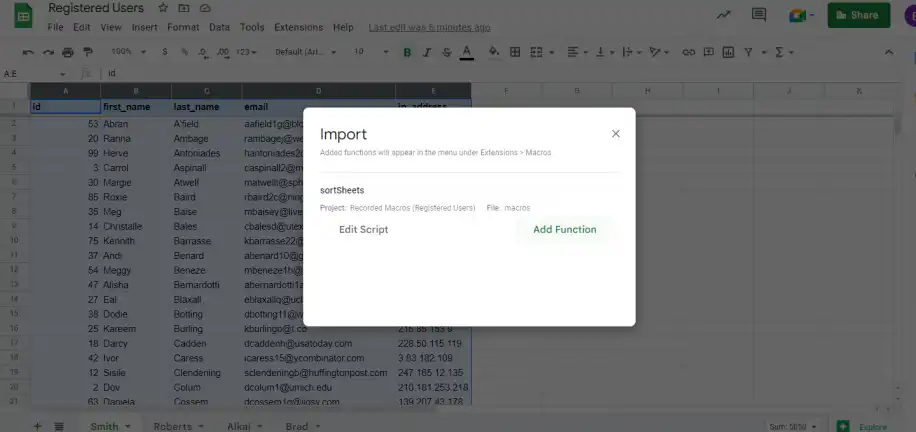
5. Click on “Add Function” to add to your list of macros.
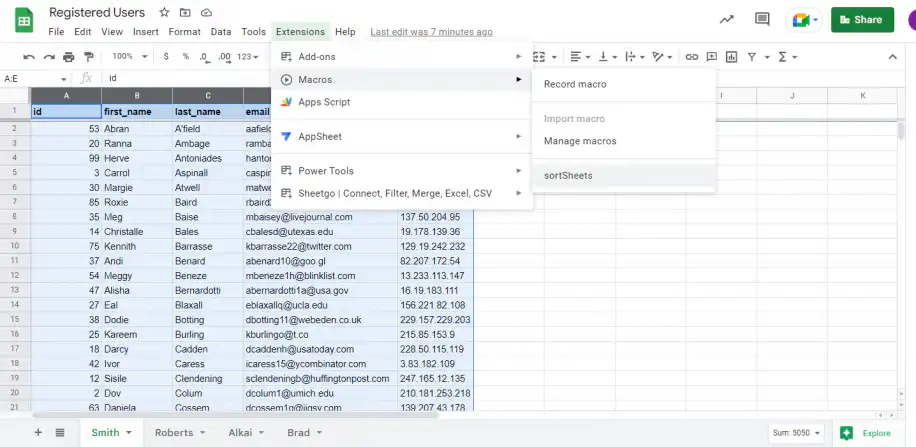
6. Go to Extensions > Macros and click on the macro you just imported.
7. Google Sheets will automatically sort your sheets in alphabetical order, as shown below.
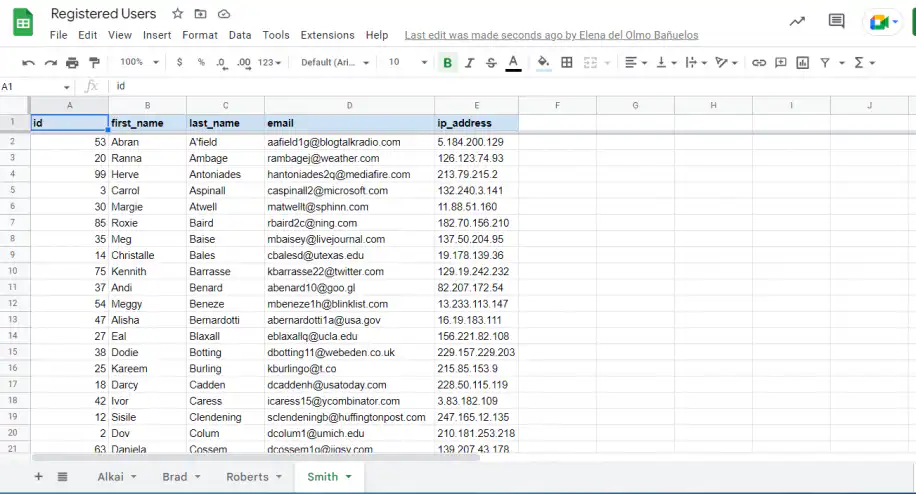
That’s it: you’ve turned an Apps Script function into a Google Sheets macro.
Example 2: reset all filters
Filters are commonly used to visualize and interpret your data better and more clearly. However, not everyone in your team might be interested in your filtering and need to remove these every time you share the data. This macro clears them in one go. If teammates need their own view of the same data, filter views let each person filter without affecting other users.
1. Open Google Sheets and go to Extensions > Apps Script.
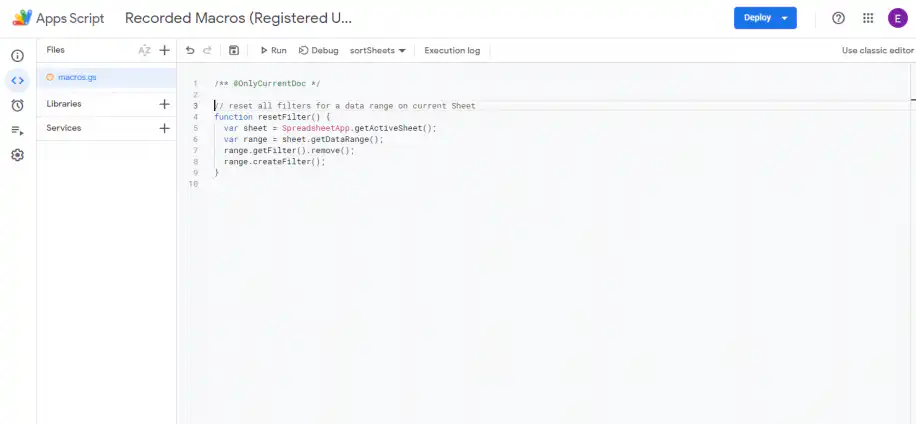
2. A new tab will open in your browser. Copy and paste the following code onto a new line:
// reset all filters for a data range on current Sheet
function resetFilter() {
  var sheet = SpreadsheetApp.getActiveSheet();
  var range = sheet.getDataRange();
  range.getFilter().remove();
  range.createFilter();
}
3. Follow steps 3-6 from the previous example.
Like before, as soon as you run the macro, Google Sheets will automatically reset any filter you created in a matter of seconds.
Conclusion
While Excel offers powerful features to automate tasks, including Power Automate or Power Query, Google Sheets macros now also provides powerful automation features. On top of this, Google Apps Script is the equivalent of VBA in Excel and has unlocked a greater range of tasks that can help you speed up more complex tasks.
You should now know what Google Sheets macros are, why the only thing to enable is a one-time authorization, and how to record and run your own. You should also feel ready to start using Apps Script to create functions and import them to run as Google Sheets macros.
A macro works inside one spreadsheet. When the same data has to move between files, Sheetgo, an AI-powered data automation platform, connects your spreadsheets and keeps them up to date on a schedule. For more ways to save time, read our 10 tips and tricks to maximize Google Sheets.

 English
 Español
 Português do Brasil
 Français