Get help

Help center

Guides and answers

Contact support

Write to our team

Sign in to

Workflows

Build processes with your team

Automations

Connect files and automate tasks

One system, four parts

AI agents

Virtual Employees that work 24/7

Automations

Connect files and automate tasks

Workflows

Build processes with your team

Data Space

Trusted data sharing and control

Solutions by department

Finance

Reports, budgets, and reconciliations

Inventory and manufacturing

Stock, orders, and production in one view

HR

Timesheets, attendance, and reviews

Project management

Status and workload across projects

Sales and CRM

Leads and deals kept up to date

Education

Student records and school data

Finance

Turn manual finance work into reports that update themselves.

What Finance teams automate

  • Track payables and receivables
  • Build cash flow statements
  • Compare budget against actuals

Inventory and manufacturing

See stock levels and automate ordering.

What inventory and manufacturing teams automate

  • Track inventory across multiple sites
  • Connect sales, purchasing, and warehouse data
  • Link a barcode scanner to your sheet

HR

Run recruitment, attendance, and OKR tracking from your sheets.

What HR teams automate

  • Track recruitment and onboarding
  • Record team OKRs and results
  • Track check-ins, check-outs, and leave

Project management

Assign tasks and track hours without manual updates.

What project teams automate

  • Assign tasks and track status changes
  • Estimate effort and log hours worked
  • Track milestones across projects

Sales and CRM

Track leads and sales performance with automated reports.

What sales teams automate

  • Track and convert leads
  • Set sales goals and track team metrics
  • Monitor sales KPIs on dashboards

Education

Automate attendance, grades, and school purchasing.

What schools automate

  • Track attendance and notify parents
  • Record and compare class grades
  • Track inventory lent to students and staff

Find a use case

By department

How each team uses Sheetgo

By industry

How each industry uses Sheetgo

By company size

Small, medium-sized, or large

Learn

Blog

Guides and product news

Customer stories

How teams like yours use Sheetgo

Help center

Guides and answers

Why Sheetgo

Compare

How Sheetgo compares with other tools

Security

How we protect your data

Trust center

Our compliance details

Sign in to

Workflows

Build processes with your team

Automations

Connect files and automate tasks

One system, four parts

AI agents

Virtual Employees that work 24/7

Automations

Connect files and automate tasks

Workflows

Build processes with your team

Data Space

Trusted data sharing and control

Solutions by department

Finance

Reports, budgets, and reconciliations

Inventory and manufacturing

Stock, orders, and production in one view

HR

Timesheets, attendance, and reviews

Project management

Status and workload across projects

Sales and CRM

Leads and deals kept up to date

Education

Student records and school data

Find a use case

By department

How each team uses Sheetgo

By industry

How each industry uses Sheetgo

By company size

Small, medium-sized, or large

Get started

Templates

Ready-made workflows to start from

Learn

Blog

Guides and product news

Customer stories

How teams like yours use Sheetgo

Help center

Guides and answers

Why Sheetgo

Compare

How Sheetgo compares with other tools

Security

How we protect your data

Trust center

Our compliance details

Help center

Guides and answers

Contact support

Write to our team

Workflows

Build processes with your team

Automations

Connect files and automate tasks

How to use the COLUMN formula in Google Sheets

The COLUMN formula is one of the lookup functions available within Google Sheets. It gives us the column number where the specified cell or a range of cells are located.

Syntax

COLUMN([cell_reference])

cell_reference – is the address reference to the cell whose column number we need. This is an optional parameter. So, if not specified, the COLUMN formula considers the address of the cell where we keyed in the formula.

Please note that if the cell_reference parameter is not a single cell, but is a range of multiple cells, the formula returns only the column number of the first column within the cell_reference.


Usage: COLUMN Formula

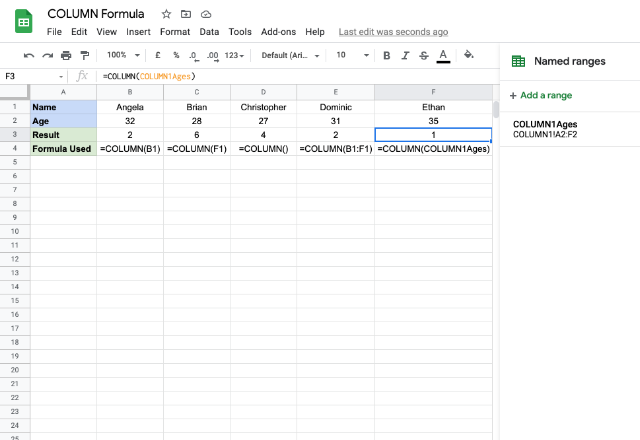
Let us get our understanding of the formula more concrete by means of a few examples. Please see the snapshot below.
COLUMN formula 1

The first example took B1 for cell_reference and accordingly returned 2 as output. Similarly, for F1, it returned 6 as output for the second example. The third case doesn’t have any input for the cell_reference, hence it returned the column number of the cell in which we keyed in the formula.

In the fourth example, we provided an address to a range of cells as opposed to a single cell. And, it returned the number of the first column within the range B1:F1, which is 2.

It is interesting to note that we provided a named range reference as input for the cell_reference parameter in the last example case. As shown on the extreme right of the above image, the “COLUMN1!Ages” range spans from A2 to F2. Therefore, the result is the first column number of range A1:F2.

Use case: Auto-filling numbers

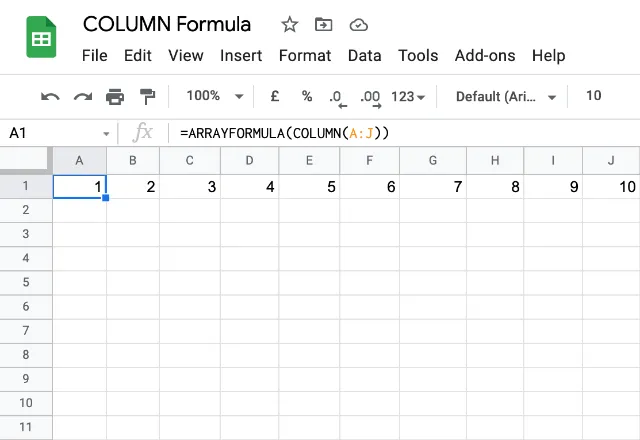
One of the useful ways we can use the COLUMN formula is when we use it in conjunction with the ARRAYFORMULA. We use the following method to have Google Sheets fill up series of numbers for us without having to enter them ourselves.
COLUMN formula 2

This utility of the above formula is very handy indeed. Even if we try and insert a column anywhere between the existing columns, the numbering is taken care of automatically. To illustrate this, we will insert a column between columns F and G as shown below. And we will notice we don’t have to do anything to adjust the numbering – Google Sheets does that for us automatically.

COLUMN formula 3

But then, there is a small problem. What if we try inserting a column above the before cell A1? Doing so would shift the cell right and accordingly adjusts the formula as shown below, which is probably undesirable.

COLUMN formula 4

We can fix this issue using the INDIRECT formula as shown below. Even if we insert a column before, it doesn’t affect the numbering. However, the address reference A:L has now become static. So, inserting columns between A through L will not adjust the reference to A:M anymore (like it did in the third snapshot).

COLUMN formula 5

You may also like…

google sheets features and formulas

How to find nominal interest rate using Google Sheets

Sarah is a young professional making significant financial decisions. From credit cards to mortgages, student loans, and investment...
google sheets features and formulas

Pull Google Calendar data into Google Sheets using Apps Script

This post was originally published in our community forum. Objective : This guide demonstrates how to use Google Apps Script to pull data...
google sheets features and formulas

Using the PROPER function to capitalize the first letter of each word in Google Sheets

Note: This post was originally published in our community forum. Ever found yourself needing to clean up a list of names, titles, or any...