


Has your Excel file been corrupted? Sooner or later, most Excel users come across this problem. The more complex the workbook, the more likely that this will happen. However, don’t despair – there are many ways to repair your corrupted Excel file or, at the very least, recover the data.
In this post, you’ll find the most common causes for this problem and a variety of methods to fix your corrupted Excel workbook, both online and offline. Additionally, you’ll find some tips for avoiding this problem in the future.
How does an Excel file become corrupted?
Unfortunately, Excel files can become corrupted for many different reasons, especially if they are being used collaboratively and/or include data and calculations. However, there are some common causes that could help you identify the problem.
- Unexpected power outage or system shutdown.
- Mishandling of files.
- Virus or malware.
- Corrupt or damaged storage.
- Problems with the app or OS.
- Logical errors within the file.
How to repair a corrupted Excel file?
There are many different methods to fix a corrupted file, depending on the cause and the type of Excel you’re working on. Let’s explore the most common ways to repair a corrupted Excel file in the desktop app, in Office 365, and finally, using third-party tools.
How to repair a corrupted Excel file in the desktop app?
Some causes of corrupted Excel files can be fixed easily with simple manual changes. Microsoft also has a native tool designed to solve file corruption, too.
Repair Excel workbook manually
Before using the Excel Repair Tool, you may want to check for a couple of common problems. The most common causes of corruption are saving your file using the wrong extension and Excel struggling to perform all of your workbook calculations. Here’s how to solve these two issues.
Change the file extension
The file extension should always be .xls or .xlsx – it may have been changed accidentally when saving or renaming. This can be solved easily using the following steps:
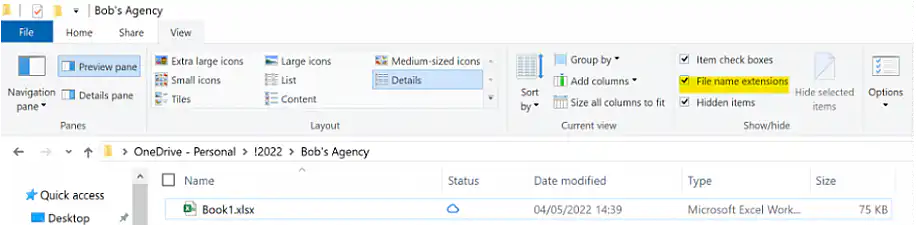
1. In the folder where the file is stored, click on “View” and make sure the “Filename extension” checkbox is ticked.
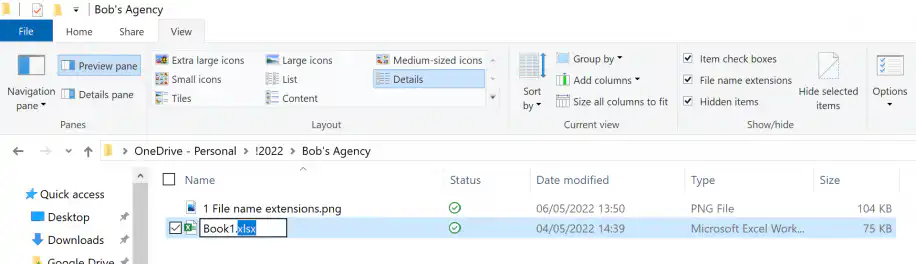
2. Right-click on the file and choose “Rename”. Make sure the extension is “.xlsx” or “.xls”.
Set workbook calculations to manual
The most commonly used option for workbook calculations is “Automatic”, as this will ensure that all data is updated when changes are made. However, this means that any problems with the formulas can result in a corrupted file. By setting the calculations to “Manual”, you may be able to access the file and fix the faulty formula.
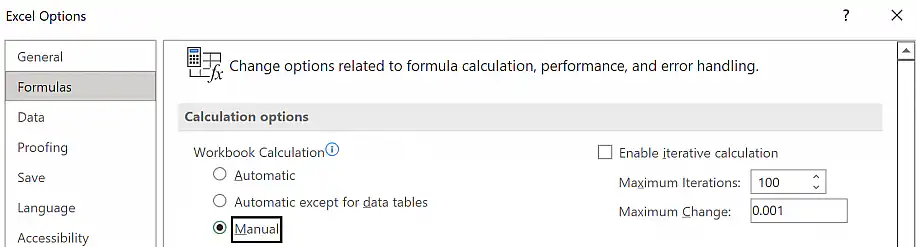
1. Head to File > Options > Formulas.
2. Click on the “Manual” option to change your workbook calculation.
Repair with Microsoft’s native “Open and Repair” tool
Usually, Excel will automatically open the corrupted file in File Recovery mode. However, if this doesn’t happen, you can open the file manually using the “Open and repair” option.
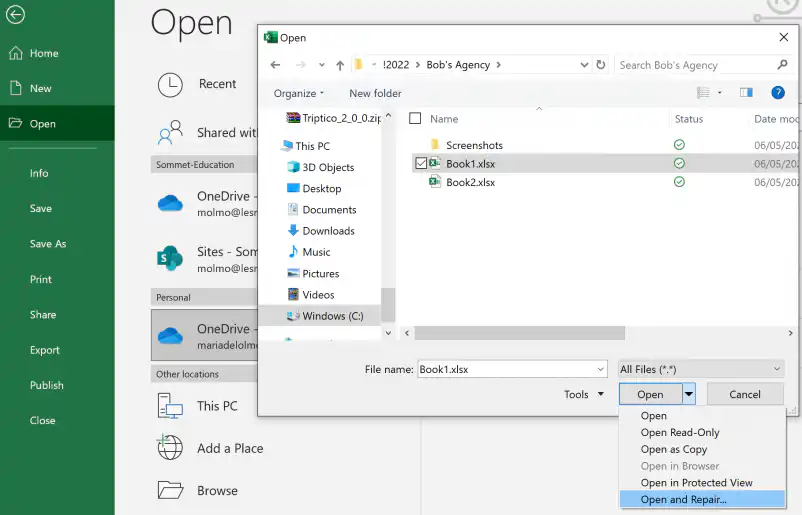
1. In the desktop app, head to File > Open and choose the folder containing the file.
2. After selecting your chosen file, expand the “Open” button by clicking on the downward arrow, and select the “Open and Repair…” option.
3. A dialog box will appear to confirm whether you want to repair your file, or extract the data. Click on “Repair”.

4. Excel will alert you of any problems it has found and ask you to confirm recovery. Click “Yes” to confirm.

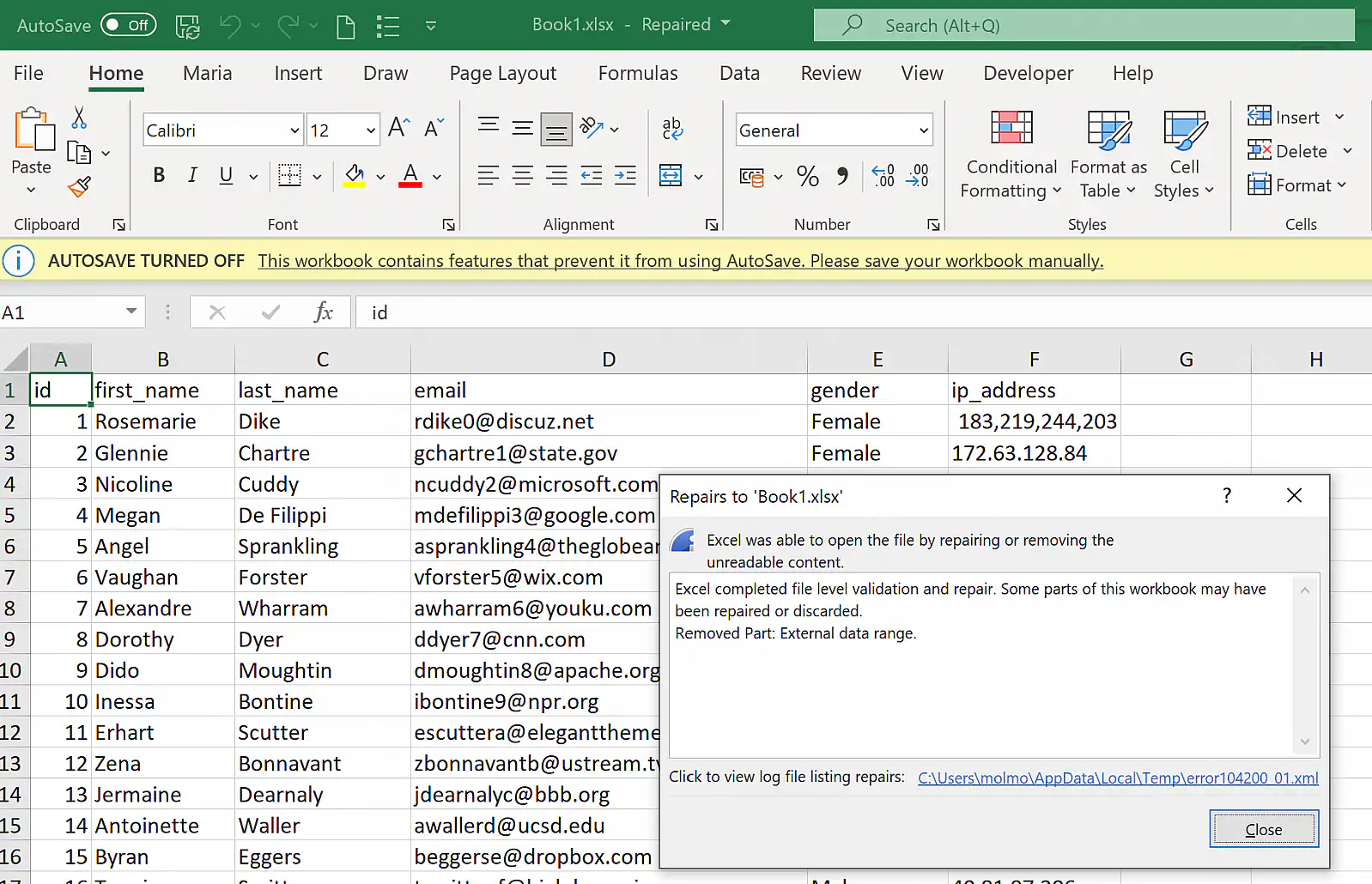
5. Once the attempt is complete, your repaired file will open, and you will see a summary of the repairs with a link to a more detailed log of the process.
How to repair a corrupted Excel file in Office 365?
If you’re trying to open a corrupted file in Excel Online, Excel is likely to prompt you to open the desktop app.
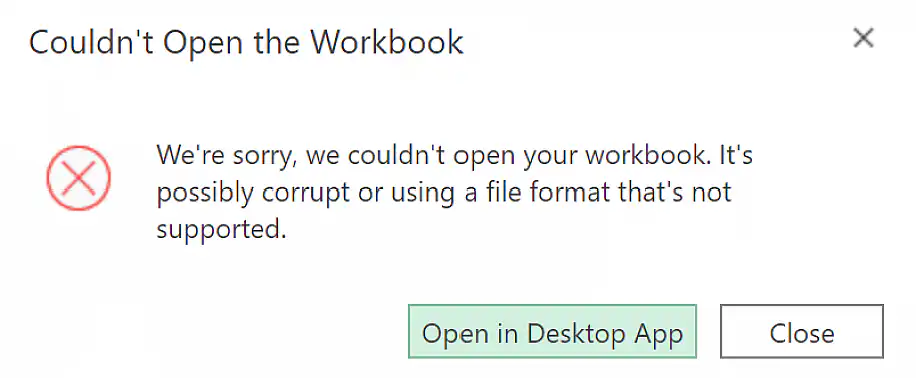
If you can, open the desktop app and follow the instructions in the previous section. If you’re on a device without the desktop app, you can use any of the third-party tools available online.
How to repair a corrupted Excel file using third-party tools?
Given the popularity of Excel files and the possibility to share and collaborate online, it is not surprising that there are so many tools available to repair corrupted or damaged files. These take different forms regarding payment and use, including freeware, shareware, open source, and closed source.
The following are some of the most popular Excel file repair tools available online. Although all of these have a free trial or 30-day money-back guarantee, look out for other limitations in the free versions, and check each site for current prices.
- Excel Repair Toolbox: With a personal license for $27, you can use this tool directly online by uploading your Excel file to the site, or you can download the tool for Windows.
- Repairit File Repair: You can get a 1-year license for $49.99. In addition to Excel files, this tool also repairs PDFs, Word files, and PowerPoint files. They offer a free trial, and the tool is available for download on Windows and Mac.
- Stellar Excel Repair: This tool is available to download for $39 but is only compatible with Windows. They offer a free trial, but you may be limited to viewing the repaired file.
- Kernel for Excel Repair: A home license is available for $49 but is only compatible with Windows. They offer a 30-day money-back guarantee, so you can try the full version before committing.
How to extract data from a corrupted Excel file?
If you are unable to repair the file with MS Excel’s native Repair Tool, or you’re unwilling to pay for third-party tools, you can attempt to recover the data. However, this may result in the loss of some data, formulae, formatting, and external links.
1. Follow steps 1 and 2 from the section ‘Repair with Microsoft’s native “Open and Repair” tool’.
2. When prompted, click on “Extract Data”.

3. You will then have to choose the option that best suits your needs: either convert all data to values (no formulae) or try to recover the formulas. You can also make a copy of the corrupt file to try both.

Conclusion
As you have seen, there are many possible causes for corrupted Excel files – from unexpected shutdowns to malware infections. Luckily, there are also many solutions, in addition to preventative measures, that can help you avoid this problem, like keeping a version history of your workbooks.
You should be able to repair corrupted .xlsx files using a variety of methods, including MS Excel’s native File Repair tool. This method also offers the possibility of extracting the data when a repair is not possible. However, if this doesn’t work, you have a variety of third-party tools available. For more information on spreadsheet-related data recovery, take a look at our blog posts on how to Autorecover an Excel file and how to restore a previous version of an Excel file.
If Excel won’t even save your file, read how to fix an Excel file that won’t save. And if your data is spread across many workbooks, Sheetgo, an AI-powered data automation platform, can copy it into a central file on a schedule, so one damaged workbook doesn’t cost you the data.



 English
 Español
 Português do Brasil
 Français