


BigQuery is Google’s fully-managed and serverless data warehouse that allows businesses to store and handle large amounts of data without having to invest in infrastructure. In order to retrieve data from BigQuery, they can use SQL syntax to run queries.
In this article, you’ll find an easy guide to the BigQuery SQL syntax and learn how to write your first SQL queries.
BigQuery SQL Syntax
SQL syntax refers to the language rules that you need to follow when writing SQL queries. Whenever you write a statement, you’ll use keywords such as SELECT, FROM, WHERE, and ORDER BY.
Note: In order to improve readability, we’ll follow some best practices to write SQL queries.
1) We’ll use uppercase to distinguish between keywords and tables or columns. Therefore, we’ll capitalize keywords but we’ll use lowercase for all tables and columns.
2) Although we can write multiple statements into the same line, we’ll separate statements using new lines.
If you want to get started with BigQuery, you’ll find a quick-start guide to SQL syntax below.
SELECT
We’ll use the SELECT statement to select the columns the query will return.
SELECT Syntax
SELECT column1, column2, …
FROM table_name;
In this example, we’ll show you how to use SQL queries to retrieve data from an NCAA basketball dataset.
First, we’ll execute a SQL query to select three columns – school_ncaa, name, and alias – from this dataset.
After the SELECT statement, add all the columns you want to select, separated by commas. The FROM clause specifies the table we are querying to retrieve the data.
SELECT school_ncaa, name, alias
FROM `bigquery-public-data.ncaa_basketball.mbb_teams` ;

This query has returned rows with the following columns:
- school_ncaa – This column contains the school name associated with each team.
- name – This column has the team name for each row.
- alias – This column contains common aliases or abbreviated names used for some teams.
As you can see, it has returned all the data I’ve requested split into columns.
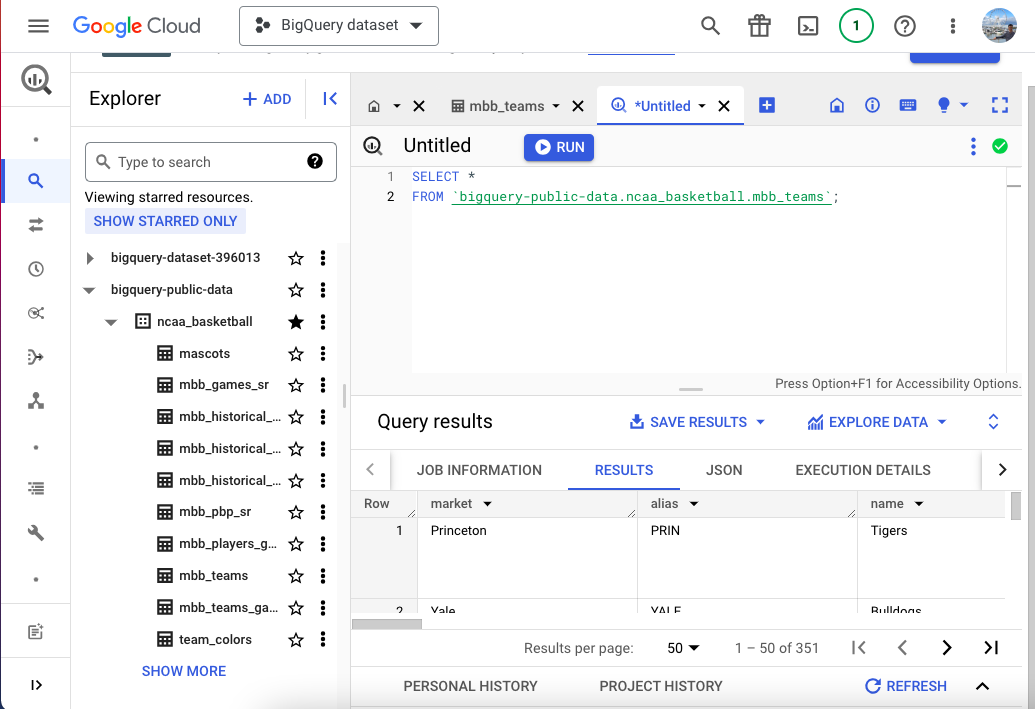
In this example, I’ve asked BigQuery to return data from these three columns. If you want to select all columns from the dataset, use an asterisk (*) instead.
SELECT *
FROM `bigquery-public-data.ncaa_basketball.mbb_teams` ;
WHERE
We’ll use the WHERE clause to filter data from the dataset.
WHERE Syntax
SELECT column1, column2, …
FROM table_name
WHERE condition;
Let’s say I want to retrieve data from all the columns but only for the rows where the name column equals ‘Crimson’.
So let’s break down the formula:
SELECT * – This specifies we want all columns returned. The * selects every column.
FROM bigquery-public-data.ncaa_basketball.mbb_teams – This specifies the table we are querying, the mbb_teams table.
WHERE name = 'Crimson' – This WHERE clause filters the rows to only those where the name column value equals ‘Crimson’.
SELECT *
FROM `bigquery-public-data.ncaa_basketball.mbb_teams`
WHERE name = 'Crimson';

This BigQuery SQL query has returned all columns for rows from the mbb_teams table where the name column equals ‘Crimson’.
Now I’ll use the OR condition because I want BigQuery to retrieve rows that match either ‘Crimson’ or ‘Tigers’ team names. I’ll add an OR condition to the WHERE clause.
SELECT alias, school_ncaa, name, market
FROM `bigquery-public-data.ncaa_basketball.mbb_teams`
WHERE name = 'Crimson' OR name = 'Tigers';
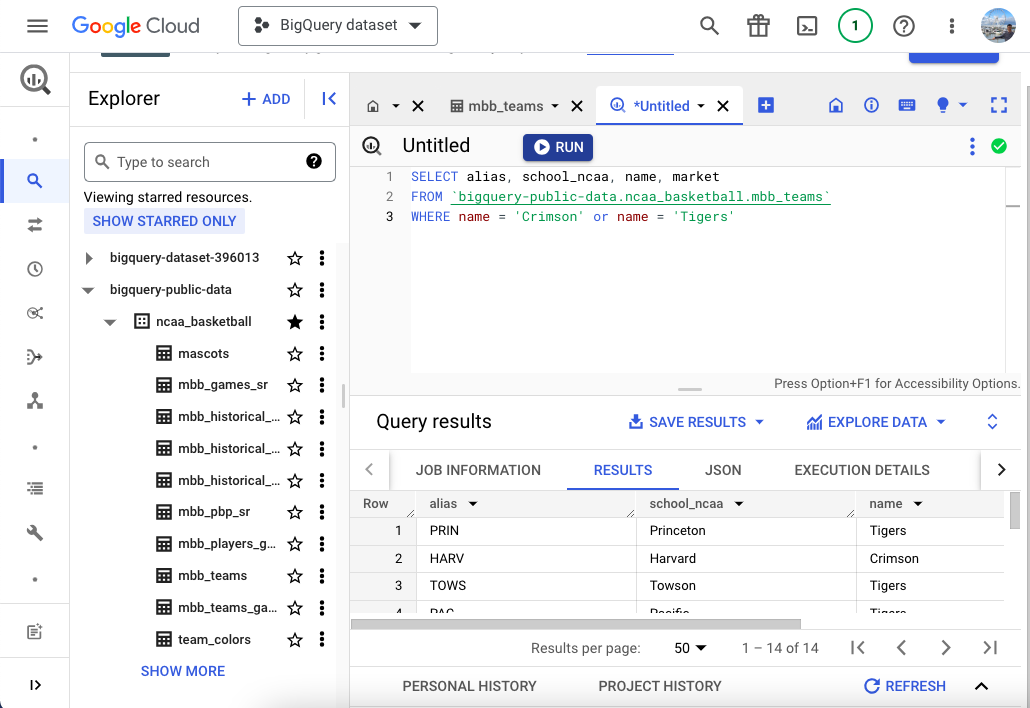
Now BigQuery has returned data for rows where the name is either ‘Crimson’ or ‘Tigers’.
If I want to return multiple values with a WHERE clause, I can add an IN condition to the formula. When I add IN to the WHERE statement, BigQuery will return all the values in brackets.
SELECT alias, school_ncaa, name, market
FROM `bigquery-public-data.ncaa_basketball.mbb_teams`
WHERE name IN (‘Crimson’,’Tigers’,’Gators’);

If you want to add multiple filters or multiple criteria to be met in the query results, you should use the AND condition. The AND condition will return values only when both conditions are satisfied.
In this example, I want BigQuery to return values only for these teams: Auburn Tigers or Clemson Tigers. Therefore, both criteria must be met. The name should be “Tigers”, and the school should be Auburn or Clemson. Here’s the formula I’ll use:
SELECT alias, school_ncaa, name, market
FROM `bigquery-public-data.ncaa_basketball.mbb_teams`
WHERE name = 'Tigers' AND school_ncaa = 'Auburn' OR school_ncaa = 'Clemson';

Now let’s say I want BigQuery to filter rows where the name starts with ‘A’. Unlike the previous examples, when I used the WHERE statement to return exact values, here I’ll use the LIKE operator for partial string matching. Here’s how I can use the LIKE command:
SELECT alias, school_ncaa, name, market
FROM `bigquery-public-data.ncaa_basketball.mbb_teams`
WHERE name LIKE ‘A%’;

These are some examples of how you can use the LIKE command to filter data based on specific criteria.
|
LIKE |
Result |
|
LIKE ‘a%’ |
Returns values that start with “a” |
|
LIKE ‘%a’ |
Returns values that end with “a” |
|
LIKE ‘%ty%’ |
Returns values that have “ty” in any position |
|
LIKE ‘_s%’ |
Returns values that have “s” in the second position |
|
LIKE ‘a%s’ |
Returns values that start with “a” and ends with “s” |
If I want BigQuery to filter rows where the name starts with ‘A’, but exclude names starting with ‘Ag’, I can add a NOT LIKE command.
SELECT alias, school_ncaa, name, market
FROM `bigquery-public-data.ncaa_basketball.mbb_teams`
WHERE name LIKE ‘A%’ AND name NOT LIKE ‘Ag%’;

ORDER BY
The ORDER BY statement is used to sort values from a specific column in ascending or descending order.
ORDER BY syntax
SELECT column1, column2, …
FROM table_name
ORDER BY column1, column2, … ASC|DESC;
I’ll write a query to retrieve data filtered by a specific team name and order the results by school in ascending order. When I order results in ascending order, the ASC condition is optional.
SELECT alias, school_ncaa, name, market
FROM `bigquery-public-data.ncaa_basketball.mbb_teams`
WHERE name = 'Tigers'
ORDER BY school_ncaa;

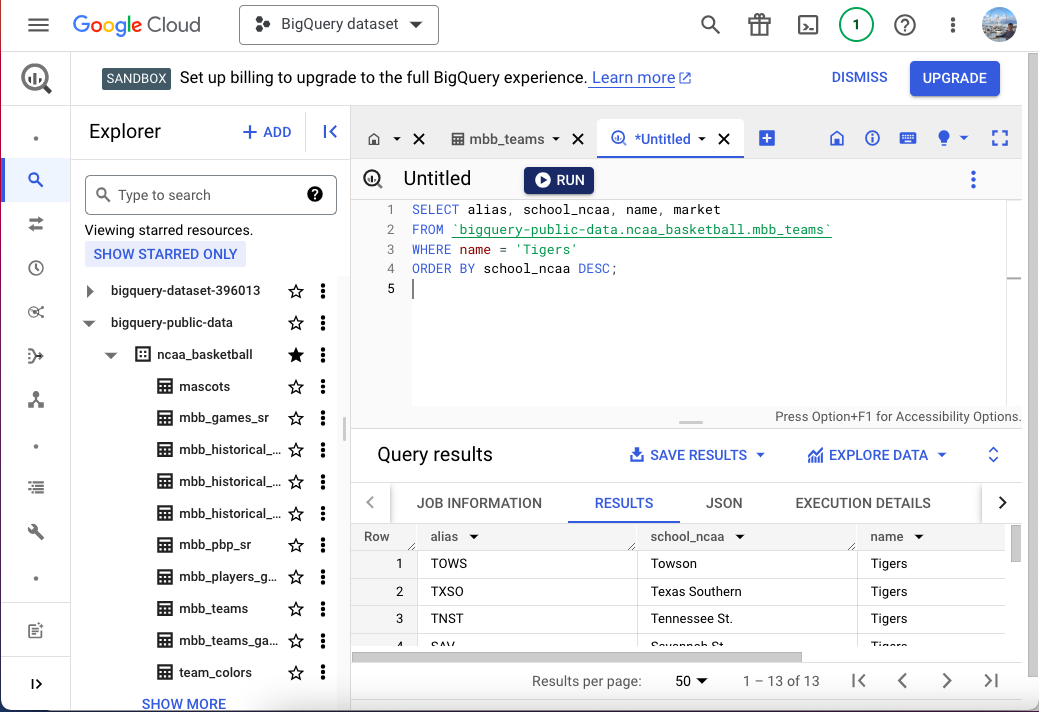
As you can see, BigQuery has sorted the school names alphabetically. If I add the DESC condition, it will sort the school names in descending order.
SELECT alias, school_ncaa, name, market
FROM `bigquery-public-data.ncaa_basketball.mbb_teams`
WHERE name = 'Tigers'
ORDER BY school_ncaa DESC;
How to connect BigQuery to Google Sheets
There you have it! That’s how you can write your first queries using SQL in BigQuery. If you’re a spreadsheet user, check out this article on getting data from BigQuery to Google Sheets automatically.


 English
 Español
 Português do Brasil
 Français