



Microsoft Excel is a powerful and versatile tool, featuring advanced data analysis and visualization capabilities. In fact, the list of available tools and features is constantly growing. Using Power Query, you can import data from just about any source you like, including different document types, folders, databases, websites, and apps. The ‘Data from Picture’ feature even extracts data directly from images.
Once you’ve imported or connected to the data, you have hundreds of functions and data analysis tools at your fingertips. In addition to the wide selection of built-in visualization capabilities of Excel, you can access more advanced visualizations through Power BI. Best of all, there is a language you can use to connect Microsoft Office applications and create interactive spreadsheets: VBA.
In this guide, you will learn about Visual Basic for Applications (VBA) in Microsoft Excel. First, you will learn what it is and how you can use it to automate tasks and expand Excel’s functionality. Second, you will learn the basics so you can start recording macros and editing the scripts in Excel’s VBA editor. Finally, you have step-by-step instructions on how to record a macro that copies a cell and pastes the formula to another sheet, and how to clean up the script using the Visual Basic editor.
What is VBA in Excel?
Visual Basic for Applications (VBA) is a programming language that you can use to extend the functionality of Office applications, such as Excel, Word, or Outlook. Not only can you access features from all these applications, but you can also do things you can’t do within the applications themselves, like use variables or loops.
Why use VBA?
- Automation & Repetition: Working with spreadsheet data involves a fair amount of repetition. Whether it’s updating, analyzing, or manipulating data in any way, there are many repetitive tasks that you can automate using VBA.
- User Interaction: VBA allows you to interact with a spreadsheet’s users in different ways. For example, you can create message boxes that are triggered by user actions and provide helpful information, or seek input from users.
- Microsoft Office Applications: Using VBA, you are not limited to Excel’s functionality. You can connect to other Office applications and access their functionality, too. For example, Word, PowerPoint, or Outlook.
Security precautions
As a precaution, Microsoft Excel’s default behavior is to disable macros when opening macro-enabled Excel files (.xlsm). This is to avoid running malicious code if you accidentally open a macro-enabled file from an unknown source. You can then inspect the file and the code before you decide whether to enable the macros. However, you can designate trusted files or sources for familiar files or folders.
VBA basics
Mastering VBA can take a while, but depending on how you intend to use it, you may not need to. At first, it’s a good idea to record macros and edit them in the Visual Basic editor to get the hang of VBA. You can build on the scripts of these macros to expand functionality and include procedures and features not available directly in Excel itself. However, you need to enable the ‘Developer’ tab before you can start.
Enable the Developer tab
To enable the ‘Developer’ tab in Excel for Windows, go to File > Options > Customize Ribbon. On Mac, go to Excel > Preferences > Ribbon & Toolbar. Under ‘Customize the Ribbon’, go to ‘Main Tabs’ and check the ‘Developer’ checkbox.
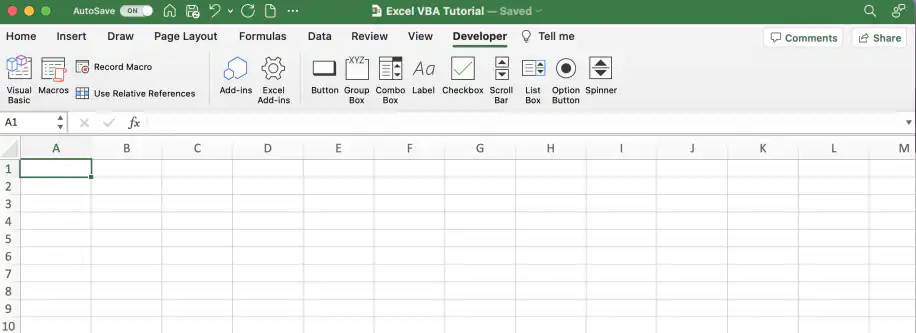
In the ‘Developer’ tab, you have direct access to the Visual Basic editor, Macros, add-ins, and different buttons and controls.
Record macros
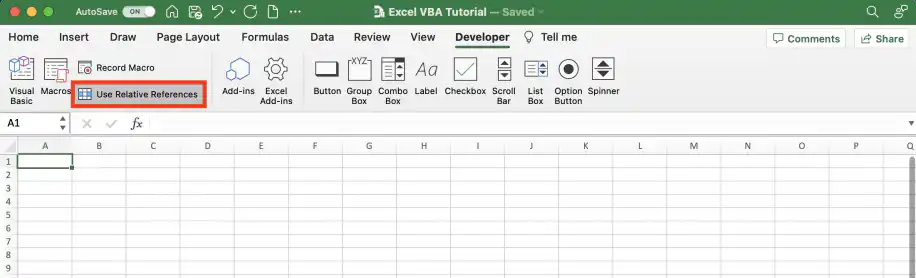
In the ‘Developer’ tab, click on ‘Record Macro’. If you want to use relative referencing, click the button below ‘Record Macro’.
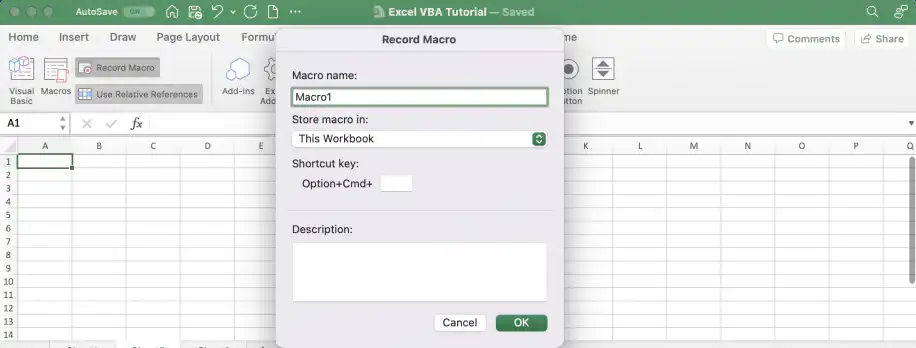
As soon as you click ‘Record Macro’, you will see the window shown below, where you can name the macro and choose where to save it. When adding a macro to an Excel file, you will have to save it as a macro-enabled file (.xlsm).
Your actions will be recorded as a VBA script that can be edited in the Visual Basic editor. To access it, go to the ‘Developer’ tab and click ‘Macros’.
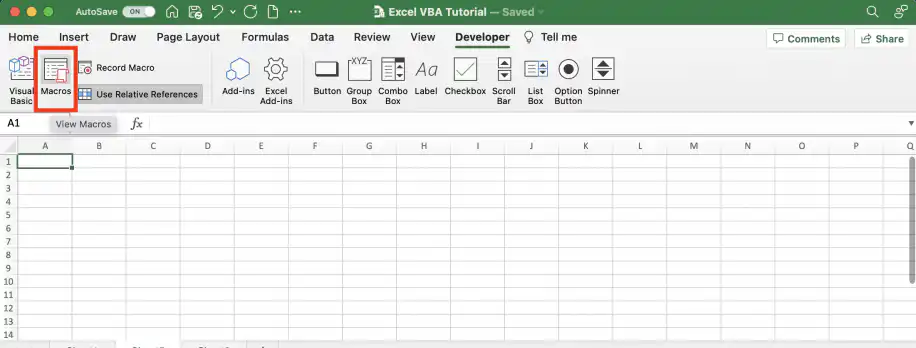
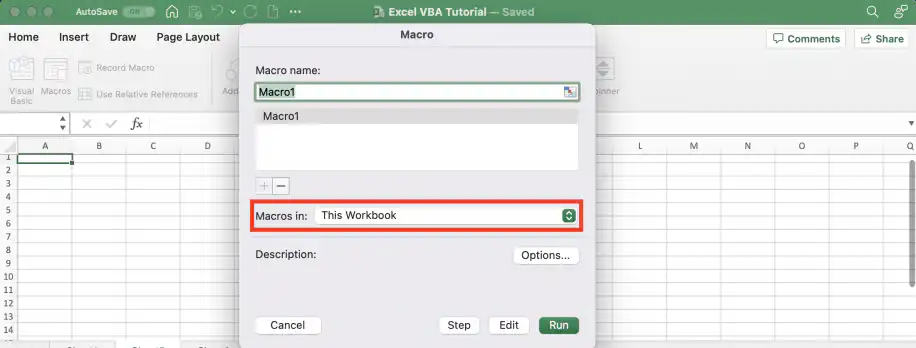
You can select from the macros available in that workbook, others, or your ‘Personal Macro Workbook’. Once you have selected a macro, click ‘Run’ to execute the script.
Edit macros in Visual Basic editor
Once you’ve recorded the macro, go to Developer > Macros. Select the macro and click ‘Edit’ to open it in the Visual Basic editor.
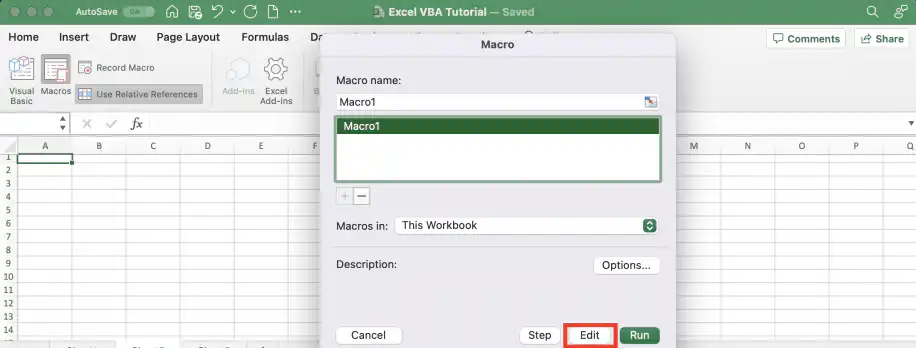
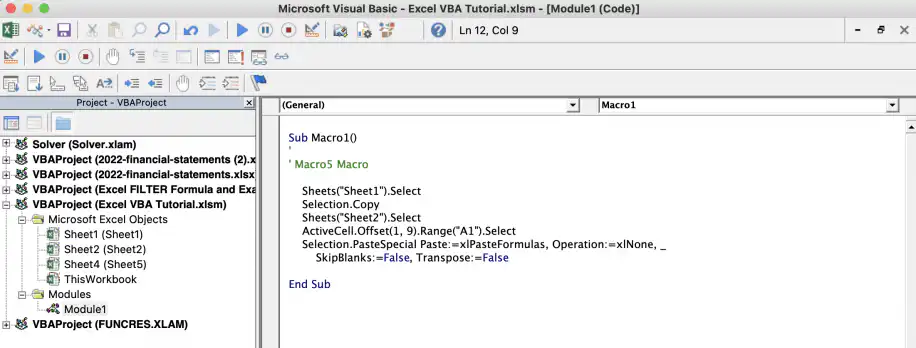
From here, you can edit and build on the script you recorded. In the next section, you have an example of how to record and edit a macro in the Visual Basic editor so that it copies formulas to another sheet.
Example: how to copy formulas to another sheet with Excel VBA
For this example, I will record a macro where I copy a cell with a formula and paste the formula to a cell in another sheet. After that, I will edit the script using the Visual Basic editor to modify and clean up the script. To copy a formula without a macro, see how to copy a formula in Excel.
Step 1. Record macro
Follow the steps below to record a macro that copies a cell with a formula and pastes the formula to another sheet.
1. In your spreadsheet, go to the ‘Developer’ tab and click ‘Use Relative References’, then click ‘Record Macro’. Name the macro to make it easier to identify.
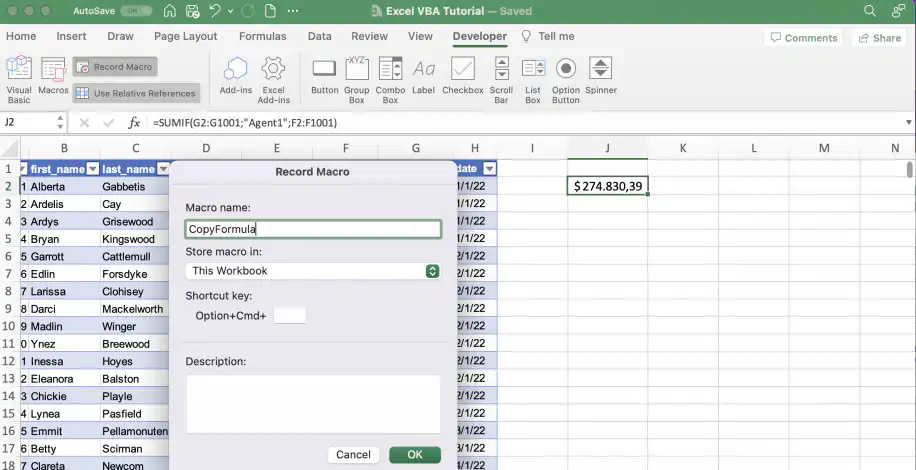
2. Select the cell with the formula and copy it.
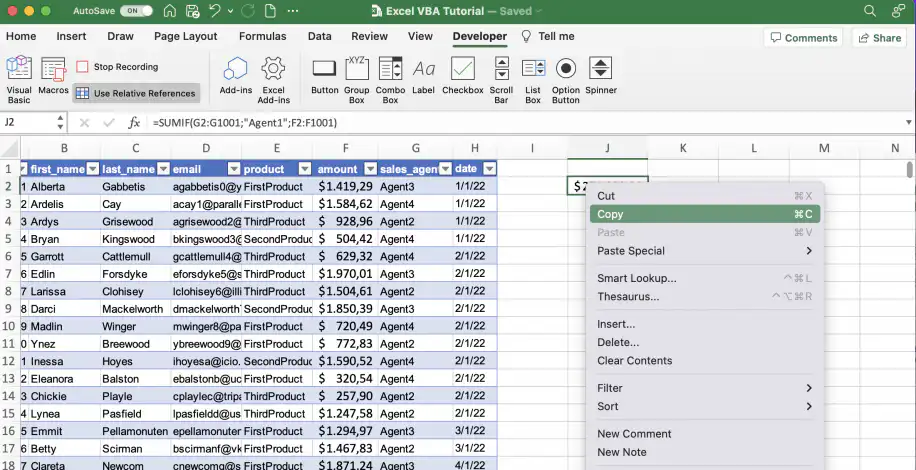
3. Select the sheet and cell where you want to paste it. Right-click and under ‘Paste Special’, choose ‘Formulas’.
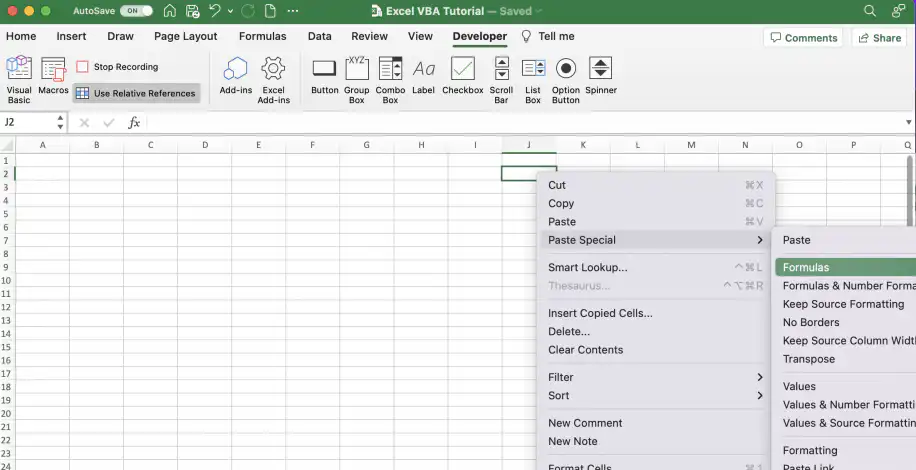
4. Stop recording the macro by clicking either of the buttons shown below.
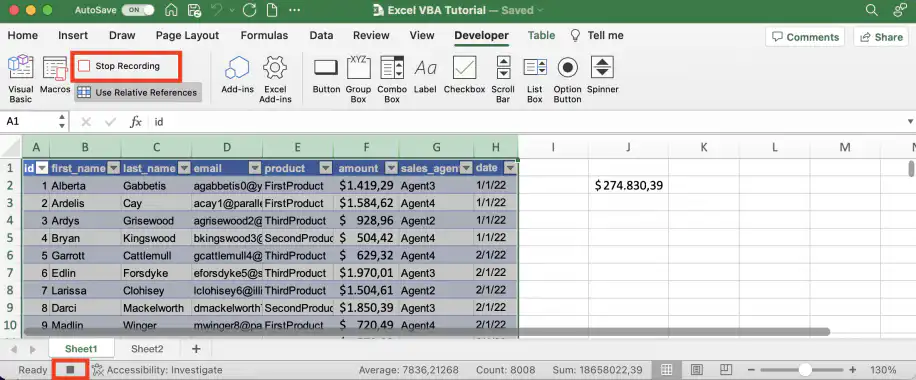
Step 2. Edit macro in Visual Basic editor
Follow the steps below to edit the macro recorded in the previous step.
1. In the ‘Developer’ tab, click ‘Macros’. Select the macro you recorded and click ‘Edit’.
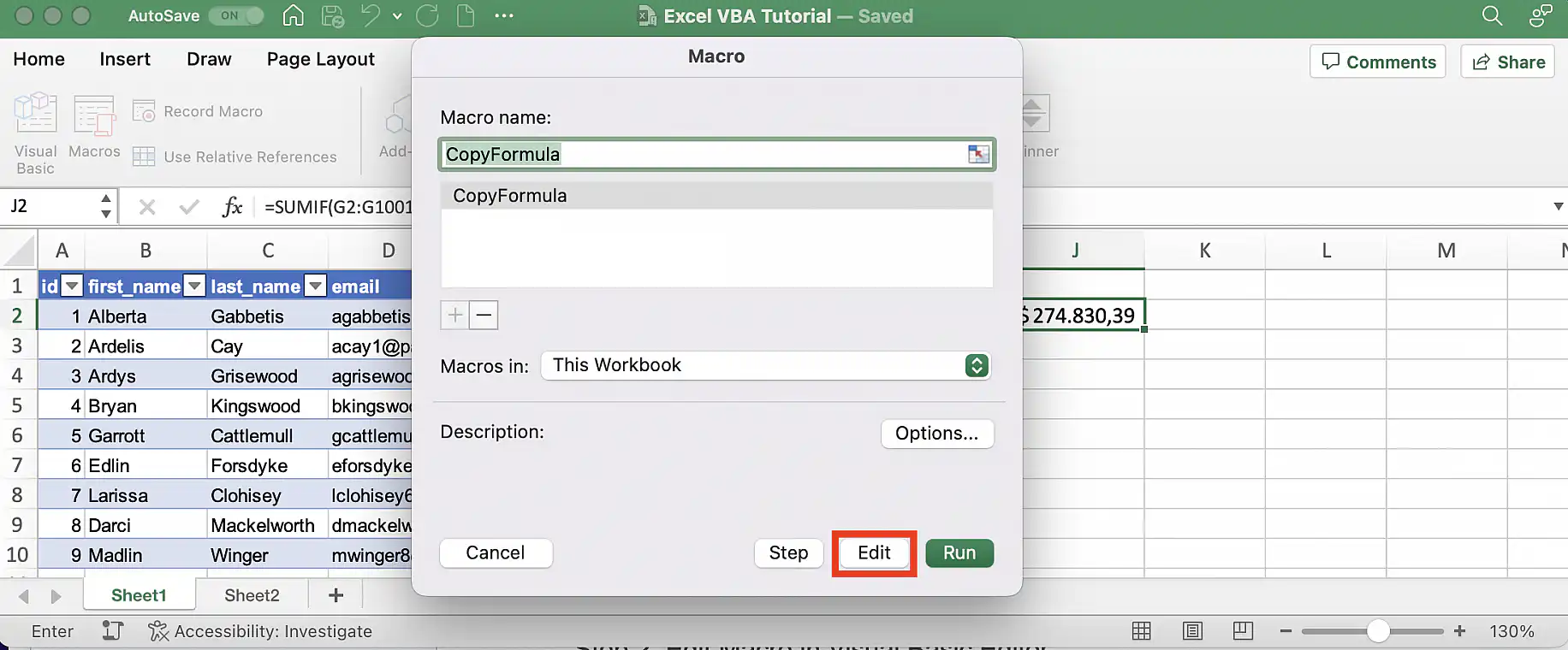
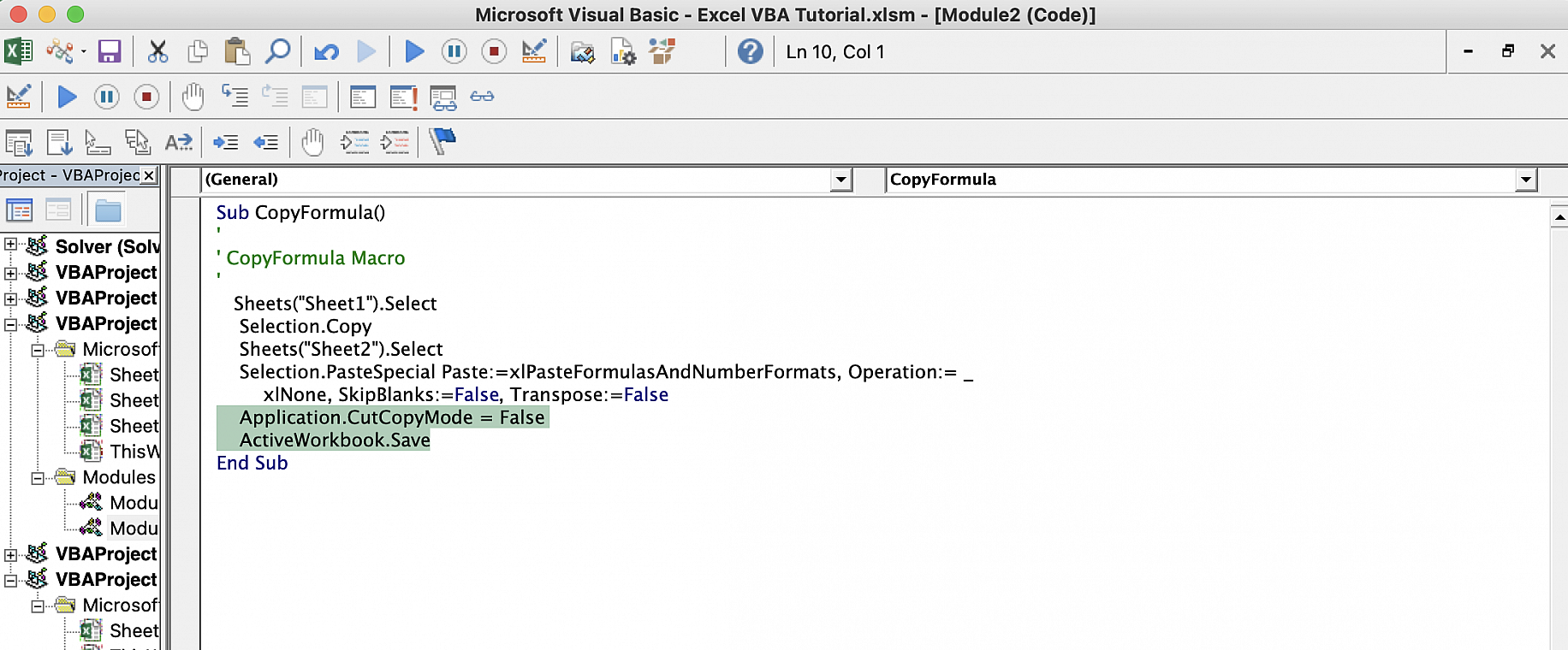
2. Now that I have the script, I can make some changes.
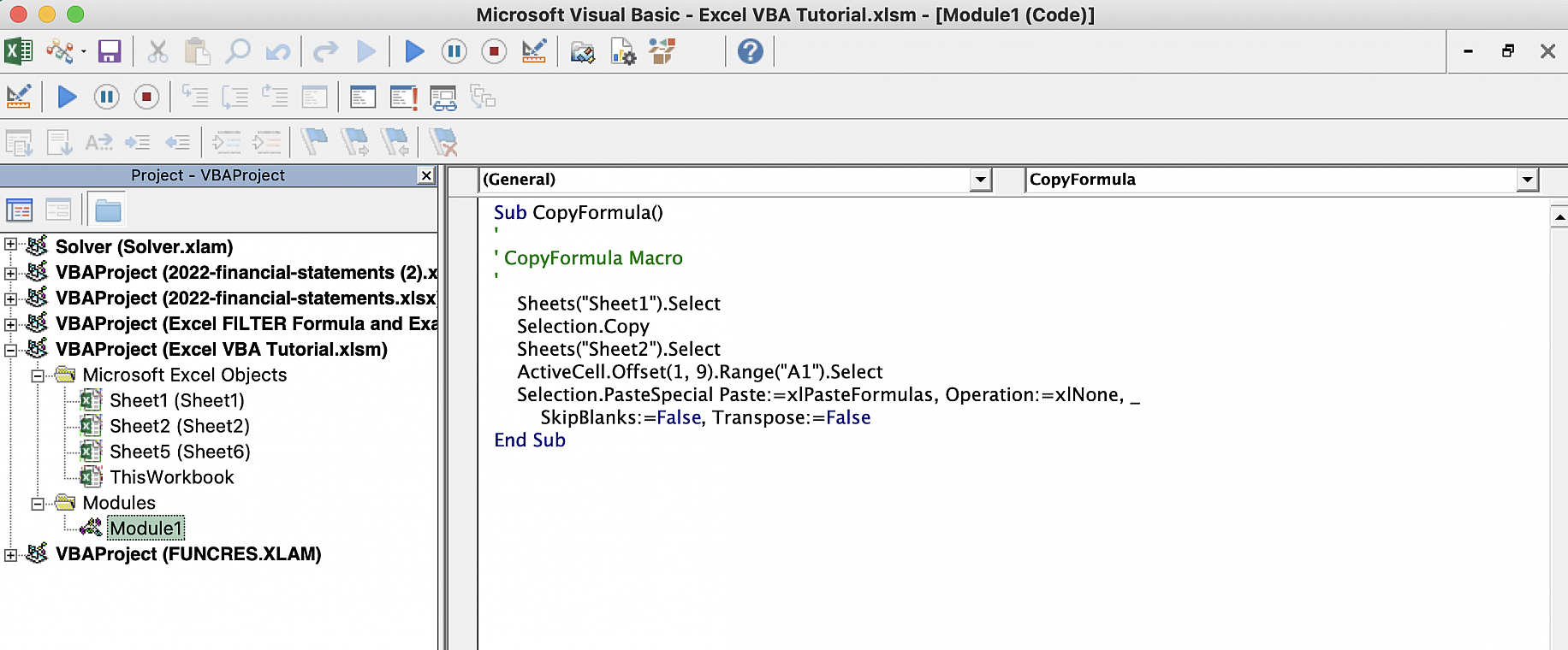
3. I can easily change the sheet it pastes to by replacing “Sheet2” with the name of the sheet I want to use.
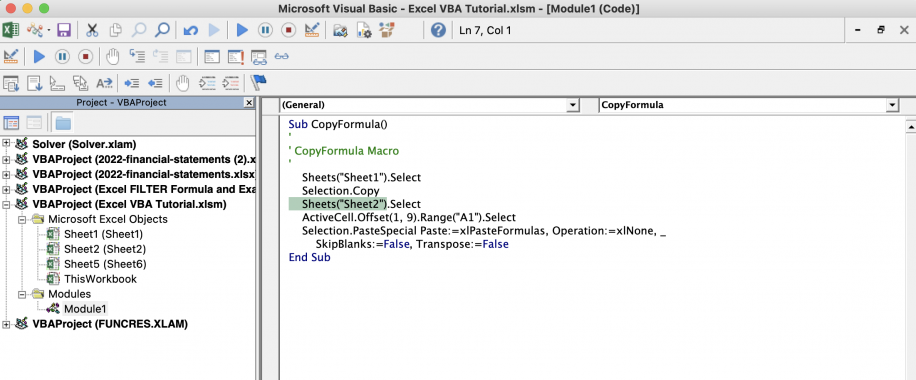
4. I can also change the paste format. Although I initially chose to paste only the formula, I can modify the script so that it also pastes the number formatting.
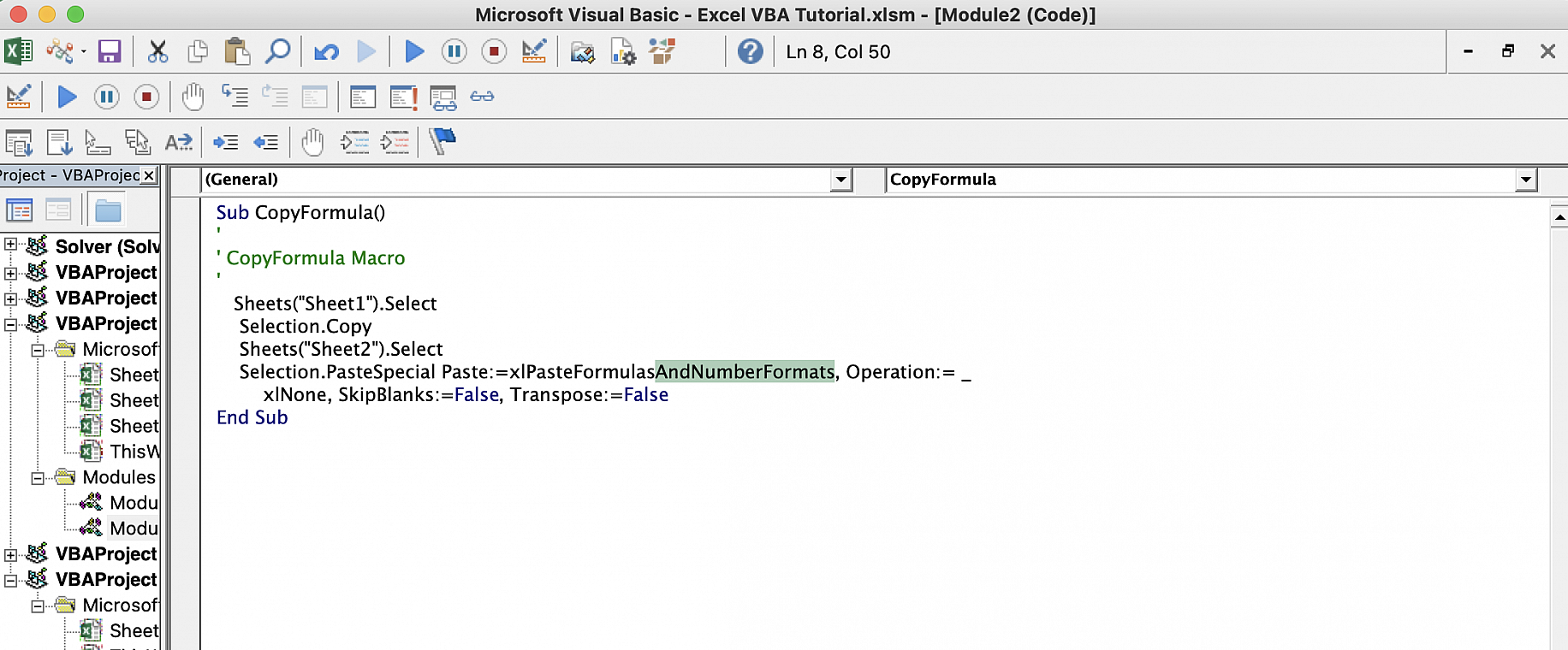
5. Finally, I will add two lines to the end of the script. The first escapes cut/copy mode, and the second saves the active workbook. The macro will now copy the cell selected in one sheet to the active cell in the second sheet.
Conclusion
As you have seen, VBA can help you automate tasks in Excel and access additional functionality. You can use VBA to allow interaction between your spreadsheet and its users, as well as other Microsoft Office applications. However, if you want to improve automation, collaboration, and connectivity in your spreadsheet processes without having to learn VBA, you can use Sheetgo, a no-code platform that uses AI to automate and connect your spreadsheet files.
You now know the basics of Excel VBA, including what it is and why you may want to learn to use it. You know how to enable the ‘Developer’ tab to access macros and the VBA editor. You also know that the best way to get started with VBA is by recording macros and analyzing the code to see how it works. You also have step-by-step instructions on how to record and edit a macro to copy a formula and paste it into a different sheet.
To learn more about macros and automation in Microsoft Excel, check out the guides below.



 English
 Español
 Português do Brasil
 Français