



The Google Sheets API allows you to manipulate Sheets data from outside Google Sheets. You can manipulate it programmatically using your preferred programming language or through any app or platform that lets you connect to an API. This allows you to use your Google Sheets spreadsheets as databases.
In this post, you will learn all about the Google Sheets API, including what it is, its pricing, and its limitations. You will also learn how the API works, the different connection options available, as well as where to find documentation for your preferred programming language.
What is the Google Sheets API?
The Google Sheets API is a RESTful interface that you can use to read and write data to Google Sheets. You can connect to it from another app or platform or use your preferred programming language, including JavaScript, PHP, and Python.
Some of the most common uses of the Google Sheets API include the following:
- Create spreadsheets
- Read and write values to cells
- Update formatting
- Manage Connected Sheets
Is the Google Sheets API free?
Google Sheets’ API is free to use, but usage limits apply to each user. If your app experiences heavy traffic from many users, you’ll see an error message (429: Too many requests). In other words, if you exceed the number of requests, your account won’t be charged for the overage.
Google Sheets API limits
The Google Sheets API has some built-in limitations to protect the system from hackers. These limits or quotas apply to both read and write requests.
Read & write requests
The quotas below apply separately to each type of request: read and write.
- Per day per project: unlimited
- Per minute per project: 300
- Per minute per user per project: 60
Time-based quota errors
The Google Sheets API documentation recommends using an exponential backoff algorithm to implement a small delay to resolve time-based quota errors. For more instructions, you can check out the Google Cloud Storage documentation on how to implement the exponential backoff algorithm.
View quotas
You can view and manage your quotas using a variety of methods.
- Google Cloud Console
- Google Cloud CLI
- Service Usage API
- Quota Metrics in Cloud Monitoring
Request higher quotas
If you exceed your quotas, you can request higher ones. However, this process requires that your request meet a set of undisclosed and strict criteria. You will be notified whether your request has been approved or denied.
How does the Google Sheets API work?
Google Sheets’ RESTful Application Programming Interface (API) allows you to interact directly with your spreadsheets. You can choose whether to code an app or use a no-code solution, depending on your needs and programming skills. No-code solutions include existing apps that allow you to connect to an API, like Tableau or Supermetrics. In order to connect, you will need to enable the API and generate the necessary API key.
Enable the Google Sheets API
To enable the Google Sheets API, follow the instructions below.
1. Log in to your Google Cloud Console.
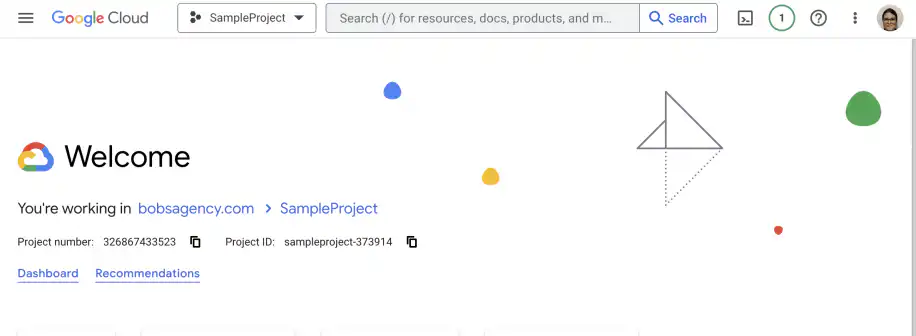
2. Click the menu to access “APIs & Services”, then “Enabled APIs & services”.
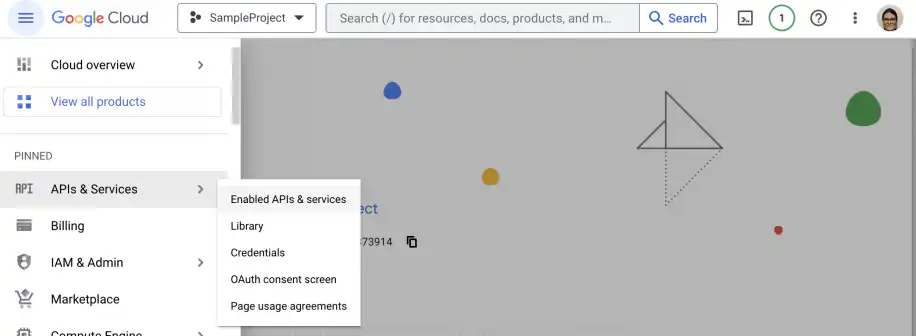
3. Click the button that says “+ ENABLE APIS AND SERVICES”.
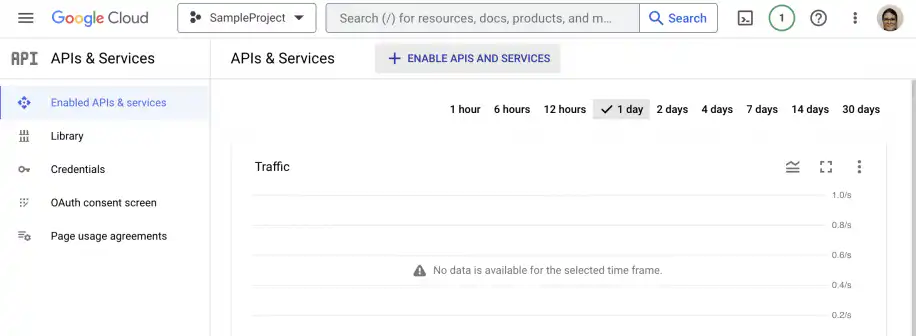
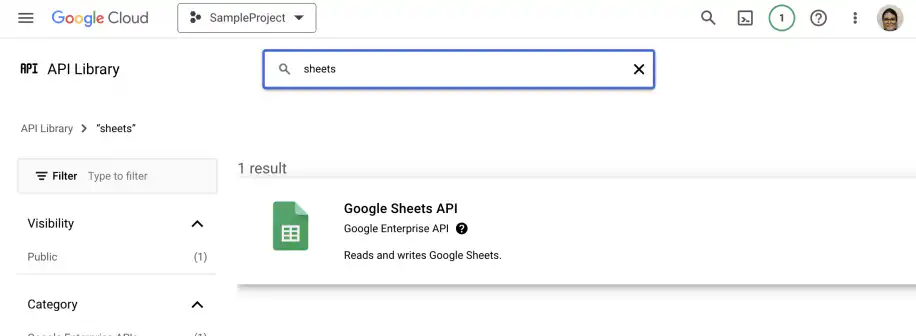
4. Search for the Google Sheets API, as shown below and click on the result.
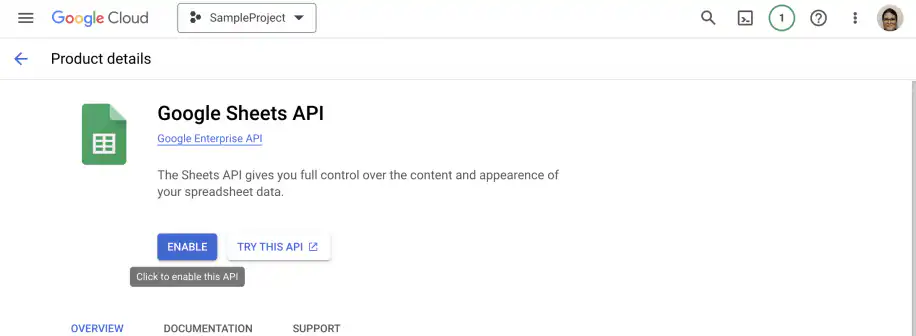
5. Click to enable the Google Sheets API.
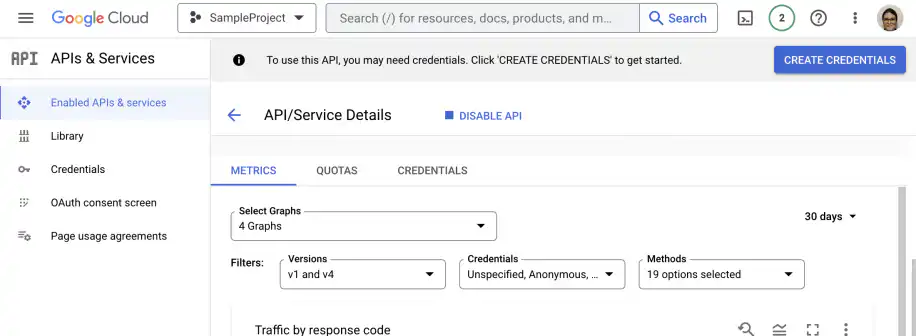
6. Click the blue button to create the credentials.
7. To define the credential type, make sure that you have selected the Google Sheets API.
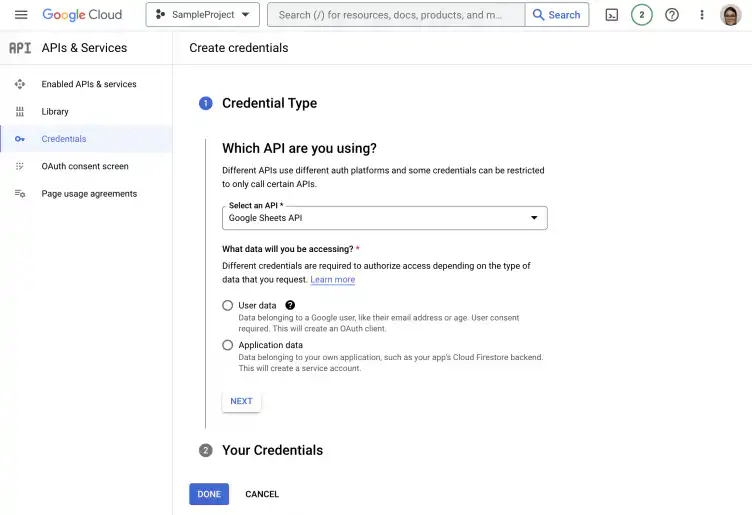
8. Select whether you want to access user data or application data.
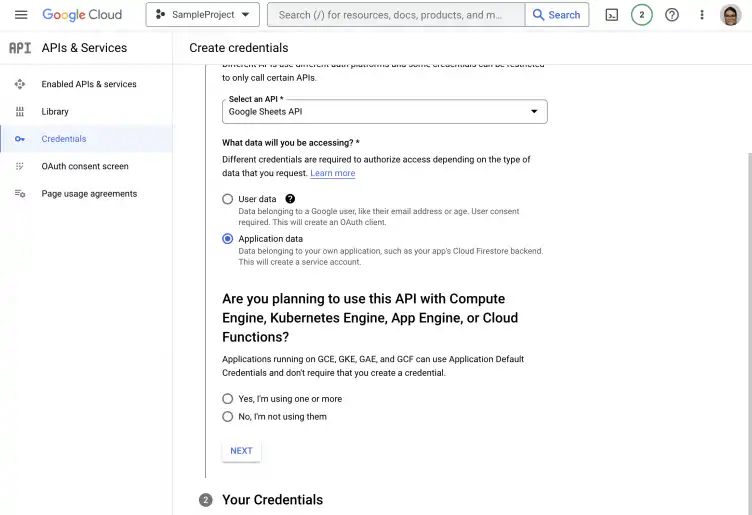
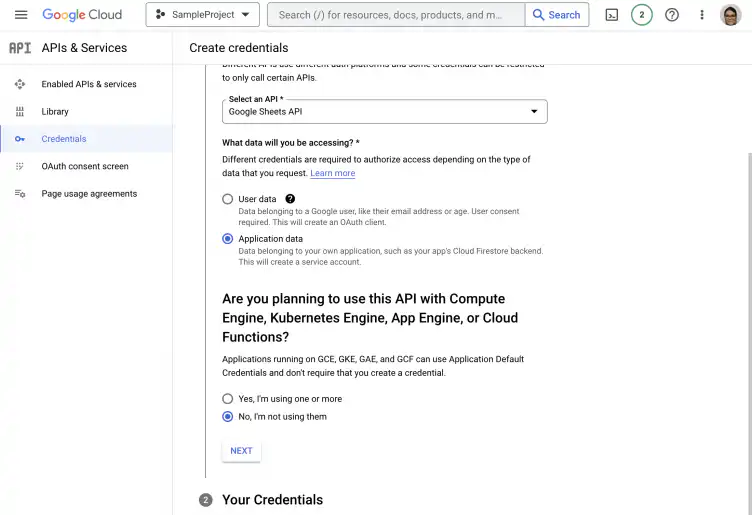
9. Specify whether you will be using any of the products listed and click “Next”.
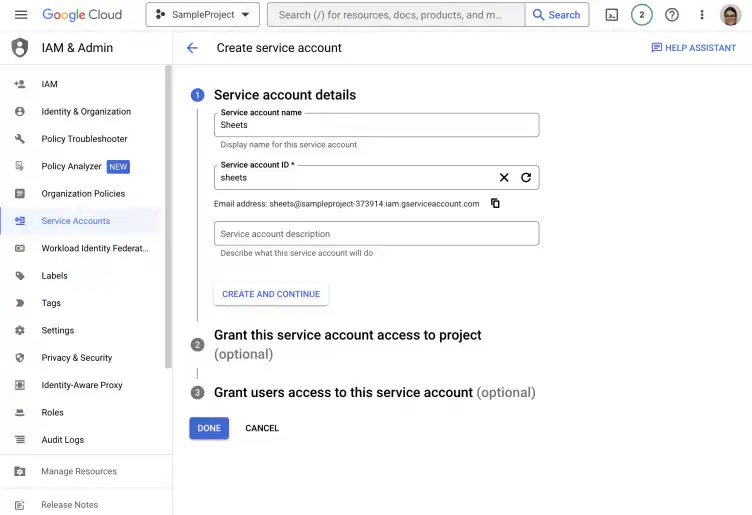
10. Type in the required account details.
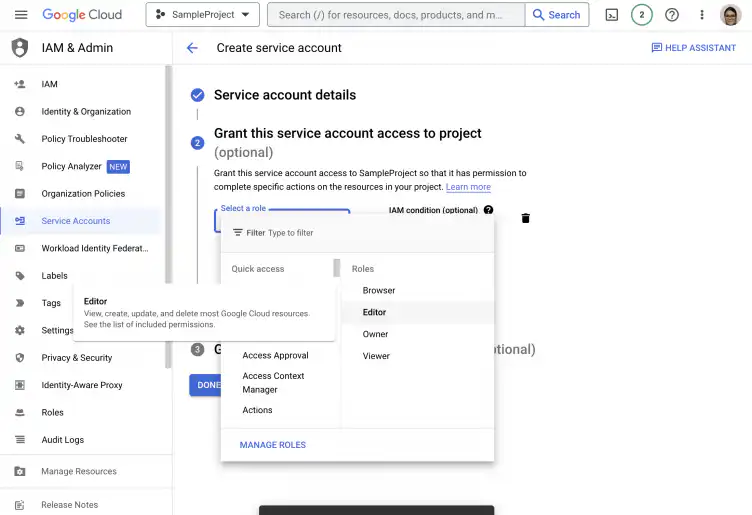
11. Select the role you want to grant, then click “Done” to finish.
Google Sheets API documentation
The Google Sheets API documentation offers Quickstarts with detailed instructions and the code required to connect using Go, Google Apps Script, Java, JavaScript, Node.js, and Python. Additionally, the documentation includes detailed instructions and the code needed for the following:
- Create Spreadsheets
- Read/Write Cell Values
- Update Spreadsheets
- Date/Number Formats
- Pivot Tables
- Conditional Formatting
- Filters
- Developer Metadata
- Connected Sheets
- Field Masks
- Google Charts
These instructions and samples are available for various programming languages: Google Apps Script, Java, JavaScript, Node.js, PHP, Python, and Ruby.
Conclusion
As you have seen, the Google Sheets API allows you to interact with your Google Sheets data programmatically. You can read and write data to your spreadsheet using other platforms and apps, including ones you build using your preferred programming language. You can then use Google Sheets as a database and run queries and functions from wherever you want.
You now know what the Google Sheets API is and the pricing, as well as the main limitations related to its use. You also know how to enable the Google Sheets API and create credentials from the Google Cloud Platform. Finally, you know how to access quickstart documentation for multiple programming languages and full Google Sheets API documentation and examples for Google Apps Script, Java, JavaScript, Node.js, PHP, Python, and Ruby.
If you’d rather not write code, Sheetgo, an AI-powered data automation platform, can connect to an API and bring the data into your spreadsheets on a schedule. To script it yourself, start with this guide to Google Apps Script in Google Sheets.

 English
 Español
 Português do Brasil
 Français