




The number of jobs involving entering data in a system has increased significantly, even before starting the era of big data. As data is usually entered manually, this is not only time-consuming but also error-prone. What’s more, it will likely affect concentration levels which would be more useful for data analysis or more complex functions. While it’s true that companies used to outsource data entry processes, data entry software has allowed most businesses to automate these tasks while maintaining the desired level of productivity.
How is it possible to automate data entry? This will depend on the type of software or tools you use. But, most available platforms are fairly intuitive and customizable to the size of your team and data. In this article, you’ll gain a full understanding of what automated data entry is, the key benefits of using data entry automation software, and how this is achieved in Excel and Power Automate.
What is automated data entry?
Automated data entry refers to any process where information is entered without the need for manual work. Specialized software uses artificial intelligence (AI) and machine learning to extract data from a source into a structured format, such as .csv, JSON, XML, etc.
What would entail hours of work for your team, can be eliminated and ensure more accurate and precise results. This way, you can focus on more complex tasks such as data analysis or reporting.
Automated data entry benefits
There are major benefits when it comes to implementing an automated data entry system in your organization, especially for jobs that entail pulling information from large databases. For example, invoices, purchase orders, customer service ticketing, generating reports, ID verification procedures, APIs, etc. Although depending on the type of task the advantages will vary, here are four key benefits for your business if you decide to use data entry automation software:
Reduce errors
Automated data entry software is based on Artificial Intelligence (AI) and Machine Learning (ML) technology. This means that the process of extracting data can guarantee a level of accuracy that is harder, or nearly impossible, to achieve by humans. Not only does this reduce the time it takes to complete this process, but it also saves you from post-editing stages and having to deal with manual errors.
Optimize budget
Although this type of task has been outsourced to specialized companies, automated data entry software has become more accessible to most users. Acquiring this type of technology in your organization will noticeably decrease operational costs since you’ll eliminate manual processes that also affect the productivity level.
Boost productivity
Data entry in the hands of software is not only faster, but it’s the best way to reach a successful ratio of speed and accuracy. This means that you can reallocate human resources and manual work to tasks that have a direct impact on the bottom line, aka net income.
Control scalability
AI-based software will be able to handle growing numbers of tasks for your business, without a change in speed or accuracy. Considering that the volume of data will grow, if all works smoothly, you’ll need to rely on intelligent data structuring. For example, the finance department will need to classify documents according to the origin and purpose of the cost or revenue, invoices, receipts, etc. derived from a supplier, internal, etc.
Now that you’ve seen the many advantages you can enjoy from implementing software of this type in your business, let’s see clearer examples of how data entry automation can be achieved in Excel.
How to use macros in Excel to automate tasks?
Macros are a powerful tool that can be used to automate tedious tasks in Excel. Here’s how to use macros in Excel.
Data entry automation software
Data entry software is based on AI specialized technologies such as Optical Character Recognition (OCR). OCR allows for the digital conversion of information so that it can be read by a machine. For example, a scanner uses this technology by digitalizing a handwritten document. This objective is the same as manual data entry.
Another branch that has helped digitalize data is Natural Language Processing (NLP), as this field is at the crossroads between linguistics, computer science, and AI. It aims to help computers make sense of the human language, and the most straightforward example here is Alexa or Siri.
Robotic Process Automation (RPA) refers to a software program that learns to imitate human actions to then carry them out in the future in the same circumstances. This is why we can automate tasks so that they are triggered at given intervals without us having to intervene at all.
Now that we’ve seen the main technologies responsible for data entry automation, let’s see how this works in a well-known platform such as Excel.
Data entry automation in Excel
Although Excel offers many tools to automate data entry, VBA macros and Power Automate offer the most intuitive and powerful solutions for this. In both cases, data entry can be achieved through the Excel data entry form feature. This is how you can create a data entry form in VBA Macros.
Data entry form in VBA macros
To create a data entry form in Excel, you’ll need to make sure to enable your “Developer” tab. You can read our blog article on How to Use Excel Macros for more in-depth guidance.
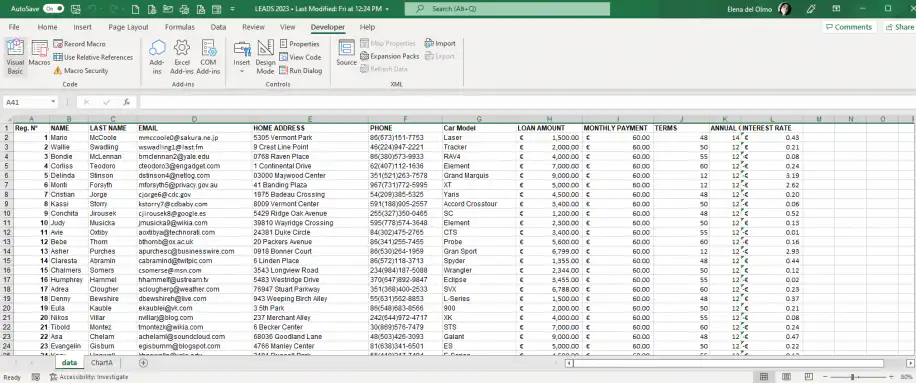
1. Go to Developer > Visual Basic.
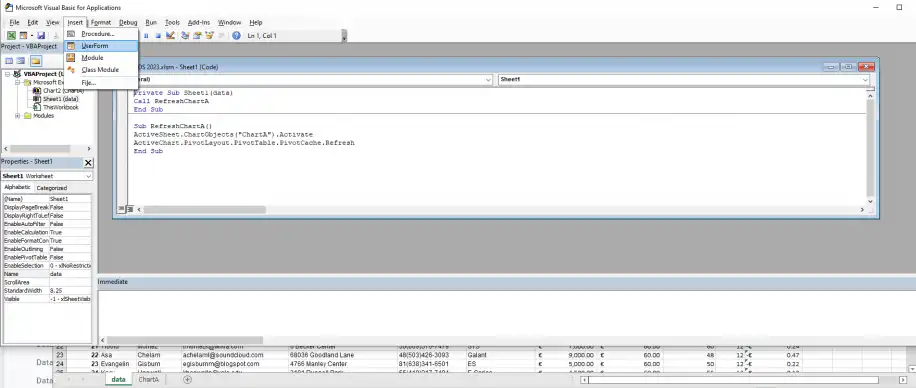
2. Select Insert > UserForm.
3. The “Toolbox” window and the “UserForm” to the right are the main elements you’ll be working with to create your own form. Simply drag one of the elements to the “UserForm1” box and double-click to edit.
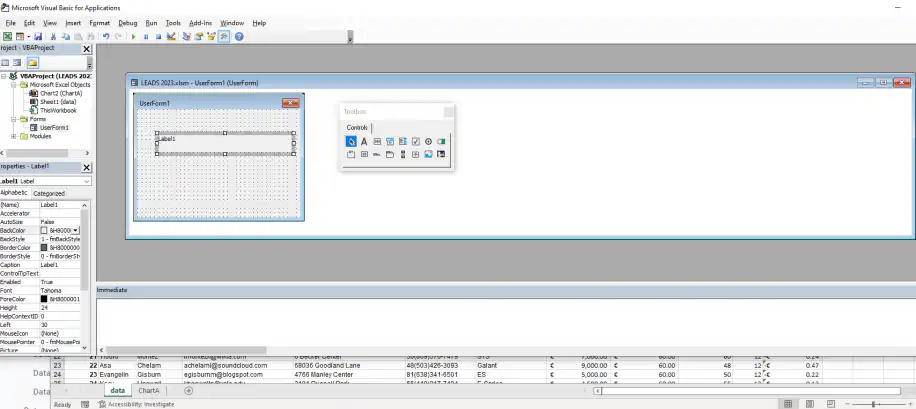
As simple as that! By creating a form, you are pre-structuring the data that will be entered further on. This way, any time that data is input in the future, you won’t have to worry about manually categorizing or restructuring.
Data entry form in Power Automate
As the name suggests, Power Automate is currently the most powerful tool offered by Microsoft to automate any business process. This is how a data entry form in Power Automate is created.
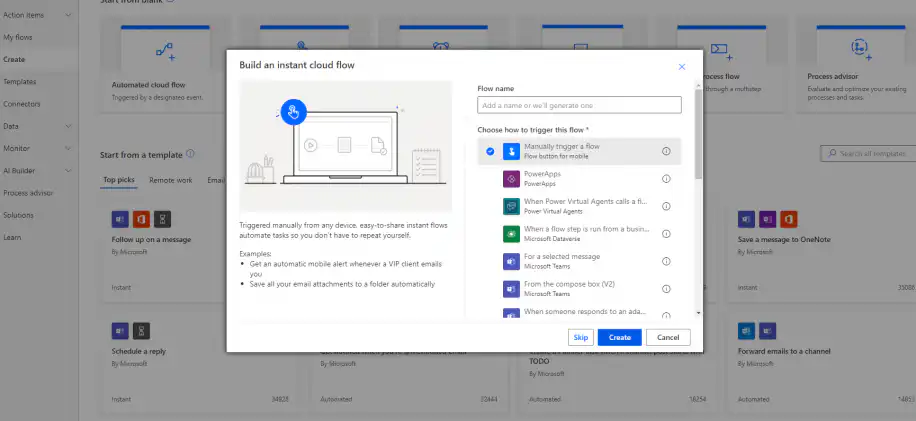
1. Open your Power Automate application and click on Create > Instant cloud flow.
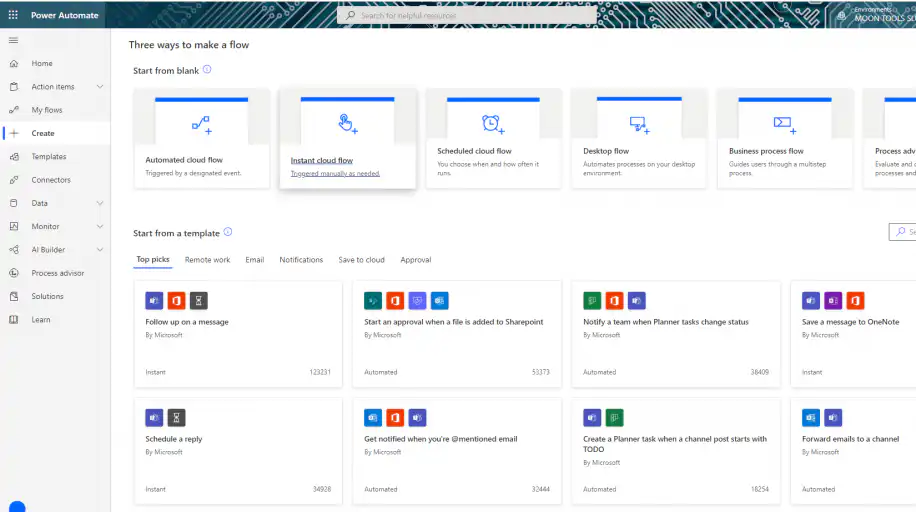
2. Select “Manually trigger a flow” from the available options.
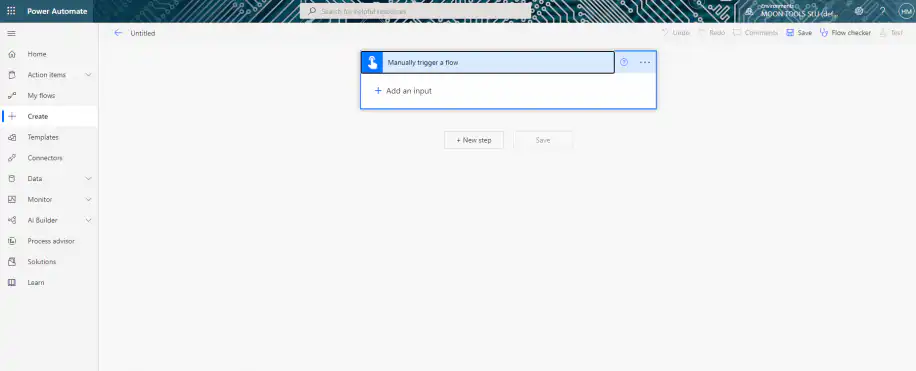
3. Click on the “Manually trigger a flow” box to access the “Add an input” option.
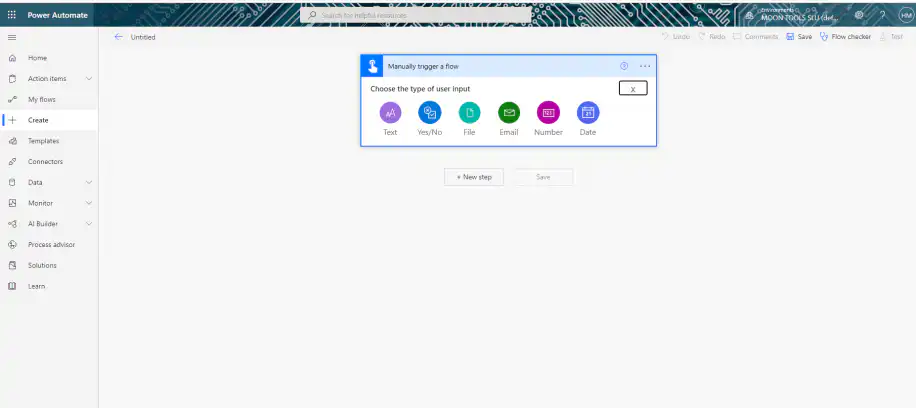
4. The options correspond to the data type. Once selected, you can select further options by clicking on the vertical ellipsis. Once you finish, click on “New Step”.
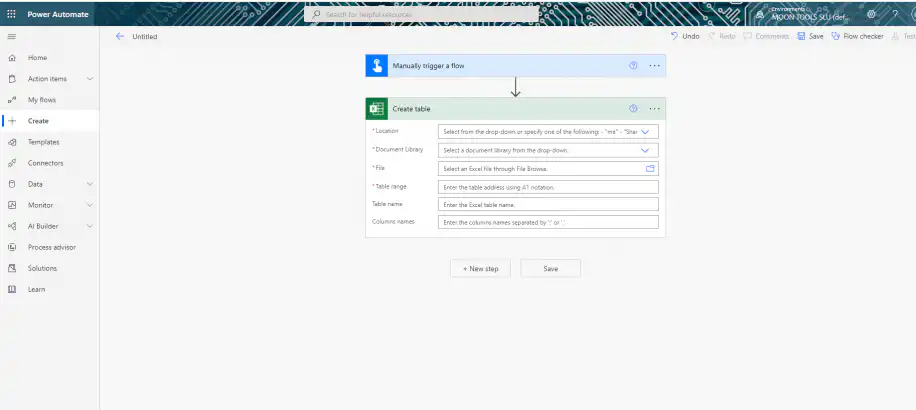
5. Select any of the “Connections” to connect your form with the spreadsheet you’ll enter the data. Then, select “Create table” from the “Actions” tab.
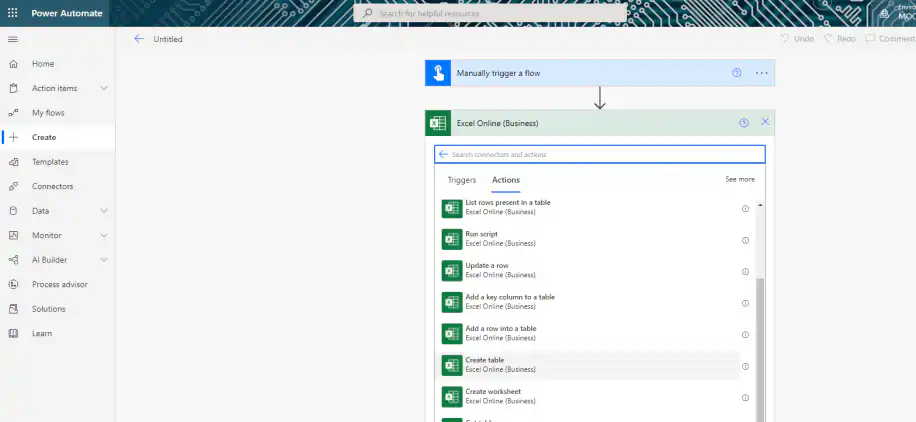
6. The following input fields correspond to the location where your form is created, including “Location”, “Document Library”, “File”, and “Table range”. Use a semicolon to enter the “Column names”. Once you finish, click “Save”.
Conclusion
It’s clear that any business process can benefit from data entry automation tools. It’s especially useful in tasks involving pulling data from invoices or purchase orders, for which the finance or accounting team is responsible.
You should now fully understand the meaning of data entry automation and how it can be achieved in different platforms, including Excel and Power Automate. However, Excel automation tools are not limited to data entry tasks and can be used to record any action that you want to repeat in the future without human intervention altogether.
If your team works in Google Sheets, the same idea applies. Connect Google Forms to Google Sheets so each response lands in its own row, and use data validation to keep typed entries consistent. To compare tools that go beyond data entry, see our list of the best workflow automation software. And if most of your data entry is copying rows from one spreadsheet to another, Sheetgo, an AI-powered data automation platform, can move that data between your Excel and Google Sheets files for you.



 English
 Español
 Português do Brasil
 Français