



While Google Calendar is used to plan their weekly schedule, if the number of tasks and events to include is large, adding them to the calendar will only increase an already vast workload. Choosing to make a schedule in Google Sheets over any other calendar app is not only better thanks to its data capacity; it’s also easier to manage and allows for multiple schedules to be included for the whole team.
Whether you work individually or in a team, you can benefit from creating a customized weekly schedule to plan for your daily tasks in a fast and efficient way. In this article, you will learn how to use Google Sheets and Google Docs for scheduling, how to make a weekly schedule and an hourly schedule in Google Sheets, and how to make a calendar in Google Sheets.
Can you use Google Sheets for scheduling?
Yes, you can! But before explaining how to make a schedule on Google Sheets, here are the main reasons you will want to choose it over any other time management app:
- Free: Google Sheets is free, contrary to most scheduling software.
- Adaptable and intuitive: It offers all the functional, automation, and formatting features to customize your own schedule. From editing to sharing, Google Sheets guides you every step of the way.
- Web-based: This allows you to save space on your computer for other software; you do not need to install specific software that may require training.
- Collaborative and shareable: Although you can now work offline on your Google documents, an online platform lends itself to faster simultaneous work. If you are managing a project or schedule, you can easily assign tasks by sharing them with the desired recipients. If you wish, the schedule can also be embedded on your website or any other cloud environment.
- Easily convertible: You can easily export your Google Sheet schedule into any other format, including PDF, to avoid any unwanted editing.
Now that we know the many reasons to use Google Sheets for scheduling, here’s how to make a weekly schedule in Google Sheets.
How to make a weekly schedule in Google Sheets?
We all know how important it is to keep track of tasks, but we also know that creating a system can be time-consuming. If you ever asked yourself, “How do I make an hourly schedule in Google Sheets without wasting time?” keep reading.
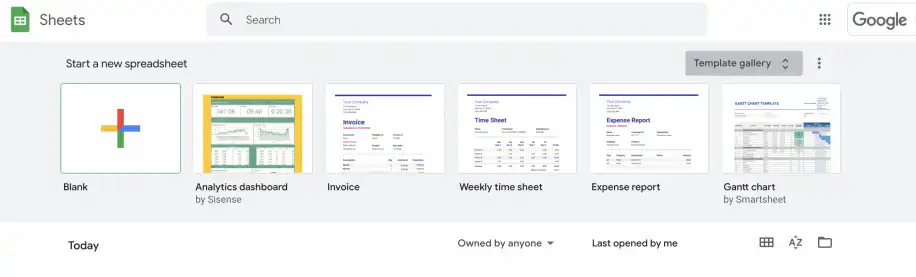
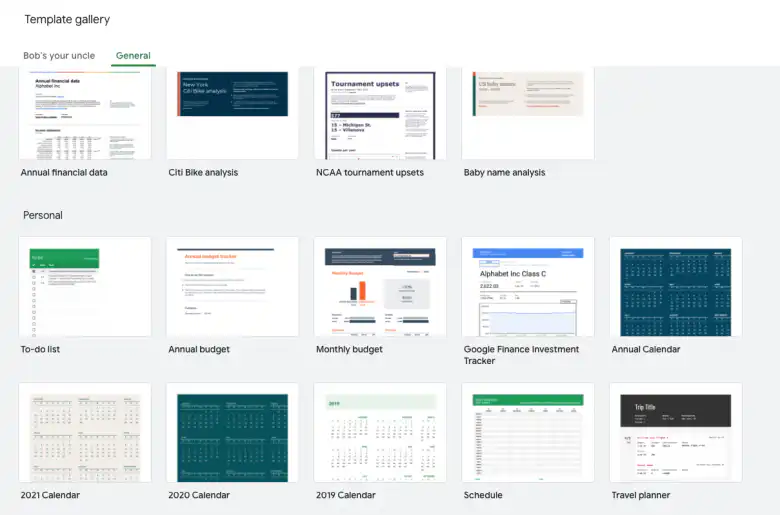
1. Open the Google Sheets app from your browser and click on the “Template gallery” button.
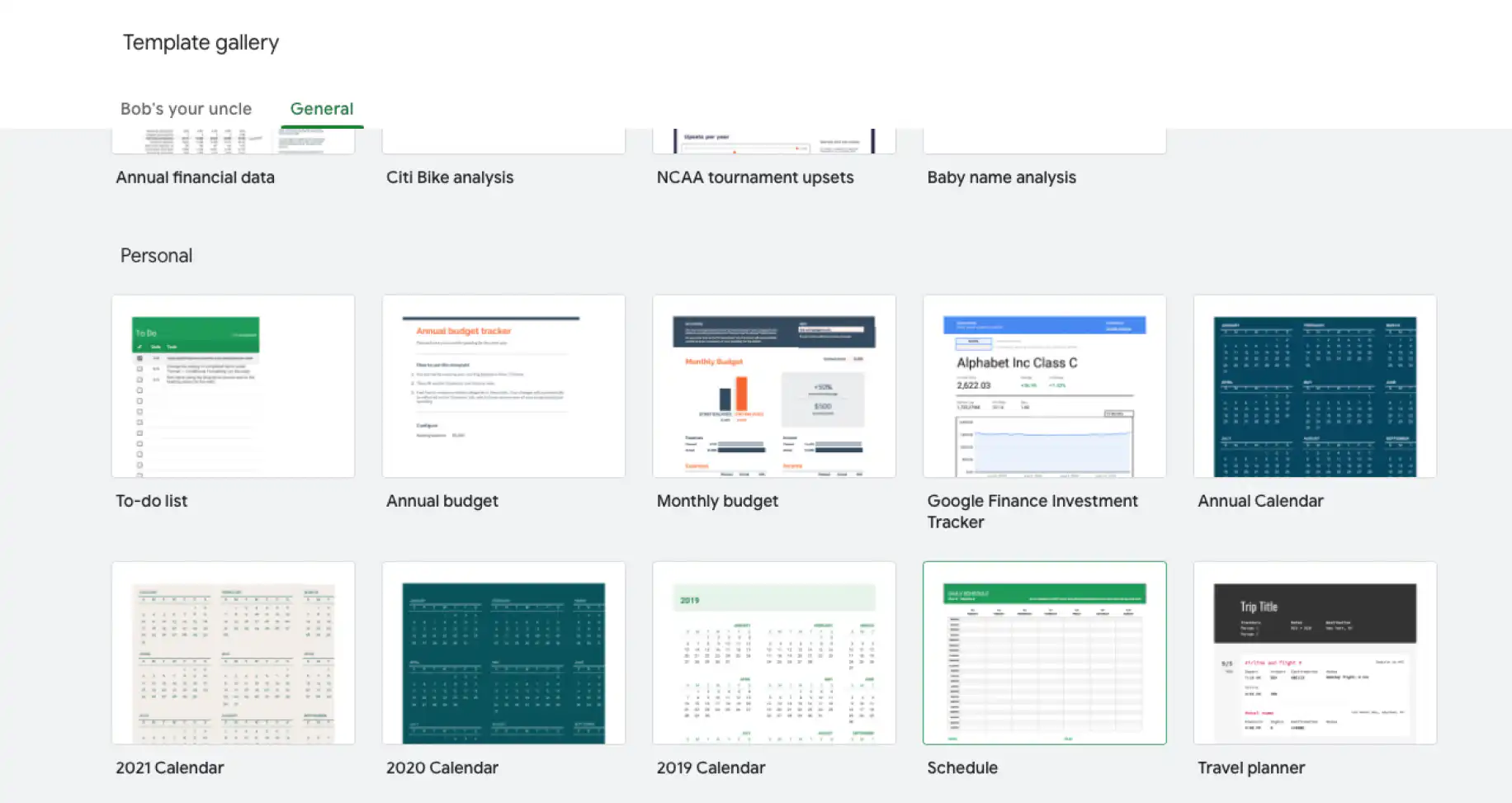
2. In the Template Gallery, scroll down and double-click on the “Schedule template”.
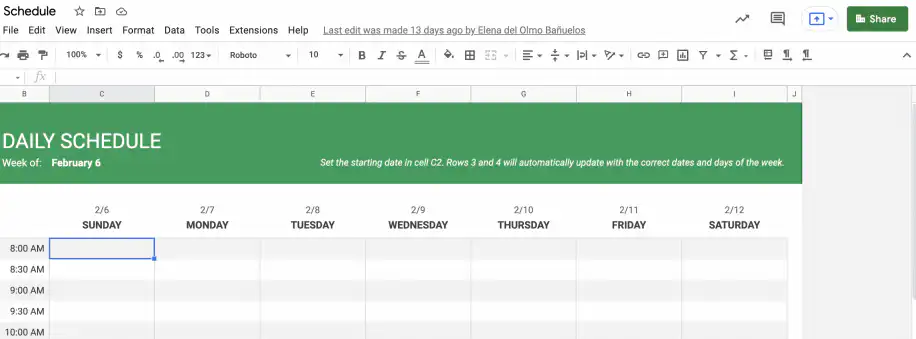
3. The template will guide you from the beginning by recommending you to “Set the starting date in cell C2. Rows 3 and 4 will automatically update with the correct dates and days of the week.”
Change to your date of preference by double-clicking on the cell. Here we will set the starting date to February 6.
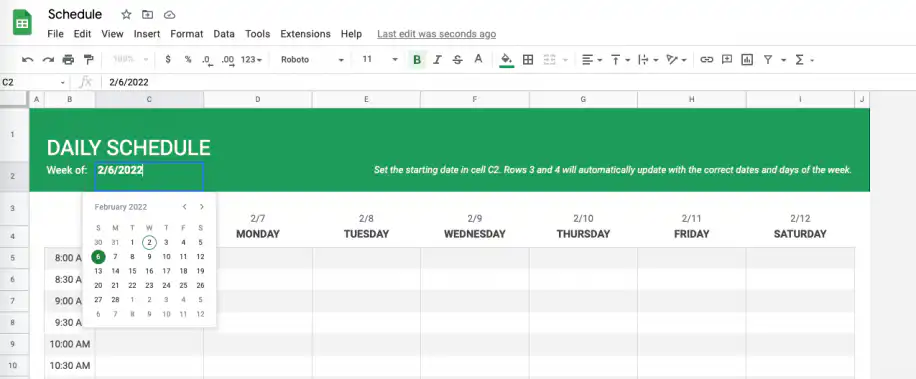
4. Rows 3 and 4 have automatically been updated, so you can continue to customize your schedule.
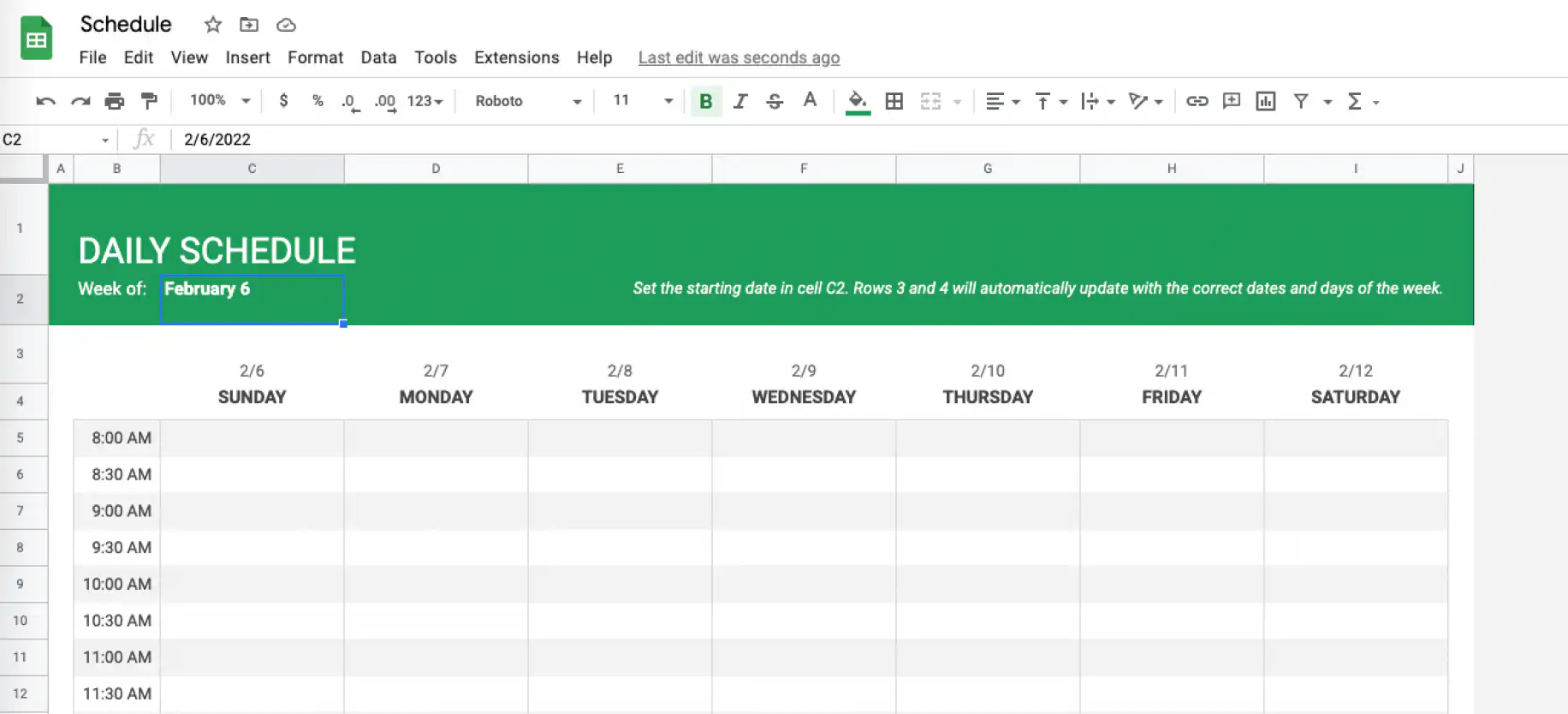
As you can see, this template offers an intuitive and straightforward layout, so you can adapt to your working schedule. Here are a few things to consider before you begin:
- Don’t type in the day cells as they contain a formula. When you build a schedule from scratch, the WEEKDAY formula in Google Sheets returns the day of the week for any date.
- You can change the 30-minute time slots according to your preference.
- You can add notes or comments below the schedule.
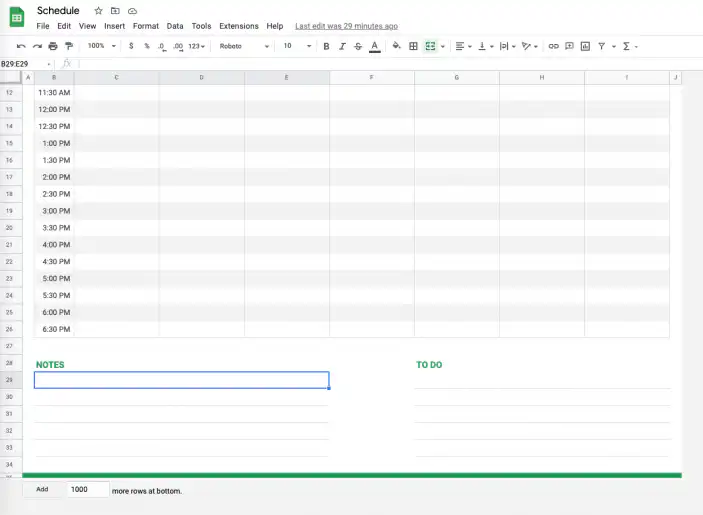
The great thing is that you can preserve your week’s workflow. As soon as you start a new week, you can simply change the starting date, as we explained before.
Now that you know how to create a general schedule in Google Sheets, let’s see how to create an employee schedule in Google Sheets.
How do I create an employee schedule in Google Sheets?
There are many reasons to create an employee schedule. The most common would be to keep track of staff progress and ensure everyone aligns with the primary business aim. We will continue from the last step in the previous section to apply to an employee schedule scenario.
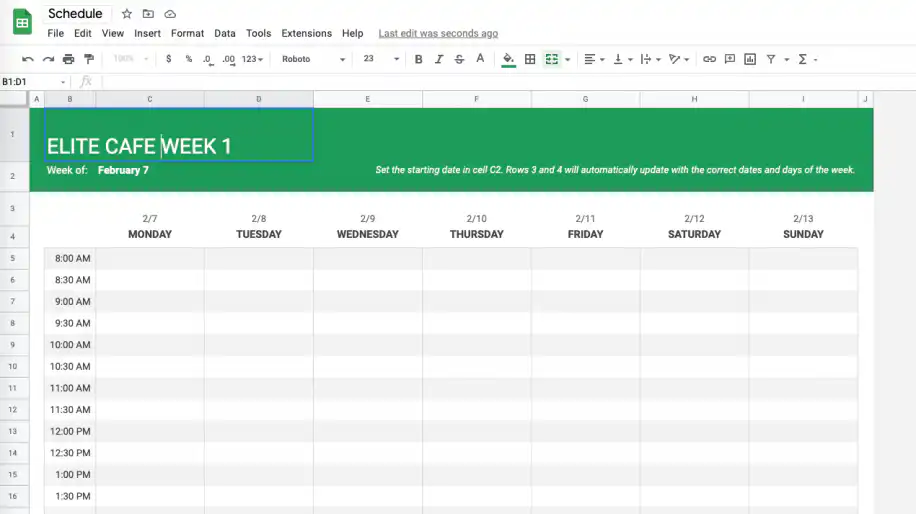
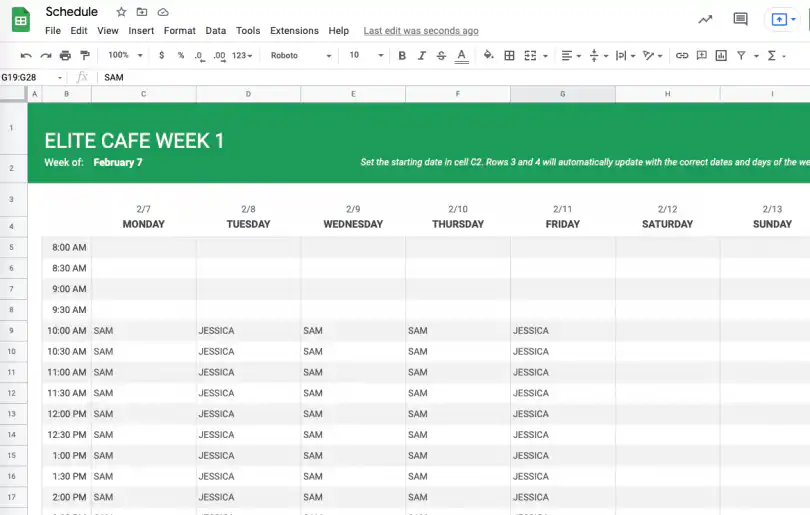
5. Click on the schedule title and change it to your business and the corresponding week number. Here I have named it ‘ELITE CAFÉ WEEK 1’, starting from the week of February 7.
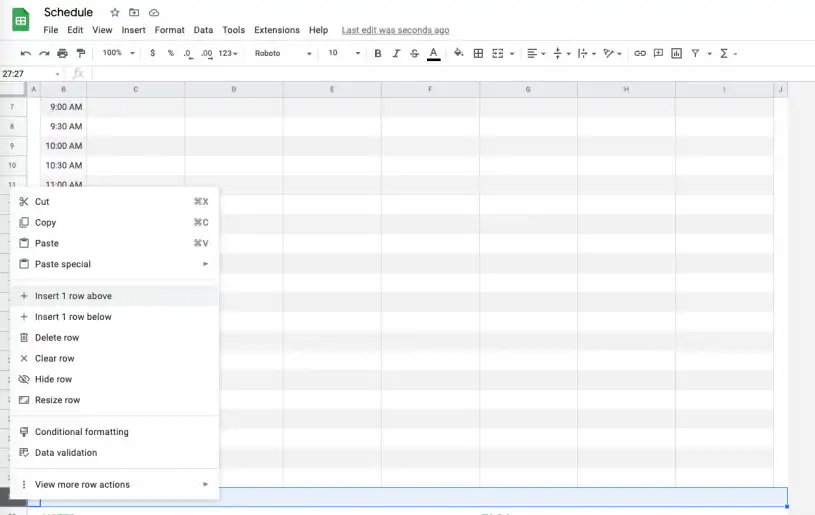
6. Include as many rows as needed to adapt to your weekly hours. To add more hours to your schedule, select the last row, right-click and select “Insert 1 row above”. Do so as many times as needed to complete the number of hours.
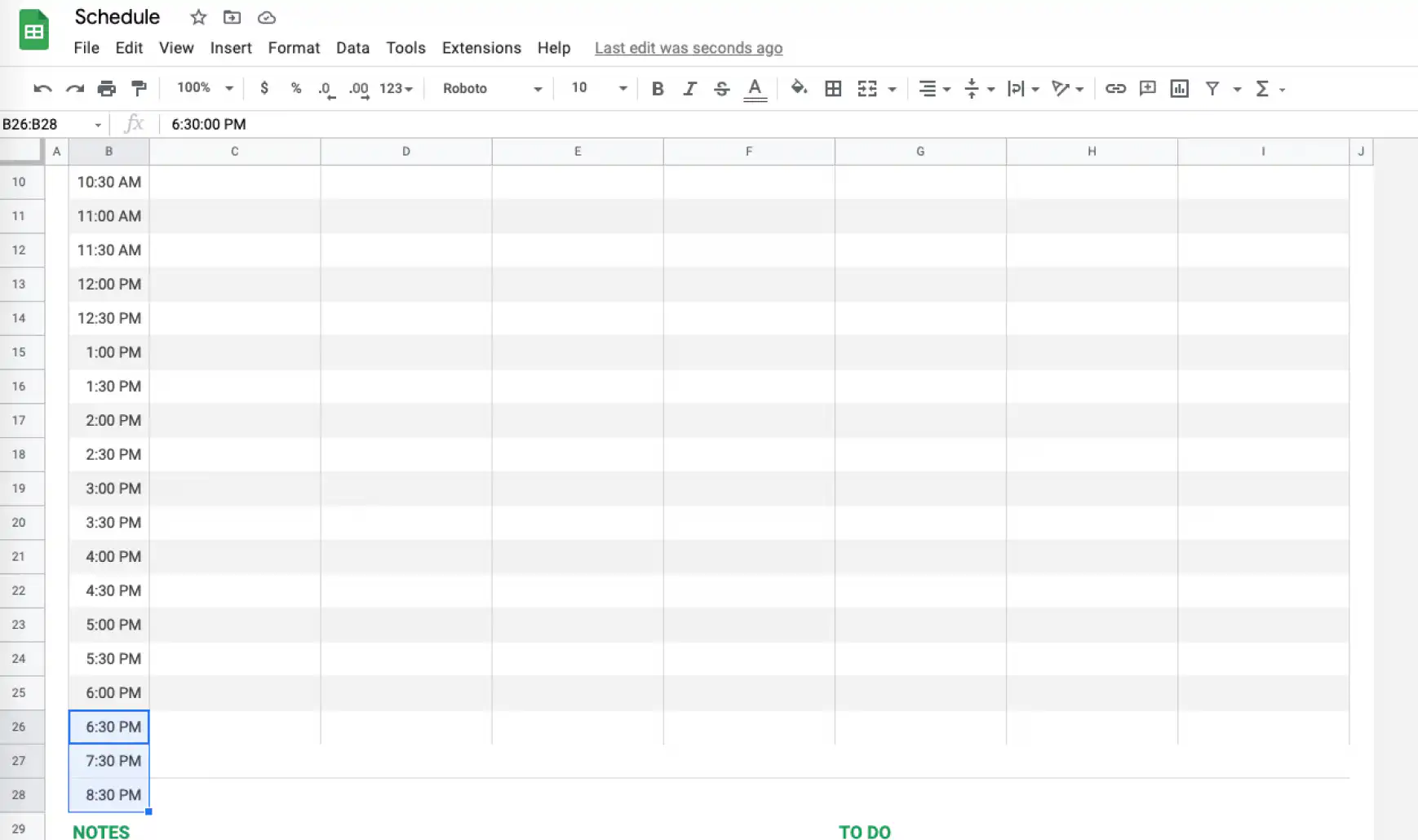
7. Select the cell including the time, and drag it down to fill in the hours for your new rows automatically.
8. Include the name of your staff according to their assigned shift.
9. The last step would be to share the schedule with your employees, which is as simple as clicking on the “Share” button to the far right of the Google Sheet.
For a temp who only needs access for a few weeks, you can also temporarily share Google Sheets files.
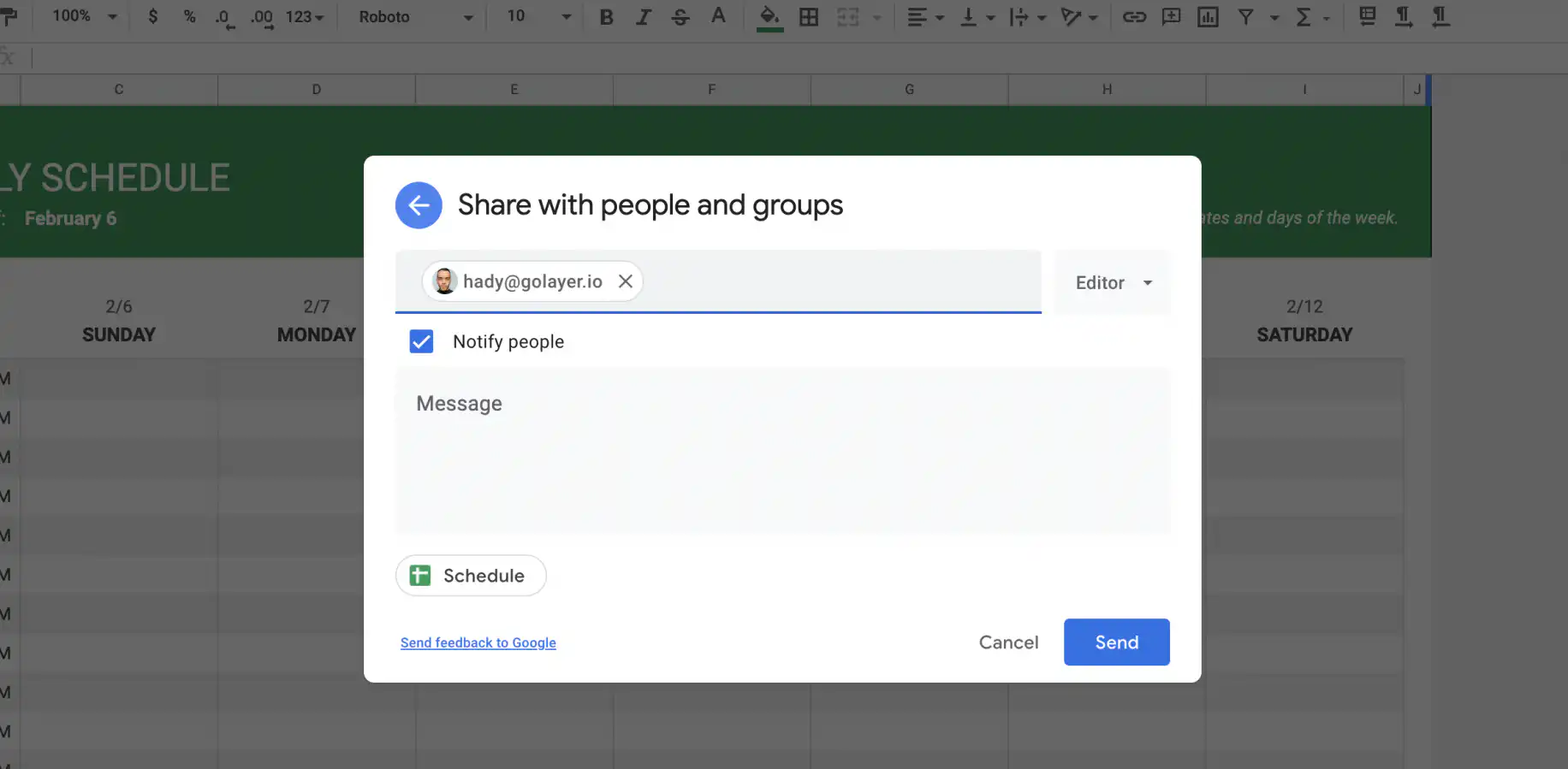
10. Type in the email of your employees and click “Send” once finished.
So far, we have seen how to create a general and employee weekly schedule in Google Sheets. But, can you create a schedule in Google Docs?
How do I create a schedule in Google Docs?
Unfortunately, there are no built-in schedule templates in Google Docs. If you prefer to use Google Docs, you will need to create one manually or with the help of third-party templates.
Here is a list of third-party schedule templates you can open in Google Docs:
- Template.net: Offers over 400 template schedules for a variety of domains: school, production, IT and software, real estate, construction, events, etc.
- Thegoodocs.com: Also provides a great variety according to category and google format (sheets, docs, slides, etc.).
- Superside.com: Another option for schedule templates and other ready-to-use work schemes to boost productivity.
Now that you have seen how to create a schedule on a weekly and hourly basis, let’s see how to make a calendar in Google Sheets.
How to make a calendar in Google Sheets?
To create a yearly or monthly calendar in Google Sheets, follow these steps:
1. Follow step 1 from the first section of this article.
2. In the Template Gallery, scroll down and double-click on the “Annual Calendar” template.
3. Go to the second tab, “Customize your calendar”, where you can choose from 16 different themes. They outline the steps in the sheet.
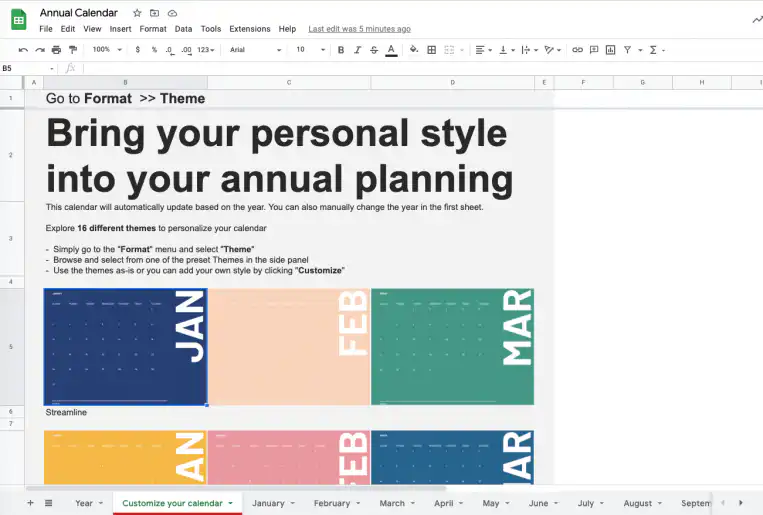
We highly recommend this template since it automatically updates the year. You can also change the year manually in the first tab by simply entering the correct year. As we saw in the weekly schedule, you can preserve past annual calendars, as you only need to duplicate the Google Sheet to create a new calendar. If your events already live in Google Calendar, you can pull Google Calendar events into Google Sheets with Apps Script instead of typing them in.
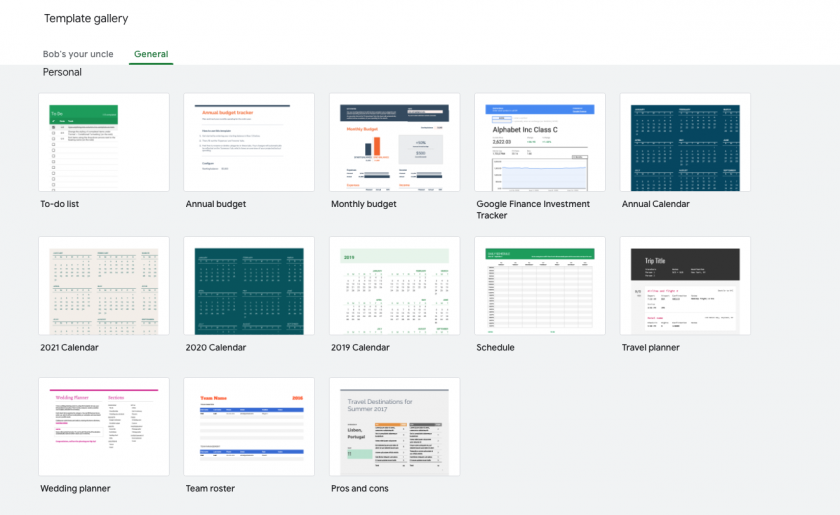
If you are interested in timing projects or tasks related to budgeting or reporting, Google Sheets also provides a variety of topic-based calendar templates:
Conclusion
In just a few clicks, you have learned how to make a weekly schedule on Google Sheets and develop your own customized calendar. In case you manage a project or lead a team, its collaborative and shareable features allow you to create and share your employee schedule in a quick and easy way, regardless of the amount of data or users. This is why Google Sheets continues to be the go-to platform for online collaboration, given its intuitive and versatile nature.
If you want to learn more about business templates to help speed up administrative tasks, check out the Top 11 Free Google Sheets Templates.
To record the hours your staff actually work, try this employee timesheet template in Google Sheets.

 English
 Español
 Português do Brasil
 Français