




Microsoft Excel has long allowed users to easily share an Excel file for multiple users to edit. However, to collaborate with others online on the same version, Microsoft introduced Co-Authoring in Excel for Microsoft 365. In addition to unlocking powerful new collaboration features, users can still enjoy the more traditional methods of sharing, such as sending your Excel file to your coworker’s email.
In this guide, you’ll learn how to email an Excel spreadsheet following multiple solutions. If you’re interested in only sending part of the spreadsheet, you’ll see how to quickly email an Excel sheet or how to attach an Excel file to an email in case you want to share the whole document.
Alternatively, you can use Sheetgo, an AI-powered data automation platform, to email Excel files automatically or convert them to PDF before sending them. Check out this blog post to learn more about using Sheetgo to send personalized mass emails.
How to email an Excel sheet?
If we use Excel spreadsheets for work, then it’s likely that our data is structured into various sheets within an Excel file. If this is the case, then we might also be interested in sharing only part of the file with a coworker. First, you’ll see how to send part of your data by email.
How to send part of an Excel spreadsheet by email?
Let’s say I have an Excel file containing the list of clients gained per month, where each worksheet represents the month. To speed up the sending process, it’s important to add the “Send to Mail Recipient” option to the “Quick Access Toolbar”.
How to add Send to Mail Recipient to the Quick Access Toolbar in Excel?
1. Open the Excel file containing the data to send, and click on the “Customize Quick Access Toolbar” drop-down arrow, as shown below.
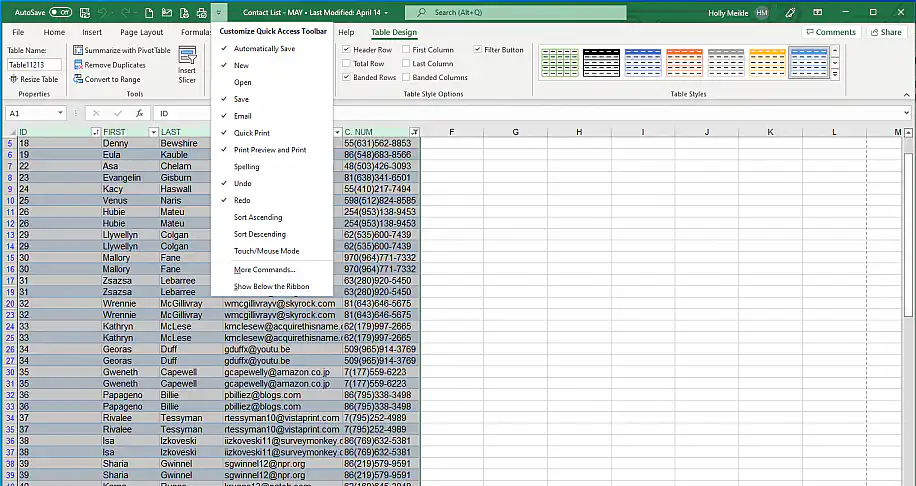
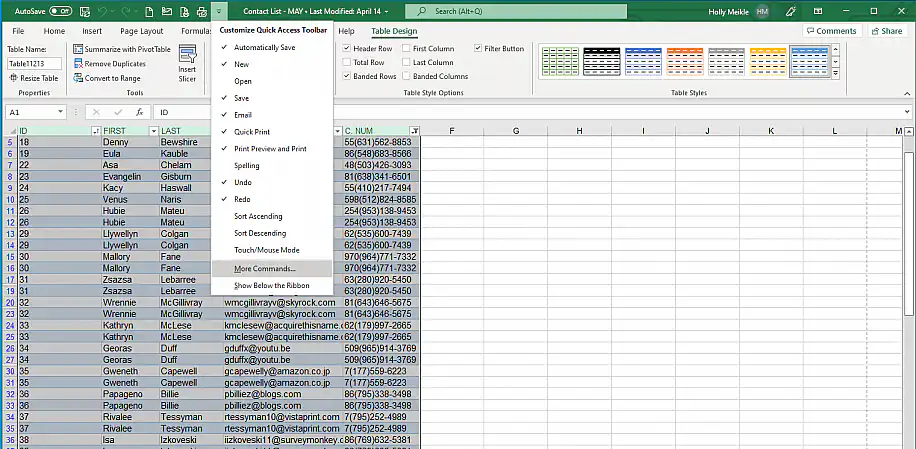
2. To customize the toolbar, select “More Commands…”.
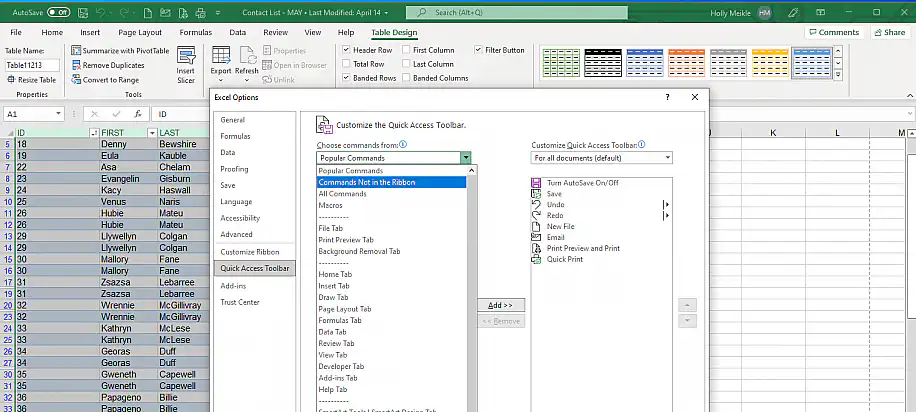
3. From the “Excel Options” dialog box, click on the “Choose command from” drop-down menu and select “Commands Not in the Ribbon”.
4. Scroll down the list of options until you find “Mail Recipient [Send to Mail Recipient]”. Select it.
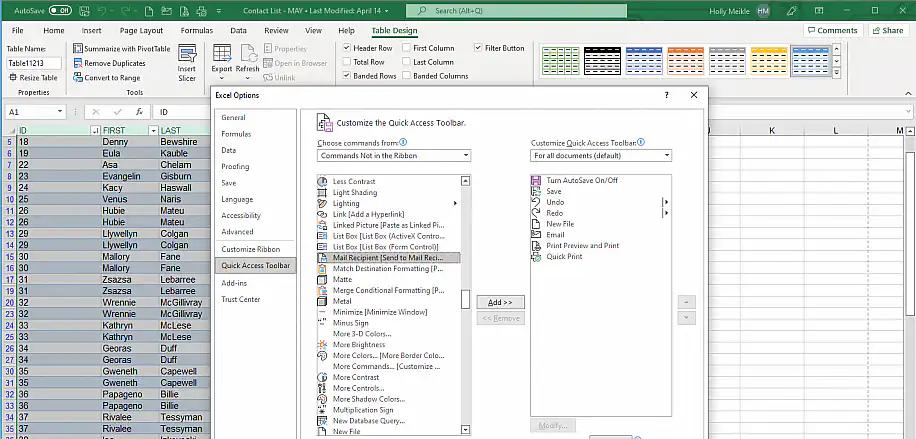
5. Click on the “Add >>” button, to include in the list to the right, where your current Quick Access Toolbar options appear. Once you finish, click “OK” at the bottom.
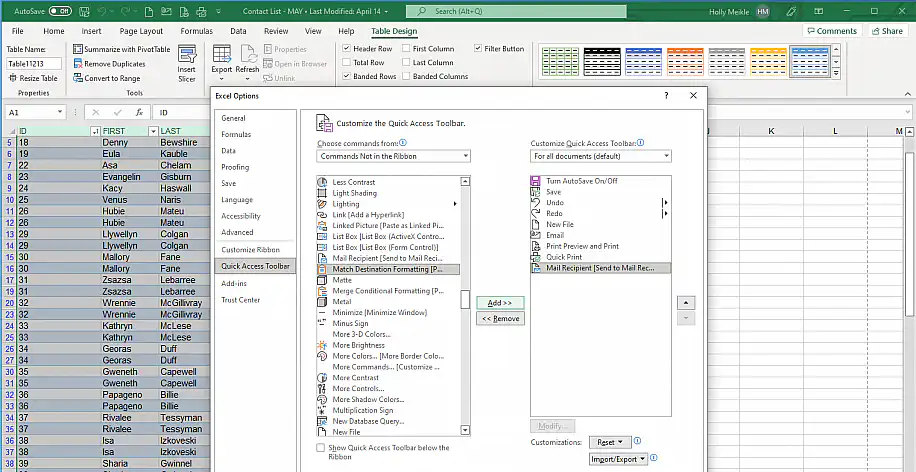
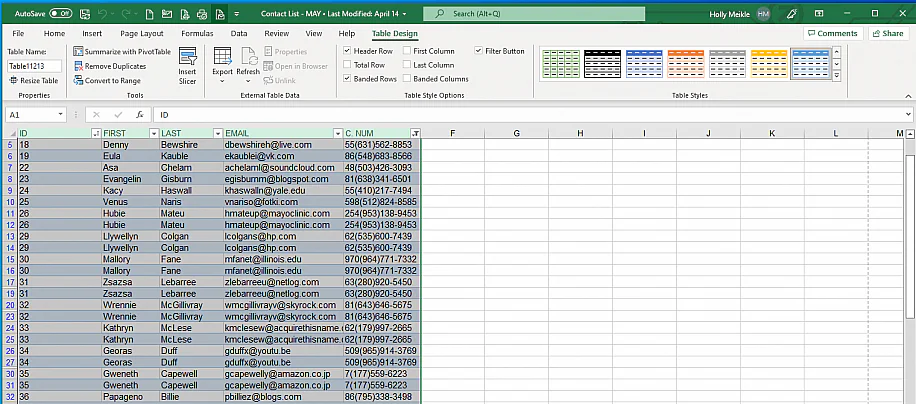
6. Select the cell range to send via email and then click on the newly created “Mail Recipient [Send to Mail Recipient]” icon in the Quick Access Toolbar, as shown below.
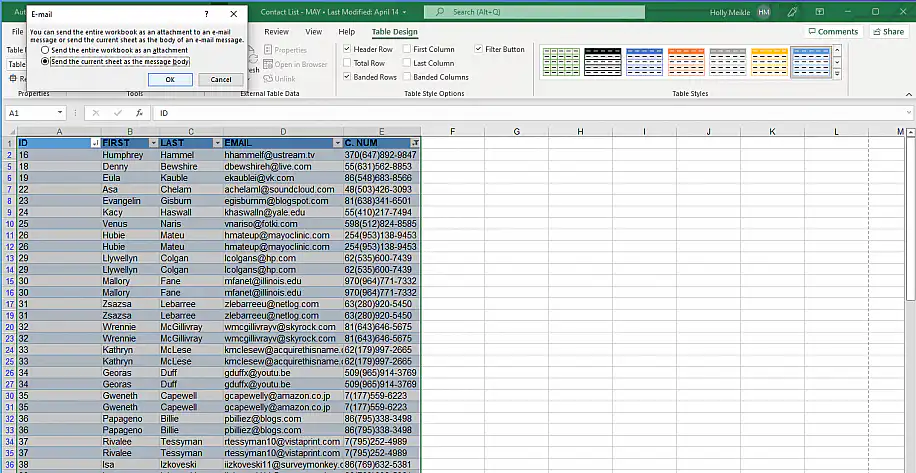
7. You should now be able to choose between two sending options, “Send the entire workbook as an attachment” or “Send the current sheet as the message body”. Click on the second option to send the selected range as the body of the email. Click “OK” to finish.
8. Enter the information in the opened email prompt. Once you’ve finished, click on “Send this Selection” to send your selected range to your coworker.
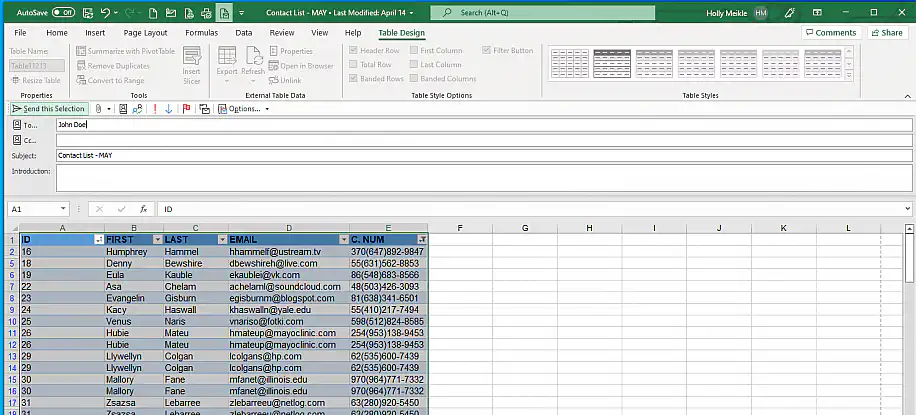
Although it maintains parts of the Excel spreadsheet interface, the data no longer has Excel functionalities, so recipients will need to edit the data by opening it in Excel.
But what if you want to send the whole worksheet and not a specific cell range? Let’s explore this option now.
How to send a single Excel worksheet as an email attachment?
In case you would like to send a single Excel worksheet as the email attachment, you’ll need to “Copy” the worksheet to a new workbook.
How to move or copy a single Excel worksheet to a separate workbook?
1. Right-click on the worksheet you’d like to send and select “Move or Copy”.
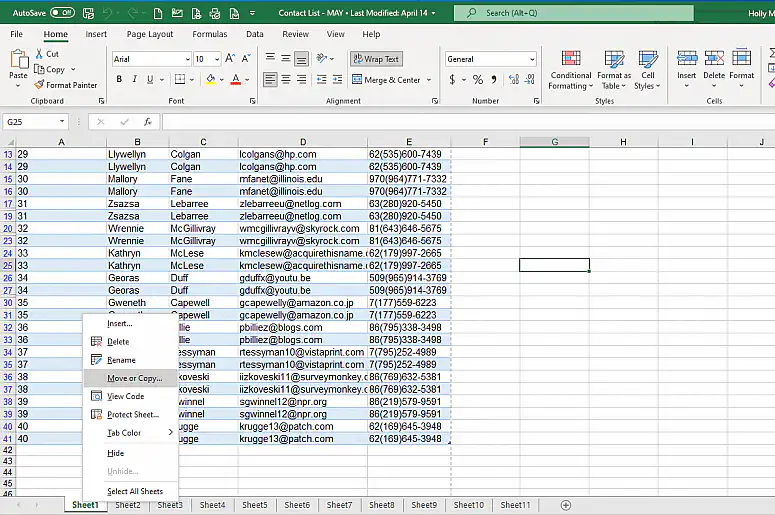
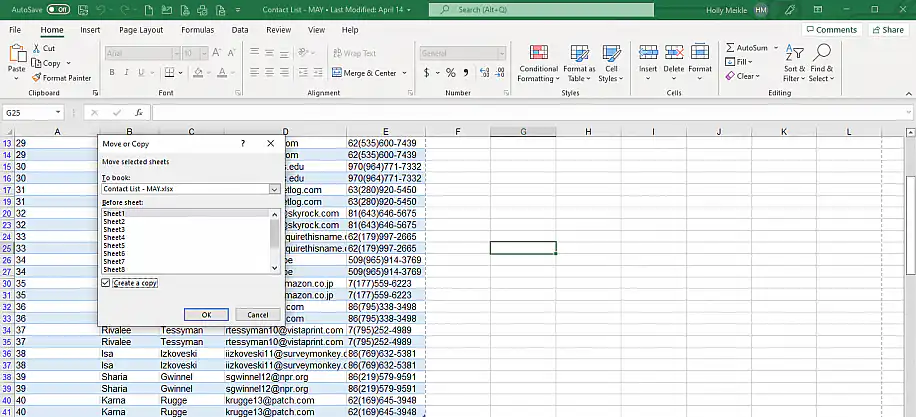
2. Select the sheet to send and then tick the “Create a Copy” option below the sheet list.
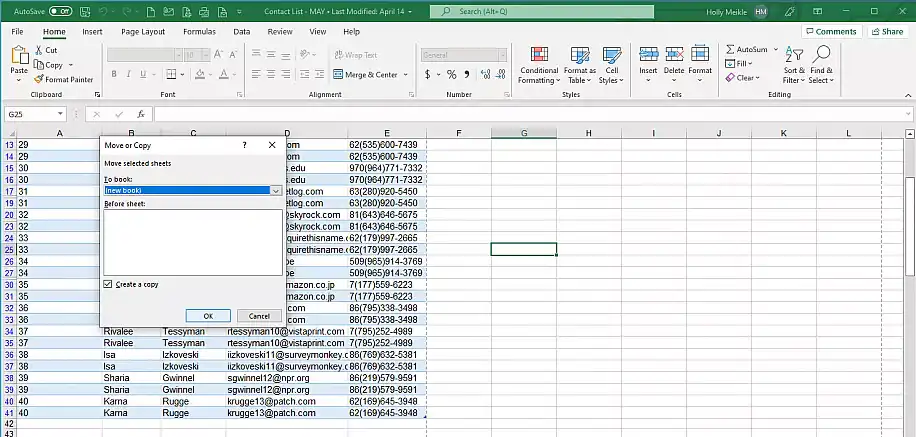
3. Click on the drop-down “To book” menu and select “(new book)”. Click “OK” to finish.
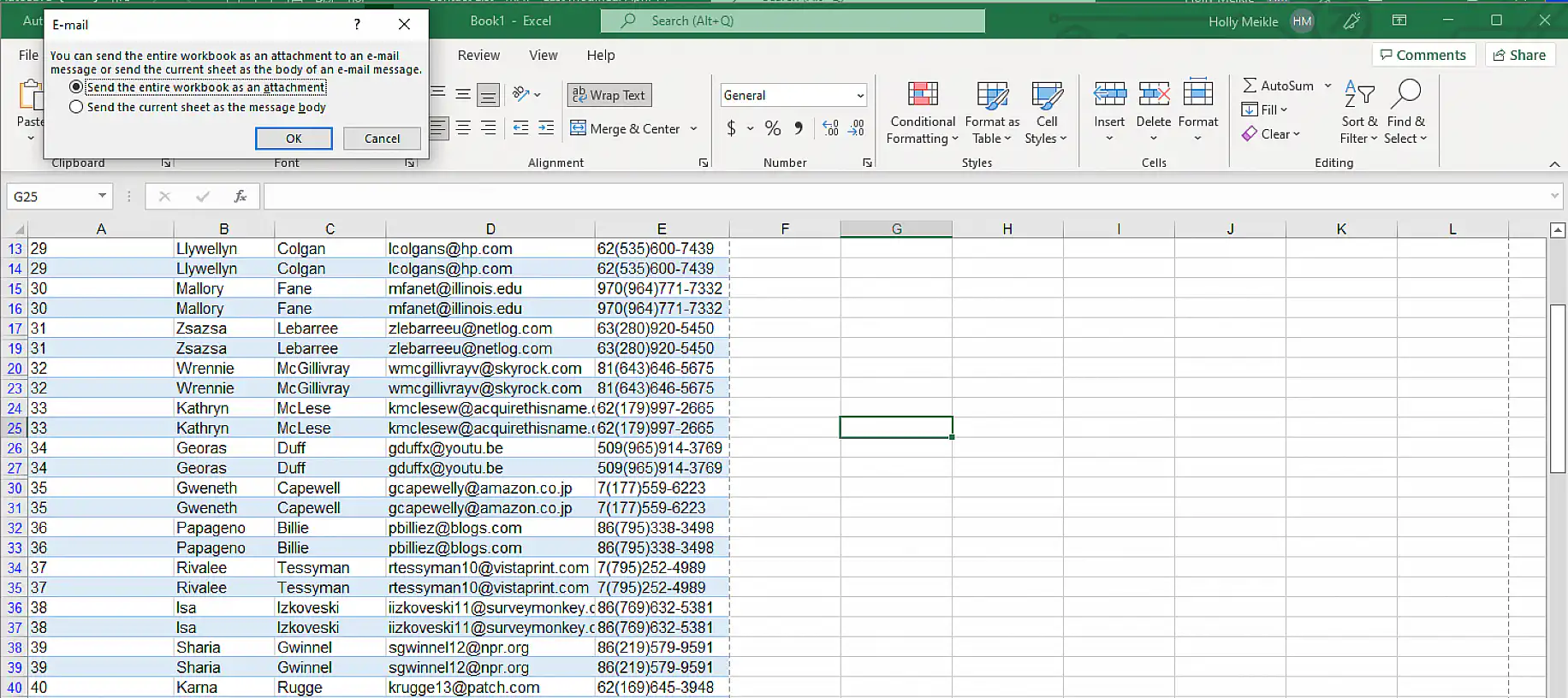
4. Now, you can click on the previously created “Mail Recipient [Send to Mail Recipient]” option in the Quick Access Toolbar. Similar to the previous section, you’ll be prompted to choose the sending method. Here, you need to select the first option to send the entire workbook as an attachment. Click “OK”.
5. Continue entering the email recipient(s) and the message body if needed.
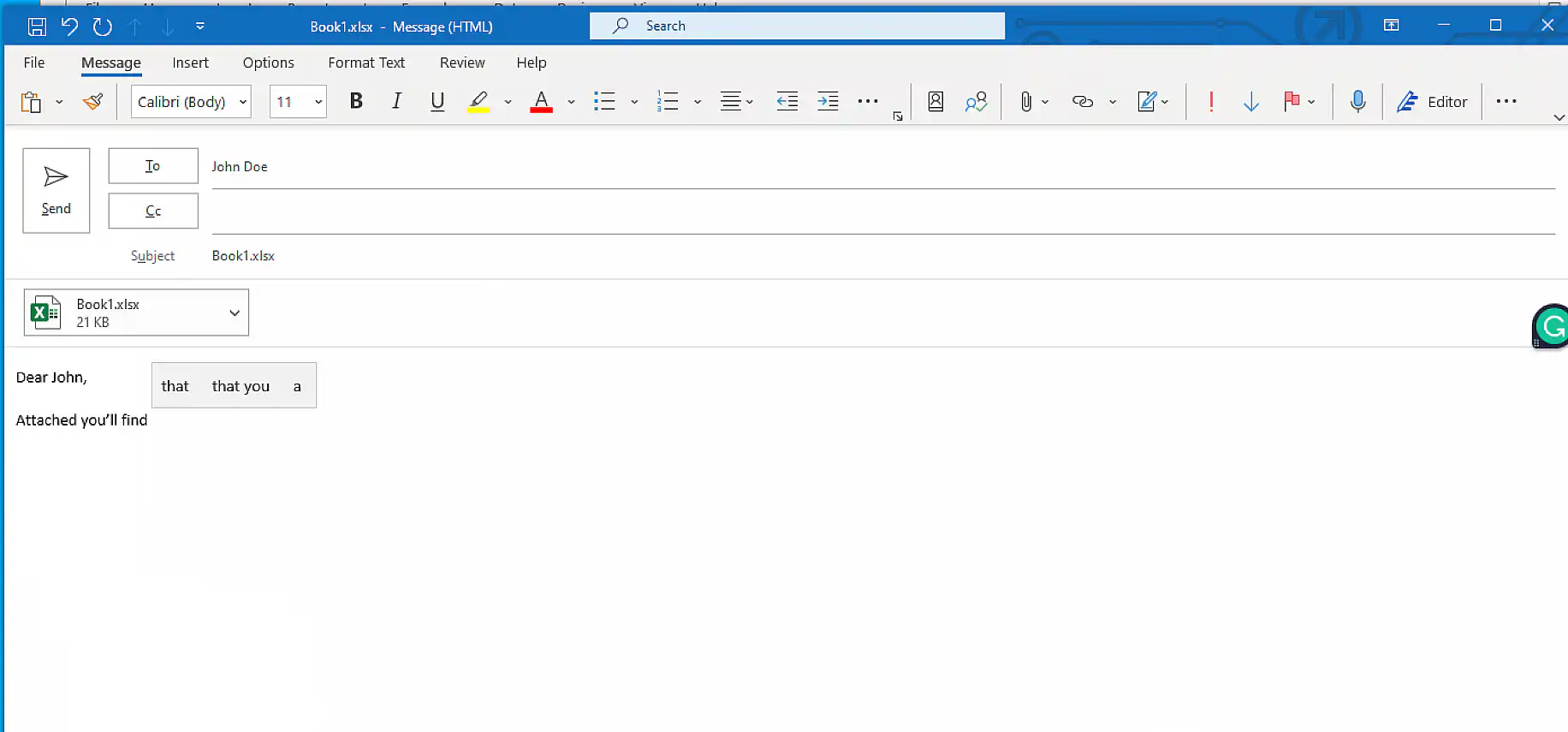
So far, you have seen two different methods to send data contained in a spreadsheet. Let’s now see three different ways to attach an Excel file to an email.
How to attach an Excel file to an email?
If you want to send the whole spreadsheet, then the fastest way is to send it as an attachment. Here, you’ll learn how to attach Excel files to emails in three useful ways.
How to attach an Excel file using “Send as Attachment”?
The “Send as Attachment” is a useful built-in feature that can be added to the Quick Access Toolbar, as previously shown with the “Mail Recipient” option.
How to add Send as Attachment to the Quick Access Toolbar in Excel
1. Follow steps 1 – 3 from the first section of this article.
2. Select “Email”, aka “Send as Attachment” from the list of options, then “Add >>”. Click “OK” to finish.
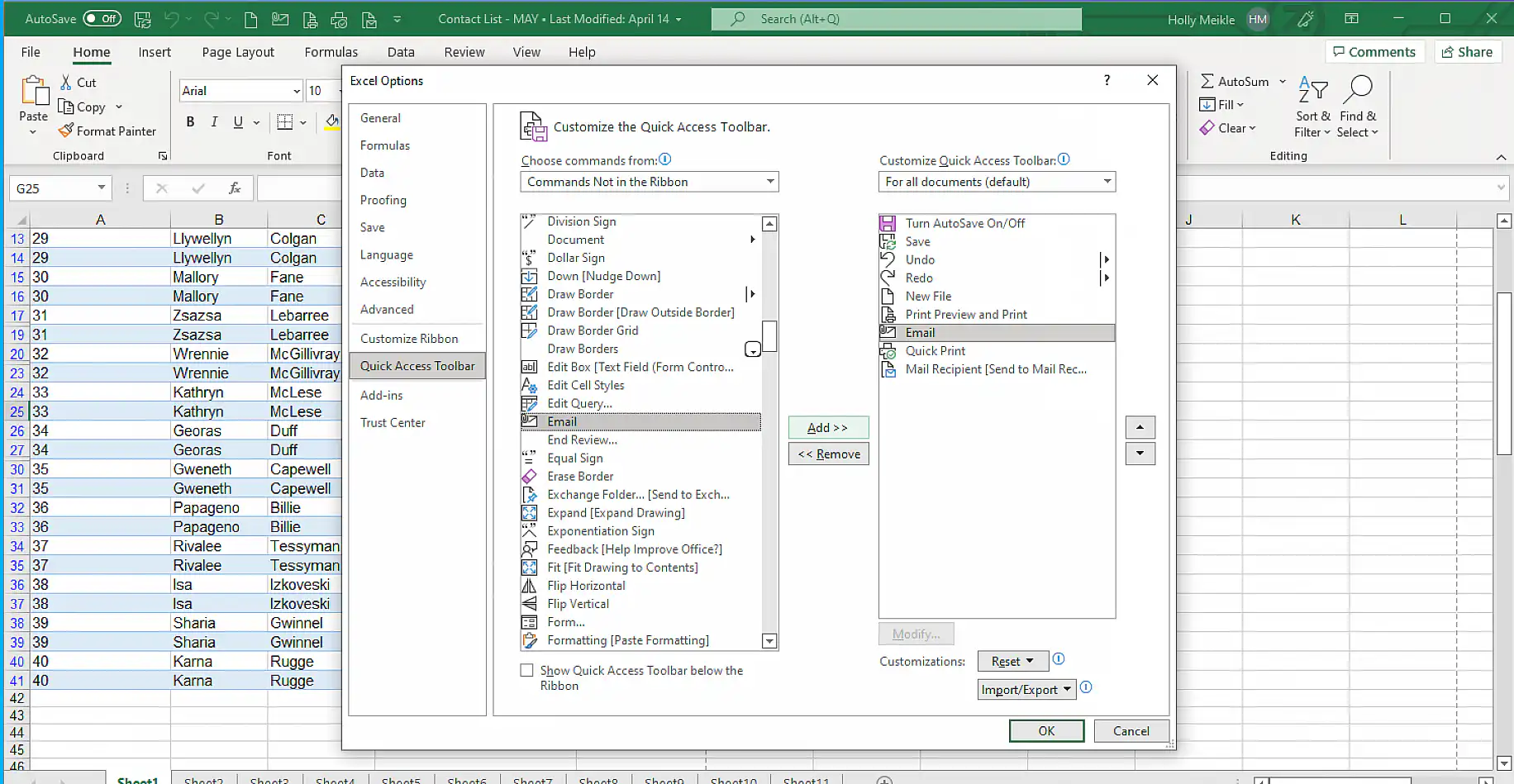
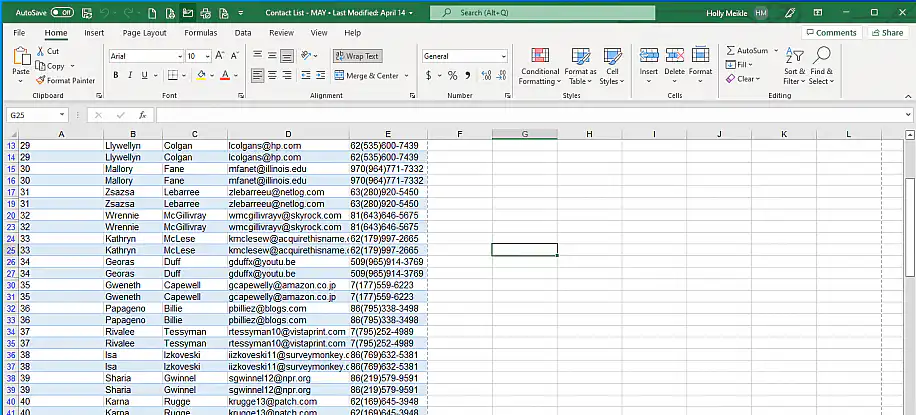
3. On the Excel file, click on the “Email” option now available in the Quick Access Toolbar, as shown below.
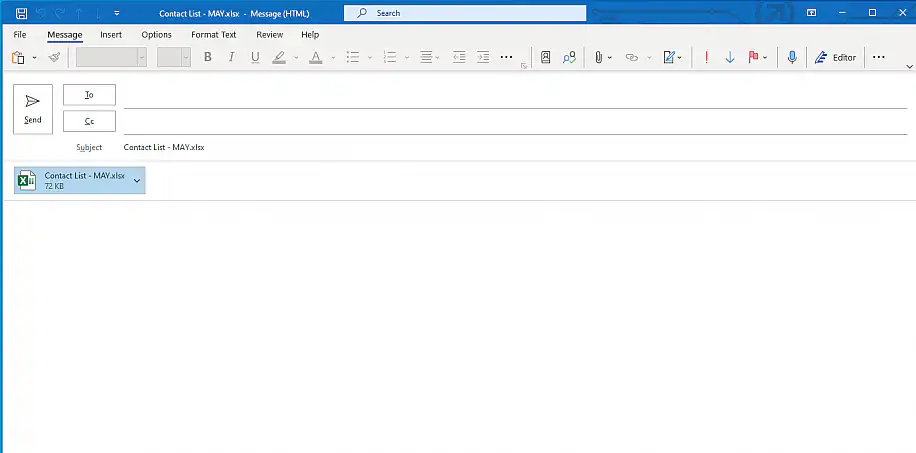
4. The email prompt will show, including the Excel file attachment. Enter the remaining information on the recipient(s) and the message and click “Send” to finish.
Although this is a quick method, most users prefer alternative options. This is because “Send as attachment” does not allow any edits once it has been sent. As a result, users can end up with different versions of the same data. What’s more, this option does not integrate Gmail or other email applications, and you can only attach one file at a time. Now, you’ll learn how to attach an Excel file from Microsoft Outlook using the Recent Items feature.
How to attach an Excel file using Recent Items?
Since you’ll likely want to attach an Excel file that you are currently working on, here’s a quick method to attach the most recent file in Outlook for Microsoft 365.
1. Open the Microsoft Outlook application and press Alt + H + A + F. This shortcut will automatically prompt the “Recent Items” list. Press “Enter” in case the file to attach is the first. If not, scroll down and click on the file you wish to attach.
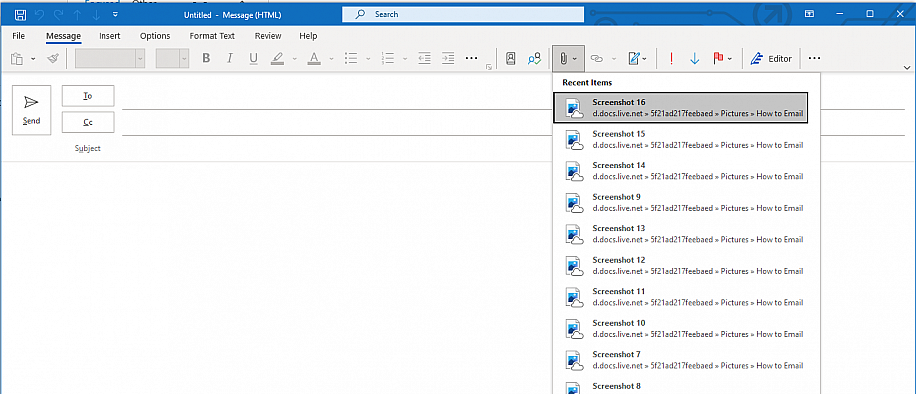
2. Outlook prompts a message, so you can choose between sharing it as a link or attaching a copy. Click on the second option to attach.
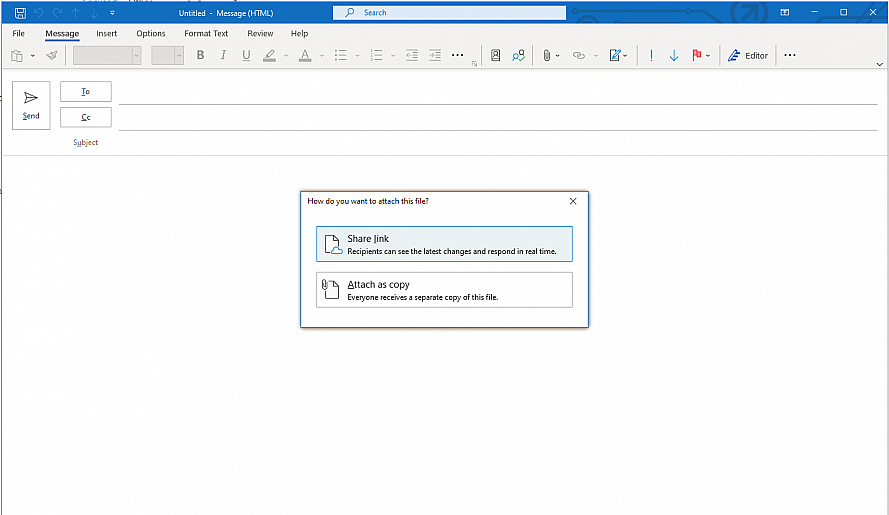
By selecting the “Share link” option, you can send an Excel spreadsheet that can be edited and make use of the Co-Authoring feature. This last method illustrates how to attach an Excel file by copying and pasting the file path.
How to attach an Excel file using the file path?
This method is usually the preferred one as it’s compatible with any email application and file format.
1. Open the Excel file you’d like to attach. Then go to File > Info to copy the file path.
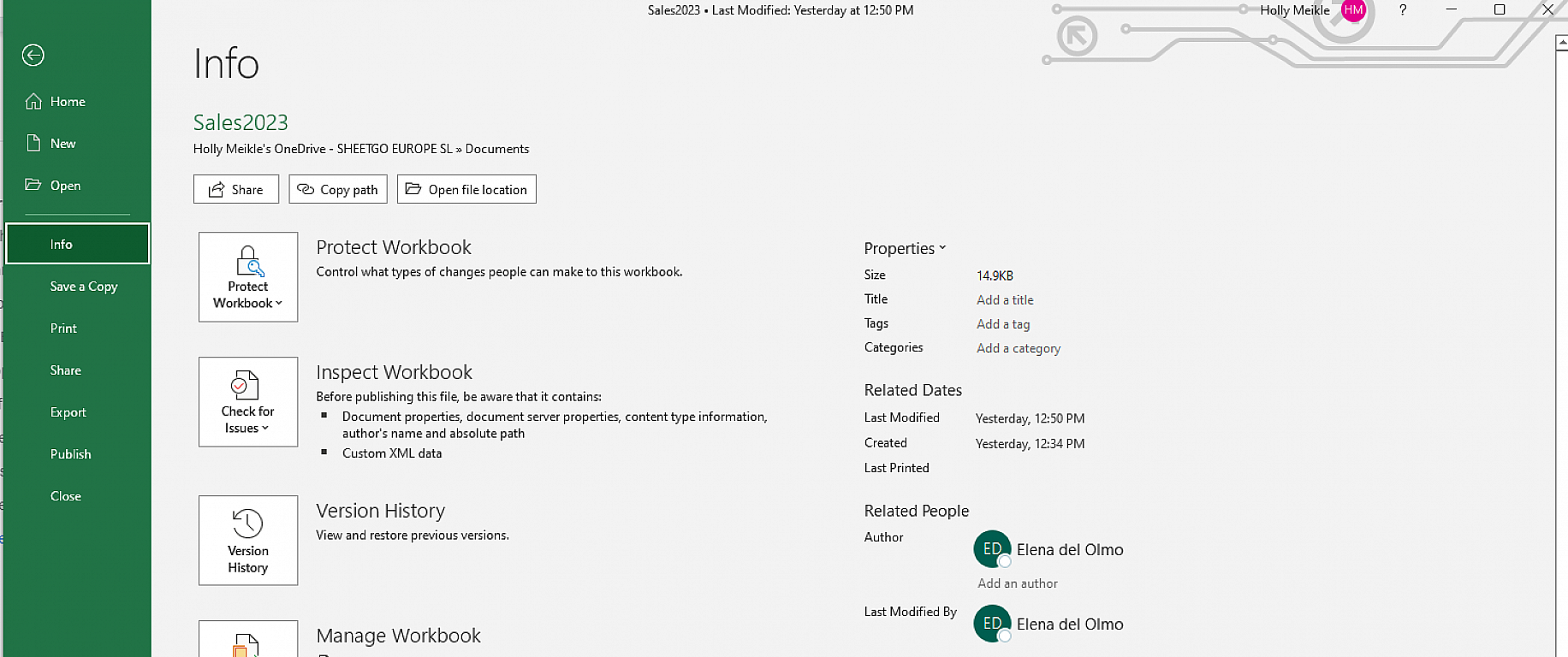
2. Click on the “Copy path” button to the right of the “Share” button.
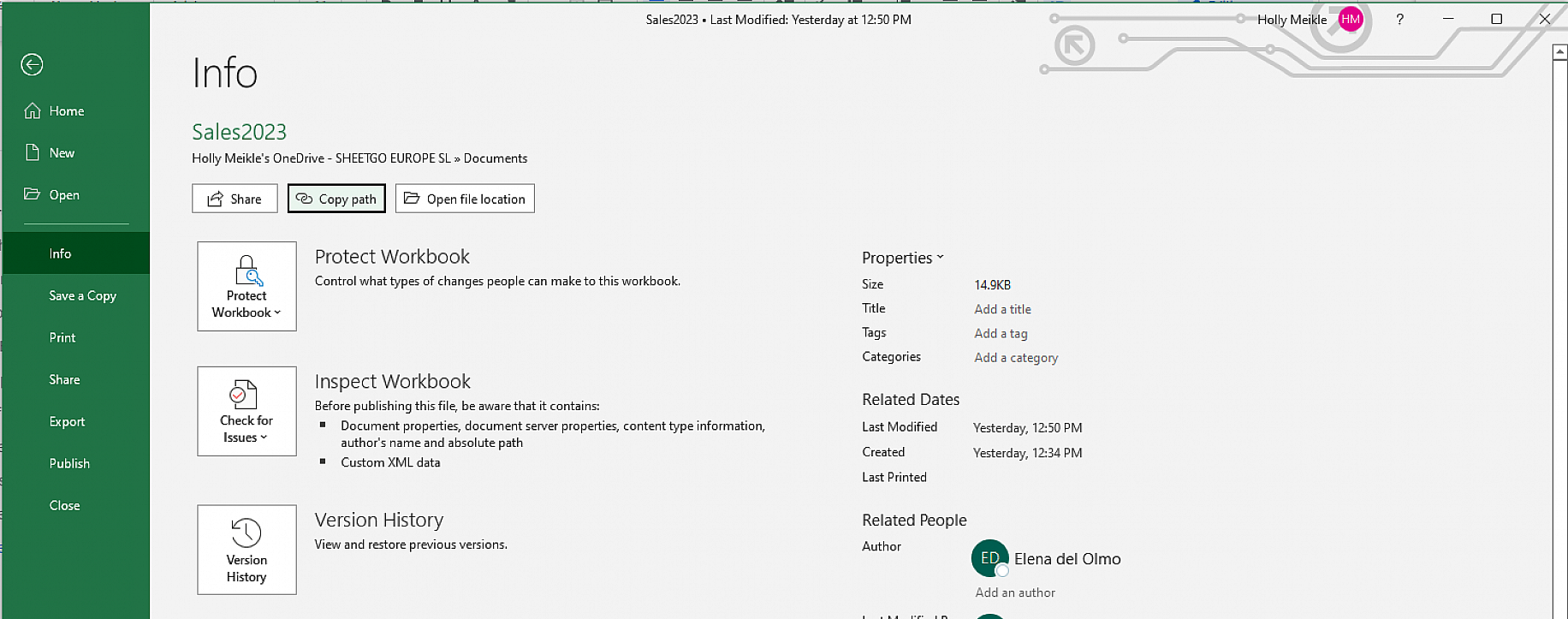
3. Go to your email and click on the “Attach” button, then “Browse This PC”.
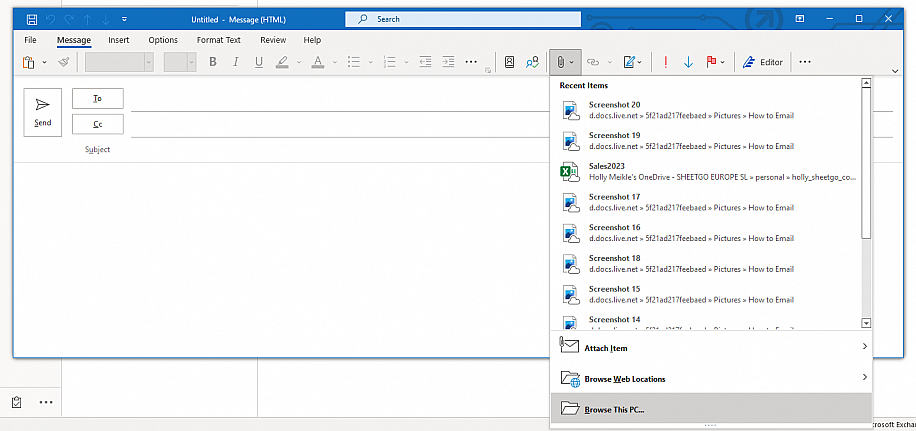
4. Click on the “File name” field and press Ctrl + V to paste the file path you just copied. Click “Insert” to attach the file to your email.
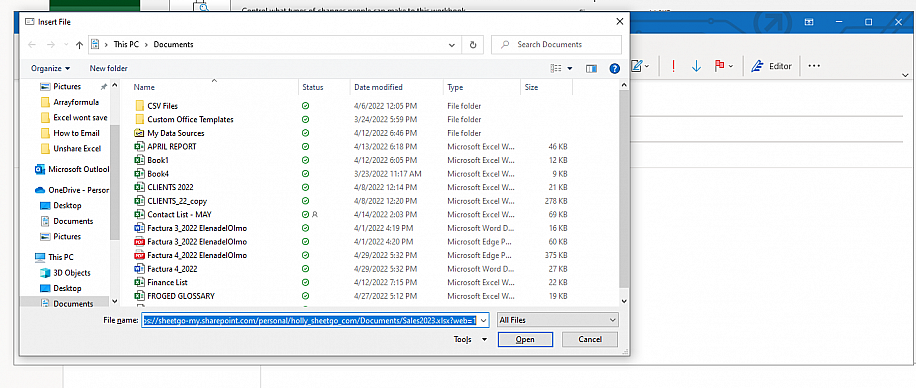
Note that this method can be used with any other email platform, including Gmail or Yahoo. If you have encountered any other issues when trying out these methods, you might find this Microsoft support page useful.
Email your spreadsheets automatically with Sheetgo
As you have seen, there are multiple ways to email your Excel files. However, if you need to do this frequently and work with multiple spreadsheet formats, you should consider an alternative that allows you to automate and scale these processes. With Sheetgo and its AI-powered automations, you can automatically send your spreadsheets or parts of them via email, as well as send personalized emails to multiple recipients using data from your spreadsheets. You can also choose to convert your spreadsheets to a different format, or generate Google Docs or PDFs from your data before sending.
1. Select the source file
2. Choose to share via email
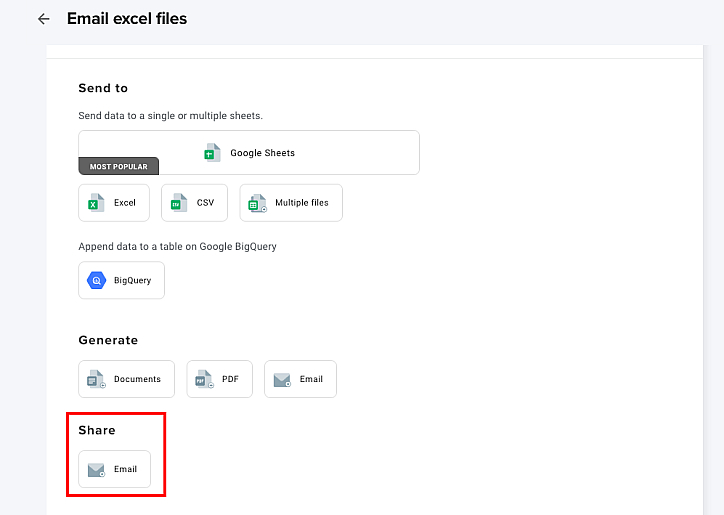
Choose ‘share’ if you want to email a spreadsheet or ‘generate’ if you want to generate a document from your data.
3. Customize and personalize your email with variable placeholders
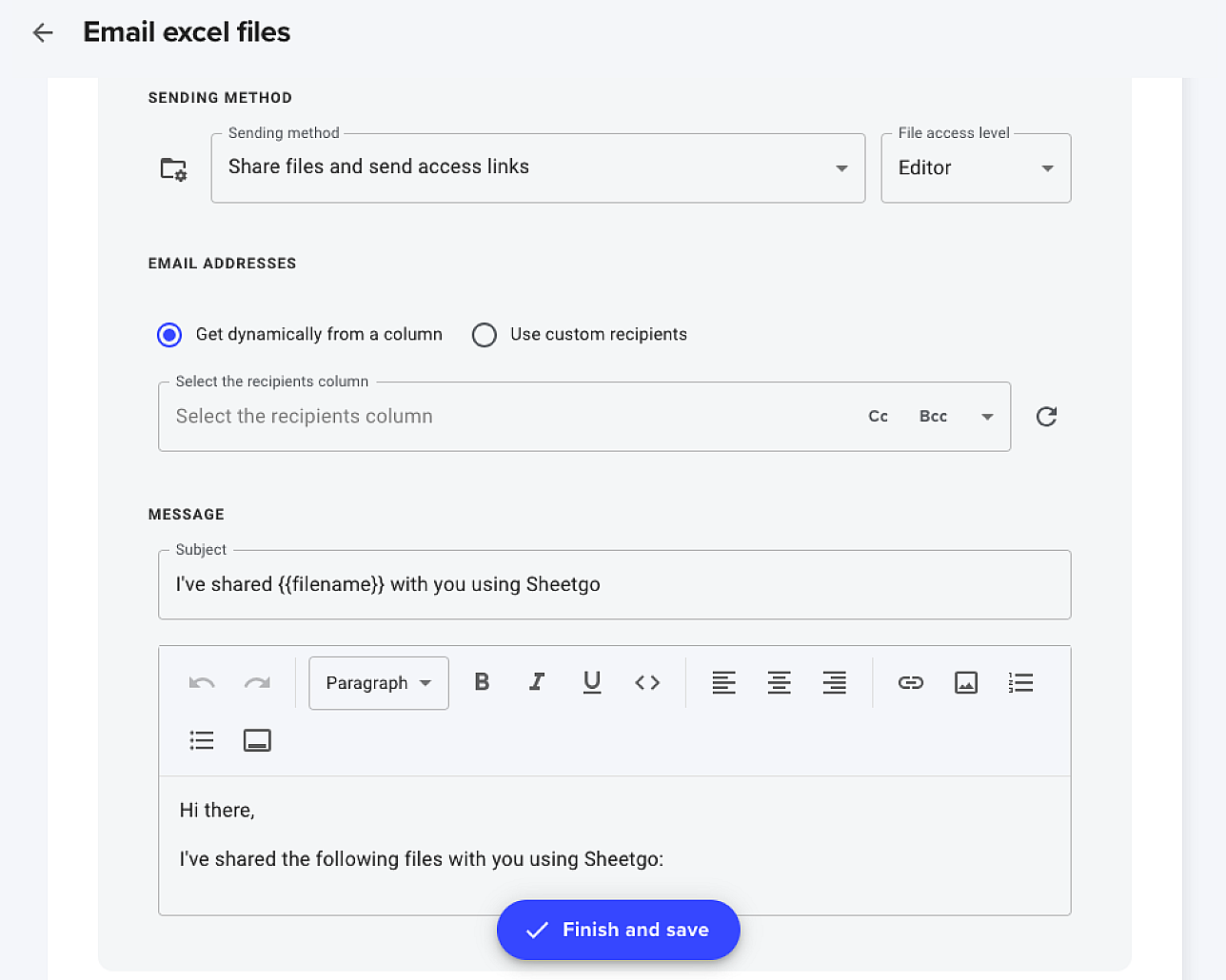
Send to a dynamic list or choose custom recipients.
To learn more about this, check out these articles on how to send emails automatically with Sheetgo and how to send an email to multiple recipients individually.
Conclusion
Although Microsoft has made it easier to collaborate through its various apps, there are always useful shortcuts and solutions that help speed up daily tasks like attaching large files to emails.
You’ve seen how to email an Excel spreadsheet using multiple solutions, including how to send part of an Excel sheet and how to send a single Excel worksheet through Quick Access Toolbar add-ins. To share the entire Excel spreadsheet with a coworker, Microsoft helps you speed up the process through its “Send as Attachment” feature in Excel or the “Recent Items” feature in Outlook. If you prefer using another email application, the “Copy Path” option is the most efficient and flexible solution.
If the recipient only needs to read the data, you can convert Excel to PDF before you attach it, or protect the Excel workbook from editing so nobody changes it by mistake. And if you send the same data to the same people every week, it may be easier to transfer data from one Excel workbook to another automatically instead of emailing a new copy each time.



 English
 Español
 Português do Brasil
 Français