Get help

Help center

Guides and answers

Contact support

Write to our team

Sign in to

Workflows

Build processes with your team

Automations

Connect files and automate tasks

One system, four parts

AI agents

Virtual Employees that work 24/7

Automations

Connect files and automate tasks

Workflows

Build processes with your team

Data Space

Trusted data sharing and control

Solutions by department

Finance

Reports, budgets, and reconciliations

Inventory and manufacturing

Stock, orders, and production in one view

HR

Timesheets, attendance, and reviews

Project management

Status and workload across projects

Sales and CRM

Leads and deals kept up to date

Education

Student records and school data

Finance

Turn manual finance work into reports that update themselves.

What Finance teams automate

  • Track payables and receivables
  • Build cash flow statements
  • Compare budget against actuals

Inventory and manufacturing

See stock levels and automate ordering.

What inventory and manufacturing teams automate

  • Track inventory across multiple sites
  • Connect sales, purchasing, and warehouse data
  • Link a barcode scanner to your sheet

HR

Run recruitment, attendance, and OKR tracking from your sheets.

What HR teams automate

  • Track recruitment and onboarding
  • Record team OKRs and results
  • Track check-ins, check-outs, and leave

Project management

Assign tasks and track hours without manual updates.

What project teams automate

  • Assign tasks and track status changes
  • Estimate effort and log hours worked
  • Track milestones across projects

Sales and CRM

Track leads and sales performance with automated reports.

What sales teams automate

  • Track and convert leads
  • Set sales goals and track team metrics
  • Monitor sales KPIs on dashboards

Education

Automate attendance, grades, and school purchasing.

What schools automate

  • Track attendance and notify parents
  • Record and compare class grades
  • Track inventory lent to students and staff

Find a use case

By department

How each team uses Sheetgo

By industry

How each industry uses Sheetgo

By company size

Small, medium-sized, or large

Learn

Blog

Guides and product news

Customer stories

How teams like yours use Sheetgo

Help center

Guides and answers

Why Sheetgo

Compare

How Sheetgo compares with other tools

Security

How we protect your data

Trust center

Our compliance details

Sign in to

Workflows

Build processes with your team

Automations

Connect files and automate tasks

One system, four parts

AI agents

Virtual Employees that work 24/7

Automations

Connect files and automate tasks

Workflows

Build processes with your team

Data Space

Trusted data sharing and control

Solutions by department

Finance

Reports, budgets, and reconciliations

Inventory and manufacturing

Stock, orders, and production in one view

HR

Timesheets, attendance, and reviews

Project management

Status and workload across projects

Sales and CRM

Leads and deals kept up to date

Education

Student records and school data

Find a use case

By department

How each team uses Sheetgo

By industry

How each industry uses Sheetgo

By company size

Small, medium-sized, or large

Get started

Templates

Ready-made workflows to start from

Learn

Blog

Guides and product news

Customer stories

How teams like yours use Sheetgo

Help center

Guides and answers

Why Sheetgo

Compare

How Sheetgo compares with other tools

Security

How we protect your data

Trust center

Our compliance details

Help center

Guides and answers

Contact support

Write to our team

Workflows

Build processes with your team

Automations

Connect files and automate tasks

Absolute value in Google Sheets: how to use the ABS function

The absolute value of a real number is also known as its modulus, magnitude, or numeric value. It represents the number’s distance from zero on a number line without considering the sign. Since it represents a distance, the absolute value is always positive.

In this guide, you will learn what absolute value is, the symbol used to represent it, and how to find it. You will also learn how to use the ABS function in Google Sheets to find a number’s absolute value. Finally, you will learn how to use the ABS function in combination with other functions.

If you came here to lock a cell reference with dollar signs, such as $A$1, that is a different feature: see our guide to absolute cell references in Google Sheets.

What is absolute value?

The absolute value (modulus) of a real number corresponds to its non-negative value, regardless of its sign. It represents the distance from 0 on the number line in either direction. Therefore, the absolute value of -5 and 5 is the same: 5. In other words, the absolute value of a number is always positive.

What is the absolute value sign?

The absolute value of variable x is |x|, which is read as ‘mod x’ or ‘modulus of x’. If the variable in question has a value of -1, its modulus is represented by vertical bars on either side of it: |-1|. Therefore, |-1| represents the absolute value of minus one, which is equal to one: |-1| = 1.

How to calculate absolute value?

Let’s see how to find the absolute value of a number or expression.

Example: What is the absolute value of -2?

The absolute value of a positive number is the number itself, and the absolute value of a negative number is the number without the sign. Therefore, what is the absolute value of -2?

|-2| = 2

Example: What is the absolute value of (-2*4)+10?

While the first case is easy, if you’re dealing with an expression containing absolute values, be careful to apply them correctly. In other words, calculate the expression first, then find the absolute value of the result.

|(-2*4)+10| = |(-8)+10| = |2| = 2

However, what if the expression looked like this:

(|-2|*4)+10

In this case, the absolute value symbols only apply to the first term, not the entire expression. Therefore, the first step is to find the absolute value of that number. After that, you can perform the calculations.

(|-2|*4)+10 = (2*4)+10 = (8)+10 = 18

How to find absolute value in Google Sheets?

Now that you know what absolute value is, it’s time to learn how to find it in Google Sheets.

How to use the ABS function in Google Sheets

First, let’s get the absolute values of a set of values.

1. Open Google Sheets to the file containing your data.
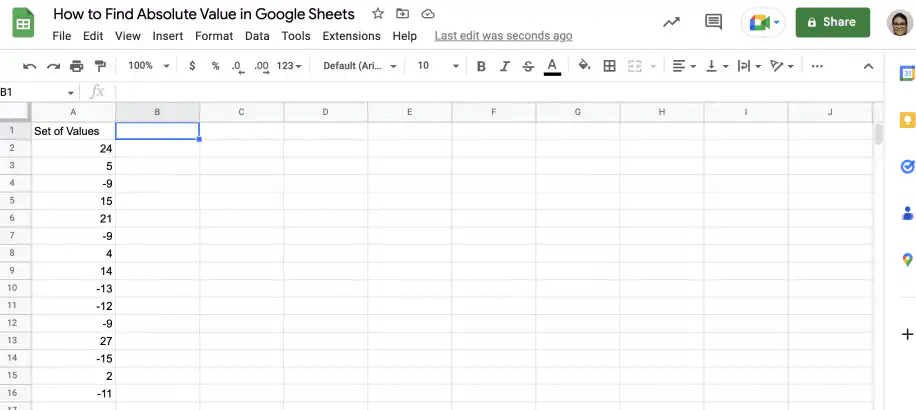
Absolute value in Google Sheets — Set of Values column with positive and negative numbers and cell B1 selected

2. In the cell where you want the absolute value, type in the ABS function.
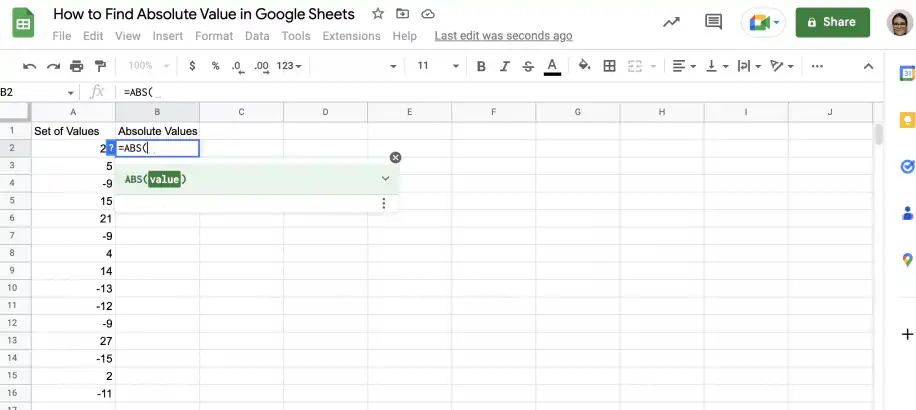
Absolute value in Google Sheets — =ABS( typed in cell B2 under Absolute Values with the ABS(value) hint

3. After the opening parenthesis, select the cell containing the number whose absolute value you want. Close the parenthesis and press ‘Enter’.
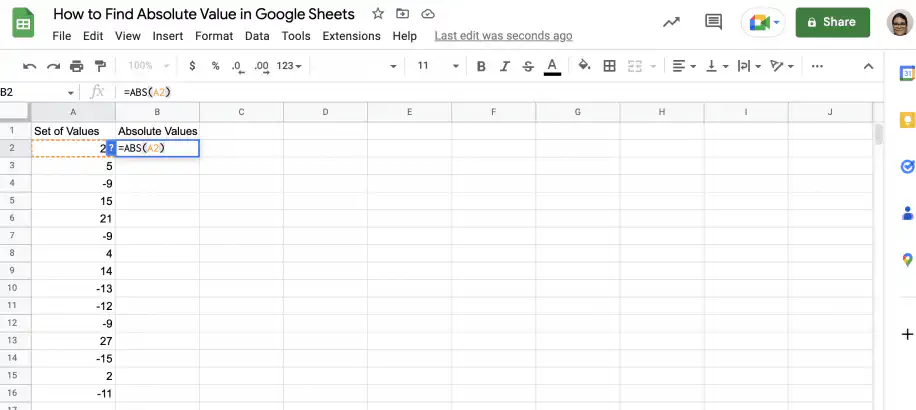
Absolute value in Google Sheets — =ABS(A2) in cell B2 with cell A2 outlined

4. That’s it. You have the absolute value of the first value in the set.
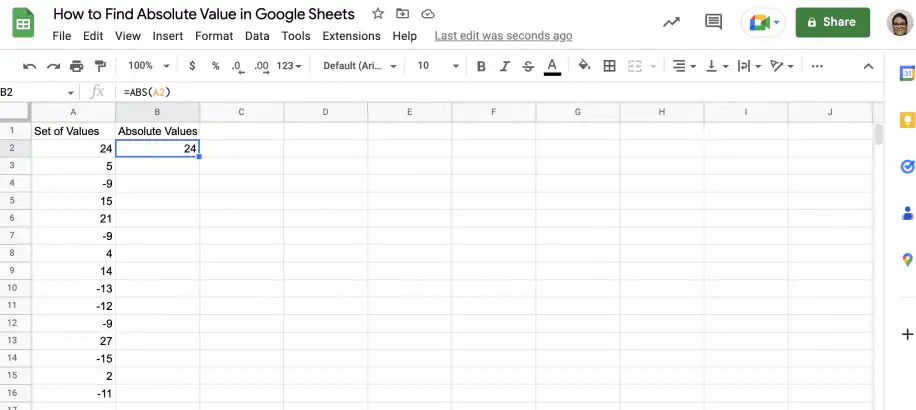
Absolute value in Google Sheets — cell B2 returns 24, the absolute value of A2

5. To get the absolute values of all the values in your set, grab the fill handle and drag it down to the last value.
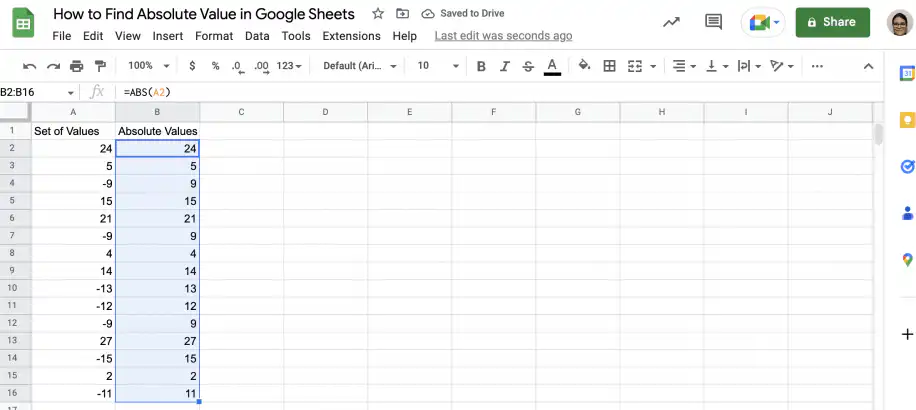
Absolute value in Google Sheets — ABS formula filled down to B16, every negative number now positive

Absolute value formula examples in Google Sheets

Follow the steps below to learn to use the ABS function in combination with other formulas and functions.

Sum absolute values in range

Let’s see how you can sum the absolute values in a range without having to find the absolute value for each one. To do this, you’ll need to use the ABS, SUM, and ARRAYFORMULA functions. To learn more about using formulas and functions in Google Sheets, check out our guide to 100+ functions and formulas for Google Sheets.

1. Open your spreadsheet in Google Sheets.
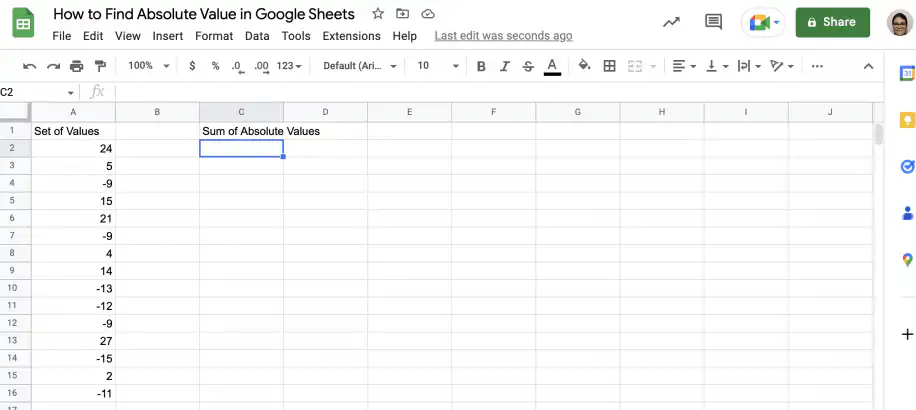
Sum absolute values in Google Sheets — Sum of Absolute Values header in C1 with cell C2 selected

2. In an empty cell, type in the SUM function as shown below.
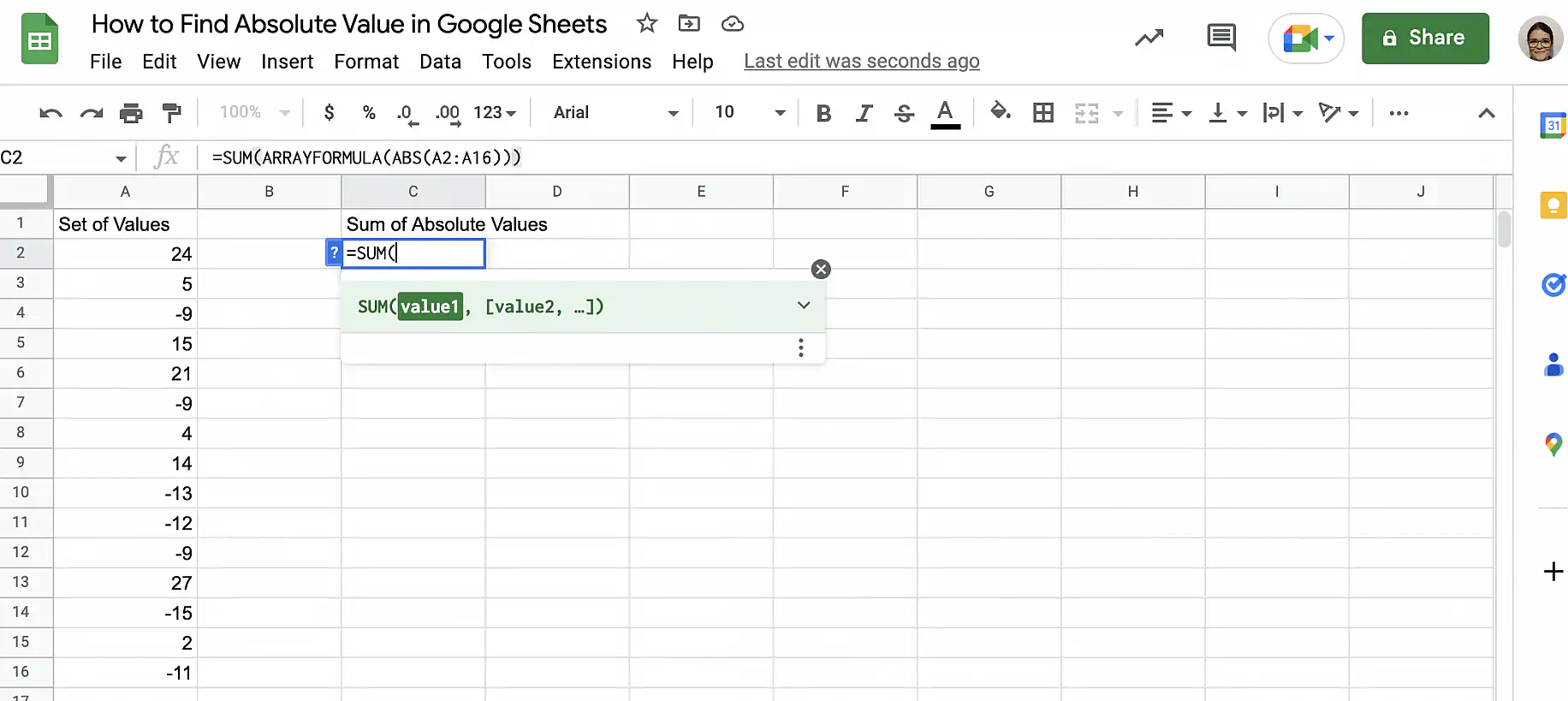
Sum absolute values in Google Sheets — =SUM( typed in cell C2 with the SUM function hint

3. Right after the opening parenthesis, type in the ARRAYFORMULA function as below.
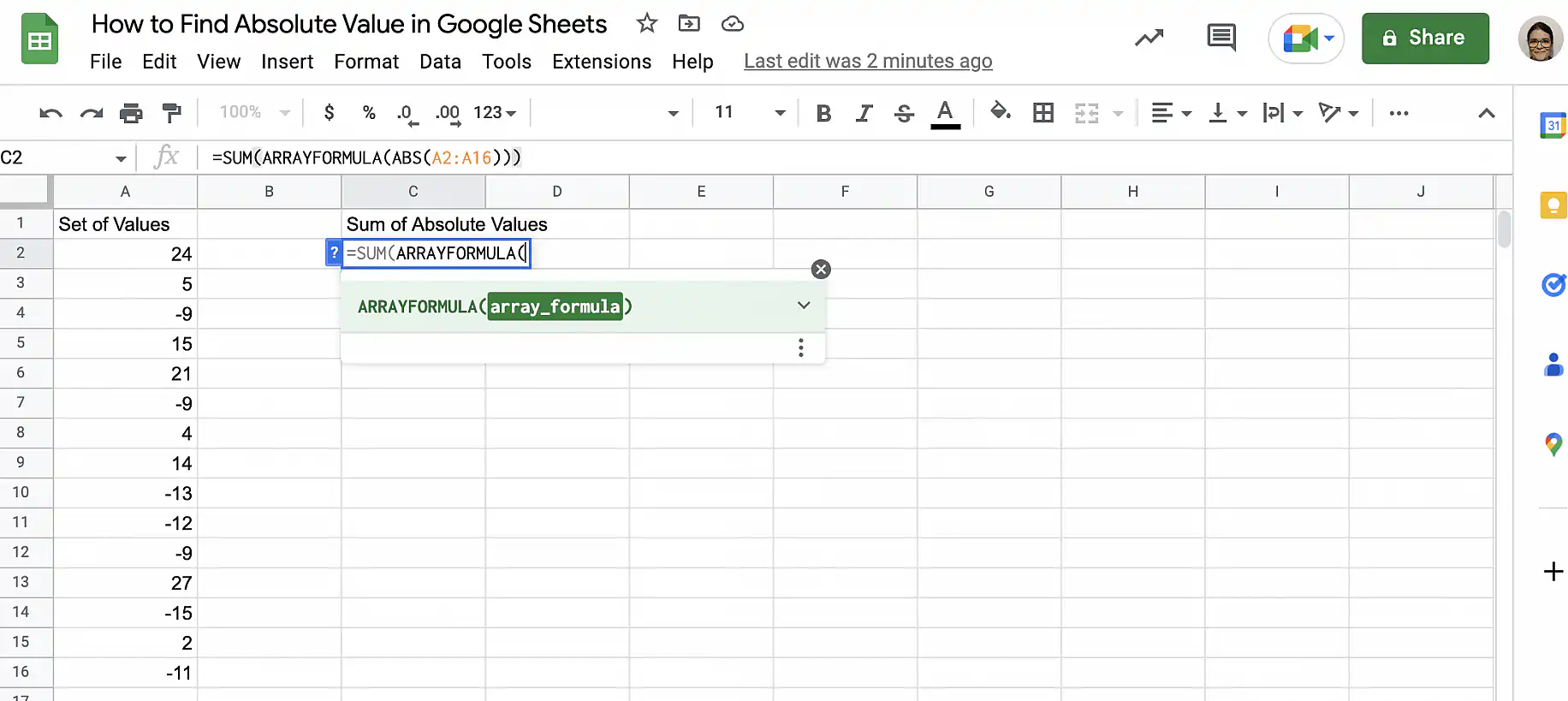
Sum absolute values in Google Sheets — =SUM(ARRAYFORMULA( typed in cell C2

4. Finally, type in the ABS function after the parenthesis.
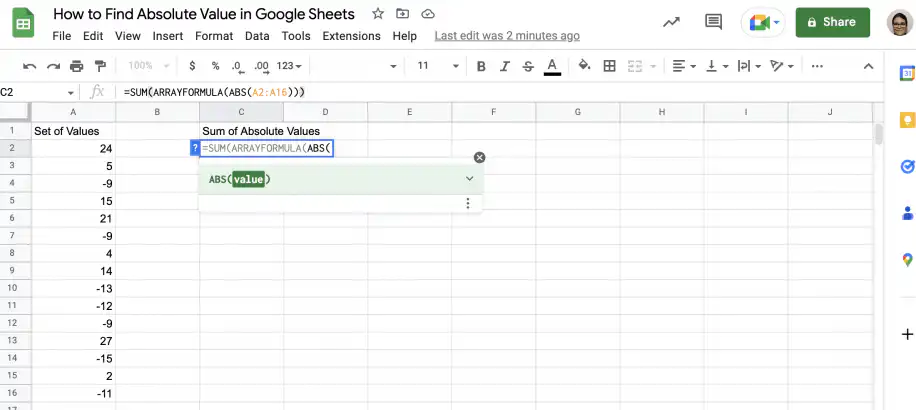
Sum absolute values in Google Sheets — =SUM(ARRAYFORMULA(ABS( typed in cell C2 with the ABS(value) hint

5. Select the range of cells containing the set of values. Remember that you’ll need three closing parentheses: one for each function. Press ‘Enter’ to see the result.
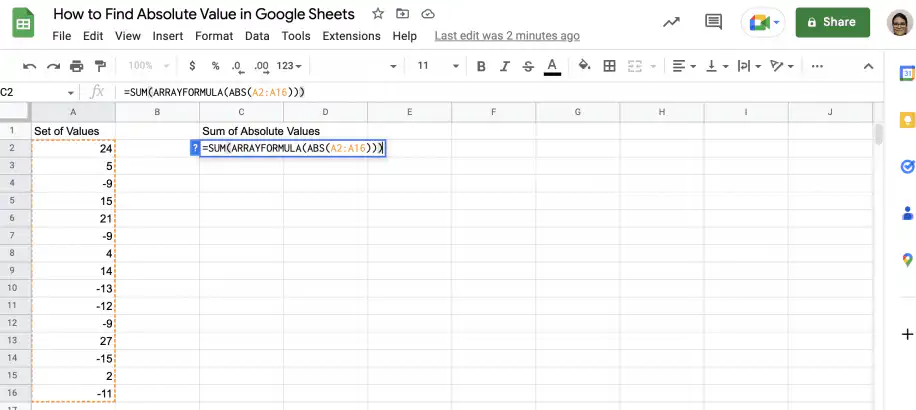
Sum absolute values in Google Sheets — =SUM(ARRAYFORMULA(ABS(A2:A16))) in C2 with A2:A16 outlined

6. That’s it. You have the sum of the absolute values of every item in the set.
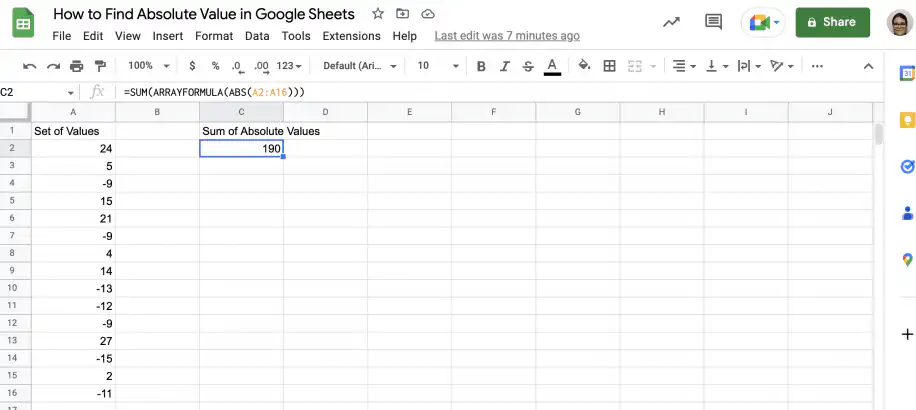
Sum absolute values in Google Sheets — cell C2 shows 190, the sum of the absolute values

Find maximum & minimum absolute values in range

Follow the steps below to find the maximum and minimum absolute values in a range of cells. For this example, you will combine the ABS and ARRAYFORMULA functions with the MAX and MIN functions.

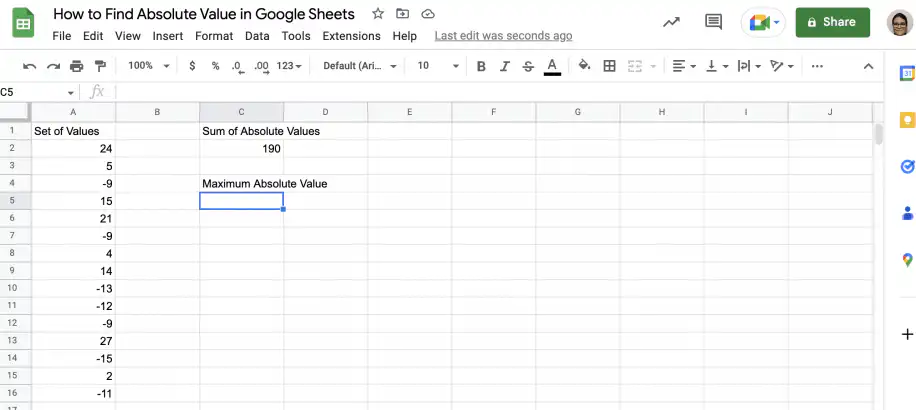
1. Open Google Sheets to the spreadsheet with your data.

Maximum absolute value in Google Sheets — Maximum Absolute Value header under the sum of 190, cell C5 selected

2. To find the maximum absolute value, type in the MAX function in an empty cell.
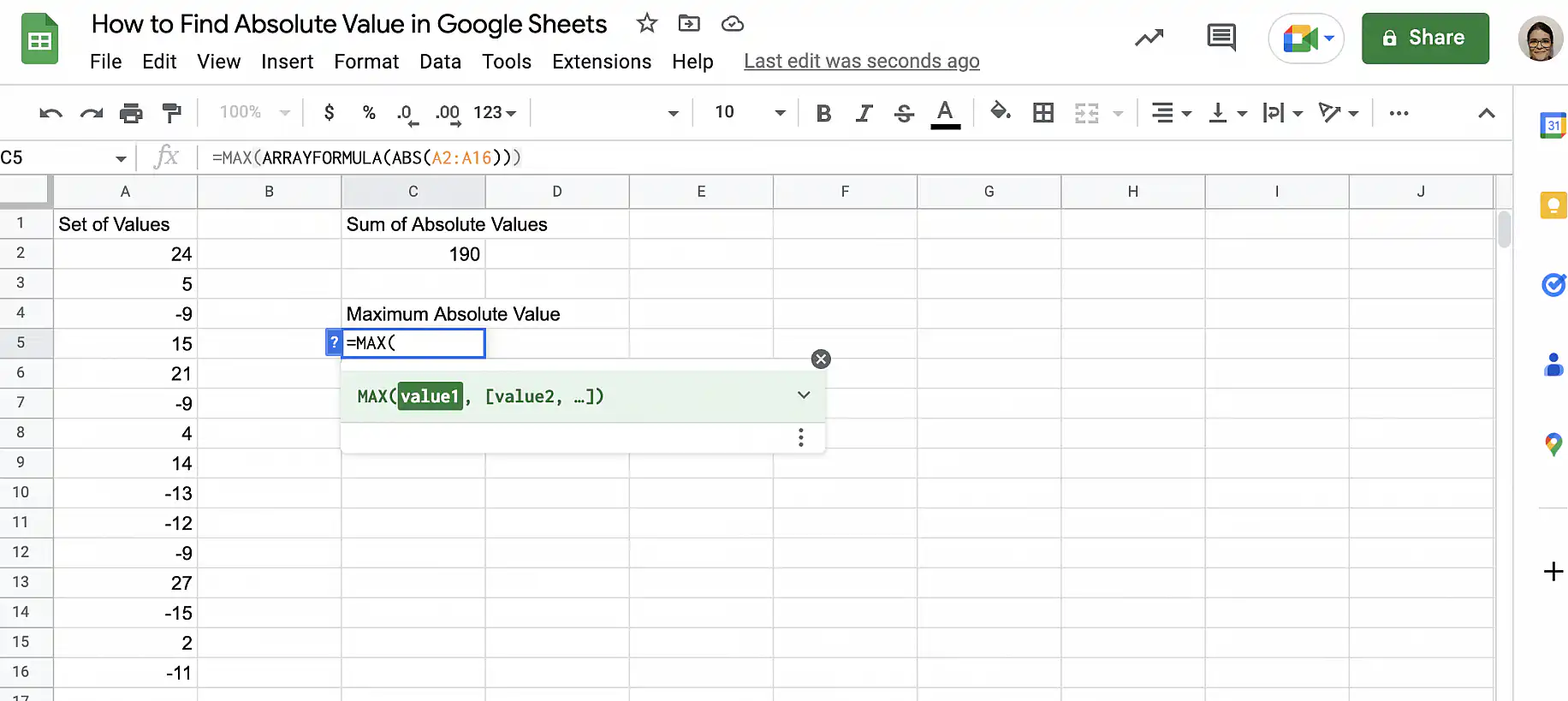
Maximum absolute value in Google Sheets — =MAX( typed in cell C5 with the MAX function hint

3. Next, add the ARRAYFORMULA function after the opening parenthesis.
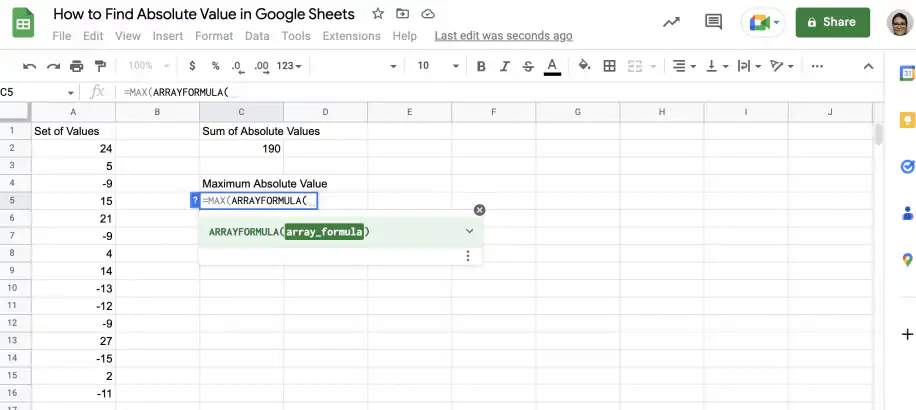
Maximum absolute value in Google Sheets — =MAX(ARRAYFORMULA( typed in cell C5

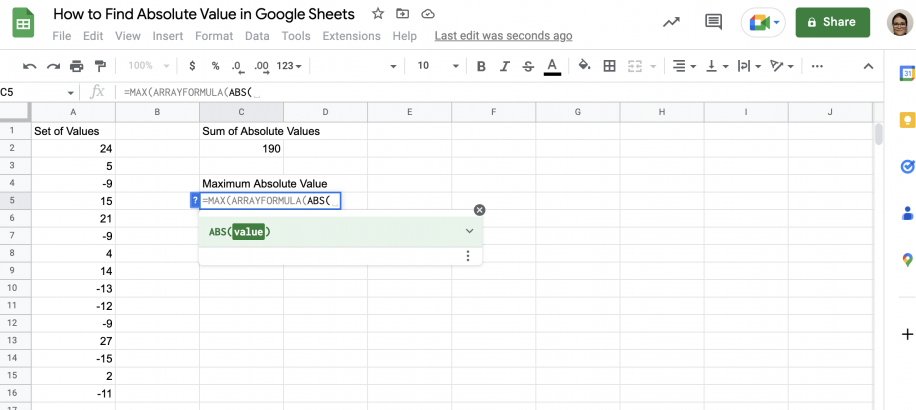
4. Finally, add the ABS function.

Maximum absolute value in Google Sheets — =MAX(ARRAYFORMULA(ABS( typed in cell C5

5. Select the range of cells with the set of values and remember to close the three sets of parentheses – one for each function.
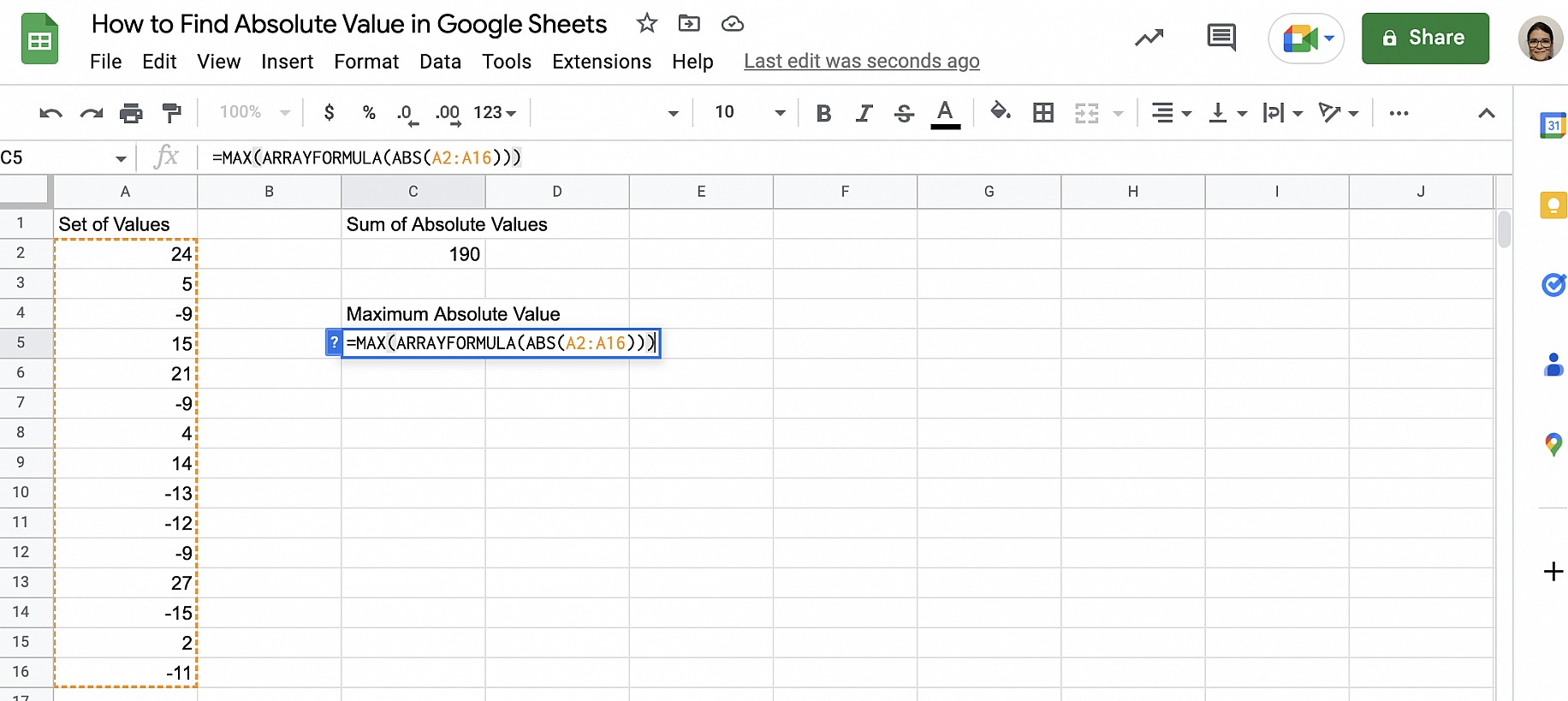
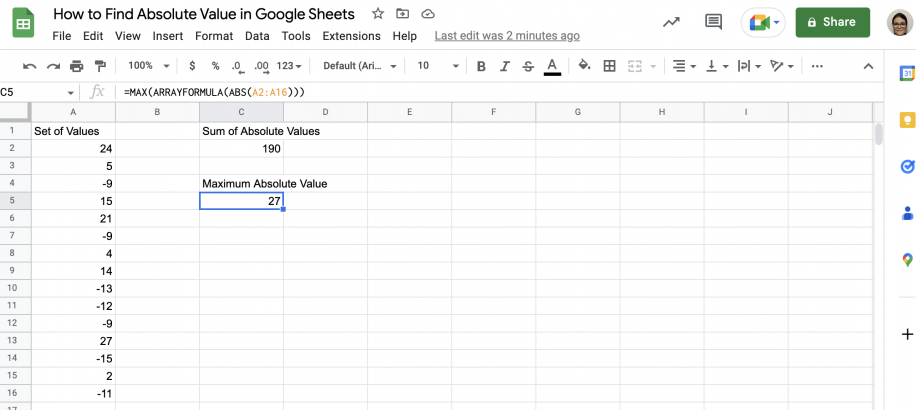
Maximum absolute value in Google Sheets — =MAX(ARRAYFORMULA(ABS(A2:A16))) in C5 with A2:A16 outlined

6. Press ‘Enter’ to see the result.

Maximum absolute value in Google Sheets — cell C5 returns 27 under the sum of 190

7. To get the minimum absolute value, you can use the same formula as before and change MAX to MIN.
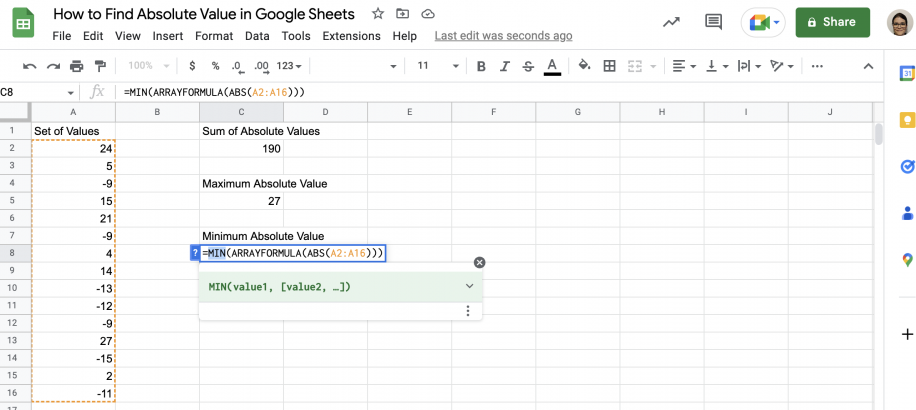
Minimum absolute value in Google Sheets — =MIN(ARRAYFORMULA(ABS(A2:A16))) typed in cell C8

8. That’s it. You have the sum of the absolute values in the range, as well as the maximum and minimum absolute values.
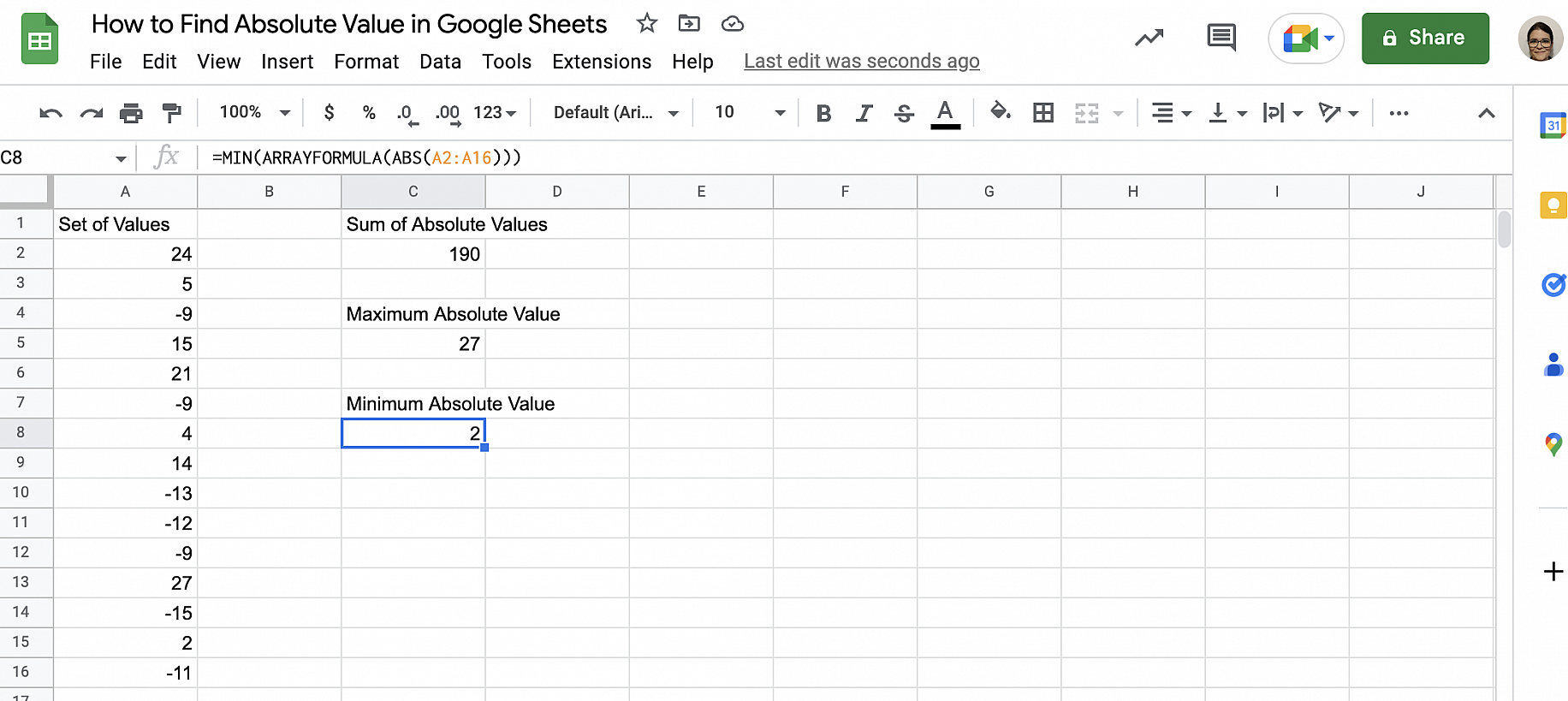
Minimum absolute value in Google Sheets — cell C8 returns 2 below the sum of 190 and the maximum of 27

Conclusion

As you have seen, the absolute value of a real number is its magnitude, regardless of its sign. As it represents the distance from zero, the absolute value or modulus of a number is always a non-negative value. However, when you’re dealing with absolute values, you are more likely to need to use them within more complex formulas rather than simply find the absolute value of numbers. Fortunately, this is easy to do using Google Sheets.

You now know what absolute value is, the symbol used to represent it, and how to calculate it. You also know how to find the absolute value of numbers in Google Sheets using the ABS function. Additionally, you have step-by-step instructions on how to use the ABS function in combination with others so that you can perform other operations with absolute values.

Microsoft Excel has the same ABS function, so =ABS(A2) returns the absolute value of cell A2 there as well.

You may also like…

google sheets features and formulas

Top 5 dynamic array formulas in Google Sheets 

Google Sheets has evolved beyond basic spreadsheets. With the introduction of dynamic array formulas, users can now manipulate and analyze...
google sheets features and formulas

Mastering the FILTER Formula: 4 Use Cases with Examples

The FILTER formula in Google Sheets is a versatile tool for extracting data that meets specific conditions. Unlike the QUERY formula,...
google sheets features and formulas

Unlocking the Power of SUMIF and SUMIFS in Google Sheets: 4 real-life use cases

The SUMIF and SUMIFS formulas in Google Sheets are indispensable tools for performing conditional summations. They simplify complex...