Get help

Help center

Guides and answers

Contact support

Write to our team

Sign in to

Workflows

Build processes with your team

Automations

Connect files and automate tasks

One system, four parts

AI agents

Virtual Employees that work 24/7

Automations

Connect files and automate tasks

Workflows

Build processes with your team

Data Space

Trusted data sharing and control

Solutions by department

Finance

Reports, budgets, and reconciliations

Inventory and manufacturing

Stock, orders, and production in one view

HR

Timesheets, attendance, and reviews

Project management

Status and workload across projects

Sales and CRM

Leads and deals kept up to date

Education

Student records and school data

Finance

Turn manual finance work into reports that update themselves.

What Finance teams automate

  • Track payables and receivables
  • Build cash flow statements
  • Compare budget against actuals

Inventory and manufacturing

See stock levels and automate ordering.

What inventory and manufacturing teams automate

  • Track inventory across multiple sites
  • Connect sales, purchasing, and warehouse data
  • Link a barcode scanner to your sheet

HR

Run recruitment, attendance, and OKR tracking from your sheets.

What HR teams automate

  • Track recruitment and onboarding
  • Record team OKRs and results
  • Track check-ins, check-outs, and leave

Project management

Assign tasks and track hours without manual updates.

What project teams automate

  • Assign tasks and track status changes
  • Estimate effort and log hours worked
  • Track milestones across projects

Sales and CRM

Track leads and sales performance with automated reports.

What sales teams automate

  • Track and convert leads
  • Set sales goals and track team metrics
  • Monitor sales KPIs on dashboards

Education

Automate attendance, grades, and school purchasing.

What schools automate

  • Track attendance and notify parents
  • Record and compare class grades
  • Track inventory lent to students and staff

Find a use case

By department

How each team uses Sheetgo

By industry

How each industry uses Sheetgo

By company size

Small, medium-sized, or large

Learn

Blog

Guides and product news

Customer stories

How teams like yours use Sheetgo

Help center

Guides and answers

Why Sheetgo

Compare

How Sheetgo compares with other tools

Security

How we protect your data

Trust center

Our compliance details

Sign in to

Workflows

Build processes with your team

Automations

Connect files and automate tasks

One system, four parts

AI agents

Virtual Employees that work 24/7

Automations

Connect files and automate tasks

Workflows

Build processes with your team

Data Space

Trusted data sharing and control

Solutions by department

Finance

Reports, budgets, and reconciliations

Inventory and manufacturing

Stock, orders, and production in one view

HR

Timesheets, attendance, and reviews

Project management

Status and workload across projects

Sales and CRM

Leads and deals kept up to date

Education

Student records and school data

Find a use case

By department

How each team uses Sheetgo

By industry

How each industry uses Sheetgo

By company size

Small, medium-sized, or large

Get started

Templates

Ready-made workflows to start from

Learn

Blog

Guides and product news

Customer stories

How teams like yours use Sheetgo

Help center

Guides and answers

Why Sheetgo

Compare

How Sheetgo compares with other tools

Security

How we protect your data

Trust center

Our compliance details

Help center

Guides and answers

Contact support

Write to our team

Workflows

Build processes with your team

Automations

Connect files and automate tasks

How to convert PDF to Excel: 4 free methods

The Portable Document Format (PDF) continues to be a popular method for sharing and publishing information online. This is understandable, as it ensures that the original format is preserved. Financial statements and reports, for instance, contain all sorts of interesting data and are often published in this format. Fortunately, you can convert these files to a format more appropriate for working with numbers, like Microsoft Excel.

PDF files are created in different ways, which affects the complexity of extracting data from them. Generally speaking, there are two main types of PDF files: those created from a text document (text-based) and those created from images (image-based), usually scanned documents. If you have the latter, converting it will require the use of Optical Character Recognition (OCR) technology. However, if your PDF file is text-based, importing the data to an Excel file is simpler than you think.

In this guide, you will learn 4 different ways to import PDF data to Microsoft Excel for free. First, you will learn to use Power Query to select and import data from a PDF to Excel. Second, you will learn to copy & paste from PDF to Excel if you’re dealing with small or simply structured tables. Third, you will learn how to use the ‘Data from Picture’ feature to import your PDF data to an Excel workbook. Fourth, you will learn about three PDF to Excel online converters.

Going the other way? See how to convert Excel to PDF.

Convert PDF to Excel with Power Query

Power Query is a powerful and versatile tool that can be used to query data, import it, transform it, and easily automate these processes. This can make it a little intimidating at first, but you don’t need to know every feature to make your life easier. You can simplify tasks like importing data from a PDF file with a few simple steps.

Unfortunately, the ‘From PDF’ feature is not available in all versions of Power Query, so if you’re using Excel on Mac, you may have to skip to the other methods.

1. In Excel, go to Data > Get Data > From File and select ‘From PDF’.
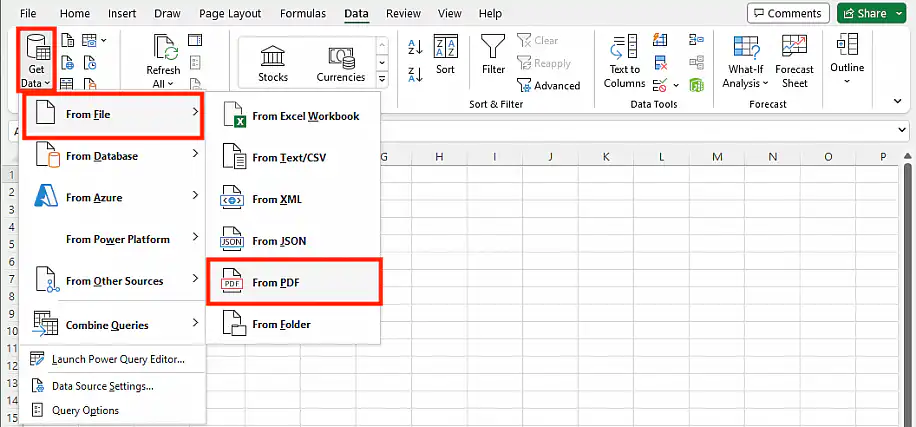
Convert PDF to Excel with Power Query — Data tab Get Data menu open at From File with From PDF highlighted

2. Once you have selected the file, click ‘Import’.
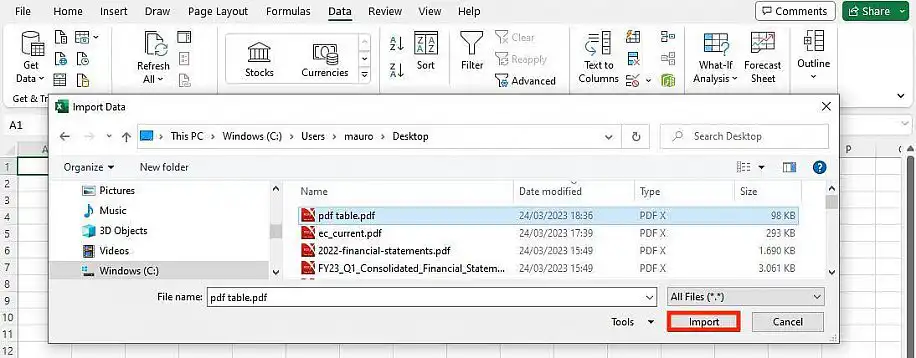
Convert PDF to Excel with Power Query — Import Data window with pdf table.pdf selected and the Import button highlighted

3. You’ll see a window with a list of the contents on the left. You can select one or more tables.
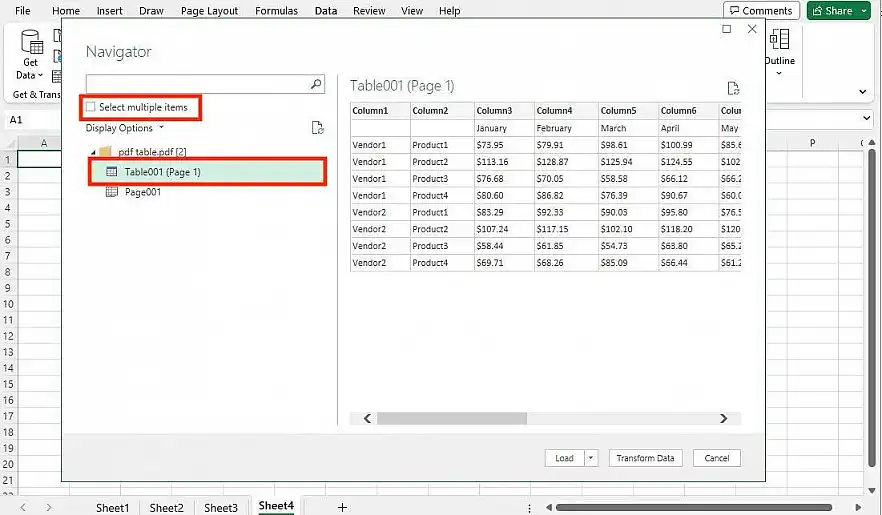
Convert PDF to Excel with Power Query — Navigator listing Table001 (Page 1) from pdf table.pdf with a preview of the vendor table

4. If you don’t need to make any changes, you can click ‘Load’ to import the table to a new sheet in your workbook, or ‘Load to’ to specify how and where to load it. If you need to make changes, click ‘Transform’.
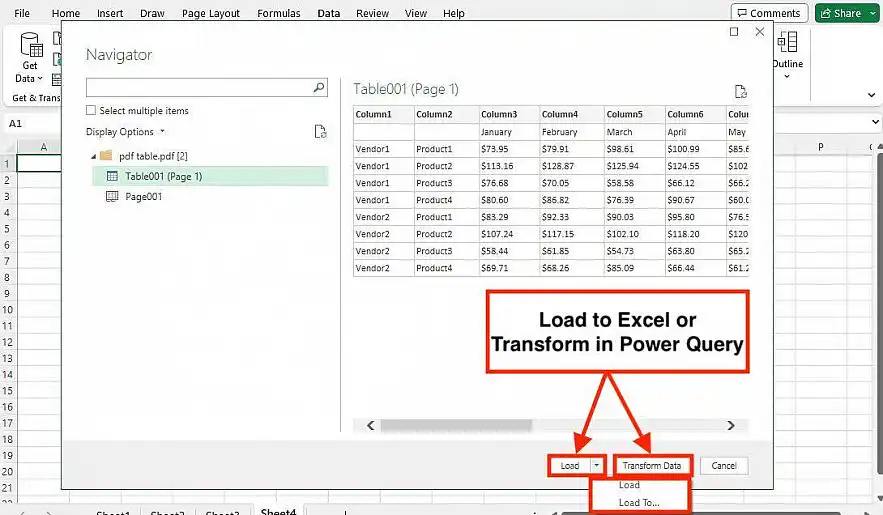
Convert PDF to Excel with Power Query — Navigator with the Load menu (Load, Load To) and the Transform Data button highlighted

5. You can promote the column headers by clicking ‘Use First Row as Headers’.
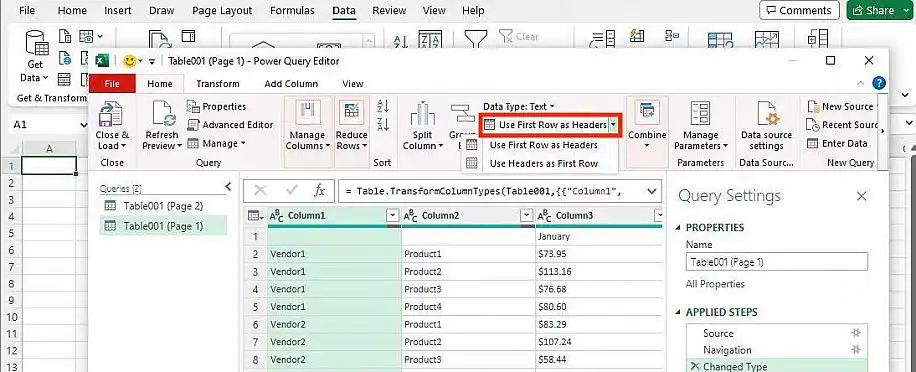
Convert PDF to Excel with Power Query — Power Query Editor with Use First Row as Headers highlighted

6. If you need to modify a column header, simply double-click on it.
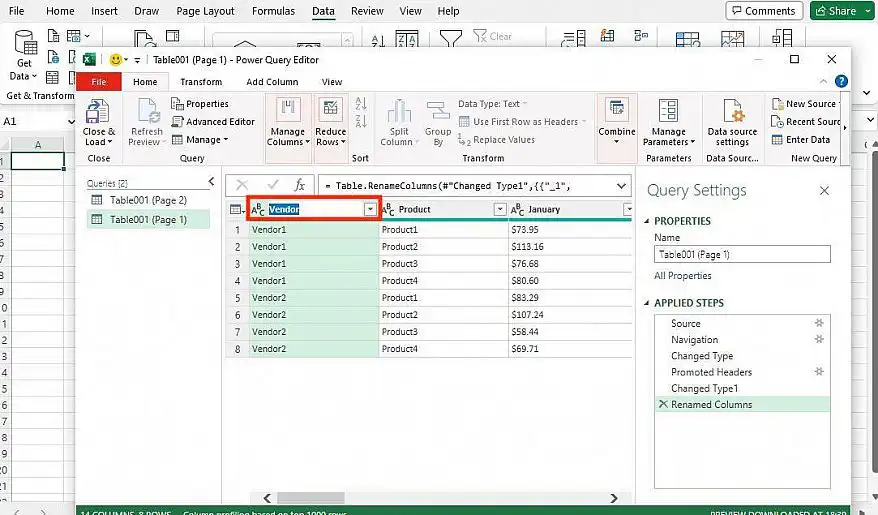
Convert PDF to Excel with Power Query — first column header renamed to Vendor in the Power Query Editor

7. Finally, click ‘Load’ or ‘Load to’ to send the table to your worksheet.
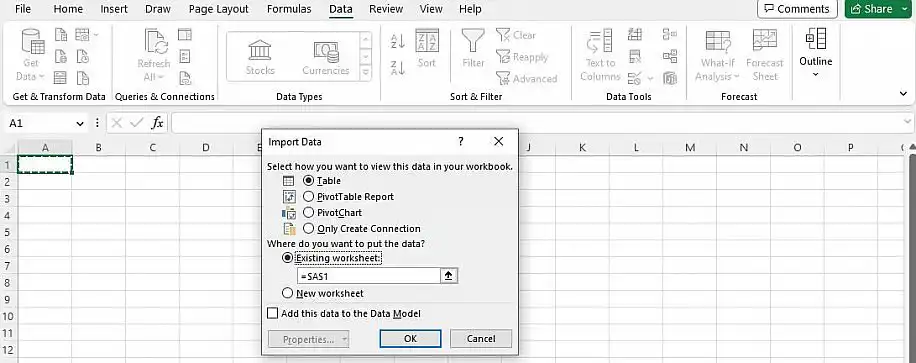
Convert PDF to Excel with Power Query — Import Data dialog set to Table and Existing worksheet at $A$1

8. That’s it. The table has been imported perfectly.
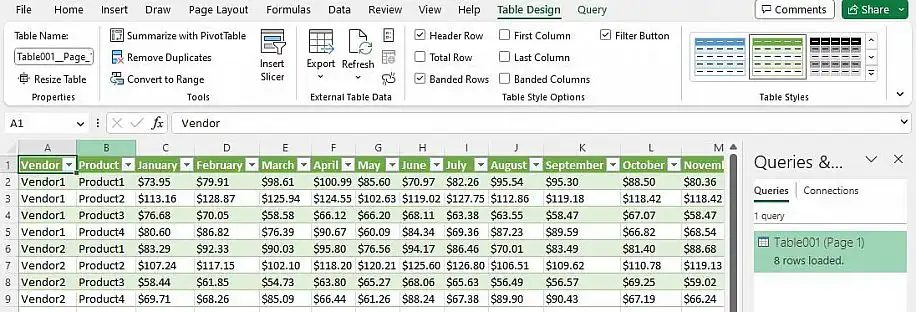
Convert PDF to Excel with Power Query — vendor table loaded into the worksheet, with Table001 (Page 1) showing 8 rows loaded

Convert PDF to Excel with copy and paste

Unless you’re dealing with very simple tables, the copy & paste method can be tedious and time-consuming, as you would likely need to move data that has been assigned to the wrong column or row and fix other formatting issues. However, if you have a simple table, it’s a relatively straightforward process.

1. Open the PDF file, select the table you want, and copy it.
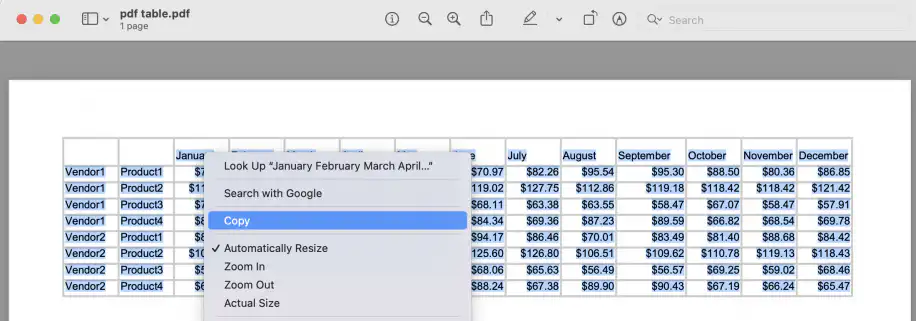
PDF to Excel with copy and paste — table selected in pdf table.pdf with Copy highlighted in the right-click menu

2. Open your Excel file and right-click on the cell where you want to paste the table. Select ‘Paste’ or use the shortcut: Ctrl/Cmd + V.
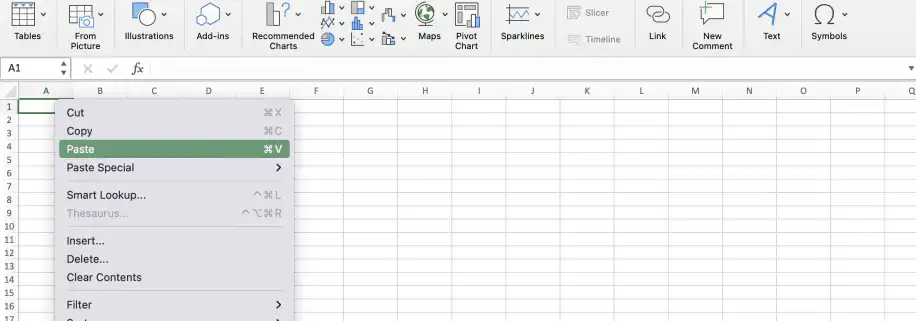
PDF to Excel with copy and paste — right-click menu on cell A1 in Excel with Paste highlighted

3. As you can see, every value lands in the right column, with an empty row after each line. If your table has a more complex structure, you will probably have to edit it manually.
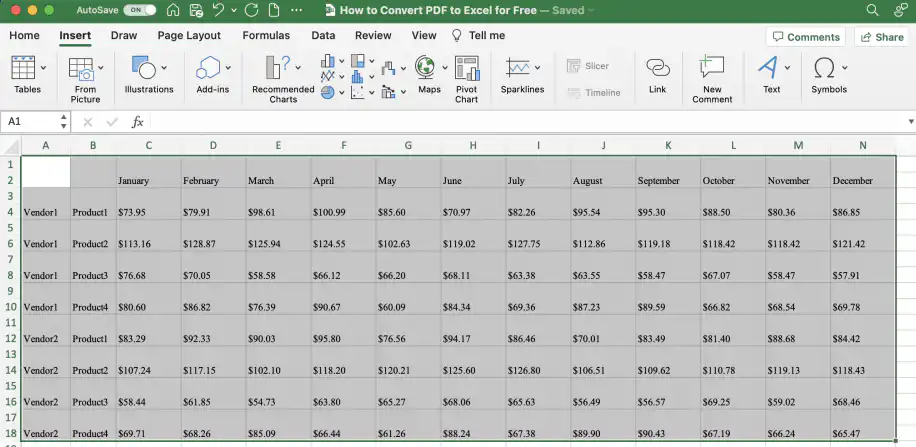
PDF to Excel with copy and paste — pasted vendor table in Excel with an empty row after each line

Convert PDF to Excel with Data from Picture

Using Excel’s ‘Data from Picture’ feature, you can extract table data from images, including image-based PDF files. If the image is clear and not taken at an angle or otherwise distorted, the process is very accurate. However, even if the image isn’t perfect, it’s easier to check the result and make a few corrections than to reproduce the entire table manually.

1. Take a screenshot of the PDF that only includes the table you want to copy to Excel.
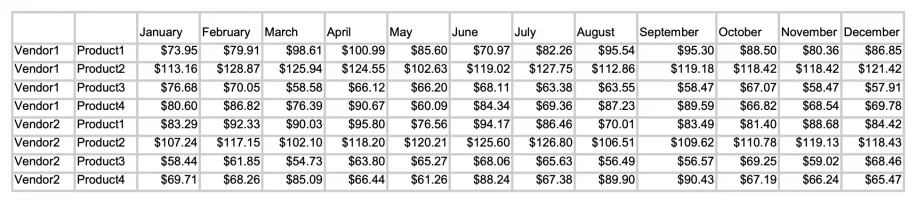
Convert PDF to Excel with Data from Picture — screenshot of the PDF table with vendor and product prices from January to December

2. In Excel, go to ‘Data’ and select ‘Picture from File’ or ‘Picture from Clipboard’.
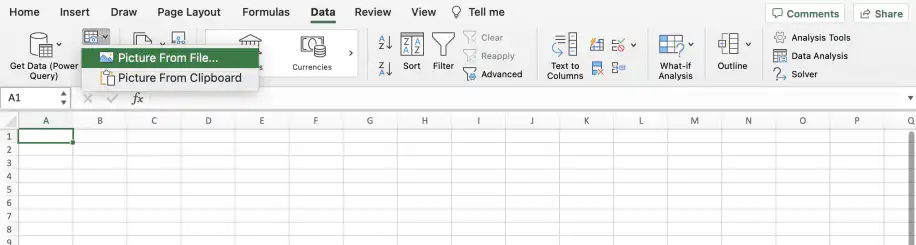
Convert PDF to Excel with Data from Picture — Data tab menu with Picture From File highlighted above Picture From Clipboard

3. Select the screenshot of the table and click ‘Open’.
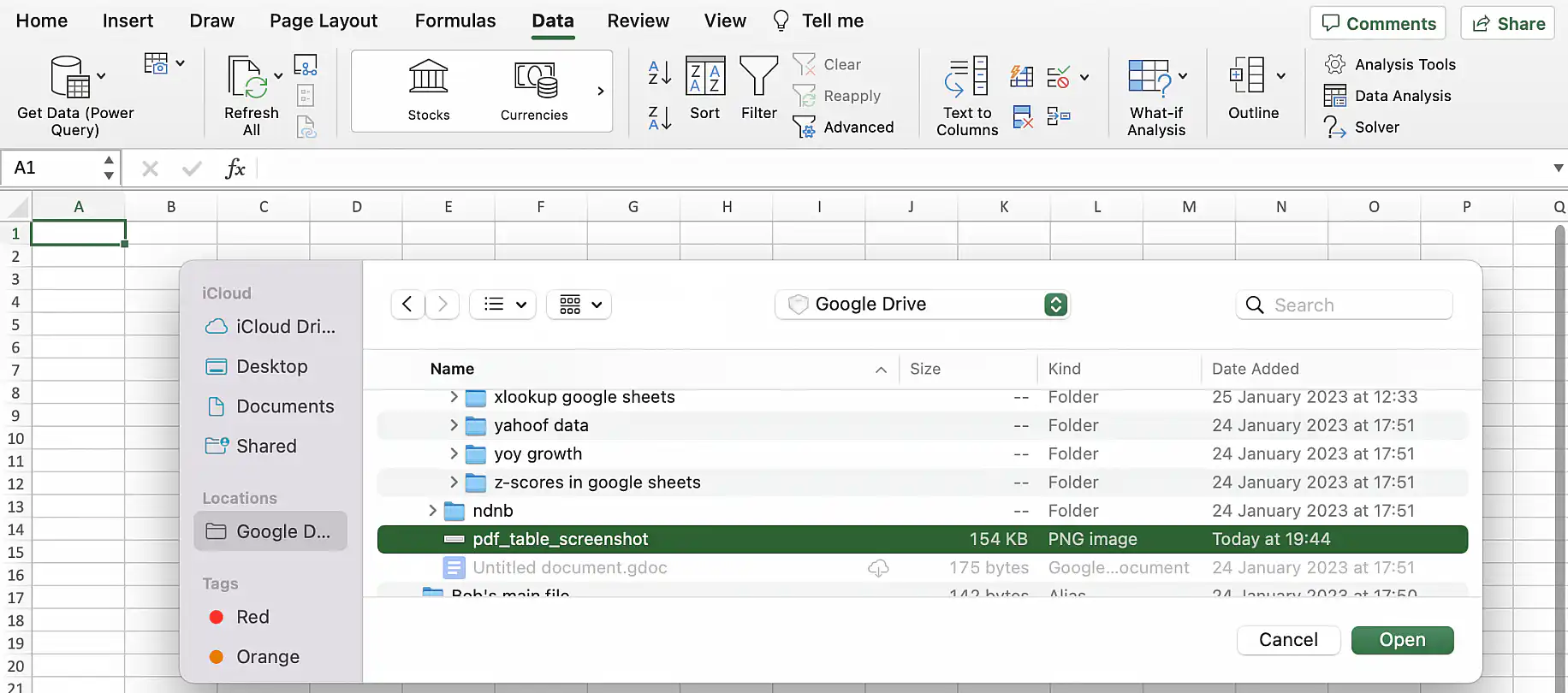
Convert PDF to Excel with Data from Picture — file picker with the pdf_table_screenshot PNG selected and the Open button

4. The ‘Data from Picture’ sidebar will open and start extracting data. Once it’s done, you will see a preview. You can review any cells that Excel isn’t sure about by clicking on ‘Review’.
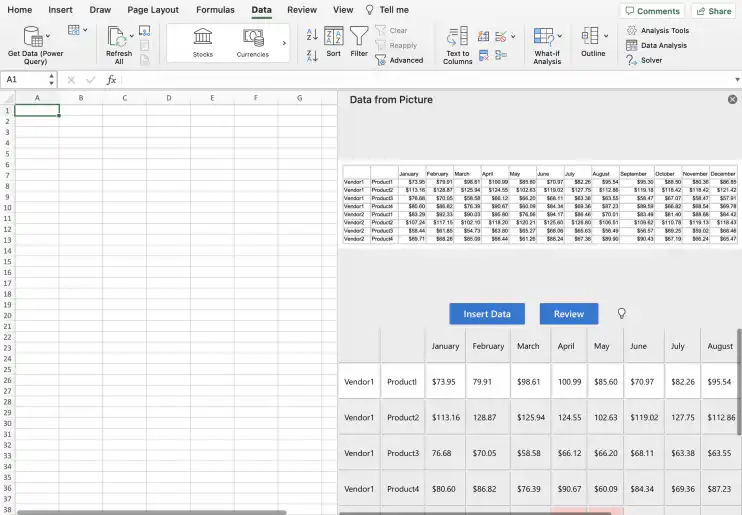
Convert PDF to Excel with Data from Picture — Data from Picture pane with the captured table, a preview, and the Insert Data and Review buttons

5. You can quickly switch between items and accept Excel’s suggestion or edit it. In this case, I simply have to accept the suggestions.
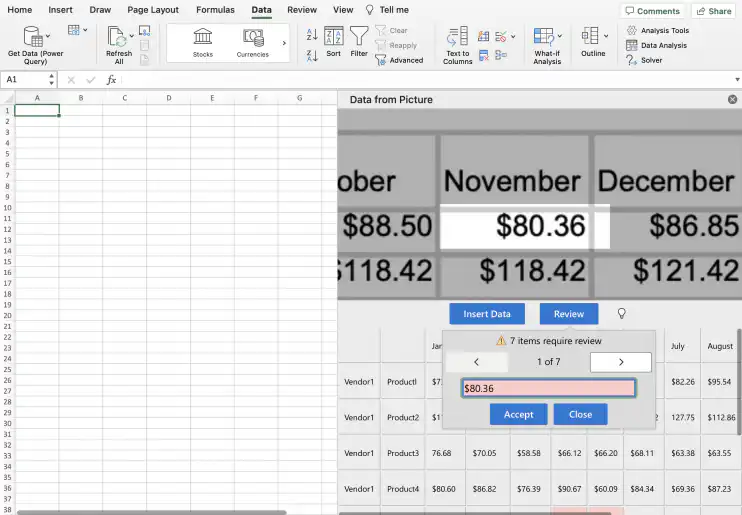
Convert PDF to Excel with Data from Picture — review panel with 7 items to review, the value $80.36, and the Accept button

6. When you click ‘Insert Data’, you will be asked to confirm and be informed of your responsibility to validate the accuracy of the data.
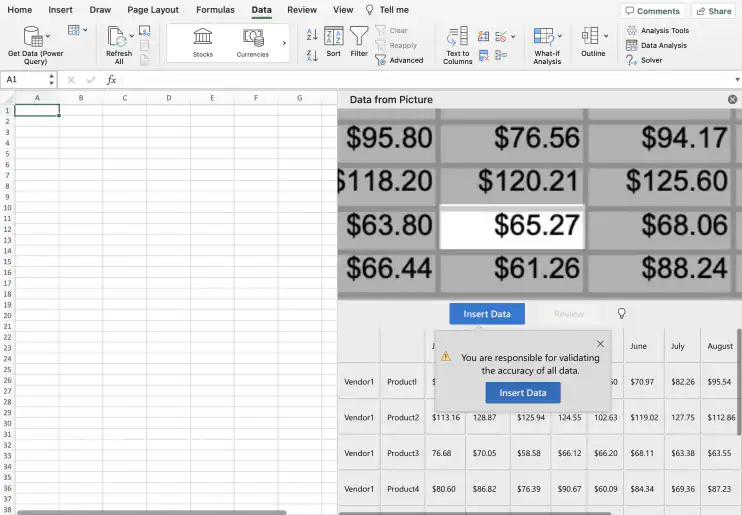
Convert PDF to Excel with Data from Picture — warning that you are responsible for validating the accuracy of all data, above Insert Data

7. That’s it. The table was copied from the PDF to Excel.
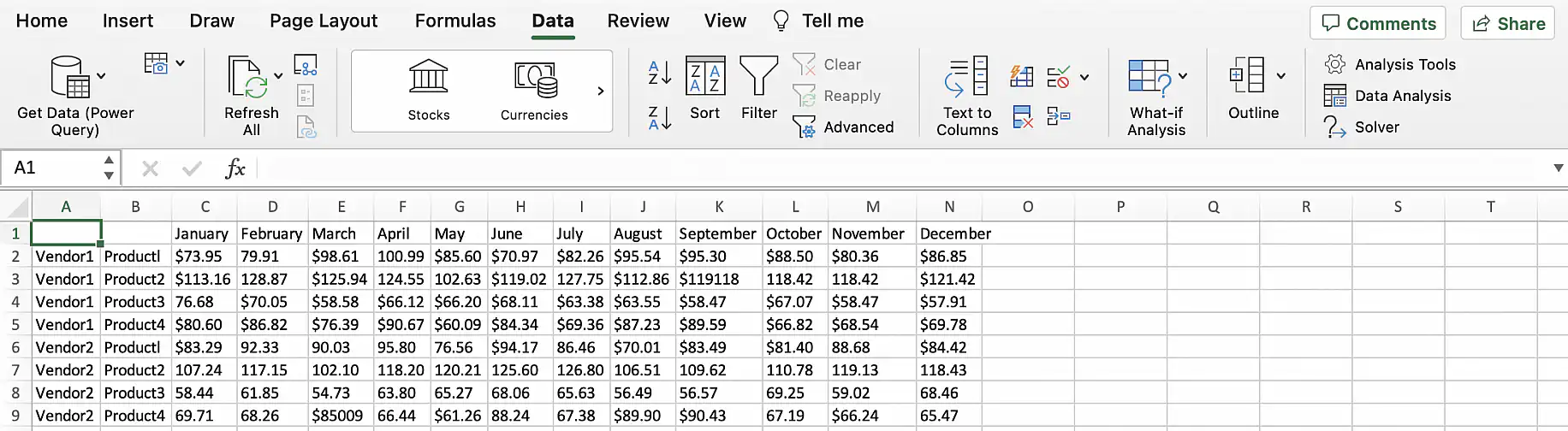
Convert PDF to Excel with Data from Picture — vendor table inserted into the worksheet from cell A1

Online PDF to Excel converters

In addition to the methods shown above, there are many PDF to Excel converters available from 3rd parties. Some of these are Excel add-ons, but most are websites where you can upload a PDF file, and it will be converted to the required format.

Sheetgo, an AI-powered data automation platform, can also turn PDFs into spreadsheet rows. You tell the AI which fields to pull out of a PDF, and it returns them as rows in CSV, Excel, or Google Sheets. For a wider comparison, see our roundup of PDF converter tools.

Below, you have three online converters that you can use free of charge, though there is a limit to how many files you can convert in a given period of time.

PDF converter by Apryse

This online converter is very easy to use, and you don’t even need to supply an email address. Simply upload or drag and drop the file to convert. After a few seconds or minutes, depending on the size of the file, you will be able to download the converted file. PDFConverter.com now redirects to Xodo, Apryse’s online PDF tool, where you can convert one file a day for free.
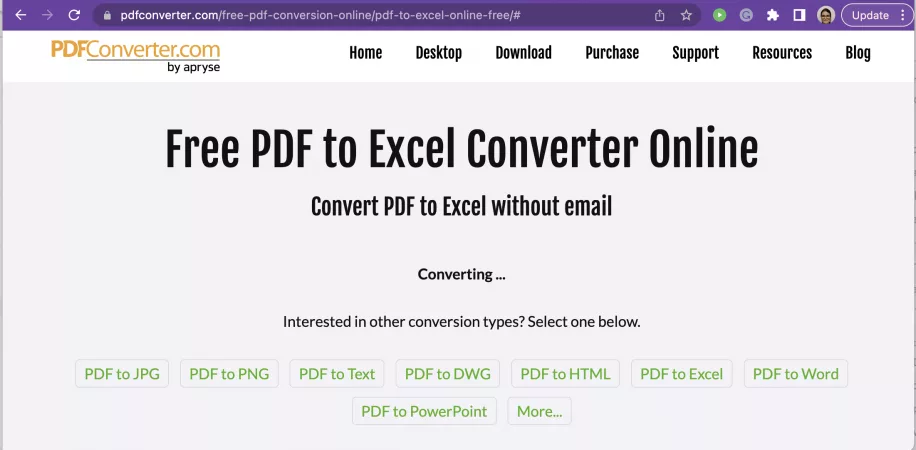
Online PDF to Excel converter — PDFConverter.com by Apryse page while the file is converting

As soon as the file is converted, you will see a ‘Download’ button.
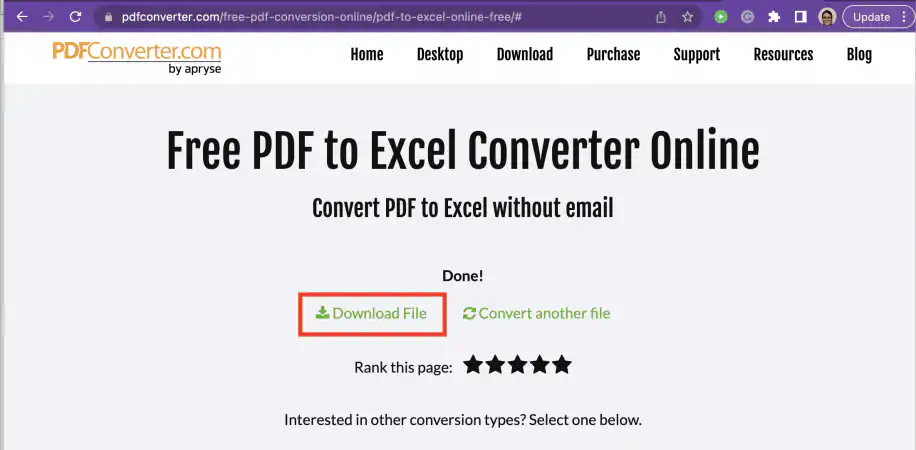
Online PDF to Excel converter — PDFConverter.com page saying Done, with the Download File button highlighted

Online2PDF

Like the previous converter, Online2PDF doesn’t require you to sign up. You can simply drop your file in the designated area and specify the settings you want. Click ‘Convert’ to start the conversion, and the file will download automatically when it’s ready.
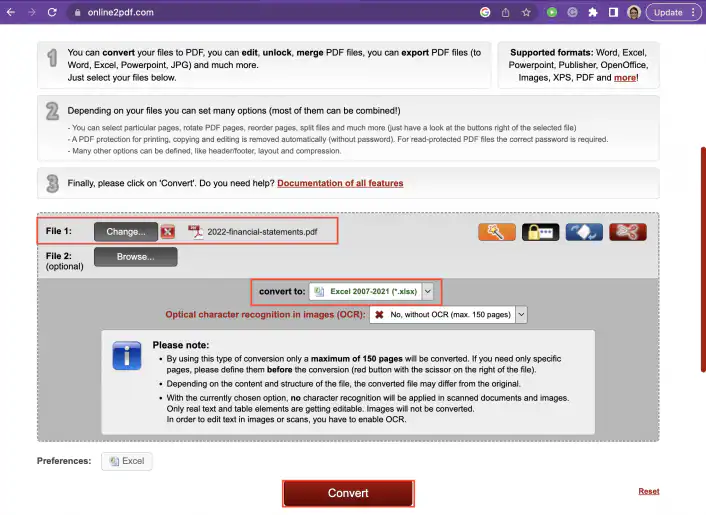

Online PDF to Excel converter — Online2PDF with a PDF added, set to convert to Excel 2007-2021 (xlsx), and the Convert button
Online PDF to Excel converter — Online2PDF message saying the task is finished and the download will start

Free PDF converter

This online converter can also be used free of charge. However, the site enforces a waiting period between conversions if you’re not a member. Additionally, it sometimes fails to convert larger files or ones that combine tables and text.
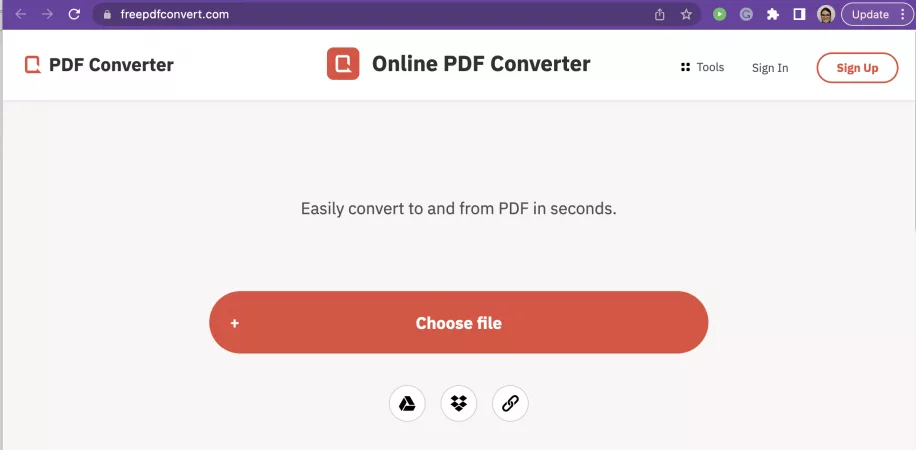
Online PDF to Excel converter — freepdfconvert.com Online PDF Converter page with the Choose file button

Conclusion

There are many ways to import data from PDF to Excel files without using additional software. If the PDF file is text-based, you can use Power Query to extract the tables you want to import. In fact, you can transform and manipulate them any way you want. The copy & paste method can be used to copy tables from PDF to Excel, but depending on the complexity of the table, the checking and formatting required could be imposing.

Excel’s ‘Data from Picture’ feature can take a little longer to process, but it can extract data from both text-based and image-based PDF files. Finally, if you prefer to convert using 3rd party software, you know about three PDF to Excel online converters.

To learn more about converting to and from other file types, check out our guides on:

You may also like…

How to lock cells in Excel — Excel logo next to a green padlock on a mint background

How to lock cells in Excel? (cells, sheets & formulas)

Learn how to lock cells in Excel to stop accidental edits, plus how to protect a sheet and lock formulas, with steps for Windows and Mac.

Excel version control — stacked XLS file icon in teal on a dark navy background

The beginner’s guide to Excel version control

Discover what Excel version control is, the version control features Excel has to offer, and how to use them to share, merge, and review Excel changes.

How to remove password protection from Excel — Excel icon next to a padlock with a masked password on a light blue background

How to remove a password from Excel (multiple methods)

Learn how to remove password protection from Excel: unlock a file or a sheet when you know the password, and what to try if you’ve forgotten it.