Get help

Help center

Guides and answers

Contact support

Write to our team

Sign in to

Workflows

Build processes with your team

Automations

Connect files and automate tasks

One system, four parts

AI agents

Virtual Employees that work 24/7

Automations

Connect files and automate tasks

Workflows

Build processes with your team

Data Space

Trusted data sharing and control

Solutions by department

Finance

Reports, budgets, and reconciliations

Inventory and manufacturing

Stock, orders, and production in one view

HR

Timesheets, attendance, and reviews

Project management

Status and workload across projects

Sales and CRM

Leads and deals kept up to date

Education

Student records and school data

Finance

Turn manual finance work into reports that update themselves.

What Finance teams automate

  • Track payables and receivables
  • Build cash flow statements
  • Compare budget against actuals

Inventory and manufacturing

See stock levels and automate ordering.

What inventory and manufacturing teams automate

  • Track inventory across multiple sites
  • Connect sales, purchasing, and warehouse data
  • Link a barcode scanner to your sheet

HR

Run recruitment, attendance, and OKR tracking from your sheets.

What HR teams automate

  • Track recruitment and onboarding
  • Record team OKRs and results
  • Track check-ins, check-outs, and leave

Project management

Assign tasks and track hours without manual updates.

What project teams automate

  • Assign tasks and track status changes
  • Estimate effort and log hours worked
  • Track milestones across projects

Sales and CRM

Track leads and sales performance with automated reports.

What sales teams automate

  • Track and convert leads
  • Set sales goals and track team metrics
  • Monitor sales KPIs on dashboards

Education

Automate attendance, grades, and school purchasing.

What schools automate

  • Track attendance and notify parents
  • Record and compare class grades
  • Track inventory lent to students and staff

Find a use case

By department

How each team uses Sheetgo

By industry

How each industry uses Sheetgo

By company size

Small, medium-sized, or large

Learn

Blog

Guides and product news

Customer stories

How teams like yours use Sheetgo

Help center

Guides and answers

Why Sheetgo

Compare

How Sheetgo compares with other tools

Security

How we protect your data

Trust center

Our compliance details

Sign in to

Workflows

Build processes with your team

Automations

Connect files and automate tasks

One system, four parts

AI agents

Virtual Employees that work 24/7

Automations

Connect files and automate tasks

Workflows

Build processes with your team

Data Space

Trusted data sharing and control

Solutions by department

Finance

Reports, budgets, and reconciliations

Inventory and manufacturing

Stock, orders, and production in one view

HR

Timesheets, attendance, and reviews

Project management

Status and workload across projects

Sales and CRM

Leads and deals kept up to date

Education

Student records and school data

Find a use case

By department

How each team uses Sheetgo

By industry

How each industry uses Sheetgo

By company size

Small, medium-sized, or large

Get started

Templates

Ready-made workflows to start from

Learn

Blog

Guides and product news

Customer stories

How teams like yours use Sheetgo

Help center

Guides and answers

Why Sheetgo

Compare

How Sheetgo compares with other tools

Security

How we protect your data

Trust center

Our compliance details

Help center

Guides and answers

Contact support

Write to our team

Workflows

Build processes with your team

Automations

Connect files and automate tasks

How to use RANDBETWEEN in Google Sheets (random number generator)

There are many reasons why you may need a random number generator, such as creating sample datasets, testing code, or even playing dice. While the generation of true random numbers remains problematic, pseudo-random number generators are random enough for common uses, including those already mentioned above. Fortunately, Google Sheets provides three functions for random number generation: RAND, RANDARRAY, and RANDBETWEEN.

In this guide, you will learn how to use the RAND, RANDARRAY, and RANDBETWEEN functions in Google Sheets. In addition to the step-by-step instructions on using each function, you will also learn how to combine them and use them in formulas.

Can I generate a random number with Google Sheets?

There are three Google Sheets functions you can use to generate random numbers. RAND generates decimals between 0 (inclusive) and 1 (exclusive). RANDARRAY works the same way but generates an array instead of a single number. RANDBETWEEN, however, generates integers between the boundaries you specify.

From a strictly mathematical perspective, these are not true random number generators but pseudo-random number generators. However, unless you’re currently working on a mathematical proof, the numbers generated should be random enough.

How to use the RAND function in Google Sheets?

Follow the steps below to use the RAND function in Google Sheets.

1. Open Google Sheets.
RAND function in Google Sheets — blank spreadsheet with cell A1 selected

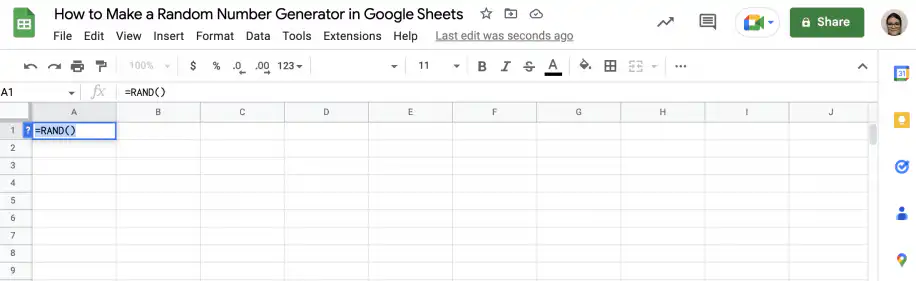
2. In an empty cell, type the RAND function as shown below. The function doesn’t take any arguments, so inserting anything between the parentheses will lead to an error.
RAND function in Google Sheets — =RAND() typed into cell A1

3. Press ‘Enter’ to generate the number.
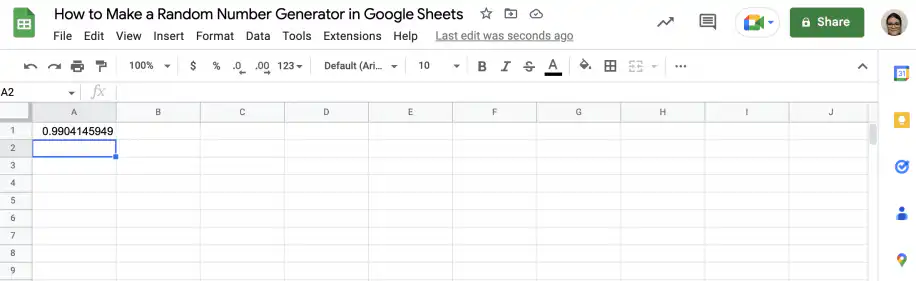
RAND function in Google Sheets — cell A1 showing the random decimal 0.9904145949

4. Since RAND is a volatile function, it will generate a new number every time the sheet recalculates or refreshes.
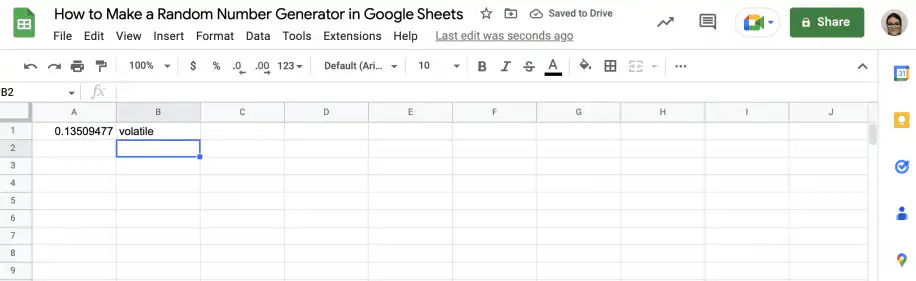
RAND function in Google Sheets — A1 recalculated to 0.13509477, with the note volatile in B1

5. If you need to create a static dataset for testing, you can do this by copying the cell or cells and using Edit > Paste special > Values only.
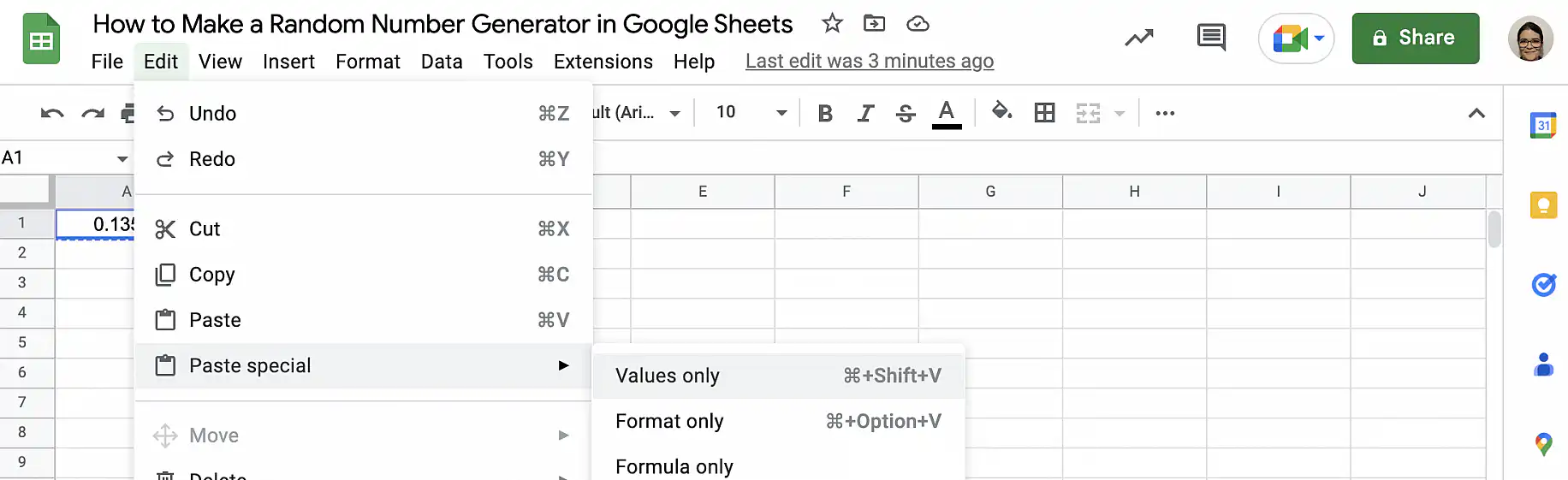
Random number generator in Google Sheets — Edit menu open at Paste special, Values only

6. Like any other formula, you can grab the fill handle and drag it to copy it to other cells.
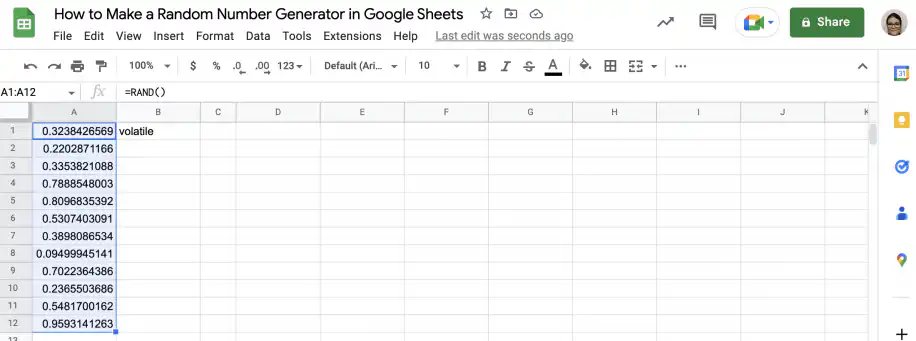
RAND function in Google Sheets — =RAND() copied down A1:A12, each cell with a new decimal

How to use the RANDARRAY function in Google Sheets?

If you need to generate an array of decimal values, you don’t need to use multiple instances of RAND. Instead, use RANDARRAY to specify the number of rows and columns you want. Like other dynamic array formulas, it spills its results into the neighboring cells.

1. Open Google Sheets.
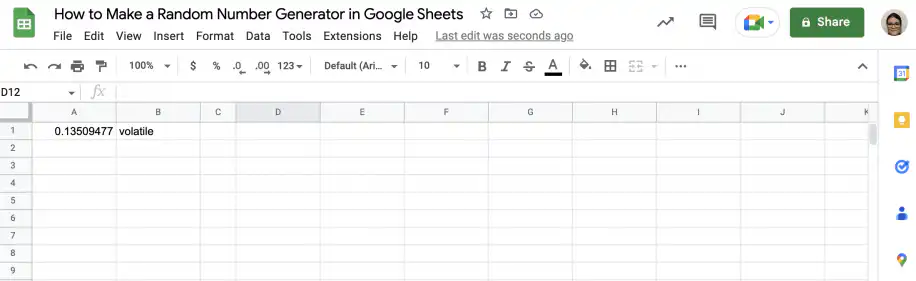
RANDARRAY in Google Sheets — empty column D selected next to the RAND value in A1

2. Type the RANDARRAY function in an empty cell.
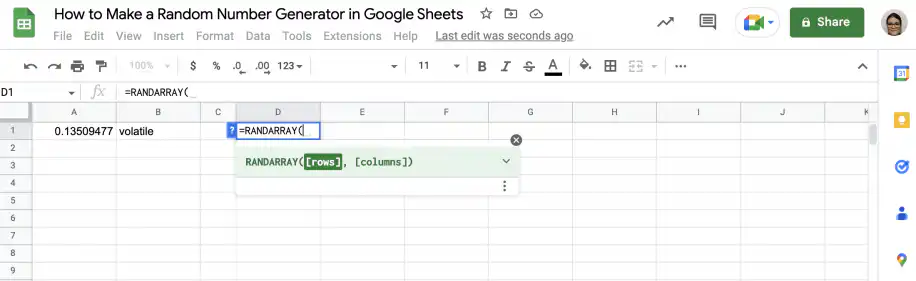
RANDARRAY in Google Sheets — =RANDARRAY( typed in D1 with the rows and columns tooltip

3. For the first parameter, specify the number of rows you want in your array.
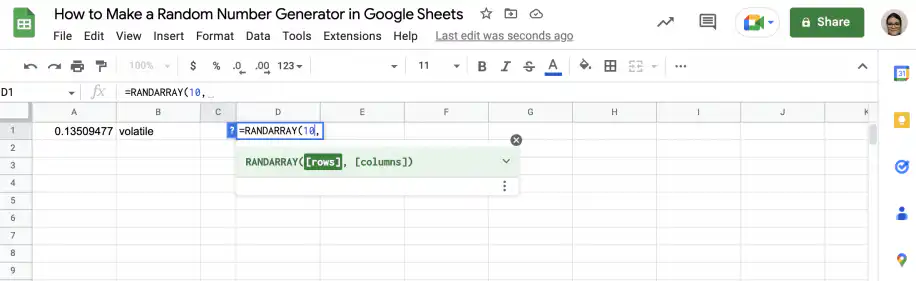
RANDARRAY in Google Sheets — 10 entered as the rows argument in D1

4. For the second parameter, specify the number of columns you want to generate.
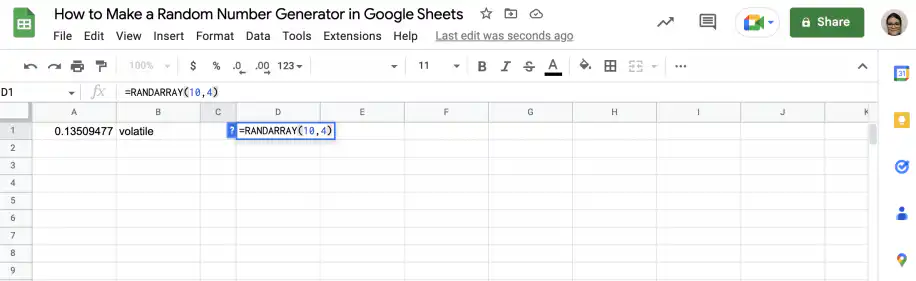
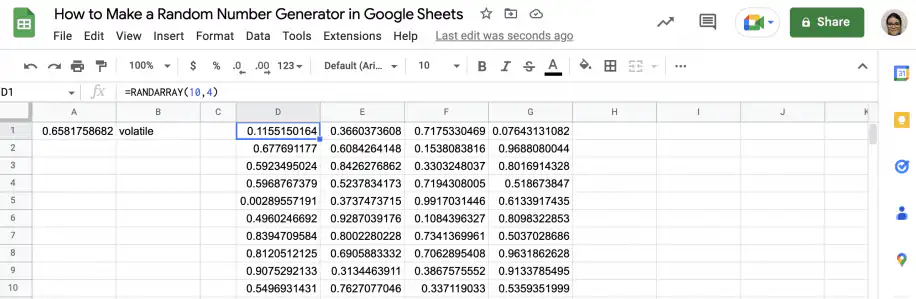
RANDARRAY in Google Sheets — =RANDARRAY(10,4) with 4 as the columns argument

5. Press ‘Enter’ to get the array.

RANDARRAY in Google Sheets — 10 by 4 array of random decimals in D1:G10

How to use the RANDBETWEEN function in Google Sheets?

The syntax is =RANDBETWEEN(low, high), where low and high are the smallest and largest whole numbers you want. Both bounds are included, so =RANDBETWEEN(1, 6) works like rolling a die. Follow the steps below to use RANDBETWEEN to generate integers between the specified lower and upper bounds.

1. Open Google Sheets.
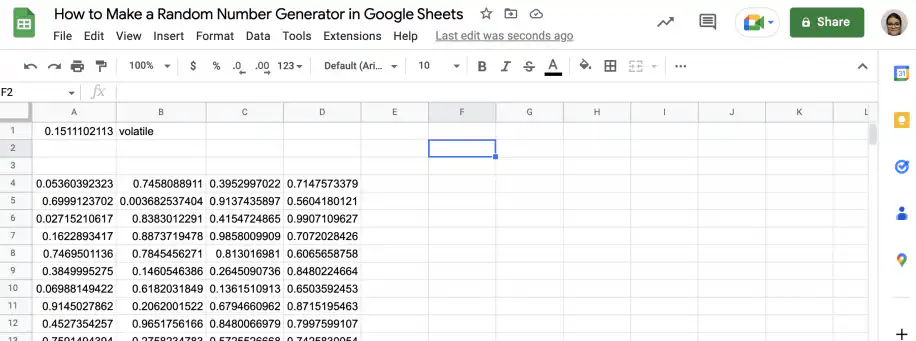
RANDBETWEEN Google Sheets — empty cell F2 selected next to a block of random decimals

2. In an empty cell, type the RANDBETWEEN function.
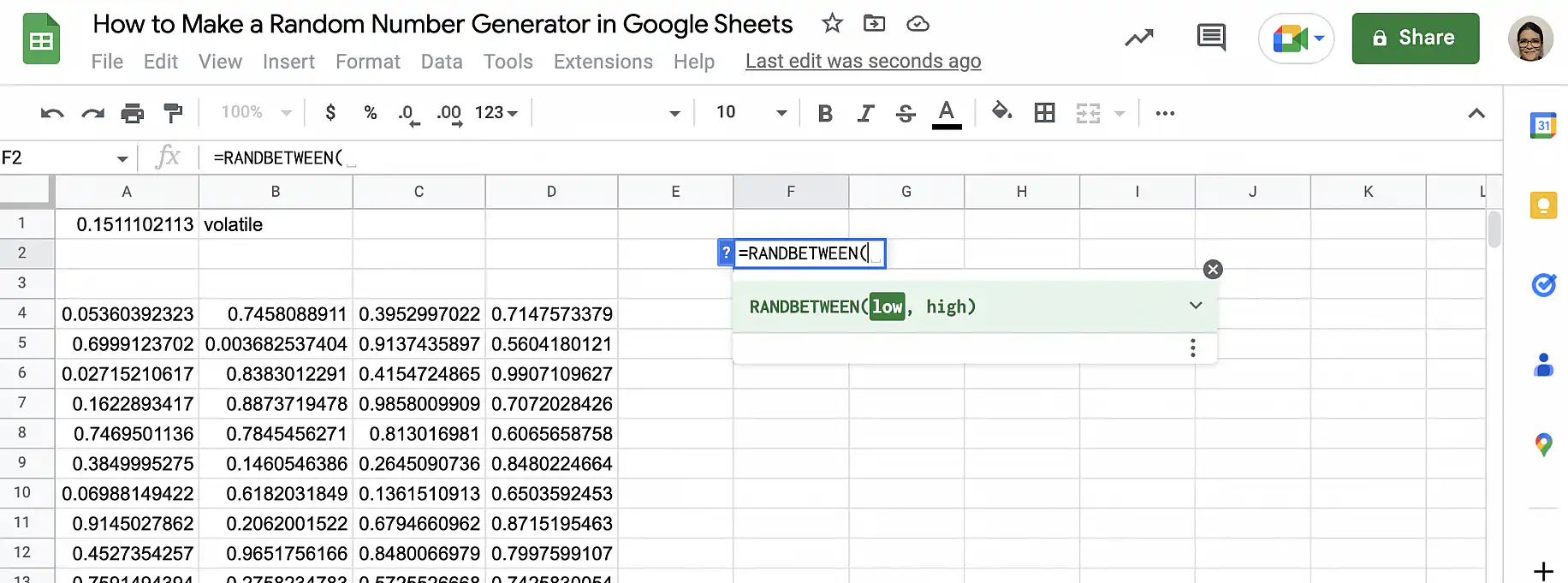
RANDBETWEEN Google Sheets — =RANDBETWEEN( typed in F2 with the low, high tooltip

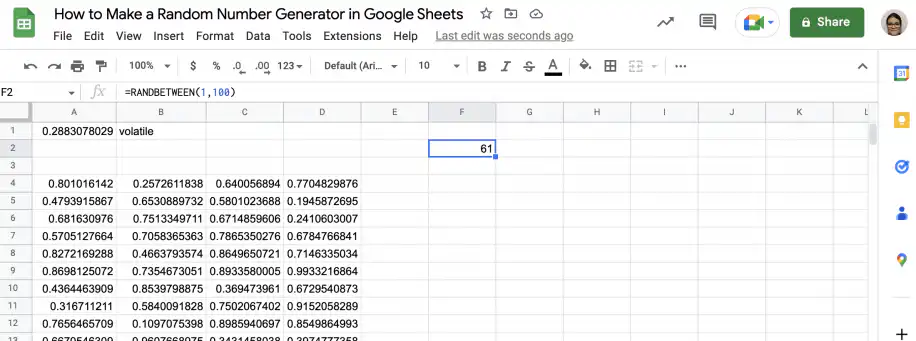
3. Add the upper and lower boundaries. In this case, the function will generate numbers between 1 and 100.
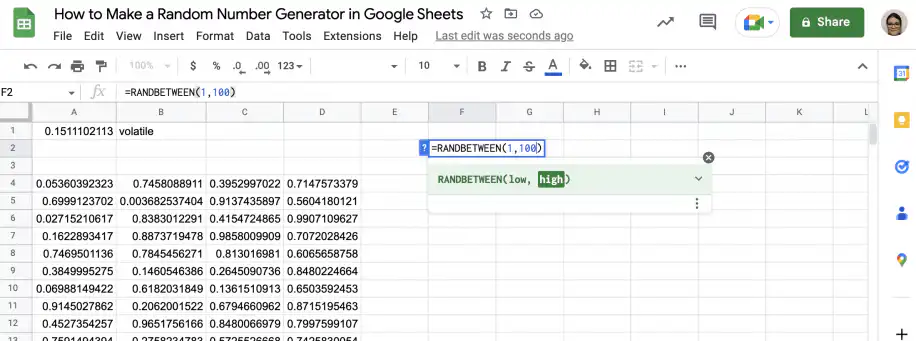
RANDBETWEEN Google Sheets — =RANDBETWEEN(1,100) with 1 and 100 as the bounds

4. Press ‘Enter’ to see the result.

RANDBETWEEN Google Sheets — cell F2 showing the random integer 61

How to set upper & lower boundaries with the RAND function in Google Sheets?

In this section, you will learn how to use RAND to generate random numbers from a range larger than the default (0-1). Follow the steps below to set an upper and lower boundary for the RAND function.

1. Open Google Sheets.
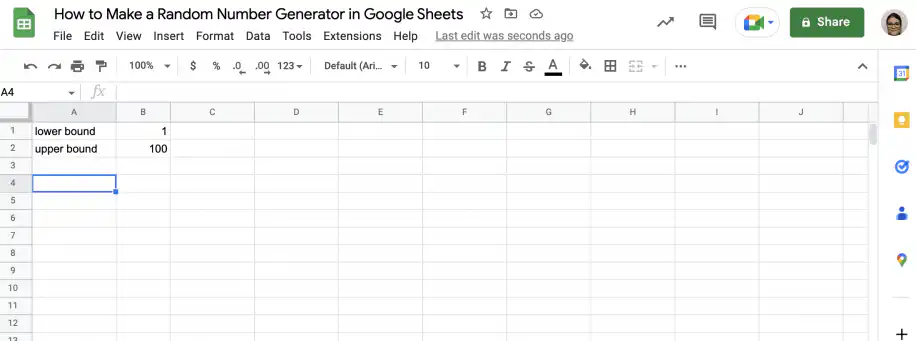
RAND with bounds in Google Sheets — lower bound 1 in B1, upper bound 100 in B2, A4 selected

2. In an empty cell, type the RAND function followed by the multiplication operator.
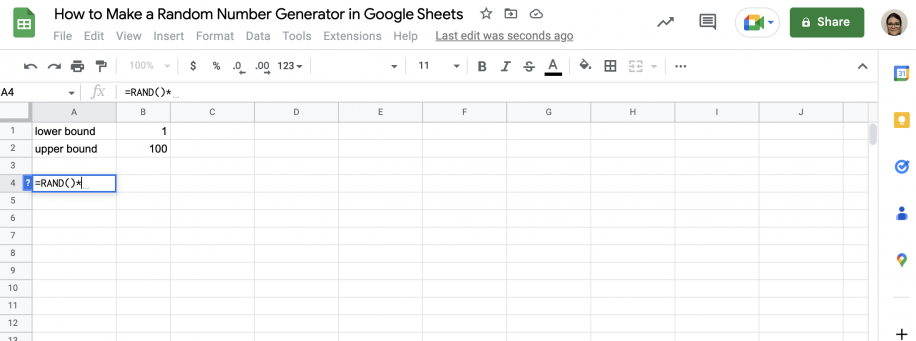
RAND with bounds in Google Sheets — =RAND()* typed in cell A4

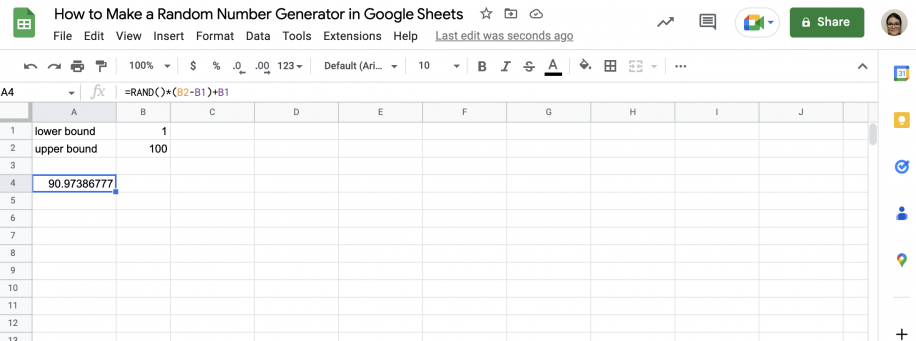
3. Add the upper and lower boundaries so the full formula reads =RAND()*(B2-B1)+B1, where B1 holds the lower bound and B2 holds the upper bound.
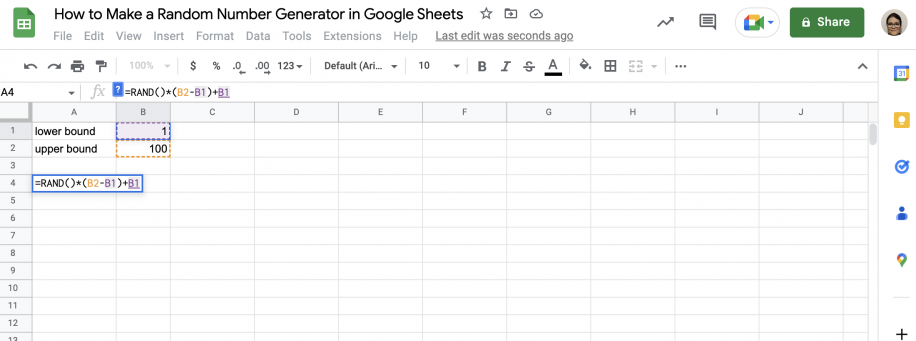
RAND with bounds in Google Sheets — =RAND()*(B2-B1)+B1 referencing the bound cells

4. Press ‘Enter’ to see the result.

RAND with bounds in Google Sheets — A4 showing 90.97386777, between 1 and 100

How to combine the RAND & RANDBETWEEN functions in Google Sheets?

As you have seen, RAND only generates decimal numbers between 0 (inclusive) and 1 (exclusive). RANDBETWEEN, on the other hand, only generates integers between an upper and lower boundary. Therefore, you can easily combine them to get decimals between the boundaries you specify.

For example, you can add RAND and RANDBETWEEN to get random decimals in a given range, just like in the previous example using RAND.
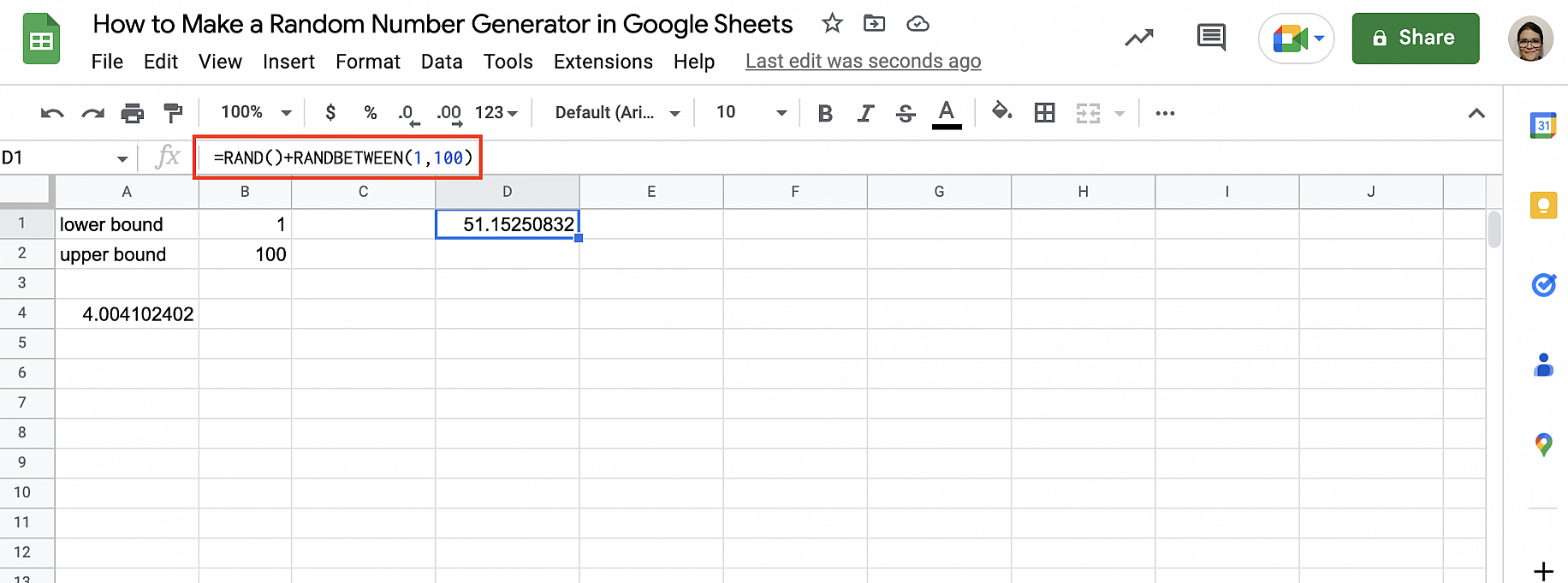
RAND and RANDBETWEEN in Google Sheets — =RAND()+RANDBETWEEN(1,100) returning 51.15250832

You can also use it to get a negative range by subtracting them, as shown below.
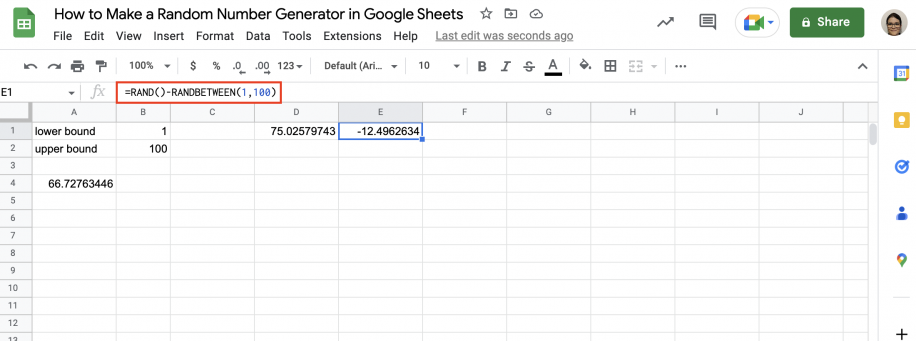
RAND and RANDBETWEEN in Google Sheets — =RAND()-RANDBETWEEN(1,100) returning -12.4962634

To generate multiple values, grab the fill handle and drag it down as far as you need.
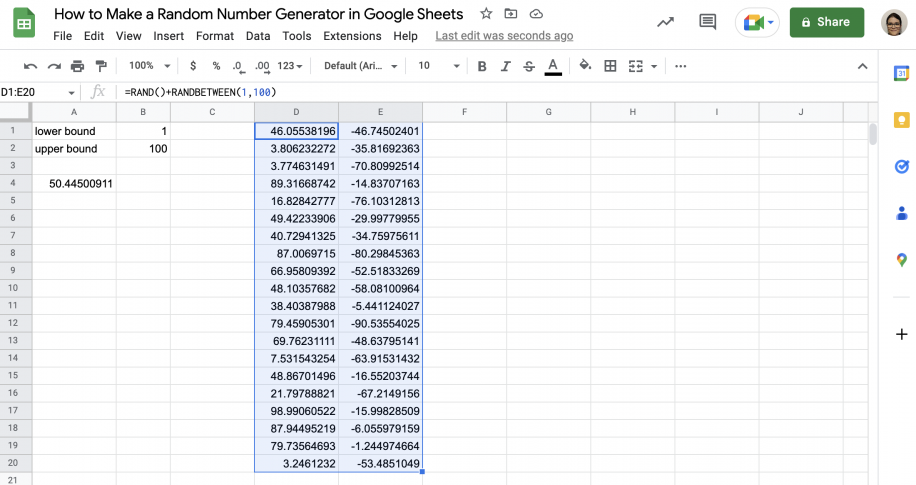
RAND and RANDBETWEEN in Google Sheets — both formulas dragged down D1:E20, positive and negative decimals

Conclusion

As you have seen, generating random numbers in Google Sheets is easy. There are three functions you can use separately or combine. The first function, RAND, takes no arguments and generates decimals between zero and one. The second function, RANDARRAY, works just like RAND but generates an array of decimals. You can specify the size of the array through the function’s arguments: rows and columns. The third function, RANDBETWEEN, generates integers from a given range. You can specify the upper and lower limits of this range through the function’s arguments.

You now know how to use all three functions in Google Sheets. You also know that they are volatile functions, so the values generated will change with every recalculation or refresh on that sheet. If you need static values, make sure that after you generate them, you copy them and use the special paste option to keep values only. Additionally, you know how to combine these functions and adapt them to suit your needs.

To round the decimals that RAND returns, use the ROUND formula. To shuffle a list into random order, add a =RAND() column next to it and sort by that column with the SORT function.

You may also like…

google sheets features and formulas

Top 5 dynamic array formulas in Google Sheets 

Google Sheets has evolved beyond basic spreadsheets. With the introduction of dynamic array formulas, users can now manipulate and analyze...
google sheets features and formulas

Mastering the FILTER Formula: 4 Use Cases with Examples

The FILTER formula in Google Sheets is a versatile tool for extracting data that meets specific conditions. Unlike the QUERY formula,...
google sheets features and formulas

Unlocking the Power of SUMIF and SUMIFS in Google Sheets: 4 real-life use cases

The SUMIF and SUMIFS formulas in Google Sheets are indispensable tools for performing conditional summations. They simplify complex...