


As you know, Google Sheets is a great spreadsheet tool that optimizes collaboration among people. Google’s comment and note are just two of the very many features that take your spreadsheets to the next level. These two features can be used in a multitude of ways, from simple reminders and suggestions to assigning tasks and communicating with colleagues. As a result, these features can optimize productivity, take pressure off users, and make large workloads more manageable.
There are many daily business operations in which both the comment and note features can be extremely useful with Google Sheets. Let’s say I am part of the receptionist team of a school. We have a spreadsheet containing the student attendance of a class during the month of November. I can use the comment and note features to track key information such as reasons for absences or to create reminders to call up a parent to find out a reason for unapproved absences. With these features, my colleagues will be able to see what I have added to the spreadsheet. As a result, we are all informed on everything we need to know, and we are clear on what our next few tasks will be.
So when should we use comments and when should we use notes in Google Sheets? Let’s explore in more detail the key differences between these two features and how to use them in your own Google Sheets file.


What is the difference between a comment and a note?
Before highlighting the differences, you should know that comments and notes are indeed very similar, as the list below demonstrates.
- They are both text boxes you can attach to cells
- Neither of them interferes with your spreadsheet
- They both display their information when you hover over the cell
- You can copy both a note or a comment from one cell or spreadsheet to another
Although similar, the notes feature does not offer any additional functionalities apart from the ones stated above.
The comment feature, however, allows you to do the following things:
- Tag team members in comments: You can directly mention a colleague in a specific comment and they will be notified via email.
- Assign tasks to others: Similarly to the above, you can assign specific comments containing tasks to colleagues.
- Respond to other comments: Communicate back to team members directly under their comments using the reply field.
As you can see, the key difference between notes and comments is the ability to engage directly with others. As a general rule, therefore, it’s best to use notes when working individually on a spreadsheet for personal reminders. Comments are best when working collaboratively on a spreadsheet that requires more back-and-forth communication.
Excel draws the same line between the two, so if you also work in Excel, see how to add comments and notes in Excel.
How to use the note feature in Google Sheets
Let’s use the example mentioned above to demonstrate how to use the note feature in Google Sheets.
Here is the Google Sheets file containing the attendance record of Class 7e’s students in the month of November.
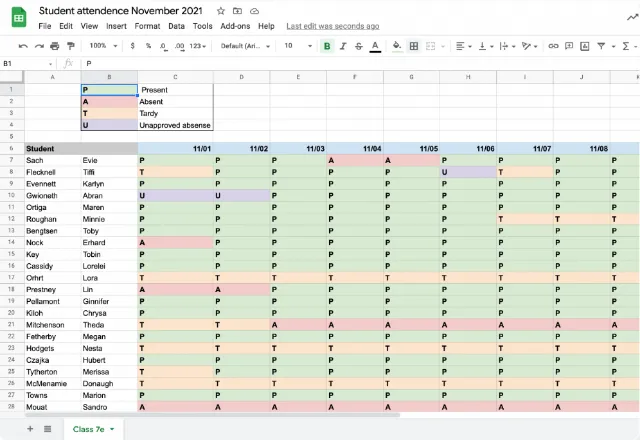
7 students in the classes went to a gifted and talented program on the 6th of November.
Using the note feature, I want to create a note of this program on the spreadsheet for each student so that the rest of my colleagues are up-to-date.
Step 1:
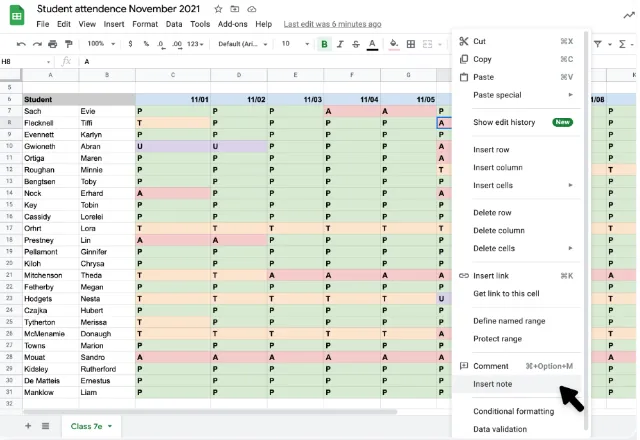
First, select the cell to which you want to attach a note.
Right-click and select Insert note.
Step 2:
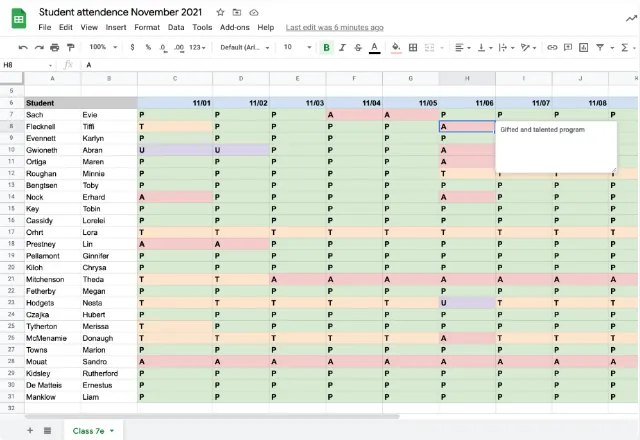
An empty text box should appear beside the cell you clicked. Type in your note.
Step 3:
Click elsewhere on the spreadsheet. There should now be a black triangle in the corner of your cell – this means that the note is successfully attached to the cell.

Step 4:
In order to read the comment, hover the mouse over the cell.

Step 5:
In order to edit the note, navigate to the cell and click the note.
To remove the note, simply delete the text inside the note.

How to use the comment feature in Google Sheets
To explain how to leave a comment, let’s return to the previous example where I am running a summer camp for teenagers. A few days before the camp begins, I receive a call from the parents of Nedi, another teenager due to come to the camp, telling me that Nedi will not be there on the agreed arrival day. Here, I want to leave a comment on the cell asking my colleague to ring the parents and find out what day Nedi will be arriving.
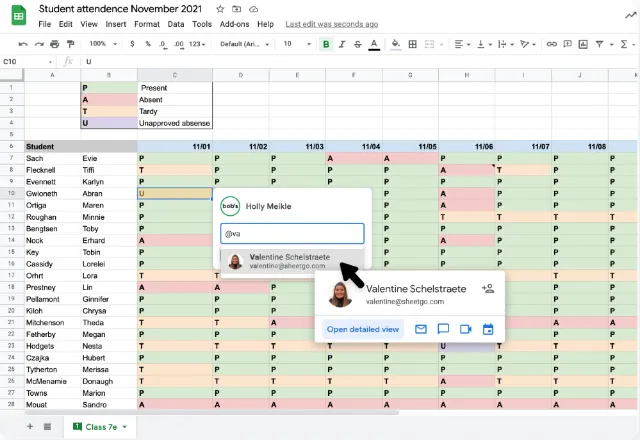
Let’s say I am now attempting to ring the parents of students who have unapproved absences in order to note the reason for their absence. I am unable to get hold of Abran’s parents, for now, so I want to leave a comment addressed to one of my colleagues so that they can ring them during their working hours.
Step 1:
Select the cell you want to comment on, right-click and select Comment.
You can also use the keyboard shortcut Ctrl + Alt + M or Cmd + Option + M (Mac).
Step 2:
The cell you clicked should turn yellow and an empty text box should appear beside it.
To mention someone in the comment, type @ and enter their email or username.

When you’re happy with your comment, press Comment.

Step 3:
If you have mentioned someone in a comment, you can also assign the comment as a task.
To do this, simply check the box Assign to [name]. Once you’re happy with your comment, click Assign.

Step 4:
There should now be a yellow triangle in the corner of your cell.
To read the comment, hover the mouse over the cell.

Step 5:
To edit or delete the comment, hover over the cell and either click the tick or go to More options (︙) and select your desired action.
You can also create a link for the specific comment to share with others.

Step 6:
My colleague can reply to my comment. Let’s say they have commented back saying they have successfully called Abran’s parents and can excuse the absence.
To resolve the comment, I can click the tick icon on the top right-hand side of the comment.
Using notes and comments in Google Sheets
And there you go! Comments and notes in Google Sheets are two great features to use when looking for a temporary solution to edit the spreadsheets that don’t actually affect or add to the sheet itself. Notes are fantastic for more personal reminders, whereas comments are optimized to help you communicate with your collaborators.
If you found this article helpful, take a look at our blog post on how to insert an image inside a cell in Google Sheets!
Alternatively, check out our related blog posts below!
Editor’s note: This is a revised version of a previous post that has been updated for accuracy and comprehensiveness.

 English
 Español
 Português do Brasil
 Français