


If you haven’t used Named Functions in Google Sheets, you should give it a try. It’s a very useful feature for users who like to use formulas and functions in Google Sheets.
In order to learn how to use Named Functions, check out this comprehensive guide and start creating custom functions in Google Sheets.
What are Named Functions in Google Sheets?
As you know, Google Sheets has some powerful functions and formulas that allow you to perform complex calculations. In fact, you can combine multiple functions and create even more complex formulas.
If you use the same custom functions on a regular basis, you can convert these frequently-used formulas into Named Functions. With this Google Sheets feature, you can create custom formulas, save them and even share them with other users.
Why use Named Functions in Google Sheets?
Here are some benefits of using Named Functions in Google Sheets:
- If you customize formulas and use them on a regular basis, Named Functions can help you save time.
- If you use large formulas frequently and struggle to type it out correctly, this feature can prevent you from making syntax errors.
- If you need other team members to use the same custom formulas, you can create a named function and share it with them.
How to create Named Functions in Google Sheets
Let’s say we have created a spreadsheet to collect and analyze data from our marketing campaigns. There are some frequently-used metrics we need to calculate when we want to analyze the results of these campaigns: CPA (cost per acquisition), ROAS (return on ad spend) and conversion rate.
Here, we are going to use a Named Function to create a simple formula to calculate the cost per acquisition. Keep in mind that this is just a simple example to help you get your feet wet. Once you learn how to use Named Functions in Google Sheets, you can create complex functions using built-in Sheets formulas.
In order to calculate the CPA, we need to divide the total ad spend by the total number of conversions. Since it’s a sales campaign, the total number of conversions will be the total number of purchases.
First, go to Data and select Named functions.
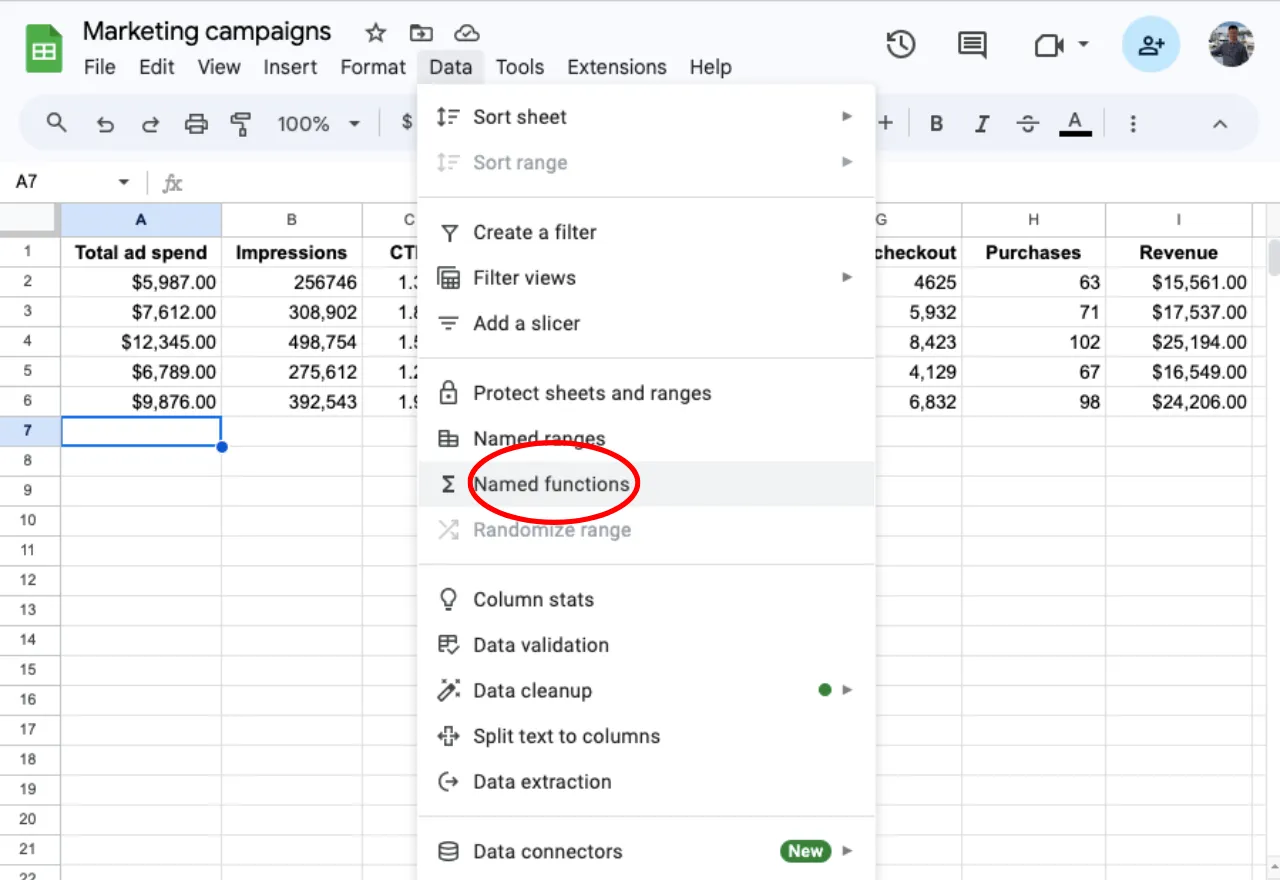
Now click Add new function.

Write the function name and add a function description to let users know what it does. I’ll call it CPA and include a description: Calculate the cost per acquisition.
Then I can copy the formula I used to calculate the cost per acquisition and paste it into the formula definition field.

The first argument in the formula is A2, which represents the first value: total spend. I’ll click A2 to add an argument placeholder. I’ll call it ad_spend.

Now let’s define the second argument placeholder. I’ll call it purchases.

As you can see, I have already created the custom formula: CPA = ad spend/purchases.

When you click Next, you will visualize the Named Function.

If you type the Named Function in a cell now, you will see the description.

You can also check the formula syntax.

If you replace the argument placeholders, you will be able to calculate the cost per acquisition using this Named Function.

Voilà! Google Sheets has calculated the cost per acquisition using the Named Function I have created.

In this example, you could replace the placeholders with values instead of cells.

Convert your frequently-used formulas into Named Functions
Now that you know how to use Named Functions, you can convert your frequently-used formulas and share it with other spreadsheets. We’ll use a more complex formula now to help us decide how to optimize our campaigns.
Whenever we apply this formula, Google Sheets will return a command to tell us what we should do next: scale the campaign, test more ads or pause the campaign.
Here’s the formula we’ll use:

If my ROAS (return on ad spend) is higher than 2.5x, Google Sheets will return the word SCALE. If it’s between 2.2x and 2.5x, I’ll need to test more ad creatives. Otherwise, I’ll have to pause the ad campaign.
Now we can follow the same steps now to create this Named Function. I’ll call it OPTMIZE.

Then I’ll replace “K2” with the argument placeholder ROAS.

Whenever I need to apply this formula, I can use this Named Function. This will make it much easier to use this custom formula. When I type in the formula, all I have to do is replace the argument placeholder ROAS.

By using this custom formula, Google Sheets will tell me how I should optimize the campaign based on the criteria I have established.

Now I can export these Named Functions to other spreadsheets and even share them with my team members.
Let’s say I want to create a new spreadsheet and import this function into it. I’ll open my new file and click Import function instead of selecting Add new function.
Then I’ll select the spreadsheet I want to import this function from. After choosing the Named Functions I want to import, I can start using this custom formula within my new spreadsheet.

How to use Named Functions in Google Sheets
This is how you can use Named Functions in Google Sheets. Whenever you want to save your custom formulas in Google Sheets, you can use this powerful feature to create a Named Function and help you save time and work more efficiently.
If you need to create formulas in Google Sheets on a regular basis, check out this article on ChatGPT and spreadsheets and find out if this AI tool can help you generate formulas more easily.

 English
 Español
 Português do Brasil
 Français