Get help

Help center

Guides and answers

Contact support

Write to our team

Sign in to

Workflows

Build processes with your team

Automations

Connect files and automate tasks

One system, four parts

AI agents

Virtual Employees that work 24/7

Automations

Connect files and automate tasks

Workflows

Build processes with your team

Data Space

Trusted data sharing and control

Solutions by department

Finance

Reports, budgets, and reconciliations

Inventory and manufacturing

Stock, orders, and production in one view

HR

Timesheets, attendance, and reviews

Project management

Status and workload across projects

Sales and CRM

Leads and deals kept up to date

Education

Student records and school data

Finance

Turn manual finance work into reports that update themselves.

What Finance teams automate

  • Track payables and receivables
  • Build cash flow statements
  • Compare budget against actuals

Inventory and manufacturing

See stock levels and automate ordering.

What inventory and manufacturing teams automate

  • Track inventory across multiple sites
  • Connect sales, purchasing, and warehouse data
  • Link a barcode scanner to your sheet

HR

Run recruitment, attendance, and OKR tracking from your sheets.

What HR teams automate

  • Track recruitment and onboarding
  • Record team OKRs and results
  • Track check-ins, check-outs, and leave

Project management

Assign tasks and track hours without manual updates.

What project teams automate

  • Assign tasks and track status changes
  • Estimate effort and log hours worked
  • Track milestones across projects

Sales and CRM

Track leads and sales performance with automated reports.

What sales teams automate

  • Track and convert leads
  • Set sales goals and track team metrics
  • Monitor sales KPIs on dashboards

Education

Automate attendance, grades, and school purchasing.

What schools automate

  • Track attendance and notify parents
  • Record and compare class grades
  • Track inventory lent to students and staff

Find a use case

By department

How each team uses Sheetgo

By industry

How each industry uses Sheetgo

By company size

Small, medium-sized, or large

Learn

Blog

Guides and product news

Customer stories

How teams like yours use Sheetgo

Help center

Guides and answers

Why Sheetgo

Compare

How Sheetgo compares with other tools

Security

How we protect your data

Trust center

Our compliance details

Sign in to

Workflows

Build processes with your team

Automations

Connect files and automate tasks

One system, four parts

AI agents

Virtual Employees that work 24/7

Automations

Connect files and automate tasks

Workflows

Build processes with your team

Data Space

Trusted data sharing and control

Solutions by department

Finance

Reports, budgets, and reconciliations

Inventory and manufacturing

Stock, orders, and production in one view

HR

Timesheets, attendance, and reviews

Project management

Status and workload across projects

Sales and CRM

Leads and deals kept up to date

Education

Student records and school data

Find a use case

By department

How each team uses Sheetgo

By industry

How each industry uses Sheetgo

By company size

Small, medium-sized, or large

Get started

Templates

Ready-made workflows to start from

Learn

Blog

Guides and product news

Customer stories

How teams like yours use Sheetgo

Help center

Guides and answers

Why Sheetgo

Compare

How Sheetgo compares with other tools

Security

How we protect your data

Trust center

Our compliance details

Help center

Guides and answers

Contact support

Write to our team

Workflows

Build processes with your team

Automations

Connect files and automate tasks

How secure is Google Drive? (+ Google Drive security tips)

What is Google Drive?
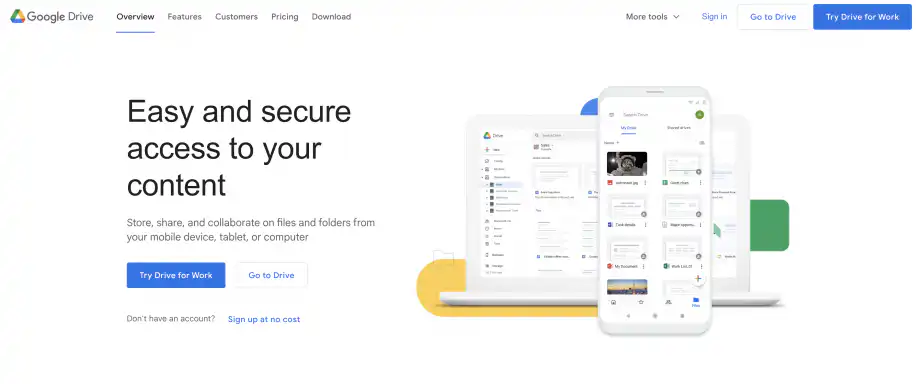
How secure is Google Drive — Google Drive overview page with the headline 'Easy and secure access to your content' beside a laptop and phone showing Drive files

Google Drive is a cloud storage service that allows users to store and access files, including documents created in Google Docs. It allows users to securely store and share their documents with others or make them accessible across multiple devices. Files stored on Google Drive are backed up using the same security measures as those used for Google Docs.

In addition to storing and sharing documents, Google Drive also provides users with 15GB of free storage space that can be used to store any type of file. It also allows users to purchase additional storage space if needed.

How secure are my docs on Google Drive?
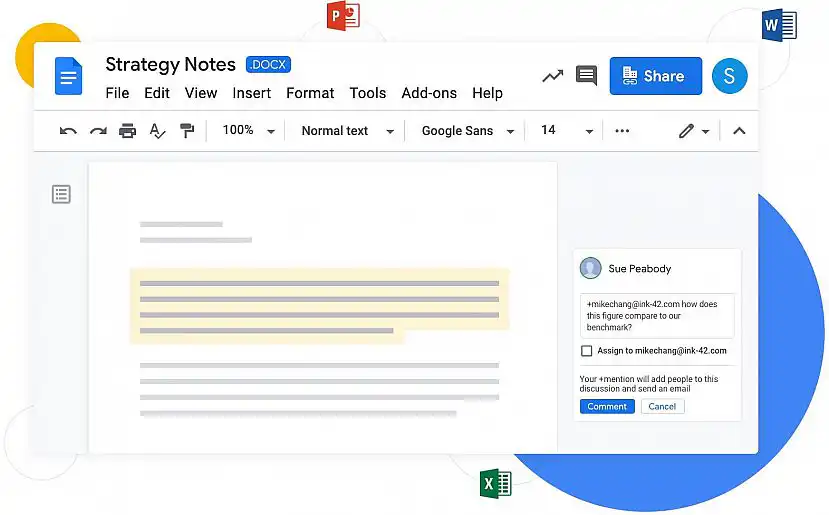
Google Drive security — Strategy Notes .DOCX file open in Google Docs with the Share button and a comment that mentions a teammate by email

Google Drive, the online storage service associated with Google Docs, also offers a high level of security. Your files are stored in secure data centers and encrypted both at rest and in transit. In addition, there are several other safeguards in place to protect your documents, such as periodic backups and virus scanning.

Google also has a number of features that help protect your documents from unauthorized access. These include two-factor authentication and the ability to set permissions so that only specific individuals can view or edit your documents. Our guide to Google Sheets permission levels explains what each role can do.

How secure is Google Drive file sharing?
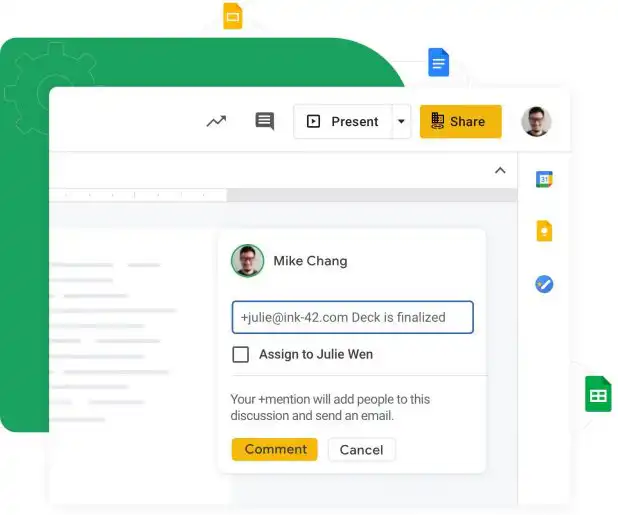
Google Drive file sharing — comment box with a +mention for julie@ink-42.com, an Assign to Julie Wen checkbox, and the Share button

Google Drive also offers secure file-sharing capabilities. When you share a file with someone, they need either a Google account or a specific link to the file to access it.

You can also remove access at any time, and on many Google Workspace accounts you can set an expiration date on the access you give to specific people. Here is how to share your Google Sheets files only temporarily. Additionally, you can restrict the ability to view, comment, or edit files with anyone who has been given access. For a full walkthrough, see how to share Google Sheets.

Google Drive security tips

To ensure your documents remain secure on Google Drive, here are some tips to consider:

  • Create a strong password and use two-factor authentication when possible.
  • Regularly review the list of users who have access to your documents and remove any who no longer need it.
  • Set up automated alerts for suspicious activity.
  • Use a secure connection when accessing and sharing files.
  • Consider using additional encryption measures, such as third-party encryption tools or certificate-based authentication.
  • Be aware of phishing attacks and other malicious activities.
  • Never share your password with anyone else.
  • Log out of your account when done using Google Drive.
  • Regularly scan documents for viruses and malware.
  • Read all terms of service before using online storage services such as Google Drive.
  • Contact the provider’s customer support team if you experience any issues with security or privacy.
  • Report suspicious activity to the provider as soon as possible.

By following these tips, you can ensure that your documents remain secure on Google Drive.

How to check your Google account security settings

Your Drive is only as secure as the Google account that owns it. These built-in settings are worth a few minutes:

  • Run the Security Checkup. Google’s Security Checkup in your Google Account lists the devices signed in to your account, recent security events, and third-party apps with access to your data. Remove anything you don’t recognize.
  • Turn on 2-Step Verification. Add a second step when you sign in, such as a passkey, a security key, or a prompt on your phone, so a stolen password alone isn’t enough to get in.
  • Check general access on shared files. In the Share dialog, “Anyone with the link” lets anyone who has the URL open the file. Switch it to “Restricted” for files that hold private data, so only the people you add can open them.
  • Consider Advanced Protection. Google’s Advanced Protection Program is built for people at higher risk of targeted attacks, such as executives or journalists. It requires a passkey or security key to sign in and limits which apps can access your data.

Inside a spreadsheet, you can go a step further and lock cells and protect sheets in Google Sheets, so collaborators can’t change formulas or key data by mistake.

Conclusion

Overall, Google Docs and Google Drive offer a secure way to store, share, and collaborate on documents online. With its robust security measures and additional features such as two-factor authentication and permission settings, users can rest assured that their documents are being kept safe.

If you move data between spreadsheets in Drive, Sheetgo’s AI automations can connect the files and keep shared reports updated on a schedule, so you can share a report without opening up the source files. To keep sensitive fields out of shared files, see how to mask PII in Google Sheets.

You may also like…

google sheets features and formulas

Top 5 dynamic array formulas in Google Sheets 

Google Sheets has evolved beyond basic spreadsheets. With the introduction of dynamic array formulas, users can now manipulate and analyze...
google sheets features and formulas

Mastering the FILTER Formula: 4 Use Cases with Examples

The FILTER formula in Google Sheets is a versatile tool for extracting data that meets specific conditions. Unlike the QUERY formula,...
google sheets features and formulas

Unlocking the Power of SUMIF and SUMIFS in Google Sheets: 4 real-life use cases

The SUMIF and SUMIFS formulas in Google Sheets are indispensable tools for performing conditional summations. They simplify complex...