Get help

Help center

Guides and answers

Contact support

Write to our team

Sign in to

Workflows

Build processes with your team

Automations

Connect files and automate tasks

One system, four parts

AI agents

Virtual Employees that work 24/7

Automations

Connect files and automate tasks

Workflows

Build processes with your team

Data Space

Trusted data sharing and control

Solutions by department

Finance

Reports, budgets, and reconciliations

Inventory and manufacturing

Stock, orders, and production in one view

HR

Timesheets, attendance, and reviews

Project management

Status and workload across projects

Sales and CRM

Leads and deals kept up to date

Education

Student records and school data

Finance

Turn manual finance work into reports that update themselves.

What Finance teams automate

  • Track payables and receivables
  • Build cash flow statements
  • Compare budget against actuals

Inventory and manufacturing

See stock levels and automate ordering.

What inventory and manufacturing teams automate

  • Track inventory across multiple sites
  • Connect sales, purchasing, and warehouse data
  • Link a barcode scanner to your sheet

HR

Run recruitment, attendance, and OKR tracking from your sheets.

What HR teams automate

  • Track recruitment and onboarding
  • Record team OKRs and results
  • Track check-ins, check-outs, and leave

Project management

Assign tasks and track hours without manual updates.

What project teams automate

  • Assign tasks and track status changes
  • Estimate effort and log hours worked
  • Track milestones across projects

Sales and CRM

Track leads and sales performance with automated reports.

What sales teams automate

  • Track and convert leads
  • Set sales goals and track team metrics
  • Monitor sales KPIs on dashboards

Education

Automate attendance, grades, and school purchasing.

What schools automate

  • Track attendance and notify parents
  • Record and compare class grades
  • Track inventory lent to students and staff

Find a use case

By department

How each team uses Sheetgo

By industry

How each industry uses Sheetgo

By company size

Small, medium-sized, or large

Learn

Blog

Guides and product news

Customer stories

How teams like yours use Sheetgo

Help center

Guides and answers

Why Sheetgo

Compare

How Sheetgo compares with other tools

Security

How we protect your data

Trust center

Our compliance details

Sign in to

Workflows

Build processes with your team

Automations

Connect files and automate tasks

One system, four parts

AI agents

Virtual Employees that work 24/7

Automations

Connect files and automate tasks

Workflows

Build processes with your team

Data Space

Trusted data sharing and control

Solutions by department

Finance

Reports, budgets, and reconciliations

Inventory and manufacturing

Stock, orders, and production in one view

HR

Timesheets, attendance, and reviews

Project management

Status and workload across projects

Sales and CRM

Leads and deals kept up to date

Education

Student records and school data

Find a use case

By department

How each team uses Sheetgo

By industry

How each industry uses Sheetgo

By company size

Small, medium-sized, or large

Get started

Templates

Ready-made workflows to start from

Learn

Blog

Guides and product news

Customer stories

How teams like yours use Sheetgo

Help center

Guides and answers

Why Sheetgo

Compare

How Sheetgo compares with other tools

Security

How we protect your data

Trust center

Our compliance details

Help center

Guides and answers

Contact support

Write to our team

Workflows

Build processes with your team

Automations

Connect files and automate tasks

How to embed Google Sheets in Google Sites

Google Sites is a tool that allows you to follow the metrics of your business. At Google Site, you monitor the data from your Google sources: Google drive, Google Sheets, Google Slides, docs forms, etc. It stands to reason that if your business uses Google tools, then Google Sites is the perfect way for you and for the stakeholders to view your main metrics. Learn in this blog post how to embed Google Sheet into Google Site.

How to customize your Google Site?

Step 1: Select a corporate image

Firstly, choose a great corporate image in order to make your Google Site appealing (Orange circle). This is an example of a Human Resources department page on Google Sites:
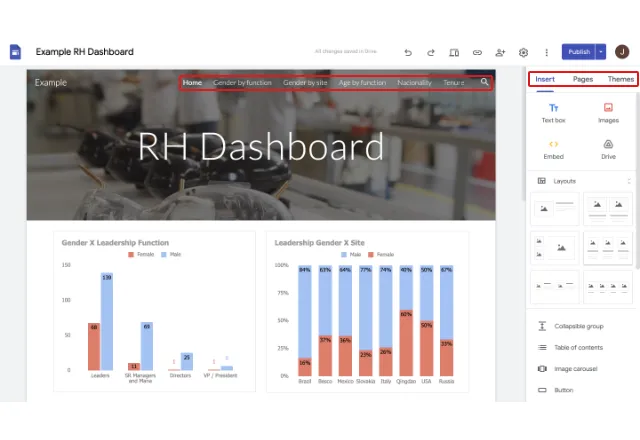
embed google sheet into google site 1

Step 2: Embed sheets in Google site

Use the sidebar to manage your Google Site. You can add here sheets, embed anything, change the theme and page options, modify fonts and styles, etc. Within the section Gender by site, you are able to insert information directly from Google Sheets, using a very intuitive interface. Simply open the interface, select the tables or graphs you wish to insert, and you’re done. The steps are described below:

embed google sheet into google site 2

Finally, the result is:

embed google sheet into google site 3

Google data studio: the next level

We have already seen the features of Google Sites, but there is another tool for monitoring data – Google Data Studio. Google Data Studio is even more complete than Google Sites because you can import data from other sources like Google Analytics, Ads or MySQL. You can modify everything you can imagine, but it has a cost. Google Data Studio is really more complex to elaborate on. Check this example of Google Ads stats in Google Data Studio:

Example of Google Ads Stats in Google Data Studio

In this case, the way to connect your information is a bit different. When you open a new Data Studio you have to connect one data source (Google Sheet, MySQL, Google Analytics, etc) and configure it before adding new ones. After that, you can get data from other data sources and configure one each time.

How to import data from Google Sheets to Google Data Studio?

To connect a data source to Google Data Studio, you have to open the Insert menu, click on Table, and drag the mouse over the page. You will automatically see Select data source on the sidebar. In this example, a google sheet is used.

Embed Google Sheet Into Google Site: Connect a Data Source
Next, you have to select Create a new data source at the bottom of the sidebar. Click on Google Sheets and choose the spreadsheet that you want to import data. After that, click on Add to report.

When you choose a Google Sheet as a data source, you have to define dimensions and metrics (dimensions are the features with which you can classify the metrics). You can learn more about it on this Google page.

Google Sites or Google Data Studio

Google Sites and Google Data Studio provide us with a way to track and show our business’s most important metrics. Google Sites is simpler and lets you create a good report in a short amount of time. On the other hand, Google Data Studio allows you to track all kinds of metrics and make changes.


You may also like…

Free Google Sheets templates — spreadsheet window icon on a green background

Top 10 free Google Sheets templates for 2026

Explore 10 free Google Sheets templates for 2026, including a financial model, a DCF model, OKR, Gantt chart, expense tracking, and invoice templates.

SWOT analysis — four colored circles with the letters S, W, O, and T split by a cross on a beige background

SWOT analysis: definition, template, examples

Learn what a SWOT analysis is, why it matters, and how to do one. See how to use a template, plus examples from Amazon, Tesla, Apple, and more.

How to use Google Forms featured image

How to create a dashboard in Google Sheets

Get actionable insights with a data dashboard Think of the last time you needed to check a KPI or another important metric for a report....