


Vigilar el flujo de caja es esencial para tomar buenas decisiones empresariales. Y el estado de tesorería es uno de los documentos clave que los prestamistas e inversores tienen en cuenta a la hora de evaluar la salud general de una empresa. Para que su empresa sea viable, debe generar suficientes ingresos (cobros) para cubrir los gastos (pagos). Para ello, necesita un sistema que le permita controlar con precisión los flujos de entrada y salida de dinero.
Sales proceeds, investments, operational costs, taxes, debt repayments … most businesses have multiple revenue and expenditure streams. This makes it difficult to keep the whole picture in one place. Data is often processed by different departments, resulting in communication delays and a lack of standardization.
Even if you have an in-house accounting team, collating receipts and payment data is often still a manual task. Financial management software can help, especially when you want to create smart reports and visualizations. But these programs come with a hefty price tag, and you still have to feed them the numbers.
Every business has unique financial management processes. Nonetheless, there’s one thing that every company in the world has in common: spreadsheets. A good cash flow template gives you the structure of purpose-built software without the price tag: one Google Sheets file where you log what came in and what went out, and your balance, your monthly totals and the chart are worked out from those entries.
That is what Sheetgo’s free Plantilla de flujo de caja is. It is a single Google Sheets file that you copy into your own Google Drive — no account to create, nothing to set up.

Copy the free plantilla de flujo de caja
¿Por qué utilizar Google Sheets para la gestión del flujo de caja?
- Flexible: Independientemente del tipo de empresa que dirijas, Google Sheets te permite crear un sistema a medida. Puedes adaptarlo a medida que cambien las necesidades, sin necesidad de software nuevo.
- Accesible: Usted y sus colaboradores pueden acceder, compartir y trabajar con todos sus datos financieros desde cualquier rincón del mundo. Todo lo que necesitas es una conexión a Internet.
- Compatible with everything: Every other piece of software in the world integrates with Google Sheets. As a result, you can get income and expenses data out of the tools your teams already use and into your sheet.
- Fácil de utilizar: No es necesario incorporar a tu equipo, ya que trabajará con hojas de cálculo a diario. El mantenimiento es sencillo y no se necesita asistencia informática.
What the cash flow template does
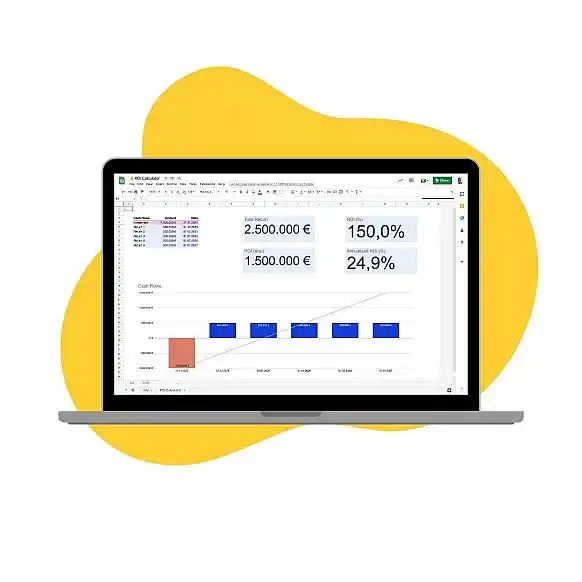
El Sheetgo cash flow template keeps money coming in and money going out on two separate tabs, so you can see what you have received and what you have paid without picking through one long list. Everything else in the file — your running cash balance, receivables and payables by month, and the chart that plots them — is worked out from those two logs by formulas that are already in place.
You are not tied to the version that arrives, either. Rename the categories, add columns, switch the currency: it is your own copy of an ordinary Google Sheets file, so you can shape it around the way your business actually runs.
Qué obtiene con esta plantilla
The template is one Google Sheets file. Alongside a Read me tab that explains how it fits together, you get:
- Entradas: the start date for the period you want to track, and your opening balance.
- Recibos: a log for money coming in, invoice by invoice — client name, invoice number, invoice amount, amount received, date received and a product category.
- Pagos: the same layout on the outgoing side — supplier, invoice number, invoice amount, amount paid, date paid and an expense category.
- Cash Flow Analysis: your cash balance, receivables and payables month by month, calculated from those two logs.
- Cuadro mensual de tesorería: the same three lines plotted over time.
- Receipts Analysis y Payments Analysis: a breakdown of each side on its own.
There is also an Automate this tab. That one is not part of the bookkeeping — it is where you can look into having a Sheetgo virtual employee take the data entry off your hands later on.
Cómo empezar a utilizar la plantilla
Click the button below to make your own copy of the free template:
Cómo utilizar la plantilla de tesorería
Step 1: Enter your start date and opening balance
Abra el Entradas tab and fill in two settings: the start date of the period you want to look at, and the balance you are starting from. Every figure the file works out counts forward from there.

Step 2: Log the money coming in
El Recibos tab is where you record everything the business takes in: customer sales, client payments, loans, interest. Each row holds the client, the invoice number, the invoice amount, how much of it has actually landed and the date it landed, plus a product category you can rename to match your own. The tab arrives with sample rows so you can see the layout — delete or overwrite them and start logging your own entries.

Step 3: Log the money going out
El Pagos tab works the same way on the outgoing side: supplier, invoice number, invoice amount, amount paid, date paid and a category such as Travel, Marketing or Office expenses. An invoice you settle in two instalments is simply two rows. Clear the sample data here too, then keep the tab up to date as you pay.

Step 4: Read your cash position
With your entries in, the Cash Flow Analysis tab lays out your cash balance, receivables and payables month by month, with a small sparkline beside each line so you can see the shape at a glance. It moves as soon as you add a row to Receipts or Payments — there is nothing to refresh.
El Cuadro mensual de tesorería tab plots the same three lines over time, which is the quickest way to spot a month where payments are about to outrun the money coming in. When you want a closer look at one side on its own, Receipts Analysis y Payments Analysis break down each log separately.
Empiece a seguir su flujo de caja
Preguntas más frecuentes
Is the cash flow template free?
Yes. It is a Google Sheets file you copy to your own Drive and keep. There is nothing to install and no account to create.
What do I need to set up first?
Two things on the Inputs tab: the start date and your opening balance. After that you log receipts and payments as they happen.
Does it forecast future cash flow?
It projects your balance forward from what you have entered. It does not predict anything on its own — the figures are the ones you put in.


 English
 Español
 Português do Brasil
 Français