Obtener ayuda

Centro de ayuda

Guías y respuestas

Contactar con el servicio de asistencia

Escribir a nuestro equipo

Iniciar sesión en

Workflows

Crear procesos con su equipo

Automations

Conectar archivos y automatizar tareas

Un sistema, cuatro partes

Agentes de IA

Empleados virtuales que trabajan 24/7

Automations

Conectar archivos y automatizar tareas

Workflows

Crear procesos con su equipo

Data Space

Datos compartidos y controlados con confianza

Soluciones por departamento

Finanzas

Informes, presupuestos y conciliaciones

Inventario y fabricación

Existencias, pedidos y producción en una sola vista

RRHH

Hojas de horas, asistencia y evaluaciones

Gestión de proyectos

Estado y carga de trabajo de todos los proyectos

Ventas y CRM

Leads y oportunidades al día

Educación

Expedientes de alumnos y datos escolares

Finanzas

Convierta el trabajo financiero manual en informes que se actualizan solos.

Qué automatizan los equipos de Finanzas

  • Controlar cuentas por pagar y cobrar
  • Crear estados de flujo de caja
  • Comparar presupuesto y resultados reales

Inventario y fabricación

Vea los niveles de existencias y automatice los pedidos.

Qué automatizan los equipos de inventario y fabricación

  • Controlar el inventario en varias sedes
  • Conectar datos de ventas, compras y almacén
  • Vincular un lector de códigos de barras a su hoja

RRHH

Gestione la contratación, la asistencia y el seguimiento de OKR desde sus hojas.

Qué automatizan los equipos de RRHH

  • Controlar contratación e incorporación
  • Registrar los OKR y resultados del equipo
  • Controlar entradas, salidas y ausencias

Gestión de proyectos

Asigne tareas y controle las horas sin actualizaciones manuales.

Qué automatizan los equipos de proyectos

  • Asignar tareas y seguir los cambios de estado
  • Estimar el esfuerzo y registrar las horas trabajadas
  • Seguir los hitos de todos los proyectos

Ventas y CRM

Siga los leads y el rendimiento de ventas con informes automáticos.

Qué automatizan los equipos de ventas

  • Seguir y convertir leads
  • Fijar objetivos de ventas y seguir las métricas del equipo
  • Supervisar los KPI de ventas en tableros

Educación

Automatice asistencia, calificaciones y compras escolares.

Qué automatizan los centros educativos

  • Controlar la asistencia y avisar a los padres
  • Registrar y comparar las notas de clase
  • Controlar el material prestado a alumnos y personal

Buscar un caso de uso

Por departamento

Cómo usa Sheetgo cada equipo

Por sector

Cómo usa Sheetgo cada sector

Por tamaño de empresa

Pequeña, mediana o grande

Aprende

Blog

Guías y novedades del producto

Historias de clientes

Cómo usan Sheetgo equipos como el suyo

Centro de ayuda

Guías y respuestas

Por qué Sheetgo

Comparar

Cómo se compara Sheetgo con otras herramientas

Seguridad

Cómo protegemos sus datos

Centro de confianza

Detalles de cumplimiento

Iniciar sesión en

Workflows

Crear procesos con su equipo

Automations

Conectar archivos y automatizar tareas

Un sistema, cuatro partes

Agentes de IA

Empleados virtuales que trabajan 24/7

Automations

Conectar archivos y automatizar tareas

Workflows

Crear procesos con su equipo

Data Space

Datos compartidos y controlados con confianza

Soluciones por departamento

Finanzas

Informes, presupuestos y conciliaciones

Inventario y fabricación

Existencias, pedidos y producción en una sola vista

RRHH

Hojas de horas, asistencia y evaluaciones

Gestión de proyectos

Estado y carga de trabajo de todos los proyectos

Ventas y CRM

Leads y oportunidades al día

Educación

Expedientes de alumnos y datos escolares

Buscar un caso de uso

Por departamento

Cómo usa Sheetgo cada equipo

Por sector

Cómo usa Sheetgo cada sector

Por tamaño de empresa

Pequeña, mediana o grande

Empezar

Plantillas

Flujos de trabajo listos para usar

Aprende

Blog

Guías y novedades del producto

Historias de clientes

Cómo usan Sheetgo equipos como el suyo

Centro de ayuda

Guías y respuestas

Por qué Sheetgo

Comparar

Cómo se compara Sheetgo con otras herramientas

Seguridad

Cómo protegemos sus datos

Centro de confianza

Detalles de cumplimiento

Centro de ayuda

Guías y respuestas

Contactar con el servicio de asistencia

Escribir a nuestro equipo

Workflows

Crear procesos con su equipo

Automations

Conectar archivos y automatizar tareas

Cómo utilizar la función COUNTA en Google Sheets

El COUNTA function in Google Sheets is a simple and widely-used function for everyday spreadsheet work. It quickly gives you the total number of values within a specific range of cells. Whereas the COUNT function only counts cells containing numbers, the COUNTA function counts how many cells in the dataset contain any kind of data. That includes numerical values, text (including white space and zero-length strings), logical expressions, error messages, dates and formulas.

Repeated values are also counted. Blank or empty cells are excluded.

39

Automatice las transferencias de datos entre hojas de cálculo

Descubra cómo

Sintaxis

=COUNTA(value1, [value2, …])
  • valor1 – the value or range of cell(s) to count within.
  • value2, value3 … – (optional, up to 30) additional values to also be included in the count.

The value arguments can be:

  • A value
  • A cell reference
  • A range of cells
  • A named range
How to use COUNTA function

I will show the function in action with a few examples:

counta-function-google-sheets-1

You can see that the input parameters can take many forms: a number, text within double quotes, and a reference to a range of cells The most basic form of the function uses a range as an input with the formula =CountA(B2:B9).

No matter what kind of combination you use for the input parameters, the COUNTA function does its job of counting the values. In all of these cases from row 2 through to 7, the function returned the result 8, as there are 8 different values in the third column (including the “Failed” ones). Therefore, you can see that the function counts both numbers and text values.

I included two column ranges in the case in row 8, hence the result was 16. But in the final example, you will see that the output returned is 3, while the data set consists of values from 4 cells: A9, A10, B9 and B10. This difference is because the COUNTA function doesn’t count blank values

COUNTA function also counts other types of data:

counta-function-google-sheets-2

In the example above, I entered various arbitrary values like a date, currency, percentage, decimal, and general text and even special characters. I also validated for blank values on the second column, using the ISBLANK function. So, all the values in rows 2 through to 9 (barring row 8) are non-blank values. Not surprisingly, the COUNTA function in column C counted all the non-blank values, and gives a total count of 7.

COUNTA vs. COUNT

The COUNT function in Google Sheets is similar to COUNTA, except COUNT only counts numbers, whereas COUNTA counts all values. The example below highlights the difference between the two.

counta-function-google-sheets-3

Here I use both functions on the same set of data from the first example. You can see that the COUNTA function counts both the numerical values, and the text values for the students that failed. The COUNT function, on the other hand, only counts the numerical values and ignores the text values. Neither function counts the blank cell for Ivan’s test score.

Blank cells

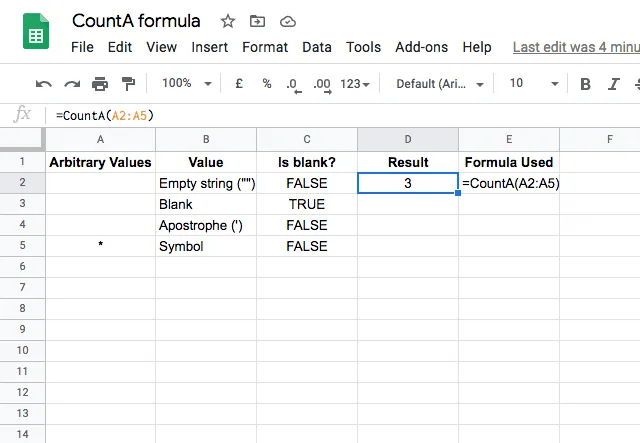
By now you understand that the COUNTA function counts all cells that contain a value, and ignores any cell that is blank. However, there are some tricky cases where a cell can appear blank but actually has a value and is included in the count. The example below illustrates this.
counta-function-google-sheets-4

At first glance, it looks like the first three cells in the list are all blank. However, from the Is Blank? column, you can see that only the second cell is truly blank. The others are an empty string, and an apostrophe, both of which appear to be blank but are not. When you use the COUNTA function, these cells are counted – so keep this in mind when using the function!

Want to count how many unique values appear in a range? Use Google Sheets COUNTUNIQUE function en su lugar. 

Nota del editor: Esta es una versión revisada de un post anterior que se ha actualizado para mayor precisión y exhaustividad.

39

Una alternativa importante, más eficaz y fácil de gestionar

Empezar la prueba gratuita

También te puede gustar...

funciones y fórmulas de google sheets

Cómo hallar el tipo de interés nominal con Google Sheets

Sarah es una joven profesional que toma importantes decisiones financieras. Desde tarjetas de crédito a hipotecas, préstamos estudiantiles e inversiones...
funciones y fórmulas de google sheets

Extraer datos de Google Calendar en Google Sheets mediante Apps Script

Este post fue publicado originalmente en nuestro foro de la comunidad. Objetivo : Esta guía muestra cómo utilizar Google Apps Script para extraer datos...
funciones y fórmulas de google sheets

Uso de la función PROPER para escribir en mayúsculas la primera letra de cada palabra en Google Sheets

Nota: Este artículo se publicó originalmente en el foro de nuestra comunidad. Alguna vez te has visto en la necesidad de limpiar una lista de nombres, títulos o cualquier...