




Google Sheets has no built-in what-if analysis tool like Excel. However, this doesn’t mean you can’t perform this type of analysis in Google Sheets. Using a free add-on like Goal Seek, you can carry out what-if analyses to explore and anticipate the consequences of possible future changes. If you are looking for the IF function instead, see this guide to IF functions in Google Sheets.
In this article, you will learn the difference between what-if and sensitivity analyses and how to use Google Sheets’ Goal Seek add-on to run what-if analyses on multiple scenarios. To learn more about the Goal Seek add-on, check out our article on how to use goal seek in Google Sheets.
What’s the difference between what-if and sensitivity analysis?
In what-if analysis, various situations or “scenarios” are contemplated through the manipulation of variables. Among others, there are two very popular types of what-if analysis: scenario and sensitivity analysis.
In sensitivity analysis, the focus is on the effects of changes to one specific variable; this type of analysis explains how variables (dependent) are affected based on changes made in another variable (independent). In scenario analysis, the focus is on the effects of changes to multiple variables; here, the different scenarios correspond to these changing variables. For example, a worst-case scenario could involve higher-than-average costs and minimum sales.
As you can see, both types of what-if analysis can be very valuable, allowing you to prepare for change or take calculated risks. In the next section, you will learn how to carry out what-if analyses in Google Sheets.
What-if analysis with Goal Seek in Google Sheets
By setting up different scenarios in your spreadsheet, you can use Goal Seek for what-if analysis. Whether you carry out sensitivity or scenario analysis will depend on how many variables you manipulate and to what extent you test individual ones.
Follow the steps below to install the Goal Seek add-on for Google Sheets, set up various scenarios, and use Goal Seek to modify multiple variables.
Install the Goal Seek add-on in Google Sheets
Like with most Google products and features, you simply need a Google account and a few minutes. Follow the steps below to find and install Goal Seek in Google Sheets.
1. Open Google Sheets and go to Extensions > Add-ons > Get add-ons.

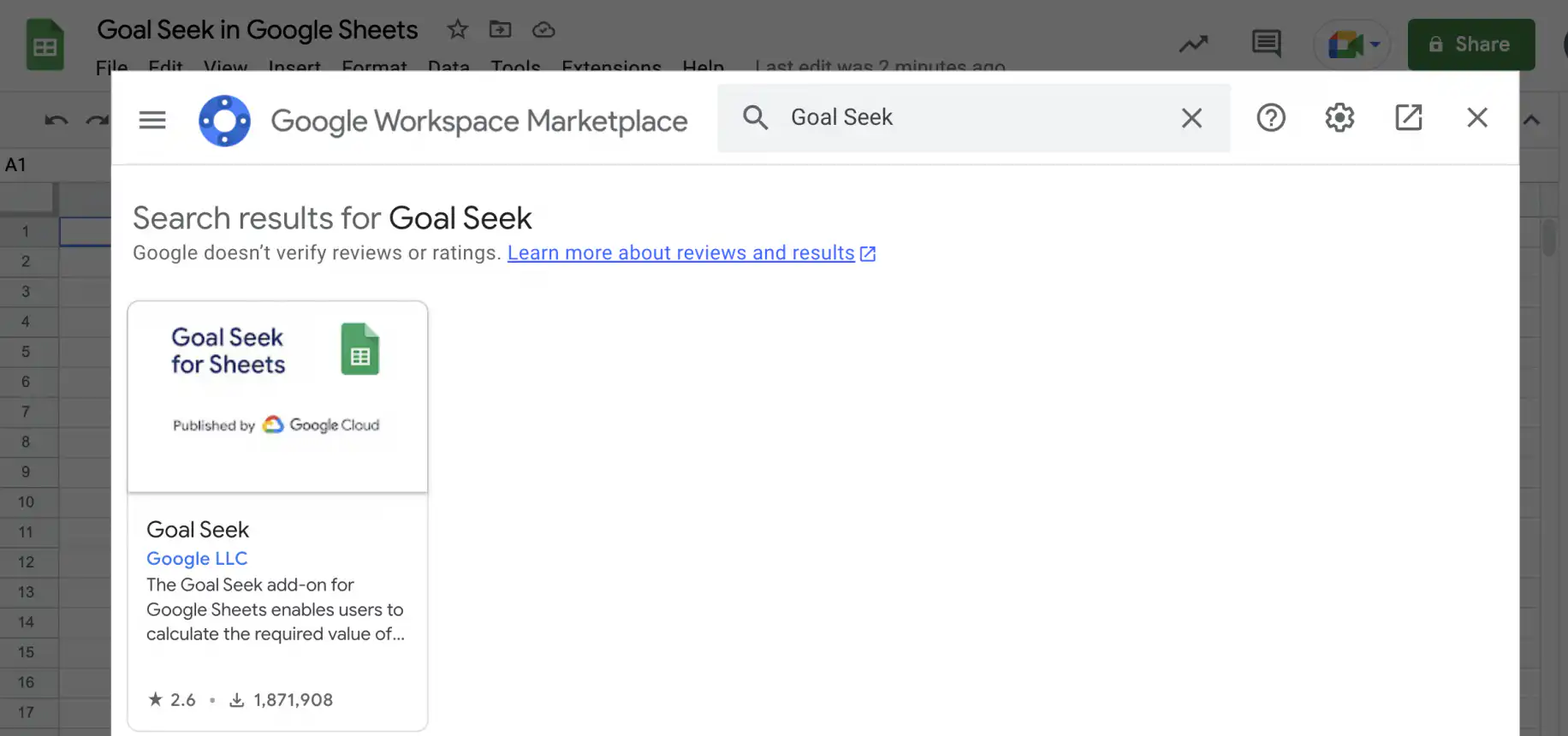
2. In the Google Workspace Marketplace, search for Goal Seek, click on the add-on, and then “Continue.”
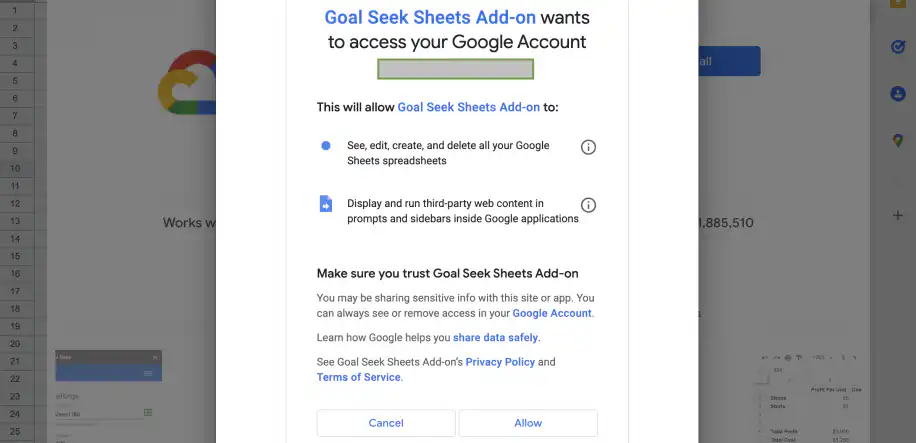
3. You will see a pop-up asking you to grant Goal Seek permission to access your account. Click “Allow” to finish installing the add-on.
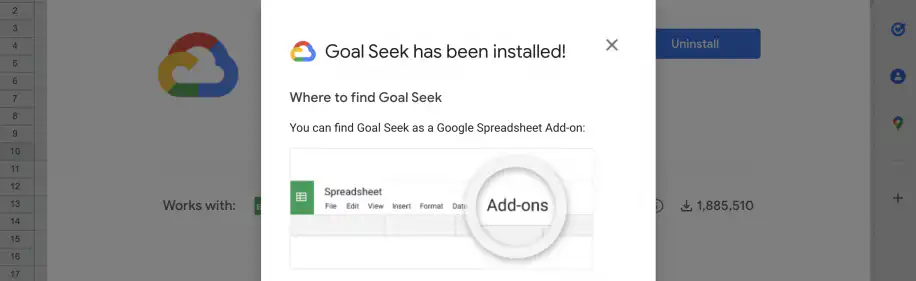
4. Once the add-on is successfully installed, you’ll see a confirmation message like the one below.
Set up what-if scenarios
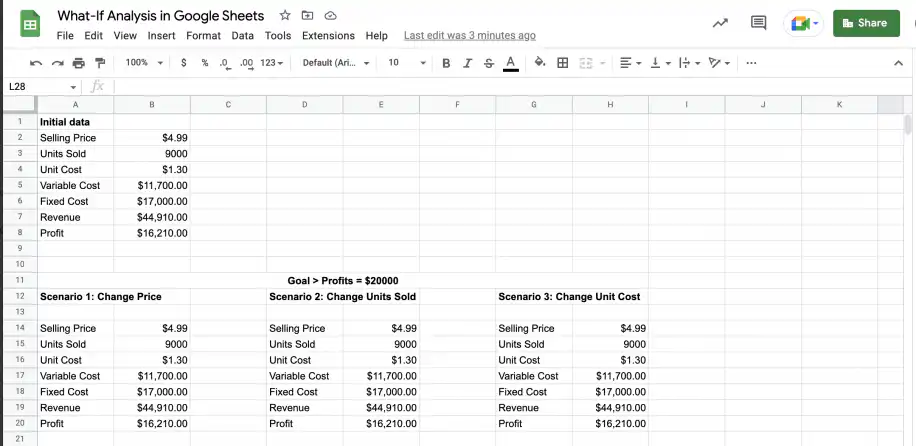
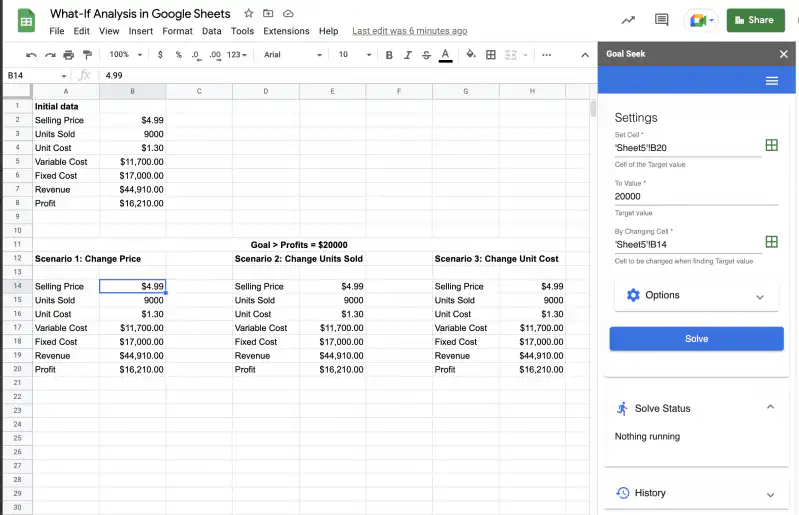
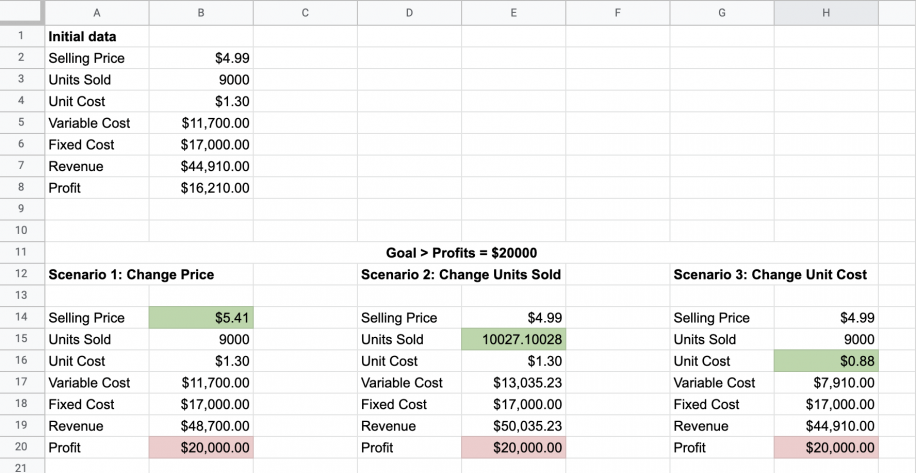
In the example spreadsheet below, you can see three copies of the initial dataset. Here, the goal is to reach profits of $20000 and to analyze different scenarios.
In the first, you’ll see the effects of changing the selling price; in the second, the consequences of changing the number of units sold; and, in the third, the effects of changing the unit cost.
If you want to compare a base, a best, and a worst case side by side, our guide to scenario analysis shows how to set them up.
What-if analysis in Google Sheets with Goal Seek
You can use Goal Seek to carry out a what-if analysis of multiple scenarios by running it on multiple copies of your data, where you can set your goal and specify which variables to change.
Goal Seek required parameters
There are three required parameters in Goal Seek:
- Target cell: This is the cell containing the formula that will link other cells together. Goal Seek will ensure that the result obtained from this formula corresponds to the value you set as your target.
- Target value: This is the value we want to obtain in our target cell.
- Changing cell: This is the cell that Goal Seek can manipulate to reach the target value in the target cell.
Goal Seek optional parameters
You can also configure some optional parameters in Goal Seek:
- Maximum iterations: the default value is 200. You can increase this number, so that Goal Seek makes more attempts to find a solution, but this will also depend on the time limit you set.
- Tolerance: the default value is 0.0001. You can increase this number if your solution doesn’t need to be this precise.
- Maximum time limit: the default value is 120 seconds. You can increase this number for more complex calculations. Calculations will stop when this limit is reached, regardless of the “Max Iterations” setting.
1. Go to Extensions > Goal Seek > Open.
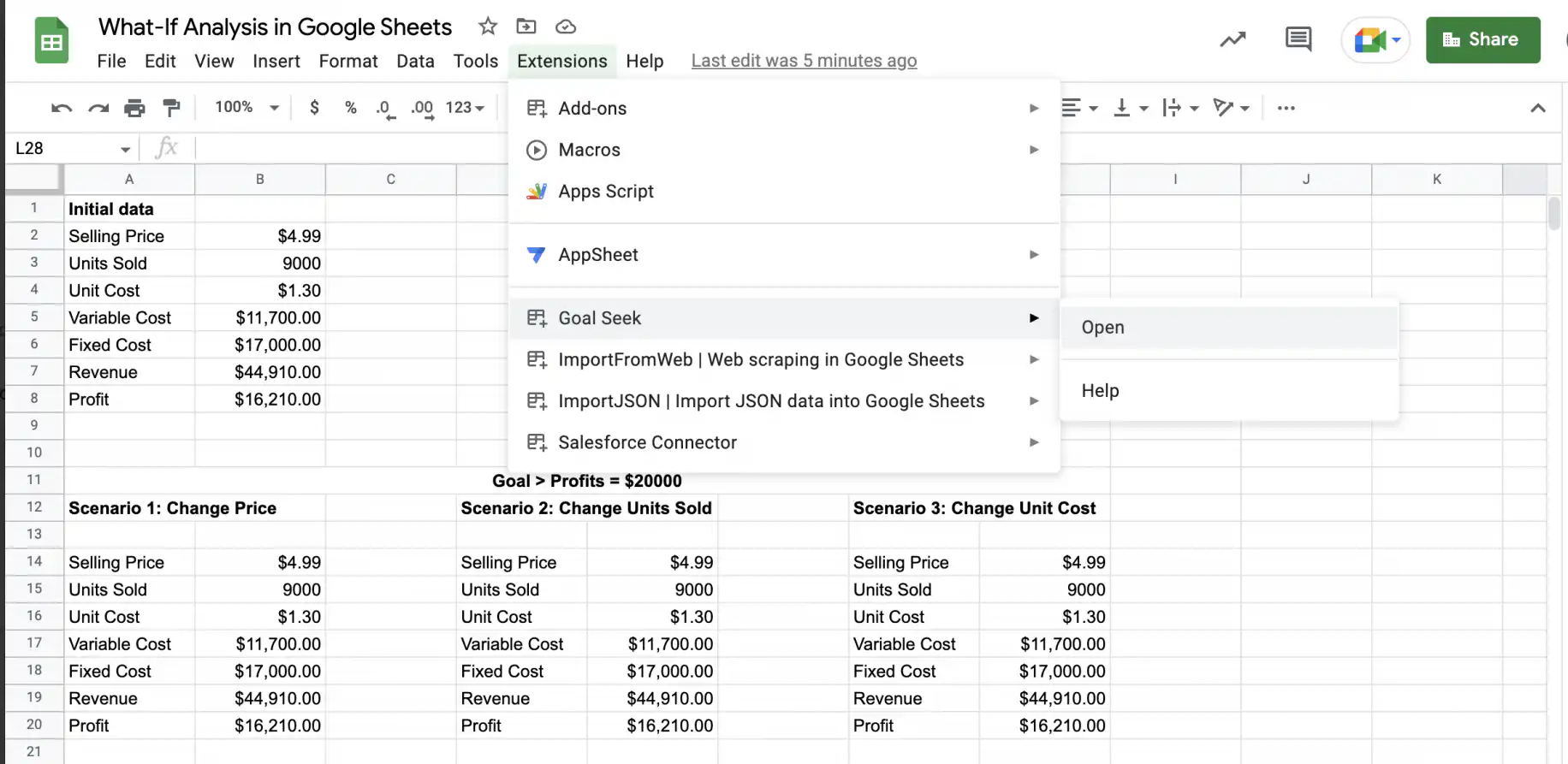
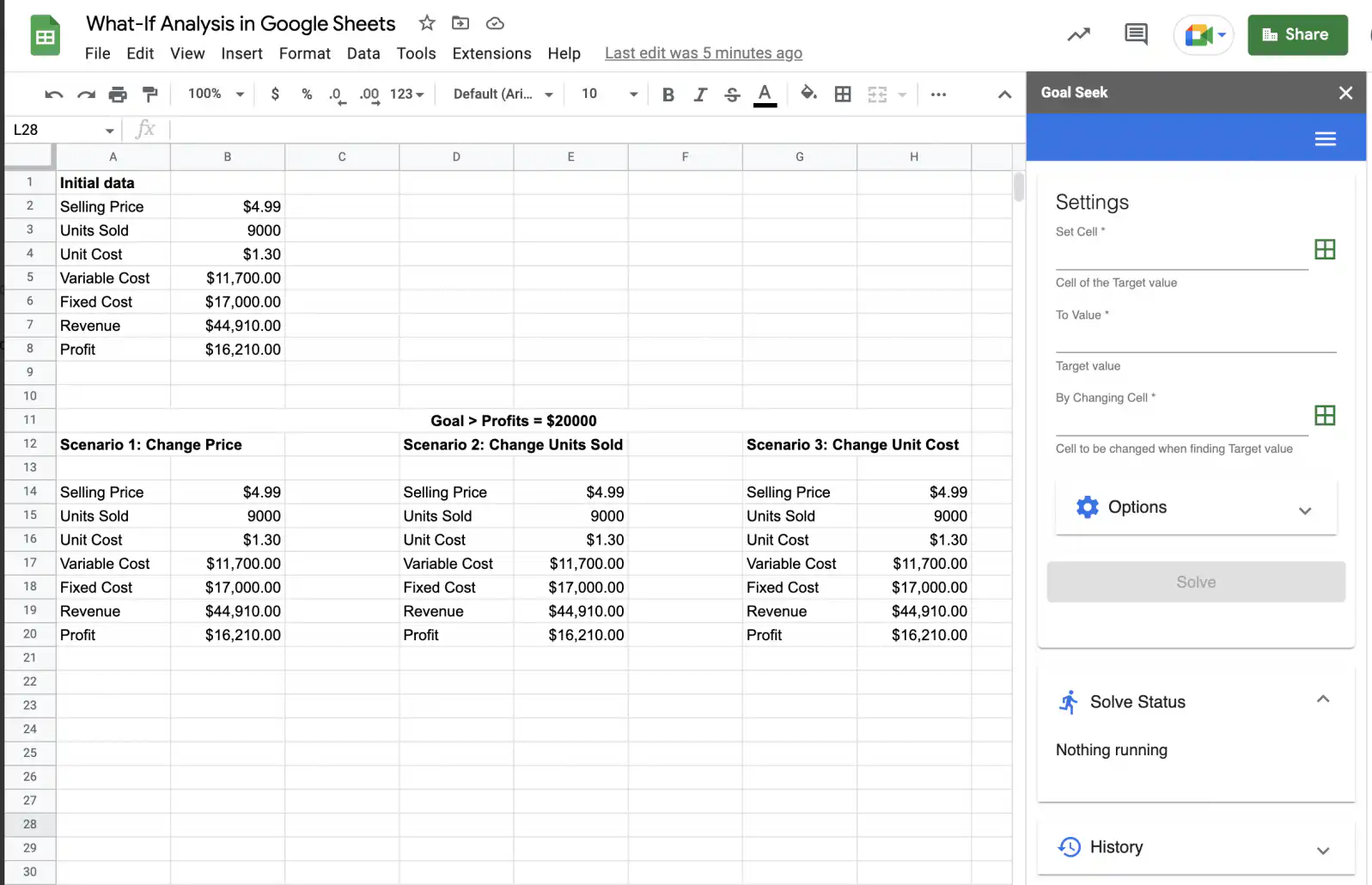
2. You will see the Goal Seek sidebar on the right of your spreadsheet, including “Settings”, “Solve Status”, and “History”.
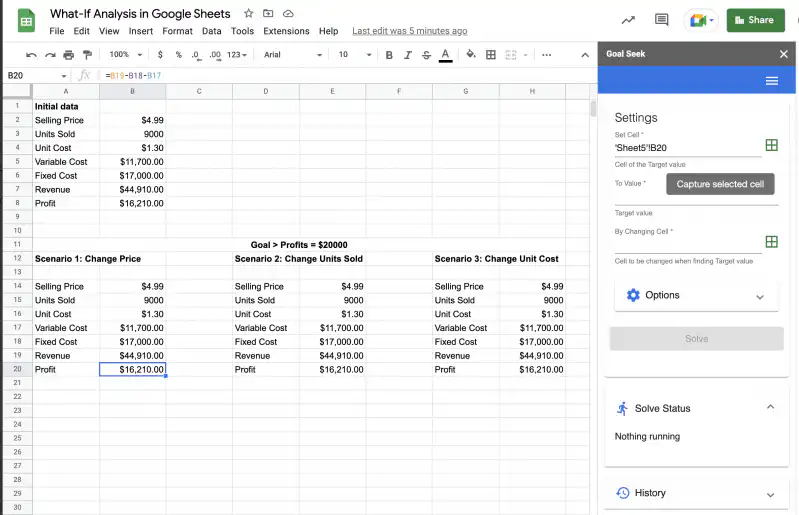
3. Click on the cell containing the profit formula, then click on the grid icon beside “Set Cell” in the sidebar. If you place your cursor over the grid icon, you will see the text “Capture selected cell”, as in the screenshot below.
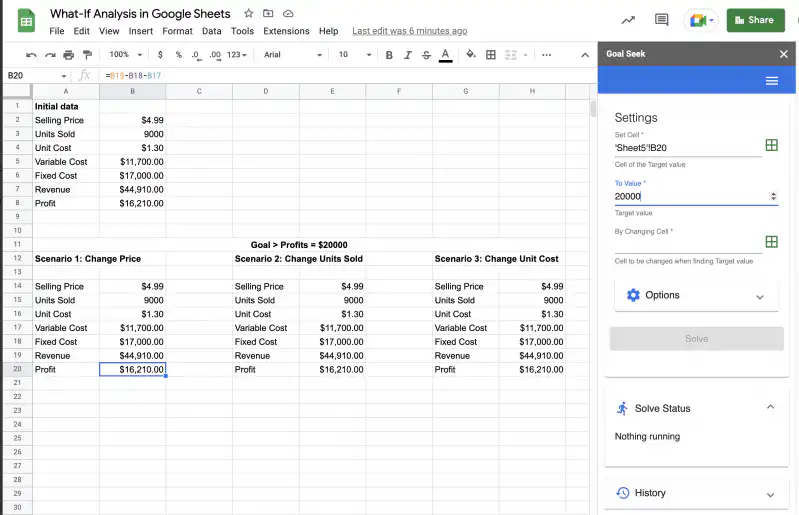
4. Next, type in the “Target value” for the “Set Cell”. Here, “20000”.
5. Click on the cell containing the value you want Goal Seek to change, then click on the grid icon beside “By Changing Cell” in the sidebar. Here, the selling price for Scenario 1, cell B14.
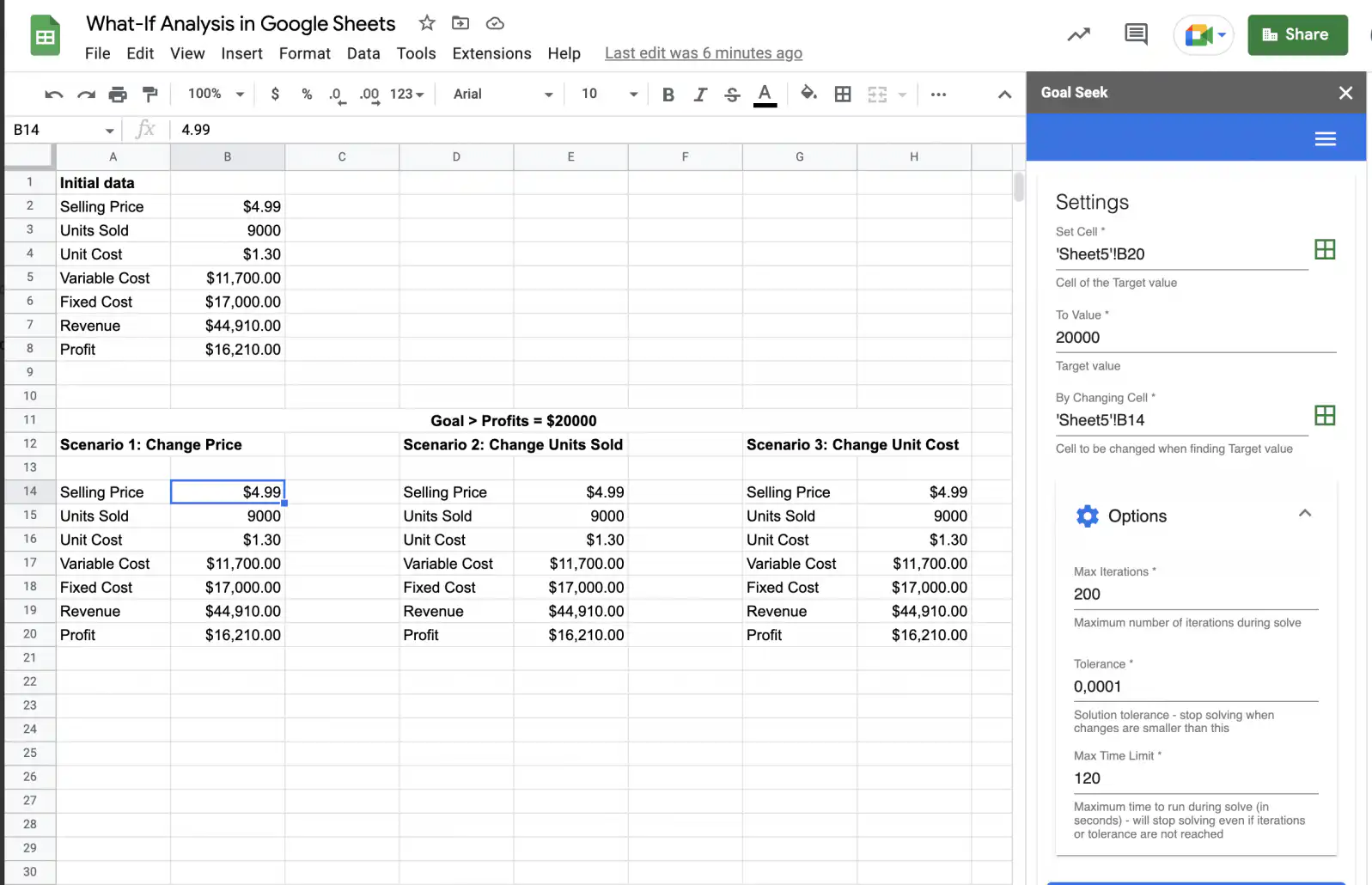
6. To change the number of iterations, the tolerance, and/or the time limit, click on “Options”. Here, I will use the default values.
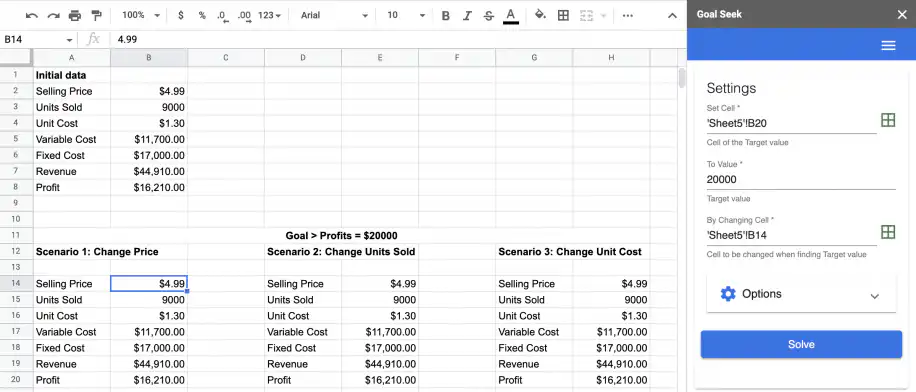
7. Once everything is ready, click “Solve.” With the default options used above, it will take a maximum of two minutes to calculate the solution. If Goal Seek cannot find a solution, try increasing the tolerance or the time limit and number of iterations.
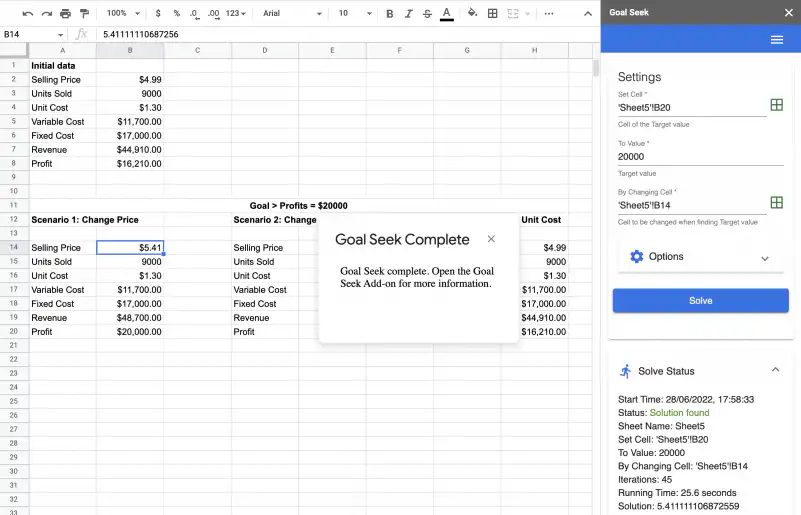
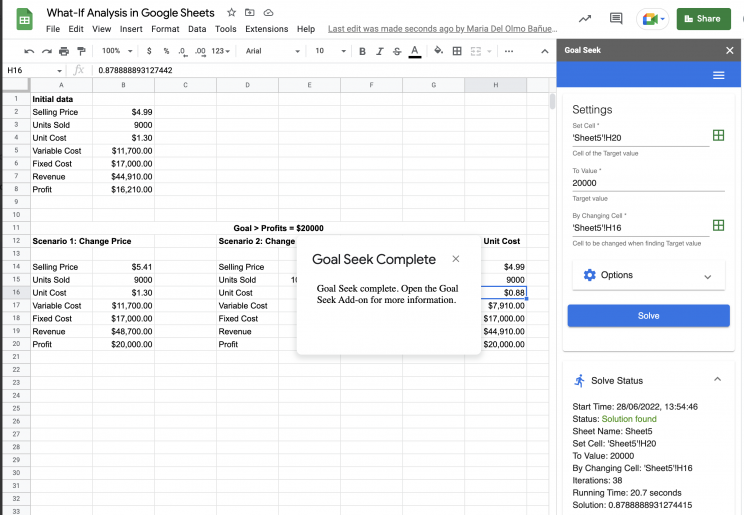
8. When Goal Seek finds a solution, you will see a pop-up like the one below. You can see the solution directly in the cell or the “Solve Status” at the bottom of the sidebar.
9. Next, let’s configure the settings for Scenario 2. First, select the “Set Cell” and the “Target Value”. Here, the “Set Cell” contains the profit formula in cell E20, and the target value is shown in “To Value”, i.e. 20000.
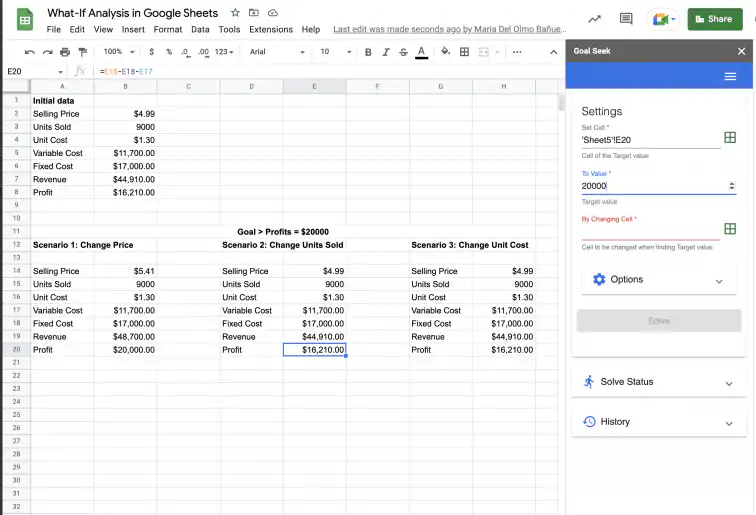
10. Once you have set both values, click on the cell with the changing value. Click “Solve” when you’re happy with the settings.
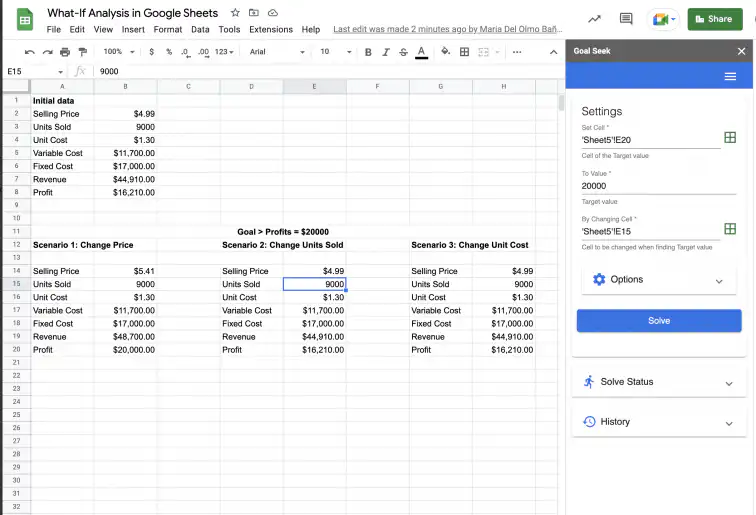
11. You will see the “Goal Seek Complete” pop-up again.
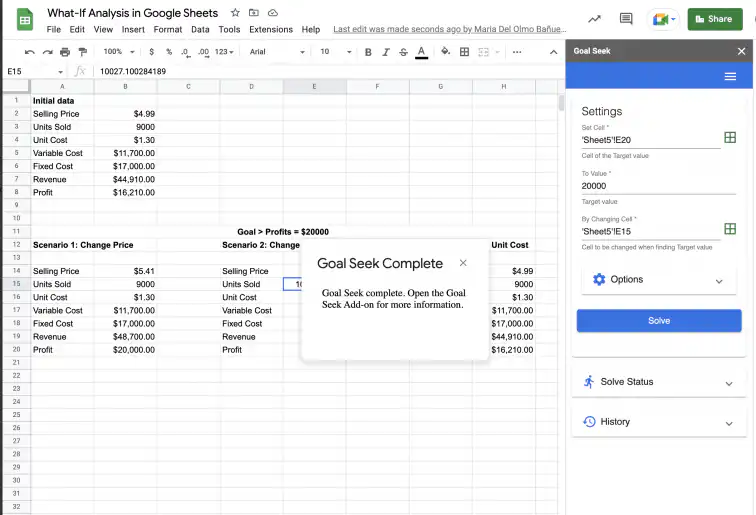
12. Finally, configure the settings for Scenario 3, following the same steps as before, and click “Solve” to finish.
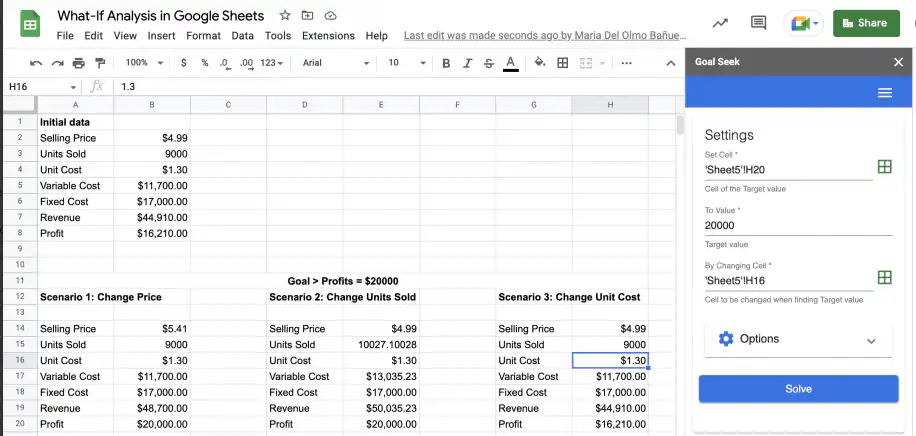
13. That’s it. The solution for Scenario 3 is available, as shown below.
14. You should see the results obtained with Goal Seek for all three scenarios; the changing cells have a green background, and the target cells have a red one.
Conclusion
You can perform what-if analysis directly in Google Sheets using Goal Seek. You can set up different scenarios with different goals and choose any variable you want as the changing cell. As Goal Seek keeps a history of attempts, you can always return to previous solutions.
After reading this article, you know how to install the Goal Seek add-on, set up scenarios in Sheets, and analyze them using Goal Seek. To learn more about Goal Seek, check out how to use goal seek in Google Sheets.
For statistical tools such as regression, try the XLMiner Analysis ToolPak add-on. To check your scenarios against real results, read how to find and analyze budget vs. actual variances, or start from a profit and loss statement template.

 English
 Español
 Português do Brasil
 Français