




Google Sheets is a versatile and powerful spreadsheet program with many built-in features and tools, as well as the possibility to extend them using the Google Sheets API, Google Apps Script, and a growing list of add-ons. In other words, there are many, many things you can do in Google Sheets.
However, no matter what you use it for, there are some basic actions that you need to repeat frequently. Many of these are related to editing, formatting, and navigating your Sheets. Google Sheets keyboard shortcuts are combinations of keys that allow you to perform tasks without having to search through menus for the right button.
In this guide, you will learn about Google Sheets keyboard shortcuts that can save you time and effort. You have a selection of 39 must-know shortcuts in different categories, each with the relevant combination of keys for use on Windows or Mac. You will also learn that while Google Sheets shortcuts are different from those of Microsoft Excel, you can easily enable compatible spreadsheet shortcuts. By enabling these, you will get 130+ familiar Excel shortcuts if you use Windows and 20 if you use Mac.
Are Google Sheets shortcuts the same as Excel?
If you’re used to Microsoft Excel shortcuts, you’ll be happy to learn that you can use most of them in Google Sheets. You can “Enable compatible shortcuts” to add them to the existing shortcuts. However, keep in mind that some of these might not work for specific keyboard and language settings.
How do I add compatible shortcuts in Google Sheets?
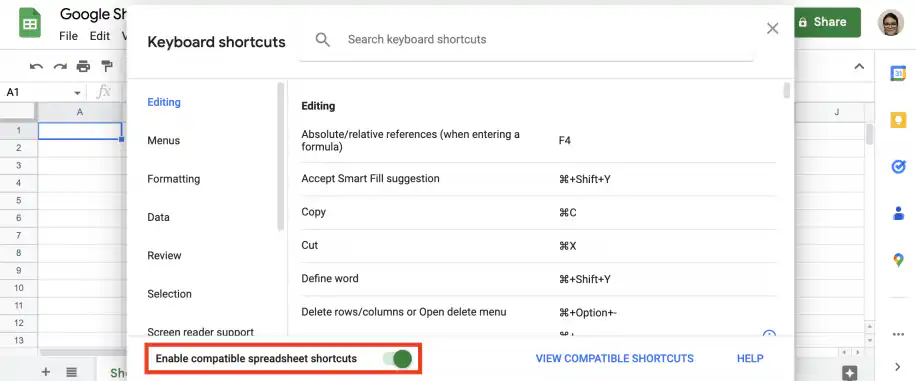
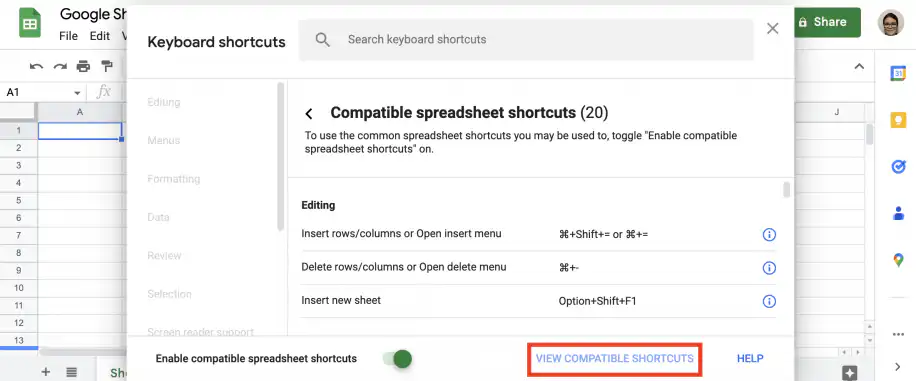
To use Microsoft Excel shortcuts in Google Sheets, go to Help > Keyboard shortcuts. Alternatively, you can use a shortcut to get there: Ctrl + / (Windows) or Cmd + / (Mac). Toggle the button to “Enable compatible spreadsheet shortcuts” and use familiar spreadsheet shortcuts in Google Sheets: 130+ on Windows and 20 on Mac.
1. Open a spreadsheet in Google Sheets and go to Help > Keyboard shortcuts, or use the shortcut: Ctrl + / (Windows) or Cmd + / (Mac).
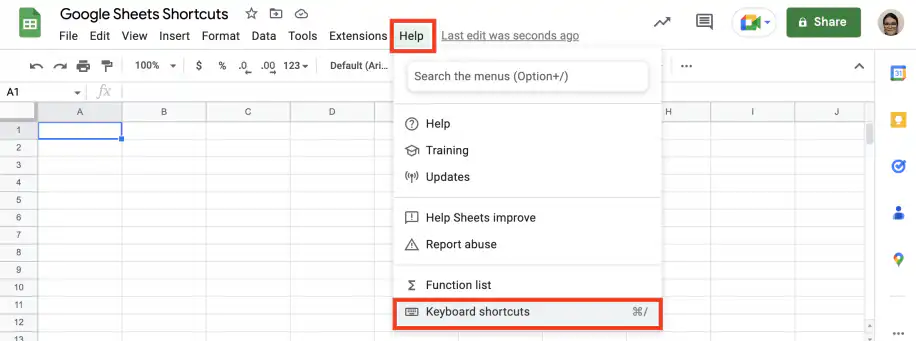
2.Click the button to “Enable compatible spreadsheet shortcuts”.
3. Click “View compatible shortcuts” to see the list.
How to delete a row in Google Sheets with a keyboard shortcut
The Google Sheets delete row shortcut is Ctrl + Alt + – on Windows and Cmd + Option + – on Mac. To use it:
- Click any cell in the row you want to delete.
- Press Shift + Space to select the entire row.
- Press Ctrl + Alt + – (Windows) or Cmd + Option + – (Mac). Google Sheets deletes the row and moves the rows below it up.
If you press the shortcut with only a cell selected, Google Sheets opens a delete menu where you can choose to delete the row or the column. With compatible spreadsheet shortcuts turned on, Ctrl + – (Windows) or Cmd + – (Mac) also works, as it does in Excel.
Shortcut to delete multiple rows in Google Sheets
To delete rows that sit next to each other, click a cell in the first row, hold Shift, and press the Down Arrow until you reach the last row. Press Shift + Space to extend the selection to the full rows, then press Ctrl + Alt + – (Windows) or Cmd + Option + – (Mac).
For rows that aren’t next to each other, hold Ctrl (Windows) or Cmd (Mac) and click each row number. Then right-click one of the selected row numbers and choose “Delete selected rows”.
Keyboard shortcuts for Google Sheets
Below, you have a selection of must-know Google Sheets shortcuts by category for both Windows and Mac.
Basic editing
The shortcuts below include common actions related to editing and selection in Google Sheets.
1. Copy
Select the cells you want and use the shortcut below to copy them.
- Windows: Ctrl + c
- Mac: Cmd + c
2. Cut
Select the cells you want to cut and use the shortcut below.
- Windows: Ctrl + x
- Mac: Cmd + x
3. Paste
Use the shortcut below to paste copied cells with their values, formatting, and formulas.
- Windows: Ctrl + v
- Mac: Cmd + v
4. Paste values only
Using the shortcut below will only paste the values of copied cells without formatting or formulas.
- Windows: Ctrl + Shift + v
- Mac: Cmd + Shift + v
5. Find & replace
Use the shortcut below to open the ‘Find and replace’ window.
- Windows: Ctrl + h
- Mac: Cmd + Shift + h
6. Redo
Use the shortcut below to repeat your last action.
- Windows: Ctrl + y
- Mac: Cmd + y
7. Undo
Use the shortcut below to undo your last action.
- Windows: Ctrl + z
- Mac: Cmd + z
8. Select all
If you select a cell within a range, the shortcut below will select the whole range. If you select an empty cell somewhere in your spreadsheet, this shortcut will select all the cells in your spreadsheet.
- Windows: Ctrl + a
- Mac: Cmd + a
Format
There are many shortcuts related to formatting, just as there are many formatting options in Google Sheets. The selection below includes some of the most common tasks related to formatting cell contents.
1. Clear formatting
- Windows: Ctrl + \
- Mac: Cmd + \
2. Bold
- Windows: Ctrl + b
- Mac: Cmd + b
3. Italic
- Windows: Ctrl + i
- Mac: Cmd + i
4. Underline
- Windows: Ctrl + u
- Mac: Cmd + u
5. Insert link
- Windows: Ctrl + k
- Mac: Cmd + k
6. Insert date & time
- Windows: Ctrl + Alt + Shift + ;
- Mac: Cmd + Option + Shift + ;
7. Format as decimal
- Windows: Ctrl + Shift + 1
- Mac: Ctrl + Shift + 1
8. Format as time
- Windows: Ctrl + Shift + 2
- Mac: Ctrl + Shift + 2
9. Format as date
- Windows: Ctrl + Shift + 3
- Mac: Ctrl + Shift + 3
10. Format as currency
- Windows: Ctrl + Shift + 4
- Mac: Ctrl + Shift + 4
11. Format as percentage
- Windows: Ctrl + Shift + 5
- Mac: Ctrl + Shift + 5
Formulas
There are very few shortcuts related to formulas; however, the ones included below are almost certain to be useful.
1. Show formulas
You can show the formulas in your cells, rather than the result of the calculations, by using the shortcut below.
- Windows: Ctrl + ~
- Mac: Ctrl + `
2. Insert ARRAYFORMULA function
When you finish typing your formula, use the shortcut below to add the ARRAYFORMULA function.
- Windows: Ctrl + Shift + Enter
- Mac: Cmd + Shift + Enter
3. Absolute/relative references
When writing a formula, use the shortcut below to toggle between absolute and relative referencing.
- Windows: F4
- Mac: Fn + F4
Select & edit rows & columns
1. Select column
Click on a cell and use the shortcut below to select the entire column.
- Windows: Ctrl + Space
- Mac: Ctrl + Space
2. Select row
Click on a cell and use the shortcut below to select the entire row.
- Windows: Shift + Space
- Mac: Shift + Space
3. Insert column left
Select one or more columns and use the shortcut below to insert the same number of columns to the left of your selection.
- Windows: Ctrl + Shift + +
- Mac: Cmd + Option + =
4. Insert row above
Select one or more rows and use the shortcut below to insert the same number of rows above your selection.
- Windows: Ctrl + Shift + +
- Mac: Cmd + Option + =
5. Delete columns
Select the columns you want to delete and use the shortcut below.
- Windows: Ctrl + Alt + –
- Mac: Cmd + Option + –
6. Delete rows
Select the rows you want to delete and use the shortcut below.
- Windows: Ctrl + Alt + –
- Mac: Cmd + Option + –
7. Group rows or columns
Select the rows or columns you want to group and use the shortcut below.
- Windows: Alt + Shift + Right Arrow
- Mac: Option + Shift + Right Arrow
8. Ungroup rows or columns
Select the rows or columns you want to ungroup and use the shortcut below.
- Windows: Alt + Shift + Left Arrow
- Mac: Option + Shift + Left Arrow
Conclusion
Google Sheets features useful keyboard shortcuts to save you time and effort when performing common tasks. The first of these is Ctrl + / or Cmd + /, which will open the full list of keyboard shortcuts in Google Sheets. In addition to the native shortcuts, you can also enable shortcuts that are compatible with Microsoft Excel.
You now know 39 must-know keyboard shortcuts in Google Sheets, and you have the necessary key combinations to use them on both Windows and Mac desktop computers. If you’re used to using Microsoft Excel, you know you can enable compatible spreadsheet shortcuts to use Excel shortcuts in Google Sheets. However, the number of compatible shortcuts available differs according to whether you use Windows or Mac: 130+ and 20, respectively.

 English
 Español
 Português do Brasil
 Français